Memory & Commands
What You Will Learn
In this lesson, you will store a preference that survives across sessions and discover commands that bypass the model entirely.
By the end, you should be able to explain the difference between MEMORY.md (curated long-term memory that loads every session) and the memory/ directory (daily logs where only today and yesterday load automatically). You will also learn slash commands: direct instructions the gateway intercepts before the model sees them, costing zero tokens and responding instantly.
The key habit this lesson teaches: verify on disk, not just in chat. Verbal confirmation is not proof of a file write.
James opened WhatsApp the next morning and sent: "What formatting preferences do I have for summaries?"
The agent responded with a generic list of formatting best practices. Nothing about the bullet-point format James had asked for yesterday. Nothing about the 100-word limit.
"It forgot everything I told it," James said.
Emma set her coffee down. "Session memory fades when the conversation ends. The workspace files you edited in Lesson 4 persist because they are files on disk. But anything you said in conversation? Gone when the session closes."
"So I have to re-explain my preferences every morning?" James asked.
"No," Emma said. "You tell it to save them to memory. There is a difference between saying something in a conversation and writing it to a file." She stood up. "Send it this: 'Save in memory: I prefer all summaries under 100 words as bullet points.' Then close the conversation, start a new one, and ask if it remembers." She paused at the door. "When I get back, show me WHERE it stored the memory and PROVE it persisted. Not a chat screenshot. The actual file on disk." She picked up her coffee and left.
You are doing exactly what James is doing. Your agent's session memory fades, and you need preferences that survive across conversations.
Store a Preference
Send this to your agent on WhatsApp:
Save in memory: I prefer all summaries under 100 words as bullet points.
Never use numbered lists for summaries.
Start your message with "Save in memory:" to trigger an actual file write. If you use "Remember this:" instead, the agent may respond with "Got it, noted!" without actually writing anything to disk. The verbal confirmation is not proof.
Verify on Disk
Open a terminal and read the file:
cat ~/.openclaw/workspace/MEMORY.md
You should see your preference stored on disk. The output will look something like this:
# Preferences
- Summary format: Always under 100 words, use bullet points, never numbered lists.
If the file does not exist or does not contain your preference, the agent acknowledged your request without actually saving it. Send the request again with "Save in memory:" at the start.
Verify in the Dashboard
Open the OpenClaw dashboard and look at your recent chat. You will see a tool badge next to the agent's response indicating a file write operation. This badge is visual proof the agent wrote to disk.
If your agent says "Got it" or "I've noted that" but you do not see a tool badge for a file write, the preference was NOT saved to disk. The agent confirmed your intent without acting on it. Send the request again with "Save in memory:" at the start and check for the tool badge.
Test Across Sessions
Close the conversation. Start a new one. Then ask:
What are my preferences for summaries?
The agent recalls your bullet-point preference without you repeating it. It did not re-read your old conversation. It read from the memory file that loaded when the session started.
How the Memory System Works
Now that you have experienced one row of it (saving a preference, verifying it on disk, recalling it in a new session), here is the bigger picture. Your agent's memory mirrors the way you remember: each kind of human memory has a counterpart your agent uses every day.
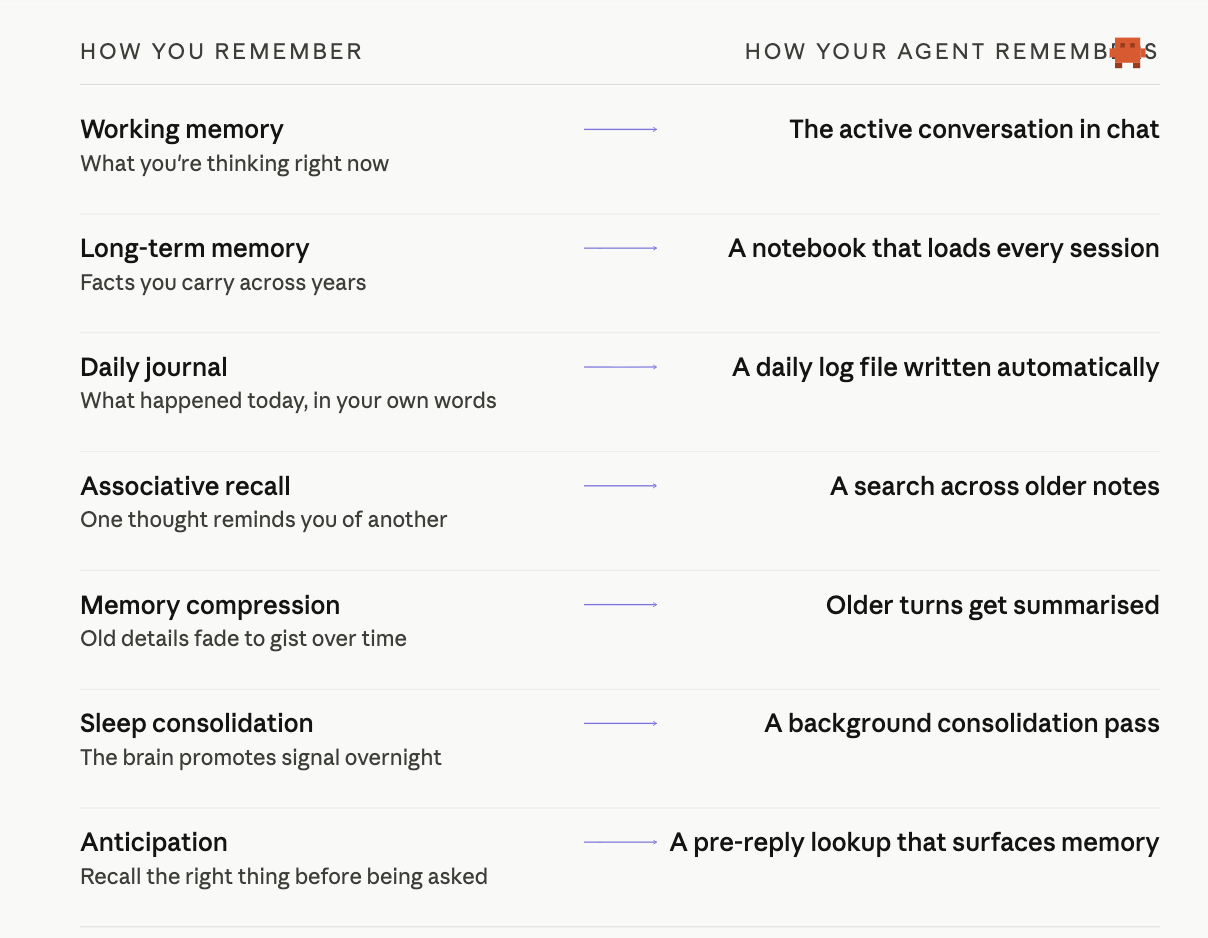
Each row on the right is a real file or a real piece of code, not a metaphor. The rest of this lesson walks through them. Start with where they live in ~/.openclaw/workspace/:
| Location | What It Stores | When It Loads |
|---|---|---|
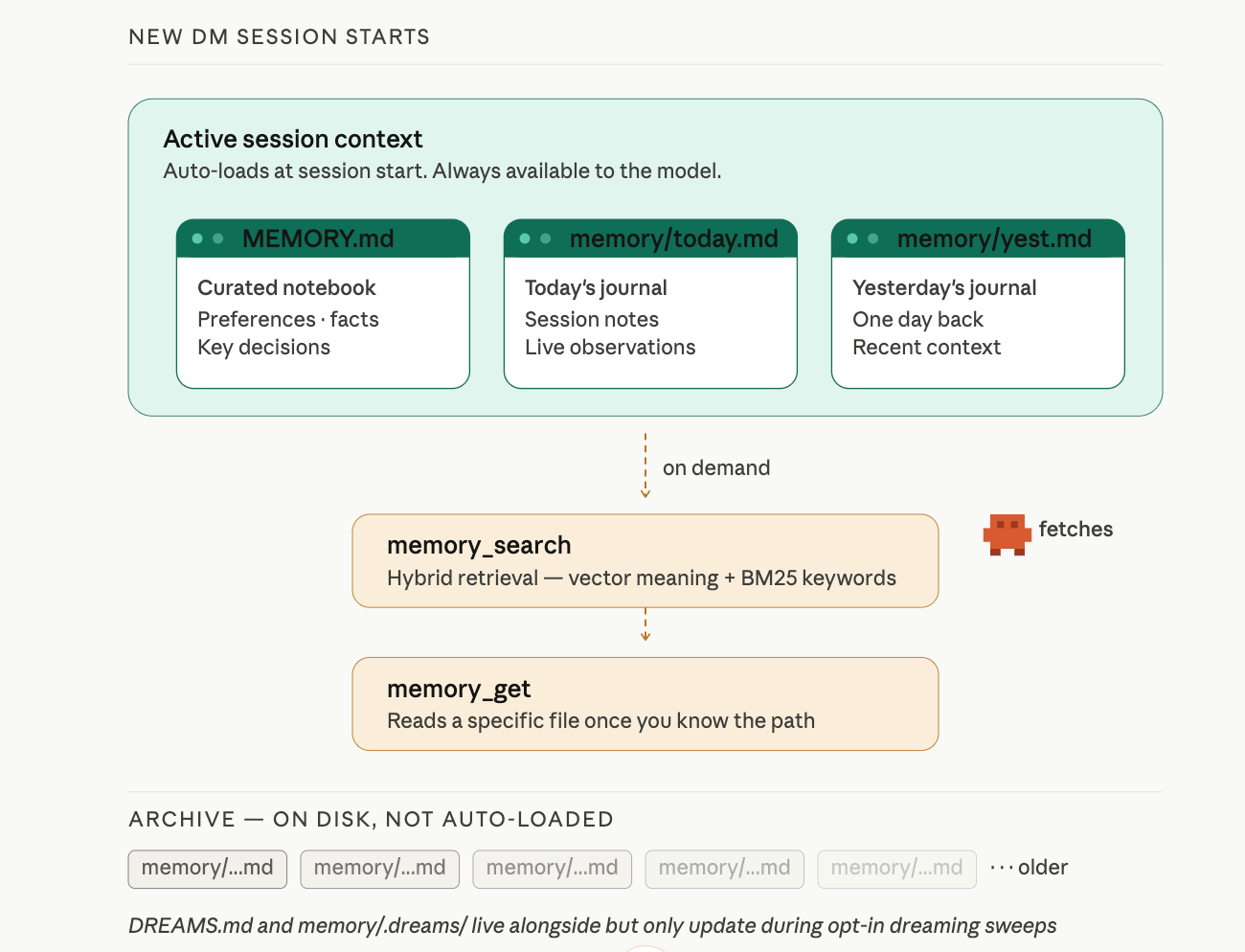
| MEMORY.md | Curated long-term memory: preferences, facts, key decisions | Every session start |
| memory/YYYY-MM-DD.md | Daily logs: session notes, conversation summaries | Today + yesterday at session start |
MEMORY.md only loads in your main private session. Group chats, shared channels, and sub-agent contexts never see it. This is a security boundary: your stored preferences and personal facts should not leak to strangers who happen to share a chat room with your agent. (Lesson 4 introduced this rule when teaching the workspace files; here is where it matters most, because this is the file you actively write to.)
Cross-channel mental model. Memory files live at the agent level, not the channel level. If you message your agent on WhatsApp and then on Discord, both channels read the same MEMORY.md. Whether they also share the same conversation history depends on a separate routing setting (session.dmScope): the default main shares all DMs in one session, while per-channel-peer isolates per channel. Short version: memory persists, sessions are routed.
MEMORY.md: The Curated Notebook
You just wrote to this file. It loads at the start of every session, so the agent always has access to your stored preferences.
memory/ Directory: The Daily Journal
The memory/ directory holds daily logs named by date. The agent writes session notes and observations here automatically. Check yours:
ls ~/.openclaw/workspace/memory/
You will see one file per day your agent has been active.
memory_search and memory_get: Finding and Reading Old Notes
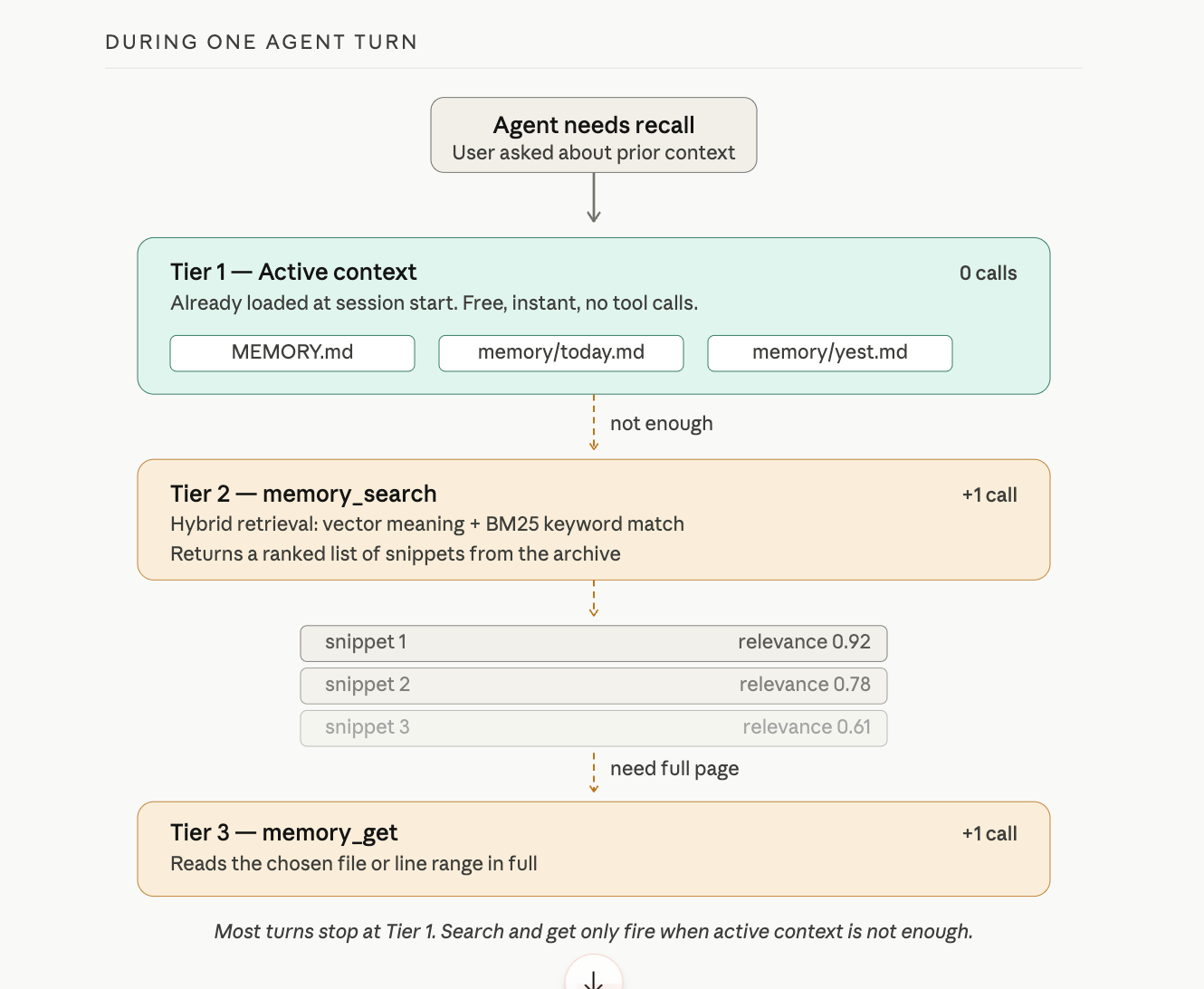
Today's log and yesterday's log load automatically. Everything older stays on disk but does not load at session start. When the agent needs something from an older note, it uses one of two tools provided by the active memory plugin (the default is memory-core):
memory_searchfinds relevant notes using hybrid retrieval: vector similarity (matching meaning) plus keyword matching (matching exact terms, IDs, or code symbols). It returns a ranked list of snippets. OpenClaw auto-detects an embedding provider from whichever API key is available (OpenAI, Gemini, Voyage, or Mistral): no configuration needed if you already have one.memory_getreads a specific memory file or line range. The agent uses this when it already knows the path, such as today's daily log, or when it needs the full context of a snippet thatmemory_searchreturned.
Think of it this way: memory_search finds the haystack needle. memory_get reads the page once you know which page. Lesson 4 mentioned both tools exist; here is what each one does.
Three Paths to MEMORY.md
Save in memory: is one of three ways content lands in MEMORY.md. The other two are automatic, but they are not heartbeats. Heartbeats live in HEARTBEAT.md and run periodic self-checks; they do not promote notes to memory. Replace that mental model with this one:
- Manual. You say
Save in memory:and the agent writes to MEMORY.md immediately. You verify on disk. This is the path you control. - Compaction memory flush. When a conversation runs long, the gateway runs a silent turn before summarising older messages. In that turn, the agent saves anything important from the conversation to MEMORY.md or today's daily log. Covered in the next subsection.
- Dreaming deep phase. An opt-in, scheduled background sweep that scores candidates from your daily logs and promotes only those that pass score, recall-frequency, and query-diversity thresholds. Covered below.
If notes show up in MEMORY.md without you typing Save in memory:, paths two or three put them there.
The Loading Summary
Session starts:
  ├── MEMORY.md          → always loads (curated, long-term)
  ├── memory/today.md    → always loads (today's journal)
  ├── memory/yesterday.md → always loads (yesterday's journal)
  └── memory/older/*.md  → available via memory_search only
The design keeps context small. Loading every daily log since installation would burn tokens on irrelevant history. The agent loads recent context automatically and searches older context on demand.
When You Outgrow the Builtin Engine
All four memory backends speak the same memory_search and memory_get tools. Your skills and prompts do not change when you swap. Switch in config; the tool calls stay identical.
| Backend | What It Adds | When to Pick It |
|---|---|---|
| Builtin (default) | SQLite with vector + keyword search | Most personal setups. Already what you are using. |
| QMD | BM25 + vector + reranking, indexes external directories, can index session transcripts | You want higher-quality results, search beyond your workspace, or fully local with no API keys. |
| Honcho | AI-native service that auto-builds user profiles, cross-session memory, multi-agent tracking | You want automatic profile building or memory shared across multiple agents. |
| LanceDB | Local embeddings, Ollama-friendly | Fully local with Ollama; no external API at all. |
You do not need to switch today. When the builtin engine starts feeling slow or limited, the memory concepts docs walk through configuration for each backend.
Compaction and the Silent Memory Flush
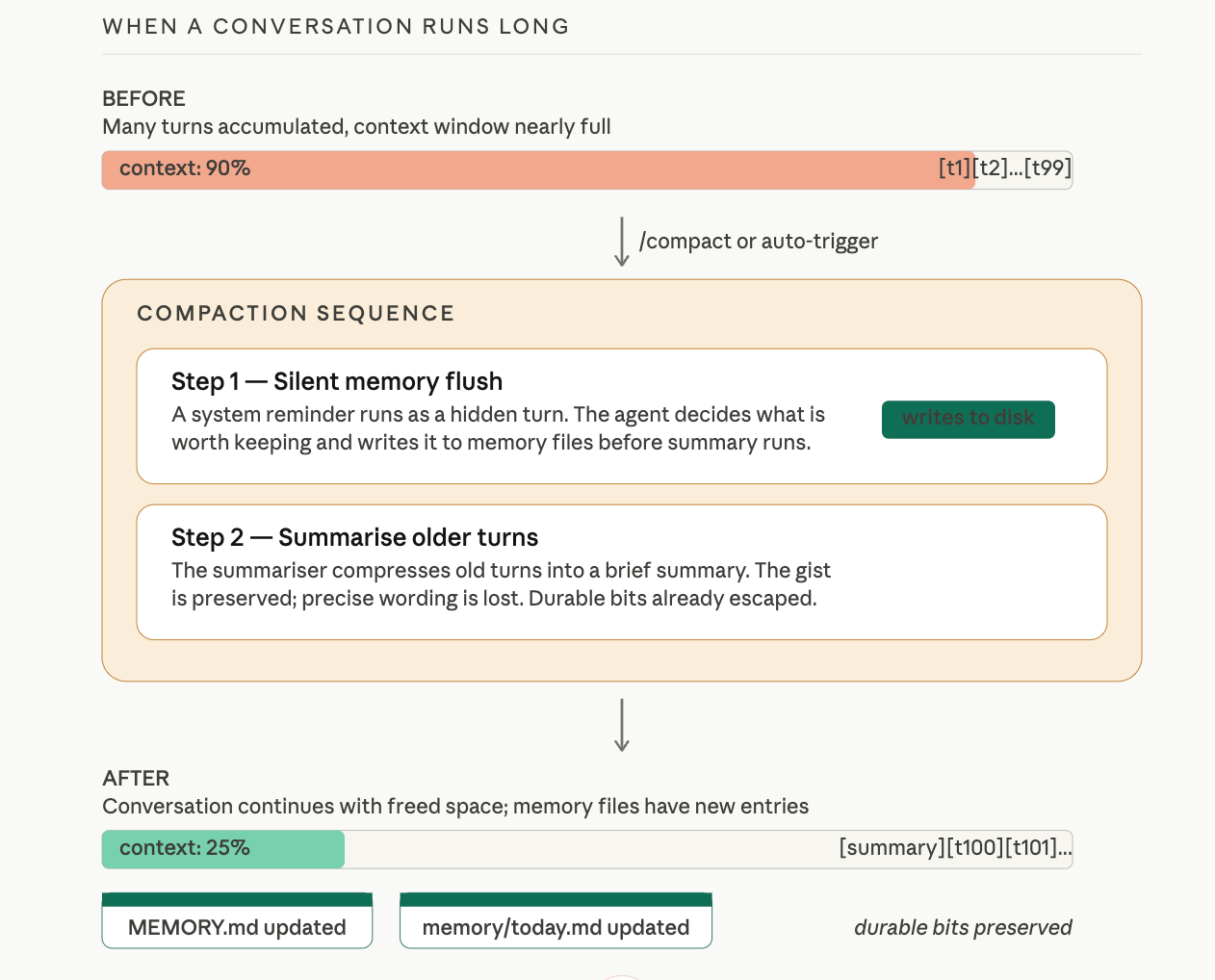
When a conversation runs long, the gateway has to do something about it. Context windows are finite. If every turn from the past hour is still in the model's input, there is no room for the next turn.
Compaction is the gateway's answer: older turns get summarised into a compressed version, freeing space. The summary preserves the gist; it loses the precise wording. Fine for most things. Dangerous for one: anything important from the conversation that was never written to a file is about to be summarised, possibly compressed away, and you may not realise until you ask about it later.
OpenClaw guards against this with the silent memory flush. Before the summariser runs, the gateway runs one silent turn first. The agent sees a system reminder asking it to write anything important from the conversation to memory files. If there is something worth keeping (a decision, a fact, a key piece of context), the agent saves it to MEMORY.md or to today's daily log. Then compaction happens. The summary takes over for the older turns. The durable bits already escaped to disk.
This is on by default. You do not configure it. The reason it matters in this lesson is so you understand: whenever a long conversation gets compacted, the system has already given itself one chance to flush durable context to memory before that context is compressed. This is path two from the previous subsection.
If a conversation feels sluggish or the agent seems to be losing track, you can trigger compaction manually:
/compact
The gateway runs the same memory flush, then summarises older turns, then continues. In the dashboard you should see, in this order: a tool badge for any file writes the flush triggered, then a summary turn, then your next reply. The flush that ran is the proof.
Dreaming: Background Consolidation
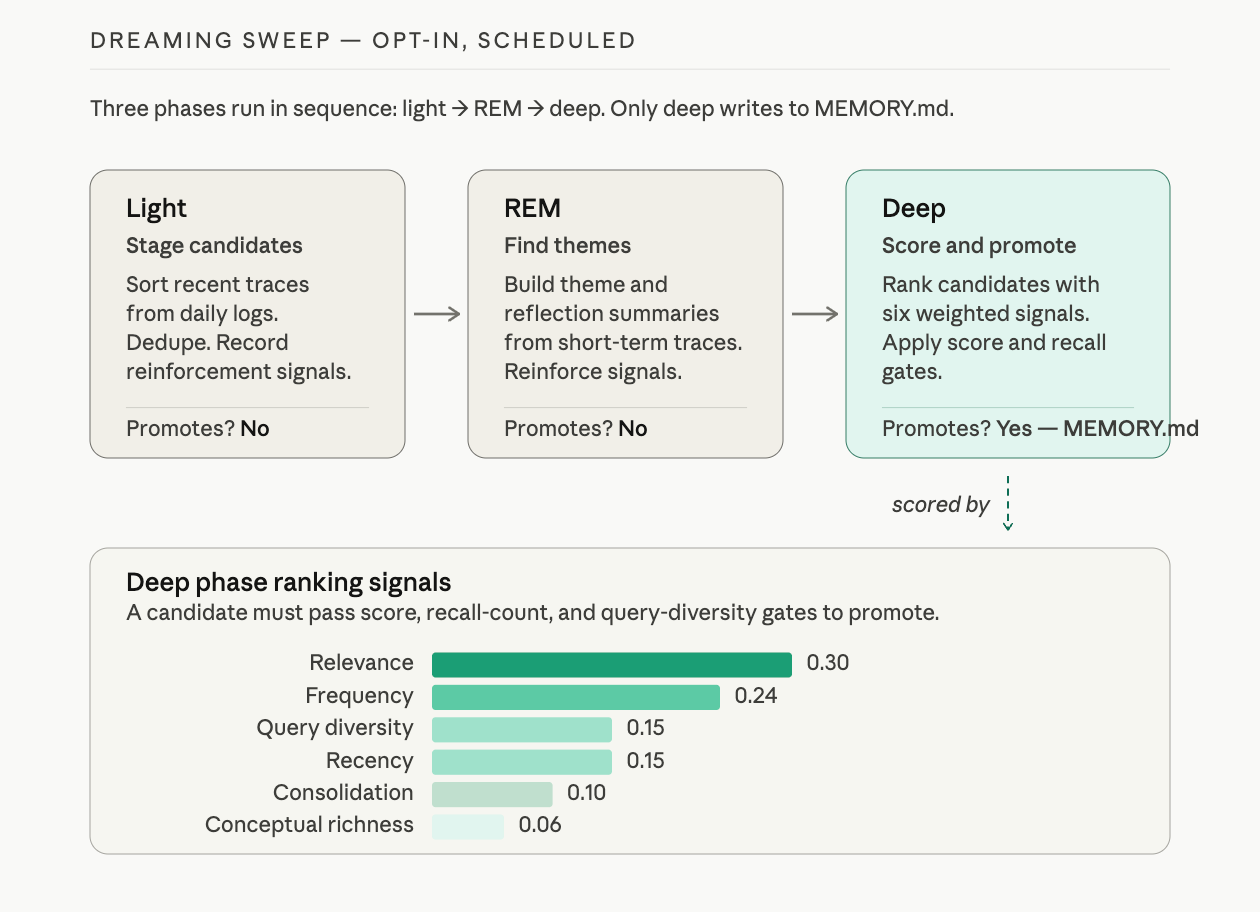
Daily logs accumulate. Every day the agent works with you, a new file lands in memory/. Some days have signal: a real preference, a real decision, a recurring pattern. Most days have noise: small talk, one-off questions, throwaway context.
If everything in daily logs were promoted to MEMORY.md, your curated notebook would become a dump file in a week. If nothing were promoted, MEMORY.md would stay tidy but never reflect what you have actually learned together. Dreaming solves this. It is OpenClaw's background consolidation pass: opt-in, scheduled, disabled by default. When enabled, it runs on a cron and promotes only material that meets a quality bar.
Dreaming runs in three phases:
| Phase | Purpose | Promotes to MEMORY.md? |
|---|---|---|
| Light | Sort and stage recent short-term material. Dedupe. Record reinforcement signals. | No |
| REM | Build theme and reflection summaries from recent traces. Record signals the deep phase will use. | No |
| Deep | Score candidates. Promote only those that pass score, recall-frequency, and query-diversity thresholds. | Yes |
Only the deep phase ever appends to MEMORY.md. A candidate has to pass minimums on three things: ranking score, how often the entry has been recalled, and how many distinct contexts surfaced it. Just being talked about is not enough; it has to surface across different days, in different kinds of queries.
To enable dreaming with the standard 3 AM nightly cadence, add this to openclaw.json:
{
  "plugins": {
    "entries": {
      "memory-core": {
        "config": {
          "dreaming": {
            "enabled": true
          }
        }
      }
    }
  }
}
In a chat session, you can also use:
/dreaming status
/dreaming on
/dreaming off
When dreaming runs, it writes promotions to MEMORY.md (deep phase only) and phase summaries to DREAMS.md for human review:
cat ~/.openclaw/workspace/DREAMS.md
You will see narrative-style diary entries describing what the system staged, what themes it found, and what it promoted. The Gateway dashboard's Dreams tab shows the same data with phase counts, next scheduled run, and promotion stats.
This is path three from the previous subsection. Dreaming is the system's way of asking, on a schedule: of everything you logged this week, what mattered enough to keep forever?
Active Memory: The Anticipation Layer
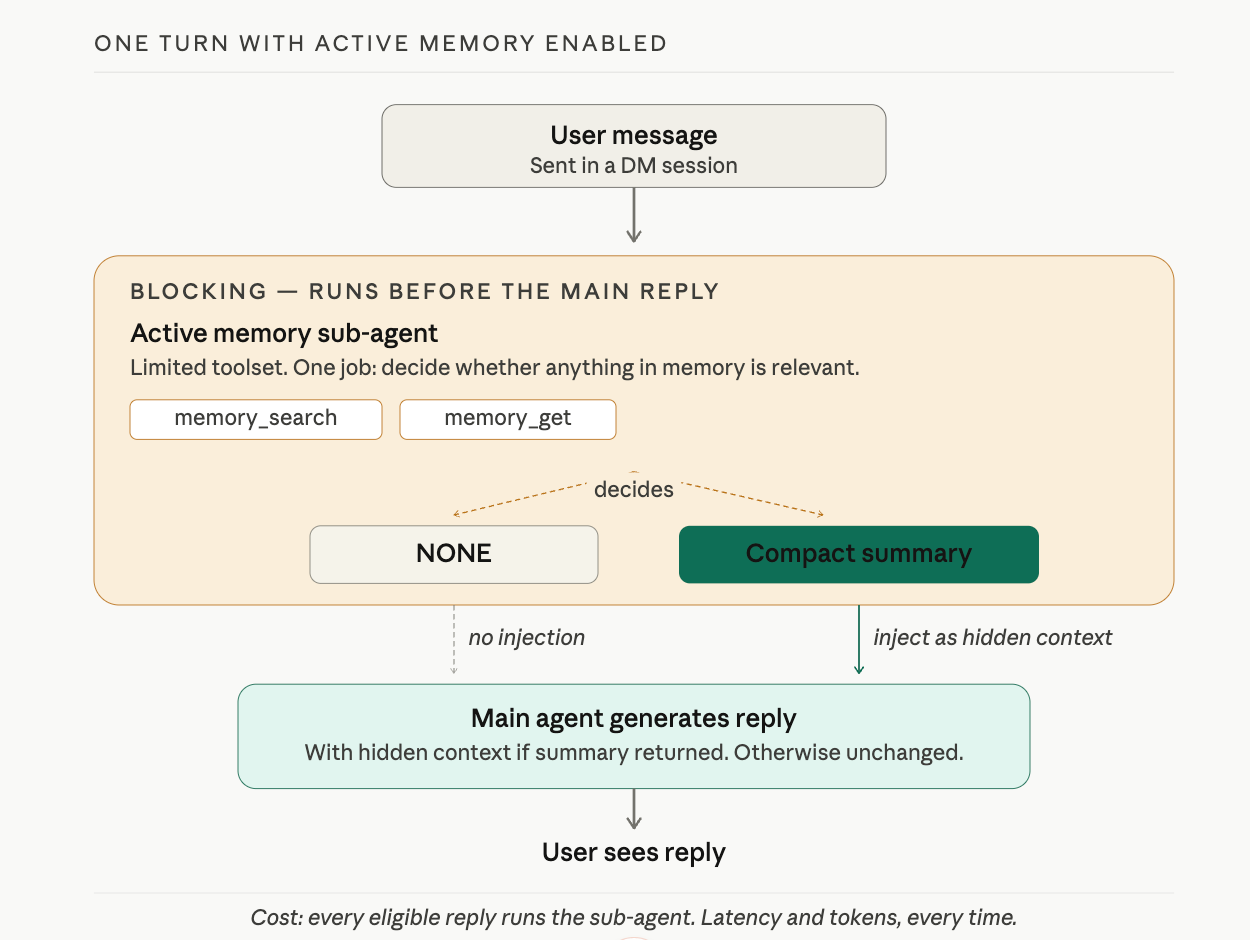
Even with MEMORY.md loaded and memory_search available, the main agent still has to decide when to look something up. By default, it decides reactively: usually only when you remind it ("remember what I told you about X?"). By the time you remind it, the moment when the recall would have felt natural is already gone.
Active memory is OpenClaw's answer. It is a blocking sub-agent that runs before the main reply, given just two tools (memory_search and memory_get) and one job: decide whether anything in long-term memory is relevant to what the user just said. If something is relevant, return a compact summary. If nothing is, return NONE. That summary, if any, is injected as hidden system context for the main reply.
The result is the moment most people associate with "good memory." You ask the agent something tangentially related to a preference you saved weeks ago, and the reply quietly incorporates that preference. You did not remind it. The agent did not search out loud. The recall happened in a sub-agent turn before the main reply was generated.
This is also why active memory is opt-in. It runs before every eligible reply:
- Latency. Every reply now has a sub-agent run in front of it. Even a fast configuration adds hundreds of milliseconds. A slow one adds seconds.
- Tokens. The sub-agent's prompt and response are real model calls. They cost on hosted providers and CPU on local ones.
- Surprise surface. When the sub-agent injects something the user did not expect, it can feel uncanny rather than helpful.
A safe starting setup, in openclaw.json:
{
  "plugins": {
    "entries": {
      "active-memory": {
        "enabled": true,
        "config": {
          "agents": ["main"],
          "allowedChatTypes": ["direct"],
          "queryMode": "recent",
          "promptStyle": "balanced",
          "timeoutMs": 15000,
          "maxSummaryChars": 220
        }
      }
    }
  }
}
After enabling, in a chat session:
/verbose on
Now ask the agent something that should benefit from a saved preference. The reply itself looks normal, but two extra status lines appear:
🧩 Active Memory: ok 842ms recent 34 chars
🔎 Active Memory Debug: Bullet points only, never numbered lists.
The first line tells you active memory ran, in 842 ms, in recent query mode, and produced 34 characters of summary. The second line shows the actual hidden context the main model received. You are watching the system anticipate, in real time.
To pause without editing config:
/active-memory off
/active-memory on
/active-memory status
Those are session-scoped. They do not change the global config. Start with queryMode: "recent" and promptStyle: "balanced". If the sub-agent is too quiet, try recall-heavy. If it surfaces things you did not want surfaced, try precision-heavy or strict.
Slash Commands
Your agent responds to natural language, but it also accepts direct commands. Send this:
/help
Notice the response: instant, no "thinking" indicator, no tool badge. The gateway intercepted /help and returned the result directly. The model never processed your message. No tokens spent, no inference time.
Now send:
/status
You see diagnostics: your current model, session state, and quota information. Again, instant. The gateway knows this information without asking the model.
Compare with Natural Language
Ask the same thing in natural language:
What model are you currently using?
The response is slower. You may see a thinking indicator or tool badge. The model had to interpret your question, reason about it, and compose a response. The speed difference you just experienced is the proof: slash commands bypass the model entirely.
Useful Commands
| Command | What It Does |
|---|---|
/help | Lists available commands |
/status | Shows model, session state, diagnostics |
/model <name> | Switches model mid-conversation |
/reset | Fresh session (clears conversation, keeps memory) |
/compact | Summarizes older turns to free context space |
/commands | Lists all available slash commands |
The /commands list grows as you enable plugins. After you install your first plugin in Lesson 6, run /commands again to see what it added.
CLI Memory Commands
Slash commands run inside the chat. There is also a small set of memory commands you run from a terminal:
openclaw memory status         # Check index health and embedding provider
openclaw memory search "query" # Search notes from the command line
openclaw memory index --force  # Rebuild the index (if results look stale)
Use these when you suspect the agent's recall is missing a note that should be there. status checks the index and tells you which embedding provider is active. search confirms what the index can actually find without going through the agent. index --force rebuilds the index from scratch, which fixes most "the agent should remember this but does not" situations.
Try With AI
Exercise 1: Build a Memory Profile
Tell your agent to save five things about you. Use "Save in memory:" for each one: your role, your preferred communication style, your timezone, a current project, and one thing the agent should never do. Close the conversation and start a new one. Ask "What do you know about me?"
Then verify with:
cat ~/.openclaw/workspace/MEMORY.md
Compare what the agent recalls versus what is actually on disk. Are they the same?
What you are learning: Persistent memory is how you train an agent over time. Each "Save in memory:" adds to MEMORY.md, building a profile that loads on every session start. The terminal check confirms the agent is not fabricating recall.
Exercise 2: Dashboard Detective
Open the dashboard and scroll through your recent chat history. Count the tool badges. Which of your messages triggered file writes? Which got verbal acknowledgment only?
Send a message that starts with "Remember this: my favorite color is blue." Then send another: "Save in memory: my preferred meeting length is 25 minutes." Check the dashboard for tool badges on each. Did both write to disk, or did only one?
What you are learning: The dashboard is your verification layer. Tool badges are evidence of action. Verbal confirmation without a tool badge means the agent understood your intent but may not have acted on it.
Exercise 3: Gateway vs Model
Send /status. Then ask "What is your current status?" in natural language. Time both responses. Which was faster? Which showed a tool badge or thinking indicator?
For a bonus, try switching models mid-conversation:
/model gemini-2.5-flash
Ask a question. Then switch back:
/model gemini-2.5-pro
What you are learning: Slash commands are gateway-intercepted. They cost zero tokens and respond instantly. Natural language goes through the full model pipeline. The /model command lets you switch inference providers without restarting your session.
What You Should Remember
Two Memory Locations
MEMORY.md is your curated notebook. It loads at the start of every session. Store preferences, facts, and key decisions here. Keep it short: a long MEMORY.md pushes entries past the model's attention window.
memory/YYYY-MM-DD.md files are daily journal logs. Today's and yesterday's load automatically. Everything older stays on disk and is found through memory_search (hybrid retrieval combining vector similarity and keyword matching).
Verify, Do Not Trust
When you say "Save in memory," check the dashboard for a tool badge confirming a file write. Then check the file on disk with cat ~/.openclaw/workspace/MEMORY.md. Verbal confirmation without a tool badge means the agent understood your intent but may not have acted on it.
Slash Commands
Commands like /help, /status, and /model are intercepted by the gateway before the model sees them. Zero tokens spent, instant response. Natural language questions about the same information go through the full model pipeline. Use commands for control; use natural language for reasoning.
The Three Paths to MEMORY.md
Notes reach MEMORY.md three ways: you say Save in memory: (manual), the silent flush before compaction saves durable context for you, or opt-in dreaming promotes patterns from your daily logs on a schedule. Heartbeats are not one of them.
Compaction Is Survival, Not Loss
Long conversations get compacted. The silent memory flush runs first, giving the agent one chance to write durable context to files before older turns are summarised. Trigger manually with /compact if a chat feels sluggish.
Active Memory Is Anticipation, Not Search
Active memory is opt-in. When enabled, a blocking sub-agent runs before every reply in a DM, decides what from long-term memory is relevant, and injects it silently. This is what makes the agent feel like it remembers without being asked. It costs latency on every reply, which is why it is off by default.
When Emma came back, James had the terminal and the dashboard open side by side. He pointed at the terminal first.
"MEMORY.md has six entries. My name, timezone, summary format, report style, and two things it decided to remember on its own from yesterday's conversation." He tapped the dashboard. "Every entry has a matching tool badge in the chat. That is how I know the writes actually happened."
"And the commands?" Emma asked.
James switched to WhatsApp. "I sent /status and then asked the same question in plain English. /status came back in under a second. The natural language version took three seconds and showed a thinking indicator." He paused. "At my old warehouse job, we had two systems: the employee handbook that everyone got on day one, and the daily shift log the floor manager kept. The handbook had the big picture rules. The shift log was 'what happened today.' MEMORY.md is the handbook. The daily logs are the shift log. And if you needed to find something from a shift three months ago, you searched the archive. You did not read every log since January."
Emma tilted her head. "That actually maps. The handbook loads every session. The shift log loads for today and yesterday. Everything older goes through search."
"And slash commands?" Emma asked.
"The walkie-talkie," James said. "Direct channel. No interpretation needed. You do not ask the walkie-talkie to think about your request."
Emma nodded. Then she looked at MEMORY.md again. "One thing. I once crammed about two hundred entries into MEMORY.md for a project. Preferences, facts, project notes, meeting summaries. The agent started ignoring entries near the bottom because the file was so long it pushed past the useful part of the context window. I had to go back and curate it down to the thirty entries that actually mattered." She closed the terminal. "Keep MEMORY.md short. It is a curated notebook, not a dump file."
James opened MEMORY.md in his editor. "Six entries. Noted."
"What if I outgrow this setup?" James asked. "Hundreds of daily logs, and the search gets slow, or I want the agent to build a profile of me automatically instead of me saying 'save in memory' every time?"
Emma pulled up the memory docs. "The builtin engine you are using now is SQLite with vector and keyword search. It handles most personal setups. When you outgrow it, there are two alternatives worth reading about: QMD is a local search sidecar that adds reranking and can index entire project directories, not just your workspace. Honcho is an AI-native memory service that builds user profiles automatically from conversations and works across multiple agents." She closed the tab. "You do not need either today. But when you hit the limits of the builtin engine, those are the two upgrades. Read the docs when you are ready."
"Your agent remembers now," Emma said. "Next question is whether it knows enough. You might want it to know financial modeling or legal review. That is what skills and the ecosystem are for."