Delegate Real Work
What You Will Learn
In this lesson, you will send your agent three different kinds of tasks and watch the dashboard reveal what happened inside.
By the end, you should be able to trace a message through the agent loop (intake, context assembly, model inference, tool execution, reply) and explain why some tasks trigger tool calls while others do not. You will also discover tool profiles: the setting that controls what your agent is allowed to do, separate from what it knows how to do.
The dashboard is your instrument panel. Open it before you start.
James had the OpenClaw dashboard open in his browser and WhatsApp on his phone. His agent had chatted with him since yesterday. It remembered his name, his timezone, his preference for short answers.
"I could get this from any chatbot," James said. "ChatGPT remembers me. Gemini remembers me. What makes this one worth running on my own machine?"
Emma glanced at the dashboard. "Send it something a chatbot would refuse to do."
"Like what?" James asked.
"Something that needs YOUR machine," Emma said. "Not the internet. Not its training data. Your actual files."
James thought about it. At his old company, the difference between the receptionist and the operations manager was not knowledge. Both knew where the supply room was. The operations manager had the key card. Knowledge was free. Access was the privilege.
Emma picked up her laptop bag. "Send it three tasks: one from knowledge, one from your machine, one from the internet. Watch the dashboard for each one. When I get back, tell me what looked different." She walked out.
You are doing exactly what James is doing. Emma gave you the challenge: send the agent something a chatbot would refuse to do, then check the dashboard.
Open the dashboard (http://127.0.0.1:18789/) and WhatsApp side by side.
The Experiment
Task A: Knowledge
Send this to your agent on WhatsApp:
Tell me about yourself. What can you help me with?
Your agent responds with a description of its capabilities.
Now look at the dashboard. Click on this message. You see the response, the model it used, and a token count. But there is no tool badge. No "Exec" indicator. The agent loaded its workspace files, reasoned about the answer, and responded. It never touched your machine.
This is the same thing ChatGPT does.
Task B: Your Machine
Send this to your agent:
List the 5 largest files in my home directory.
Your agent responds with an actual file listing from your computer. Real file names. Real sizes. Data that exists nowhere on the internet.
Now look at the dashboard. Something new: a tool badge showing "Exec." Click on it. You see the shell command the agent ran on your machine and "Tool output" you can expand.
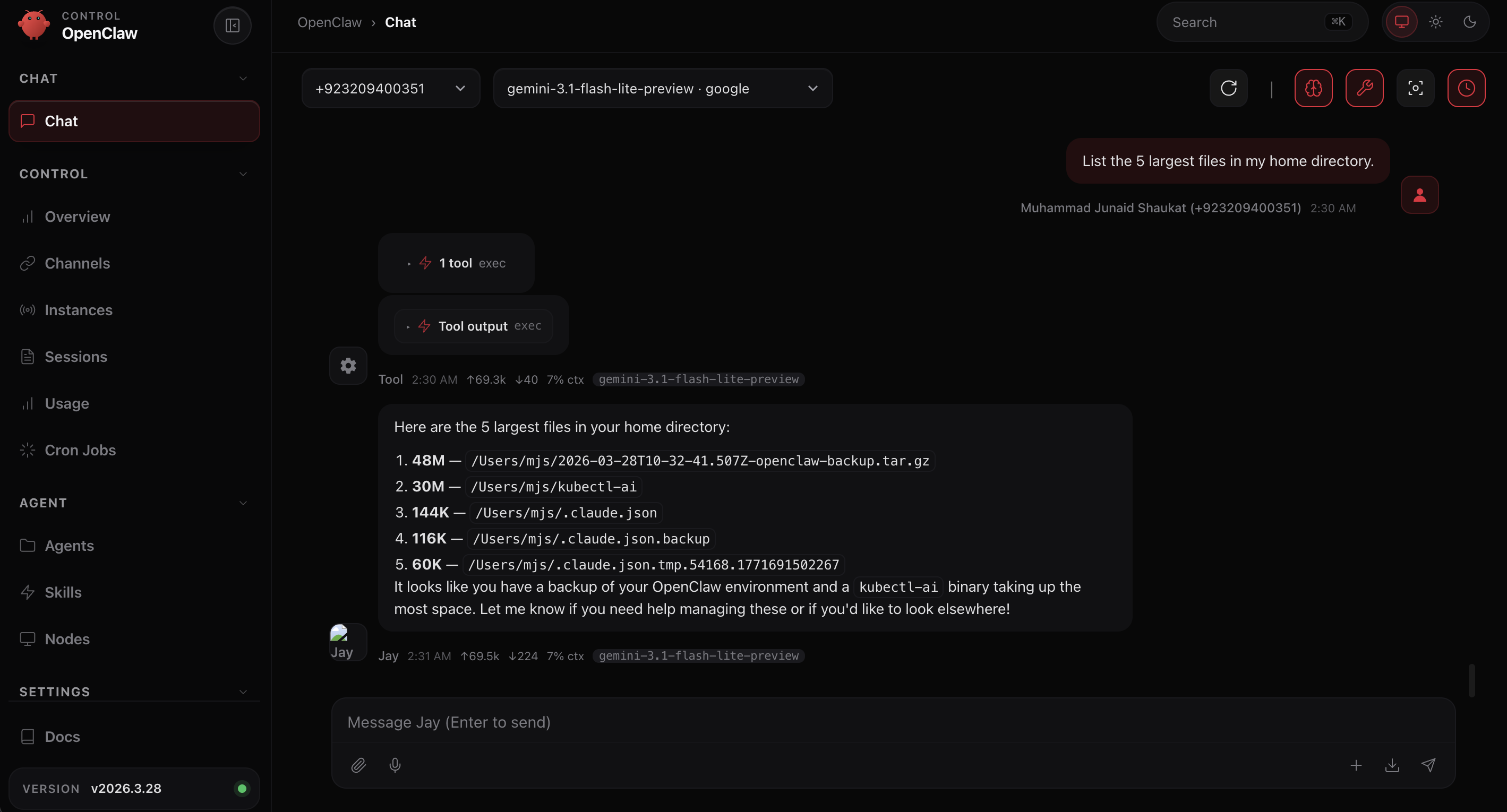
Your agent did not suggest a command for you to copy and paste. It ran the command itself, on your machine, with your files, and reported the results.
Task C: The Internet
Send this to your agent:
Search the web for "The AI Agent Factory" book. What is its thesis
and who authored it? It was published in 2026.
Your agent responds with information it found on the internet. Not from its training data (the book is too recent). Not from your machine. From a live web search.
Check the dashboard. A different tool badge this time: web_search. The agent decided it needed current information, searched the web, read the results, and composed its answer.
Three tasks. Three different paths through the same agent:
| Task | What It Needed | Tool Badge | Step 4 |
|---|---|---|---|
| A | Knowledge | None | Skipped |
| B | Your machine | Exec | Shell command |
| C | The internet | web_search | Live search |
This is the moment. One agent. Three capabilities. The dashboard showed you exactly which path each task took.
The Agent Loop
What you just saw in the dashboard is the agent loop: the five-step cycle that every message follows through the gateway.
1. INTAKE              Gateway receives and validates your message
2. CONTEXT ASSEMBLY    Workspace files, skills, and bootstrap build the prompt
3. MODEL INFERENCE     LLM reasons about the request and available tools
4. TOOL EXECUTION      Tools run if the model decided they are needed
5. REPLY & PERSIST     Response streams back and saves to session history
For Task A, the loop ran steps 1, 2, 3, and 5. Step 4 was skipped because the model decided no tools were necessary. No tool badge in the dashboard.
For Tasks B and C, all five steps ran. The model decided at step 3 which tool it needed (exec for files, web_search for current information), executed at step 4, and used the output to build its response. Different tools, same loop.
The dashboard tells you HOW the agent decided: which tools it used, how many tokens it spent, and whether execution succeeded. This loop is the gateway (the kernel from Lesson 1's Agent OS table) doing its job.
For deeper debugging, the gateway writes every event to a daily file at /tmp/openclaw/openclaw-YYYY-MM-DD.log. When the dashboard does not show enough detail, run openclaw logs --follow to stream that file as events arrive. Dashboard for understanding. Log for debugging.
The Boundary
Your agent just listed files, searched the web, and answered from knowledge. It can do all of that because of its tool profile: a setting that controls which tools the agent is allowed to use.
Check your current profile:
openclaw config get tools.profile
The result is coding. This is the default after installation. The coding profile includes file I/O, runtime (exec), sessions, memory, and image tools. That is why Tasks B and C worked.
But what if you were building a customer-facing agent that should only handle messaging?
See the Profiles
Open the dashboard and click Agents in the left sidebar, then click the Tools tab. You will see the current profile and Quick Presets at the bottom: Minimal, Coding, Messaging, Full, Inherit.
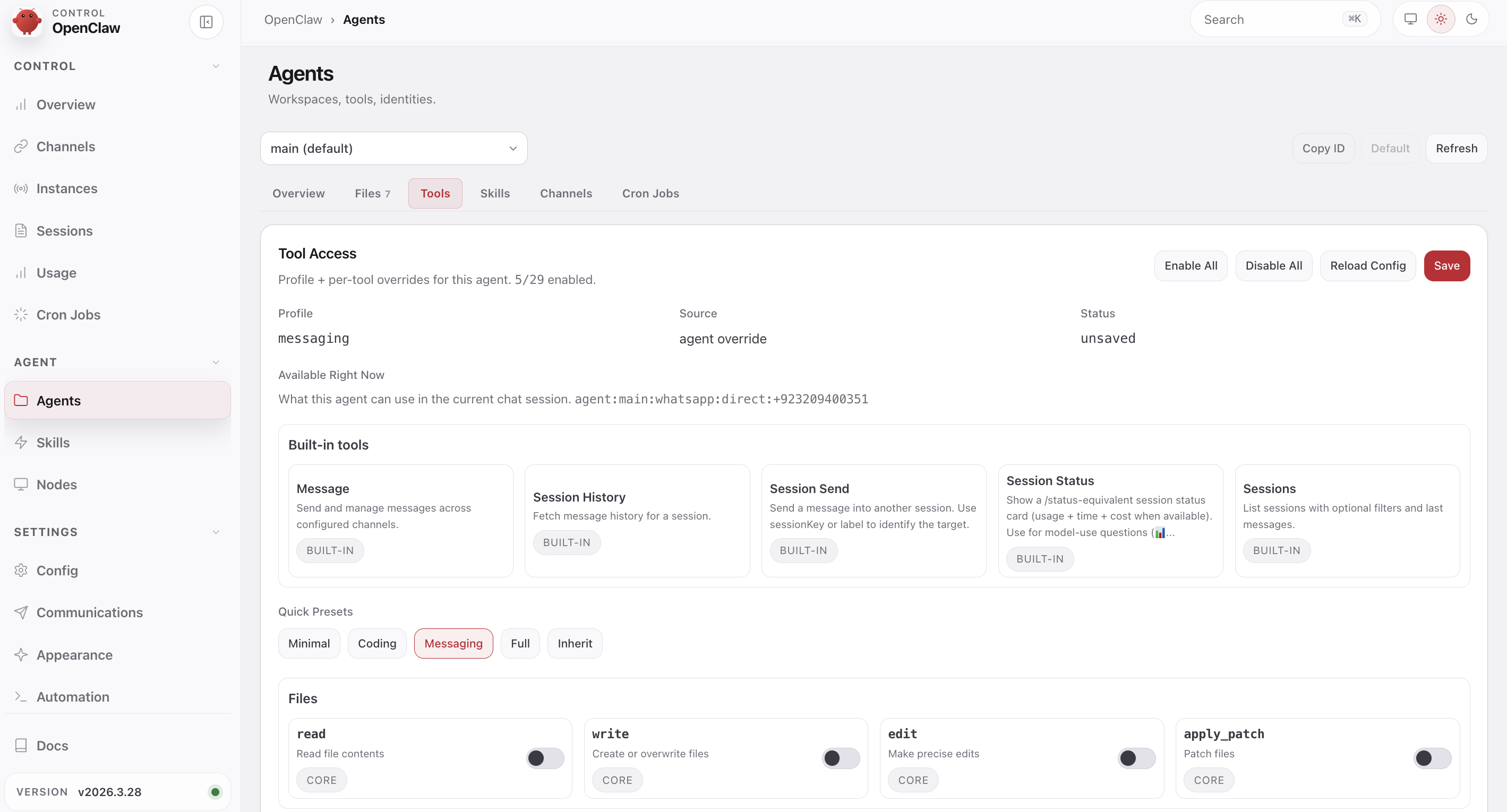
Click Messaging. Watch the tool list change. Only five tools remain: Message, Session History, Session Send, Session Status, Sessions. Every file tool (read, write, edit) and exec are disabled. Click Save in the top right. The change applies immediately.
| Profile | What It Includes | What Gets Disabled |
|---|---|---|
| coding | File I/O, runtime, sessions, memory, image | Default after install |
| messaging | Messaging, session list/history/send/status | File access, exec, web search |
| minimal | session_status only | Almost everything |
| full | All tools, unrestricted | Nothing |
See It Break
The agent may still remember the file listing from your earlier conversation. To test the profile boundary cleanly, ask something new that requires file access:
List what is on my Desktop.
The agent cannot answer this from memory. It needs to run a command. With the messaging profile, it has no exec tool and no file I/O. It will either refuse politely or fail with a connection error.
Check the dashboard. No tool badge. The model still knows how to list files, but the messaging profile removed the tools it needs. The profile controls what the agent is allowed to do, not what it knows.
Switch Back
Go back to the dashboard Agents → Tools tab. Click Coding in Quick Presets. Click Save in the top right. No restart needed: the profile applies immediately.
Ask to list your Desktop again. This time the "Exec" badge appears and you get a real listing.
You will explore layered allow/deny rules and production security in Lessons 13 and 14.
Try With AI
Exercise 1: Self-Diagnostic
Your agent can read its own files. Ask it to:
Read today's gateway log under /tmp/openclaw/ (the file is named
openclaw-YYYY-MM-DD.log, where YYYY-MM-DD is today's date) and
explain what happened during the last task I sent you (the file
listing). Walk me through each step of what the gateway did.
Compare the agent's explanation to what you saw in the dashboard. Did it identify the same five steps? Did it mention the exec tool call?
What you are learning: The agent can analyze its own behavior. The dashboard shows you the summary; the log gives the agent the raw data. This self-diagnostic ability is unique to agents with system access.
Exercise 2: When Would You Restrict Access?
Ask any AI assistant (ChatGPT, Claude, Gemini) with the OpenClaw tools documentation:
Read https://docs.openclaw.ai/tools and answer: When would you use
the messaging profile instead of the full profile? Give three real
scenarios where restricting an agent's tools is the right decision.
What you are learning: Tool restriction is not a limitation to work around. It is a design decision. A customer support agent with exec access is a security incident waiting to happen.
Exercise 3: The Chatbot Test
Ask your agent:
Compare yourself to ChatGPT. What can you do that ChatGPT cannot?
Be specific and honest about the differences.
What you are learning: The agent's self-assessment reveals which capabilities it connects to system access versus knowledge. Compare its answer to what you observed: tool execution is the concrete difference, not just a claim in its personality file.
What You Should Remember
The Agent Loop
Every message follows five steps through the gateway:
- Intake — gateway receives and validates the message
- Context assembly — workspace files, skills, and bootstrap build the prompt
- Model inference — the LLM reasons about the request and available tools
- Tool execution — tools run if the model decided they are needed (skipped otherwise)
- Reply and persist — response streams back and saves to session history
The dashboard shows you which steps ran and which tools were invoked. The gateway log shows the raw events.
Knowledge vs Access
The model always knows how to list files. The tool profile controls whether it is allowed to. Knowing and doing are different privileges. The coding profile includes exec; the messaging profile does not.
Three Paths, One Agent
A knowledge question skips step 4. A file operation uses exec. A web query uses web_search. Same loop, different tools. The dashboard's tool badge tells you which path each task took.
When Emma came back from her meeting, James had the dashboard open to three messages. He turned the screen toward her.
"First one, 'tell me about yourself.' No tool badge. Knowledge only." He pointed at the second. "'List the five largest files.' Exec badge. It ran ls on my machine." He pointed at the third. "'Search for the AI Agent Factory book.' Web search badge. It went to the internet."
"Three tasks. Three paths. Same agent," Emma said.
"Same loop," James said. He leaned back. "At my old company, the difference between the receptionist and the operations manager was not what they knew. Both knew where the supply room was. The operations manager had the key card. This agent has the key card to my machine AND the internet."
Emma tilted her head. "Most developers describe that as 'tool access.' You just described it as an access control problem. That is closer to how you should think about it when we get to security." She paused. "I once demoed the agent loop to a group and forgot to switch back from the messaging profile. Spent five minutes debugging why the agent could not list files before I checked the profile setting."
James looked at the dashboard. Five steps. Intake, context assembly, model inference, tool execution, reply. In Lesson 1, Emma had called the gateway the kernel. Now he had watched it run three different ways.
"Now you know what it can do," Emma said. "Lesson 4, you learn to control what it knows."