Problem Solving with General Agents: A 90-Minute Crash Course
7 Principles · 4 Tools · 80% of Real Use
In the AI Prompting course, you learned how to talk to AI: give context, ask clearly, check the output. In the Agentic Coding course (or the Cowork course), you learned the tools: plan mode, context management, skills, hooks. This course teaches the next layer: how to actually solve problems well with these tools.
Two students get the same assignment: use AI to read through five research papers, pull out the key findings, and write a one-page comparison summary.
Student A finishes in 25 minutes with a clean, verified summary. Student B spends 90 minutes going back and forth, the conversation gets cluttered, AI starts making mistakes, and they have to start over.
Same AI tool. Same assignment. The difference? Student A followed seven principles. Student B did not know them. This course teaches those seven principles.
Who this is for
Anyone using an AI tool that can take action on your behalf: read your files, write documents, run commands, and connect to services. These tools are not chatbots that just answer questions. They are AI assistants that actually do the work.
There are four tools that work this way:
| For coding/engineering | For non-coding work | |
|---|---|---|
| Anthropic | Claude Code (terminal, IDE, web) | Claude Cowork (desktop app) |
| Open-source | OpenCode (terminal, any AI model) | OpenWork (desktop app, any AI model) |
The seven principles in this course work the same across all four tools. The examples cover different fields (research, writing, coding, business), but the principles are identical. When the tools differ in how you do something, this course shows all four side by side.
What is Mode 1 vs Mode 2? There are two ways to use these AI tools:
- Mode 1: Problem solving. You open a tool, solve a task, and ship the result. This is what most people do most of the time. This course teaches Mode 1.
- Mode 2: Building AI workers. You create permanent AI assistants that run on their own, without you. That is covered in a separate course.
Prerequisites: This course assumes you have completed AI Prompting in 2026 and at least one of the tool courses: Claude Code & OpenCode or Cowork & OpenWork. You need to know the basics before these principles make sense.

Choose your reading path from the image above. You do not have to read everything in one sitting.
Non-engineering readers: skim the code blocks in the examples (the principle is the same on a different surface) and skip the system-of-record note in Principle 5. The rest is for you.
These AI tools can read, edit, and delete your files. They can run commands on your computer. Before you give AI access to anything, make sure you understand what it is allowed to touch.
- Start by making AI ask your permission before every action
- Do not let AI access everything at once
- If you set permissions wrong, one bad instruction could delete important files or share private information
You learned the basics of permissions in the tool courses. Principle 6 in this course goes deeper.
Want tool-specific depth? This is a crash course, the seven principles in one read. The downstream pages are Claude Code and OpenCode: A 90-Minute Crash Course and Cowork and OpenWork: A 90-Minute Crash Course. This page is the principles; those pages are the surfaces.
📚 Teaching Aid
View Full Presentation — Problem Solving Crash Course
The essentials in five bullets
If you internalize only these five points, you have 60% of the value:
- Action over talk. A general agent's value comes from doing things: running commands, reading files, calling services. Treat every prompt as something that should result in an action or an artifact, not a paragraph of explanation.
- Code (and structured artifacts) over prose. When precision matters, ask for a schema, a table, a code block, a checklist, not a paragraph. The agent's output quality goes up sharply when the format is constrained.
- Verify, don't trust. Every meaningful output needs a verification step: tests for code, a rubric for a memo, a cross-model review for a high-stakes deliverable. "Looks right" is the failure mode.
- Small steps, atomic checkpoints. Decompose work into reversible units. Commit, snapshot, or save-version after each unit lands. Never let the agent run an hour of work without a single checkpoint.
- Files are memory. The conversation is volatile; the filesystem is durable. Anything worth remembering across sessions (decisions, plans, conventions, glossaries) belongs in a file, not in a chat history.
The remaining two principles (constraints and observability) are how you operationalize the first five. They keep the agent inside the lane you set and tell you whether it stayed there.
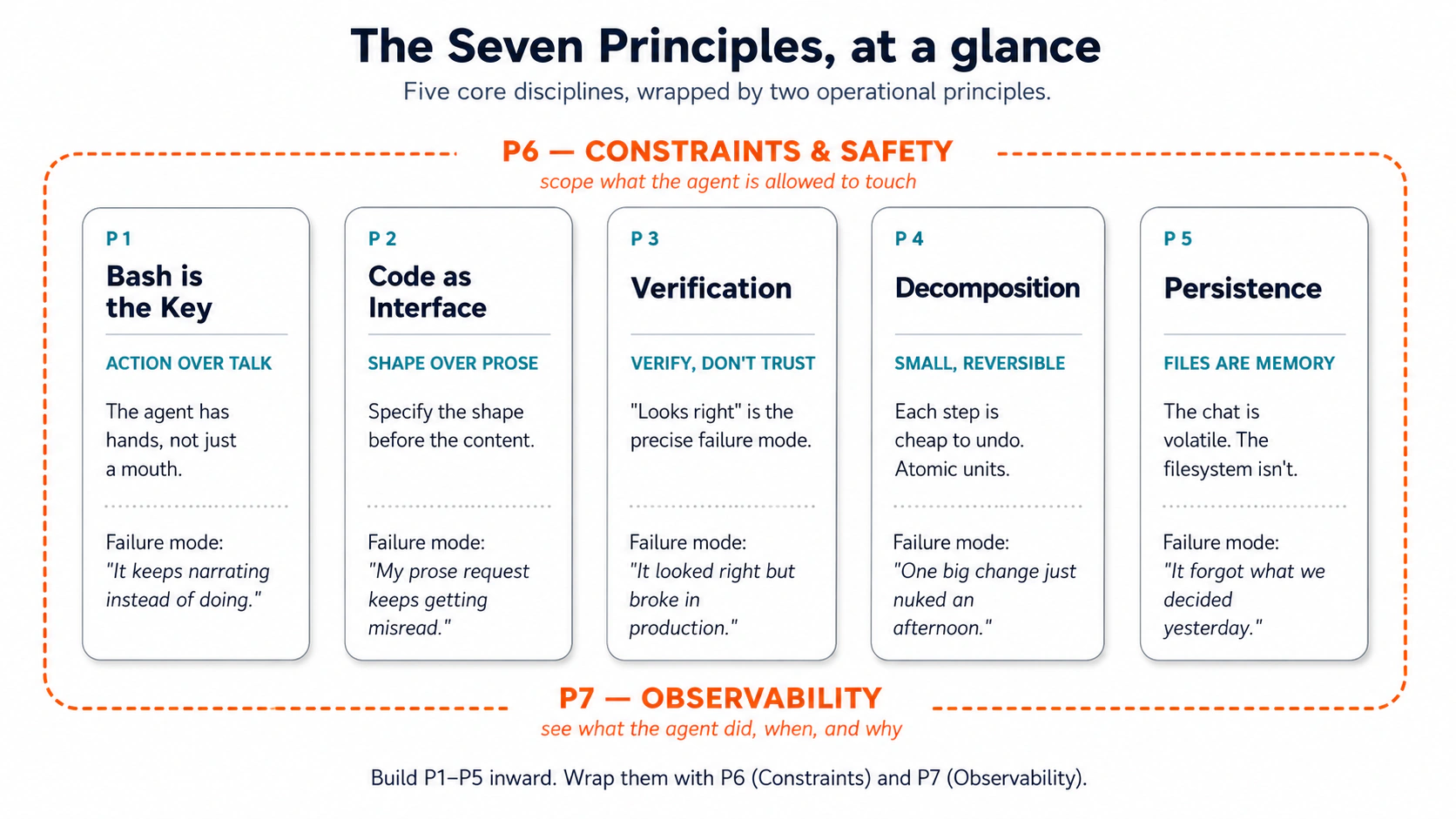 Figure 1: The five core disciplines, wrapped by the two operational principles. Print this and tape it to your monitor.
Why These Principles Look Old: The Lindy Effect
Some of the most important tools in computing are also the oldest: the terminal (where you type commands), files (where you save your work), Git (where you track changes), and SQL (where you query databases). They have been around for decades and they still work. There is even a name for this pattern: the Lindy Effect, which says that something that has been useful for a long time is likely to stay useful for a long time.
Why does this matter for AI? These AI tools do not invent their own way of working. They use the same tools that have existed for decades: they run commands in the terminal, save results to files, track changes with Git, and look up data with SQL. AI thinks in human language, but it acts through these proven tools. The tools survived because they work well.
Three things to understand:
-
These old tools become even more important with AI. The terminal lets AI run tasks. Git lets AI track and undo changes. Files give AI a place to save its work. These are not outdated tools: they are the foundation AI is built on.
-
Your role changes, but you are still needed. AI can write code, run tests, and edit files. But it needs you to clearly define the problem and check that the result is correct. Your two most important skills: explaining what you want and knowing whether the output is right.
-
AI tools work best when they can track, undo, and check their own work:

AI does not replace these old tools. It makes them more valuable. The seven principles below teach you how to use AI effectively through these foundations.
Part 1: The Seven Principles
| # | Principle | Failure mode it prevents |
|---|---|---|
| 1 | Bash is the Key | "Agent only talks, doesn't act" |
| 2 | Code as Universal Interface | "Prose request keeps getting misread" |
| 3 | Verification as Core Step | "Output looks right but breaks in production" |
| 4 | Small, Reversible Decomposition | "One big change nuked an afternoon" |
| 5 | Persisting State in Files | "Agent forgets what we decided yesterday" |
| 6 | Constraints and Safety | "Agent touched files I didn't authorize" |
| 7 | Observability | "Don't know what the agent actually did" |
These aren't in order of importance; they're in order of building dependency. Each one rests on the ones above it. Read them in sequence at least once.
- Principle 1 (Action): AI talks about doing something instead of actually doing it. Example: AI explains how to organize your files but never actually moves them.
- Principle 2 (Structure): AI does the work but gives you the result in a messy format. Example: AI finds all the information you need but dumps it into one long paragraph instead of a clean table.
You need both. Principle 1 makes sure AI does the work. Principle 2 makes sure the result is useful.
 The dependency pyramid: P1 is the widest foundation; each principle above rests on the ones below.
The thesis in one line. The principles govern the session; the tools are interfaces to the same session. Learn to think with the principles and your skill transfers whichever tool you happen to be in.
Principle 1 — Bash is the Key
What "Bash" means. The terminal is the black-screen text interface that comes with every laptop, the one you have seen in hacker movies. Bash is the language used inside it. When AI runs Bash, it is typing the same commands you would type if you opened the Terminal app on your Mac (or PowerShell on Windows). AI has full keyboard access to your machine, through commands instead of clicks. For Cowork and OpenWork users: same principle on a different surface (step cards instead of typed commands). Either way: AI acts on your computer, you watch it act.
The failure mode: "Why does AI only talk about doing things instead of actually doing them?"
What makes these AI tools different from a regular chatbot? A chatbot just answers your questions. These tools take action: they read files, write documents, run commands, and keep going until the task is finished. The first principle is simple: treat AI as a doer, not an advisor.
The beginner mistake. Most people start by asking questions: "How should I organize my notes from last week?" AI gives you a long explanation but does not actually organize anything. You asked for advice when you should have asked for action.
The fix: give a specific instruction.
| Asking for advice (weak) | Giving an instruction (strong) |
|---|---|
| "How should I organize my notes?" | "Read every file in the notes/ folder. For each file, pull out the action items and who is responsible. Save the result to weekly-summary.md, sorted by person." |
The first prompt gives you a paragraph of suggestions. The second prompt gives you a finished file. That is the difference between using AI as a chatbot and using it as a tool. (This is the same idea from the AI Prompting course, but the stakes are higher because AI is now changing your actual files.)
What "Bash" means in each tool
| Claude Code | OpenCode | Cowork | OpenWork | |
|---|---|---|---|---|
| Action surface | Terminal: runs shell commands on your machine | Same as Claude Code | Local Linux VM on your Mac/PC; reads and writes only inside folders you grant it | Same as Cowork |
| Visible as | Commands stream inline in the terminal | Same as Claude Code | Step cards in the side panel ("Read 3 files", "Ran a script") | Timeline of step chevrons |
| Approval default | Asks before each Bash action; allow-listed commands run silently | Same as Claude Code; configurable per tool | Asks before writing files, sending messages, or scheduling work | Same; per-tool approval granularity |
| Where this fails quietly | Agent waiting for approval you didn't notice | Global "permission": "allow" set without thinking | A document you fed it contains hidden instructions; the agent follows them as if they were yours | Same; amplified with many connectors |
The mental model: the agent has hands. Brief the hands, not the brain.
Examples
The pattern is always the same, no matter what field you work in: tell AI what to do, what to work with, and what the result should look like. Most beginners start in the "asking questions" column. Once you switch to the "giving instructions" column, that is where you will stay.
Here are examples from different fields. The pattern is the same every time: asking a question gets you advice, giving an instruction gets you a finished result.
Legal work: searching through 47 documents
-
Asking: "What does indemnification mean in deposition transcripts?" → AI writes an essay. No files touched.
-
Instruction → AI searches all 47 files and gives you a list of every match, done in minutes:
Search every PDF in /depositions for "indemnification" and close synonyms.
For each hit, return file name, page number, and surrounding paragraph.
Save to indemnification-hits.md.
Everyday: cleaning up a messy Downloads folder
- Asking: "How should I organize a messy Downloads folder?" → AI gives you generic tips about folder organization.
- Instruction: "My Downloads folder is a mess. What is actually in there?" → AI looks at your folder, counts 847 files, groups them by type, finds the biggest files taking up space. Thirty seconds. You did not type a single command. The principle is not "learn terminal commands." It is: let AI pick the right command for you.
Accounting: matching bank records to your books
-
Asking: "How do I reconcile a bank statement against a general ledger?" → AI gives you a tutorial.
-
Instruction → AI does the matching and gives you the list of mismatches in twenty minutes:
Open bank-statement-march.csv and gl-export-march.xlsx. Match each bank
transaction to a GL (General Ledger) entry (same date ±2 days, same amount, same vendor).
List unmatched items in march-reconciliation-gaps.md, split into
"in bank not GL" and "in GL not bank".
Marketing: comparing campaign results
-
Asking: "How are my Q3 campaigns doing?" → AI gives a generic answer about industry benchmarks.
-
Instruction → AI reads your actual data and gives you the real numbers in three minutes:
Read every campaign-2025-Q3-*.csv in /campaigns/Q3. Produce a table:
campaign name, send date, sends, opens, open rate, clicks, click rate,
conversions. Sort by open rate descending. Save to Q3-campaign-summary.md.
The rule: Every time you catch yourself typing a question, stop and ask: "Can I turn this into an instruction that produces a file?" Almost always, yes.
Hands-on: Hello world
The principle is theory until you've felt it once with no thinking. This is your hello-world: pre-curated inputs, one-line prompt, paste and watch.
Setup (30 seconds):
- Download Pack 1 — Cluttered folder and unzip it.
- Open the unzipped folder in your tool of choice (Claude Code, OpenCode, Cowork, or OpenWork). Give it read access to the
downloads/subfolder.
Paste this prompt verbatim:
What's in ./downloads/?
That's the whole prompt. Five words. No instructions on how to look. No file to write. No structure. Just the question.
What you should see. The agent runs a short cascade of commands on its own. Something close to this will stream in your terminal (Claude Code / OpenCode) or appear as step cards (Cowork / OpenWork):
$ ls -lh ./downloads/
total 0
-rw-r--r--  invoice-globex-march.pdf              0B
-rw-r--r--  invoice-globex-march (1).pdf          0B
-rw-r--r--  invoice-globex-march-final.pdf        0B
-rw-r--r--  Sample_Vendor_MSA_v2.pdf              0B
-rw-r--r--  Sample_Vendor_MSA_v2_signed.pdf       0B
-rw-r--r--  Q4-roadmap-DRAFT.docx                 0B
-rw-r--r--  Q4-roadmap-DRAFT (1).docx             0B
-rw-r--r--  Q4-roadmap-final.docx                 0B
-rw-r--r--  design-assets-final.zip               0B
-rw-r--r--  design-assets-final-v2.zip            0B
-rw-r--r--  Screenshot 2025-02-14 at 20.04.12.png 0B
-rw-r--r--  GoogleChrome.dmg                      0B
...
(41 more entries)
-rw-r--r--  SIZES.txt                          1.1K

$ find ./downloads -type f | wc -l
53

$ cat ./downloads/SIZES.txt
   88K  invoice-globex-march.pdf
   88K  invoice-globex-march (1).pdf
   91K  invoice-globex-march-final.pdf
  340K  Sample_Vendor_MSA_v2.pdf
  355K  Sample_Vendor_MSA_v2_signed.pdf
   64K  Q4-roadmap-DRAFT.docx
   64K  Q4-roadmap-DRAFT (1).docx
   71K  Q4-roadmap-final.docx
   24M  design-assets-final.zip
   24M  design-assets-final-v2.zip
  225M  GoogleChrome.dmg
...
Then the agent talks back to you in chat. Something like:
There are 53 files in
./downloads/. The files themselves are empty placeholders, but aSIZES.txtlists their real sizes. The mix is roughly: a handful of invoices, two vendor contracts, three Q4 roadmap drafts, two design-asset zips, a stack of screenshots and phone photos, and a few installers. A few obvious duplicate clusters jump out: threeinvoice-globex-march*files, twoSample_Vendor_MSA_v2*files, three Q4-roadmap drafts (twoDRAFTversions plusQ4-roadmap-final.docx), and twodesign-assets-final*.zipfiles. The largest items by stated size are the installers (e.g.,GoogleChrome.dmgat 225M) and the design-asset zips at 24M each. Want me to do anything with this: propose a folder layout, find more duplicates, anything else?
That's it. The artifact is the reply itself: a few short paragraphs in chat, grounded in files the agent actually opened.
What just happened. You typed five words. You did not type any commands yourself. AI figured out which commands to run and in what order, all on its own. It also knew what not to do: it did not move any files, did not write anything new, and did not make up information. It read SIZES.txt because the other files were empty and it needed real data.
Now compare this to what would have happened if you had asked a chatbot "how should I organize a Downloads folder?" You would have gotten a generic article. Instead, you got an answer based on your actual 53 files. Same AI model. Different instruction. That gap between asking and instructing is what this entire course is about.
If AI did not do this: If AI explained what it would do instead of actually doing it ("I would run these commands..."), or if it asked you questions before looking at the folder, that is the exact problem Principle 1 fixes. Just reply: "Do not explain. Just look at the folder." AI will do it. Whenever AI talks instead of acts, remind it to act.
Now apply to your own work
The curated Downloads folder was easy. The real test is a folder you've been avoiding: a Dropbox that's grown for two years, an Inbox nine thousand deep, a shared drive where every client has a different filing convention. Too big for you, perfectly sized for an agent.
Write the brief, not the method. One sentence. Name the input (which folder, thread, drive) and name the output (a summary file, a list, a report). Resist the urge to specify commands or clicks. You don't know which commands you'd need; the agent does. Working shape:
The folder at <path> has been collecting <thing> for <how long>.
Inspect it and write me a <named output file> that <decision the
output should support>. Read-only, don't change anything.
Watch the agent run. In Claude Code / OpenCode notice that you didn't type the commands. The first time the agent self-corrects from a too-broad find to a narrower one without your help, the principle lands. In Cowork / OpenWork the execution view fills with step cards, each one a task you would have done by hand in a pre-agent workflow.
The single failure. If you find yourself adding "use find for this part" or "open the spreadsheet and..." to the prompt, you're back to specifying method instead of outcome. Cut every verb that describes how, and keep only the verbs that describe what you want at the end. Re-run. The second version almost always lands cleaner.
Why this matters. This is the single highest-leverage habit in the crash course, and the one skilled people fail to install, because dictating method feels faster than waiting. It isn't. Every minute you spend specifying the method is a minute the agent could have been running it. Brief the hands. Step back. Read the artifact.
Action alone isn't enough. The agent can act powerfully in entirely the wrong direction, because you asked in prose and it guessed at what you meant. That's what Principle 2 fixes.
Principle 2 — Code as Universal Interface
The failure mode: "Why does my prose request (a plain-English paragraph instead of a structured format like a table or checklist) keep getting misread, and why does AI keep stopping at the edge of what apps can already do?"
Sarah had 3,000 photos from a trip across Southeast Asia, scattered across a phone, a camera, and a backup drive, with filenames like IMG_4521.jpg, DSC_0089.jpg. She wanted them organized by country and city, with dates in the filenames, duplicates removed by actual image content rather than name. She tried three photo apps. Each did part of what she wanted; none did the combination. The features were pre-built; her needs weren't.
She wrote one paragraph to a general agent: "I have 3,000 photos in three folders. I want them organized by country and city based on the location data in each photo, renamed YYYY-MM-DD-original.jpg, duplicates detected by image content, organized into clean folders." Fifteen minutes later, it was done. The agent wrote a short program that read each photo's embedded location, reverse-geocoded it, renamed by date, hashed image bytes to find duplicates, and moved everything into the structure she described. She wrote no code. The agent's interface to her computer, for all of it, was code.
Principle 2 has two parts. First: when a task is too complex for a single command, AI writes code to get it done. Second, and this is the part most people miss: the format you ask for matters as much as what you ask for. A plain paragraph is vague. A table, a checklist, or a structured template is clear. The more specific the format you give AI, the less it has to guess.
This is AI Prompting in 2026 concept 7, outline before drafting, with the outline made formal. The outline is now an interface, not a suggestion.
Wait, isn't Bash already code?
If you just read Principle 1, fair question. The distinction matters and it's small:
| Surface | Role | What it does |
|---|---|---|
| Bash (Principle 1) | The hands | Navigate, search, move, observe, one command at a time |
| Code (Principle 2) | The brain | Compute, transform, orchestrate, persist, integrate |
Bash opens the folder; code reads every file in it, hashes the bytes, compares them, and writes a deduplication report. An agent with only Bash can poke around but can't think; an agent that can also write and run code can solve any computational problem you can describe. Sarah's photo job was beyond Bash because it required computation: reading EXIF data (the hidden information stored in every photo, like date, location, and camera settings), hashing images (comparing the actual content of two photos to find duplicates), and reverse-geocoding (converting GPS coordinates into a city or country name). The instant the work crosses from "look here, move that" into "compute, decide, build a thing," you're in Principle 2.
The five powers code unlocks
Why is code so powerful for AI? Because regular apps (like photo organizers or spreadsheet tools) only do what they were built to do. If your task does not fit their features, you are stuck. When AI writes code, it can solve problems that no existing app was designed for. Here are five things code lets AI do that regular apps and simple commands cannot:
-
Precise thinking. If you ask AI in plain text "what did I spend the most on this year?", it might give you a rough answer. But if AI writes code, it calculates to the exact cent. For example: Marcus had a year of business expenses and wanted averages by category, months where spending was unusually high, and how each quarter compared to the last. AI wrote a short program that did all of this with exact numbers. Marcus did not write any code. He just described what he wanted.
-
Workflow orchestration. Some tasks have many steps with different paths: "if the file is a PDF with 'Invoice' in it, move it to Finances. If it is a PDF without 'Invoice', move it to Documents. If it is an image, move it to Images. Everything else goes to Other." Without code, AI would stop and ask you at every step. With code, AI writes all the rules at once and the entire job runs from start to finish without interruption.
-
Organized memory. Big tasks produce a lot of intermediate work: temporary files, partial results, notes for later. Code lets AI create folders, save files, and read them back later. This means AI can pick up where it left off instead of starting over every time you send a new message.
-
Universal compatibility. Real information is scattered across different formats. Aisha was planning a family reunion: the guest list was in a spreadsheet, dietary notes were in emails, RSVPs came from a web form, and flight details were in PDF attachments. No single app can read all four. AI wrote a small program that read each source in its own format and combined them into one guest list. Code connects things that were never designed to work together.
-
Instant tool creation. When no app does exactly what you need, AI builds one. A community garden coordinator needed to track plot assignments, water usage, harvest amounts, and volunteer hours. No "garden management app" does that exact combination. AI wrote a small tracker with a few scripts and a weekly report. The tool did not exist before. Ten minutes later, it did.
You do not need to memorize these five. They are here so you start noticing moments where you would normally say "there is no app for this" and realize that AI can build one for you.
The two things you still do
AI writes the code and creates the output. You do not need to write code yourself. Your job is two things:
1. Tell AI exactly what you want (define the problem)
- If you work with code: Describe the problem clearly. The more specific you are (what it should do, what format the output should be, what it should not touch), the better the result.
- If you work with documents: Describe the format, not the words. For example: "Write a one-page memo with four sections: summary, findings, risks (maximum three), and next steps." AI fills in the content; you define the structure.
2. Check that the result is correct (verify the output)
- If you work with code: You need to read code well enough to spot mistakes, not write it. Can you look at a database query and tell if it is filtering the wrong data? That is enough.
- If you work with documents: Check whether each claim is actually supported by your source material. AI writes smooth, confident text. That is the trap. Read for what is true, not what sounds good. If AI says "risk is HIGH," check what evidence it used to reach that conclusion.
These two skills (defining problems clearly and checking results carefully) are the most important things you can learn. No matter how much AI improves, someone still needs to say what the problem is and verify that the answer is right.
Why this gets easier over time. AI already works in small pieces: one function, one section, one table at a time. Each piece is small enough to check in under a minute. As AI improves, more of the checking happens automatically: tools already catch code errors on every save, a second AI can review the first AI's work, and fact-checking tools can verify claims against your source material. Today you check individual lines and sentences. In the future, you will mostly review summaries and approve final results. But the two core skills (defining the problem and checking the output) will always be needed.
Examples
The pattern is the same everywhere: describe the structure you want (sections, columns, rules, what is not allowed), then let AI fill it in. The format does not matter. It could be a table, a template, a checklist, or a database schema. What matters is that you define the shape first.
The common mistake: saying "make this cleaner" or "polish this" without telling AI what "clean" means. Without a clear structure, AI drifts. Put the rules in the structure, not in a vague prompt.
Here are examples of what "define the structure" looks like in different fields:
- Legal: "One row per witness. Columns: what they admitted, what they denied, follow-up questions. Include page and line numbers from the transcript."
- Consulting: "Four sections: stated problems, unstated problems (with evidence), key quotes, open questions. One page maximum."
- Hiring: "For each resume: required qualifications (yes/no with evidence), preferred qualifications, any credential flags, one-word recommendation (ADVANCE / HOLD / DECLINE), and a one-line reason."
- Sales: "Five sections in order: summary, risks (maximum 5), how to address each risk, decision (GO / NO-GO / HOLD), and open questions."
- Real estate: "Table with columns: address, sale date, price, price per square foot, bedrooms, bathrooms. Sort by price per square foot."
For engineers, the same idea applies with code structures:
- Database: Define the table structure first (which fields are required, what values are allowed). The database itself will reject bad data before any code runs.
- Functions: Ask AI for the function definition first (what goes in, what comes out), then write tests, then write the actual code. The definition is the contract; the tests check the contract; the code comes last.
When plain text is fine: For brainstorming, creative writing, or casual explanations, you do not need a rigid structure. But if you have asked AI twice and the output is still wrong, that is your signal to switch to a structured format.
This applies to your inputs too, not just AI's output. If you are feeding AI five documents and asking for a comparison, organize them into a table with consistent columns first. Do not paste five blocks of messy text and expect a clean comparison. The quality of AI's output depends on the quality of what you give it.
Hands-on: Hello world
The best way to see this principle in action is to try it yourself. We have prepared a small folder of receipts in three different formats (photos, PDFs, and screenshots). No single app can read all three. AI can.
Setup (30 seconds):
- Download Pack 2 — Receipts and unzip it. Inside you will find 15 sample receipts: 5 phone photos of paper receipts (
receipts/photos/), 5 email PDFs (receipts/pdfs/), and 5 app screenshots (receipts/screenshots/). Two of the receipts have unusually large amounts so you can test whether AI catches them. - Open the unzipped folder in your tool (Claude Code, OpenCode, Cowork, or OpenWork). Give it read access to the
receipts/folder.
Paste this prompt verbatim:
I want to understand why general agents that write code are more powerful
than specialized tools.

Here is my situation: I have a folder ./receipts/ with 15 receipts in mixed
formats — 5 phone photos of paper receipts, 5 PDF email receipts, and 5 app
screenshots. I need to:
  1. Extract the date and amount from each receipt
  2. Categorize them (groceries, dining, transportation, etc.)
  3. Create a monthly summary showing totals by category
  4. Flag any unusually large purchases

Walk me through how you would approach this. Don't write actual code; I'm
still learning. Instead, explain:
  - What different steps would you take, in order?
  - How does this approach give you flexibility a pre-built receipt app
    would not have?
  - Which of the Five Powers (precise thinking, workflow orchestration,
    organized memory, universal compatibility, instant tool creation) is
    each step using?
What you should see. AI first looks at the receipts/ folder to see what is in there (three subfolders, 15 files in different formats). Then it writes out a step-by-step plan:
- Read each file in its own format (use image reading for photos and screenshots, text extraction for PDFs)
- Pull out the key info from each receipt: date, amount, merchant name, and what format it came from
- Sort each receipt into a category based on the merchant name
- Add up totals by month and category
- Find the unusually large purchases and flag them
For each step, AI should mention which of the five powers it is using. It should also explain what makes this better than a regular receipt app: it reads all three formats at once, it lets you define your own categories, you can change the rules whenever you want, and you can save the results wherever you like.
What to notice. AI did not suggest "download a receipt-scanning app." No single app can read photos, PDFs, and screenshots in the same pass and let you define your own categories and let you change the outlier threshold. What AI described is a custom receipt tracker that did not exist before this conversation. That is the whole point of this principle: AI uses code to build exactly what you need, combining multiple powers into one solution. Regular apps have fixed features. Your needs are not fixed.
If AI did not do this: If AI gave generic advice ("you could try OCR software") instead of a concrete plan, it probably did not look at the folder first. Reply: "List the files in ./receipts/ first. Then redo the walkthrough using the actual file names and formats you see." The second attempt will be much more specific.
Optional follow-up (do this if you want to feel the code itself, not just hear it described). Paste:
Now execute step 1 only. Read every file in ./receipts/ across all three
subfolders, extract the date and amount from each, and save the results to
extracted.csv with columns: file_path, date, amount, source_format
(photo / pdf / screenshot). Show me the file when you're done.
AI will write a small program that reads the photos, PDFs, and screenshots, pulls out the date and amount from each one, and saves everything to a file called extracted.csv that you can open. All 15 receipts, in three different formats, combined into one clean table. No regular app does that in one step.
Now apply to your own work
The receipt exercise was a practice run. Now try it on something real from your own work.
Step 1: Pick a task you currently do using two or more apps. That is the clue that no single tool handles it completely. Examples: comparing information from a spreadsheet and a PDF, pulling data from emails and organizing it into a report, or reading documents in different formats and producing one summary.
Step 2: Describe it to AI and ask for a walkthrough. Tell AI what files you have, what result you want, and ask it to plan the approach first:
Walk me through how you would approach this. Then, when I say go,
do step 1 only and show me the result.
Step 3: Pick the most time-consuming step and let AI do it. If the result saves you even twenty minutes, AI just built a tool that did not exist when you opened your laptop. Save the conversation so you can reuse it next time.
Two mistakes to avoid:
- Do not say "write me a script." Say "walk me through your approach" first. If you jump straight to "write a script," AI picks one path and runs without showing you the plan. You want to understand the approach before AI starts building.
- If your task can be done in a spreadsheet, it might not need AI. AI is most useful when the task crosses multiple formats, needs custom rules, or requires combining several steps. If a regular app already handles it, use the app.
Why this matters. For the first time, you have a tool where the interface is simply describing what you want. Regular apps give you the features they were built with. AI gives you the features your task actually needs.
Now you know how to get AI to produce structured, well-organized output. But a clean-looking result is not the same as a correct result. AI can fill a perfect template with wrong numbers, fake sources, and code that looks right but does the wrong thing. That is what Principle 3 fixes.
Principle 3 — Verification as a Core Step
The failure mode: "Why does the output look right but break in production?"
A finished-looking output is not a verified output. Models produce outputs that are plausible, which is not the same as correct. They will confidently miscount items in a list, mis-cite a paragraph that doesn't exist, and produce code that compiles cleanly while silently failing on the third edge case. Verification must be a step in the workflow, not an afterthought.
This is AI Prompting in 2026 concept 13, models checking models, promoted from a habit to a structural step.
What "verification" means in each tool
| Claude Code | OpenCode | Cowork | OpenWork | |
|---|---|---|---|---|
| Primary mechanism | Unit tests, type-checks, linters, run by the agent after each change | Same | Output rubric: "Does the memo meet all required sections? Are claims sourced?" | Same |
| Automated gate | Hook in .claude/settings.json blocks commit if tests or types fail | Plugin in .opencode/plugins/ does the same | A second agent pass that scores against a rubric before saving | Same; can use a smaller model for the verification pass |
| Cross-model review | A second tool (different model family) reads the diff and writes a critique | Same pattern | Open a second chat with a different model: "Find what's wrong with this memo" | Configure a second provider and ask the agent to do the cross-pass |
| Where it gets skipped | Tests pass, but not for the right things | Same | "Memo looks good" without reading every claim against the source | Same |
The key rule: the agent that produced the output is the worst possible verifier of that output. It has the same blind spots that produced the original. Verification needs an independent path, your own reading, a different model, a test, a type-checker, or a database constraint.
Examples
The method is always the same: take every factual claim, find where it came from, and flag anything that has no source. This works for numbers, quotes, references, and any other claim that needs to be accurate.
Here are three examples of what happens without verification vs. with verification:
Legal work: Imagine a lawyer writes "according to Case X, the company is liable." But Case X does not actually say that. AI made it sound convincing, but the reference is wrong. Without checking, the other lawyer finds the mistake and uses it against you. With verification ("For every reference you use, find the exact sentence that supports your point. Flag any reference you cannot find proof for."), the wrong references are caught and fixed before anyone else sees the document.
Insurance: A summary says "the policy covers up to 250,000 dollars and this claim is within limits." But the actual policy has a 100,000 dollar limit for water damage, and the claim is for a burst pipe. Without checking, the wrong number goes into the official letter. With verification ("For every dollar amount you mention, find the exact section in the policy that states it. Flag any amount you cannot find."), the real limit is discovered before the letter is sent.
Research: A report says "there were no serious side effects." But the actual data shows two. Without checking, the wrong statement ends up in an official filing. With verification ("For every claim about the data, find the exact rows that support it. Flag any claim you cannot match to real data."), the error is caught before the report is submitted.
Prompt pattern for any high-stakes deliverable:
Before saving the final version, verification pass:
  - List every factual claim in the draft
  - For each one, identify the source location and quote the supporting text
  - Flag any claim you cannot ground
Refuse to save until every flag is resolved.
The wrong number problem. Your manager asks you to find last quarter's sales by region. AI runs a calculation and says: "West region: 4.2 million." You put that number in your presentation. Later, the finance team checks the same data and gets 3.8 million. You go back to AI and ask why. AI confidently gives you a third number: 4.5 million. Three different answers from the same data. That is what happens when you trust AI's numbers without checking them yourself.
Asking the same AI "is this correct?" is not real verification. AI will almost always say "yes, it looks correct" because it has the same blind spots that caused the mistake in the first place. That is like asking the person who wrote a wrong answer to grade their own work.
The fix: Look at the code or formula AI wrote. You do not need to write code yourself, you just need to read it well enough to spot obvious problems. Ask yourself: "Is it looking at the right data? Is it filtering anything out that should be included?" Then run it yourself and compare the result to a source you trust.
For anything that deletes or changes data: Always do a test run first. Check how many items would be affected before you let it actually make changes. Only proceed once the number matches what you expected.
Hands-on: Hello world
Something can look finished and polished but still have mistakes hiding in it. This exercise gives you a professional-looking memo that has five errors hidden inside it, plus the original data files. Your job: get AI to find the errors by checking every claim against the real data.
Setup (30 seconds):
- Download Pack 5 — Verification and unzip it. Inside you will find a draft memo (
deliverable/Q3-variance-memo-DRAFT.md) with five hidden mistakes, and asources/folder with the spreadsheets the memo's numbers are supposed to come from. - Open the unzipped folder in your tool. Give it read access to both
deliverable/andsources/.
Paste this prompt verbatim:
Read deliverable/Q3-variance-memo-DRAFT.md. For every factual claim
(numbers, named causes, "largest/biggest" rankings), find the supporting
evidence in sources/ and quote the exact rows or cells. Flag any claim
where the source disagrees or where no row supports it. Save the audit
to VERIFICATION.md with two sections: Confirmed and Flags.
What you should see. AI reads the memo, opens all three spreadsheets, and creates a file called VERIFICATION.md. For each claim in the memo, it reports one of three things: Confirmed (the spreadsheet matches), Mismatch (the memo says one number but the spreadsheet says a different one), or No source found (nothing in the spreadsheets supports the claim). AI should catch at least three of the five hidden errors on the first try. The other two sometimes need a follow-up nudge like "check the other categories too."
What to notice. Before the verification step, all five claims looked equally correct. Nothing felt wrong. That is the trap: AI writes confidently whether it is right or wrong. The verification step uses the same AI, but asks a different question: "prove each claim against the real data." That one change is what turns a good-looking draft into a trustworthy one.
If AI said "everything looks correct" without quoting specific data: That means AI just re-read its own work and approved it, which is not real verification. Reply: "For each claim, quote the exact row from the spreadsheet that supports it. If you cannot find a matching row, mark the claim as unsupported." The second attempt usually catches the errors. If one or two still slip through, that is normal. Verification catches most mistakes, not all. For important work, a human should always do a final check too.
Now apply to your own work
The practice exercise had errors you knew were there. Real work is harder: you do not know if errors exist, and getting a number wrong can cost your credibility.
Pick something real. Choose the most important AI output from this week: a document with numbers, a report with references, or an analysis that recommends a decision. The one that is about to leave your hands. Professional-looking output is exactly what people forget to verify.
Tell AI what to check and what "proof" looks like:
Verify every factual claim in <your-file>. For each claim, quote the
exact row or sentence from <your-sources> that supports it. Flag any
claim you cannot find proof for. Save to <your-file>-verification.md.
Make sure AI reads the sources separately. If AI only re-reads the output, it is just checking its own work. Every claim should be matched to a direct quote from the source, not a vague summary like "this section discusses revenue."
If AI says "everything is consistent" without quoting anything, that is not real verification. Reply: "Include an exact quote for each claim. If you cannot find one, mark the claim as unsupported."
Why this matters. AI is getting more accurate over time, but it is not perfect. The problem is that you cannot tell by reading which claims are correct and which are wrong, because AI writes all of them with equal confidence. Making verification a standard step in your workflow is the only reliable way to catch mistakes before they ship.
Verification catches mistakes after they are made. But some mistakes are expensive to fix because by the time you find them, other work already depends on them. Principle 4 prevents that.
Principle 4 — Small, Reversible Decomposition
The failure mode: "Why did one big change just nuke an afternoon of work?"
Break big tasks into small steps. Finish one step, check that it is correct, save your progress, then move to the next. If something goes wrong, you only lose the last small step instead of an entire afternoon of work.
AI works best this way too. If you give AI a task with 12 steps in one message, it tends to drift off track by step 5, and you have no way to catch the mistake until the end. If you give AI those same 12 steps one at a time, checking each one before moving on, the result is much better.
The rule of thumb: if reversing the change would take more than two minutes, the change was too big.
What decomposition and reversibility look like in each tool
| Claude Code | OpenCode | Cowork | OpenWork | |
|---|---|---|---|---|
| Atomic unit | Git commit after each working step | Same as Claude Code | Numbered file versions (memo-v1.md, memo-v2.md) or a drafts/ folder | Same as Cowork; /undo also rewinds via git |
| Undo mechanism | git revert or git reset; Esc Esc rewinds conversation and file edits (but not terminal commands) | /undo rewinds conversation AND all file changes (including terminal commands) | Save numbered versions; revert by copying back | /undo, same as OpenCode |
| Course correction | Esc to interrupt, redirect; AI picks up from where you stopped | Same as Claude Code | Stop button halts immediately; redirect in next message | Same as Cowork |
| Where it breaks | Asking for a huge change in one prompt that touches many files | Same as Claude Code | "Rewrite the entire document in the new template" overwriting the original | Same as Cowork; worse if no git is initialized |
The enforcement prompt:
Break this task into the smallest steps you can. After each step:
  1. Show me what you did
  2. Run the verification check for that step
  3. Commit / save a numbered version
  4. Wait for my OK before starting the next step
Examples
The mistake is always the same: you ask AI to write the whole thing in one go, a small error creeps in early on, and by the time you notice it, everything after that point is affected. The fix is always the same: break the work into steps and check each one before moving on.
Here is what this looks like in practice:
| Task | One big prompt (bad) | Step by step (good) |
|---|---|---|
| Writing a letter | AI writes all 7 paragraphs at once. A mistake in paragraph 3 goes unnoticed until paragraph 7 depends on it. You have to rewrite most of it. | AI writes the facts first → you check → AI writes the argument → you check → AI writes the conclusion. Each mistake is caught early. |
| Writing a report | AI writes 6 pages. The revenue number is wrong, the structure is off, the tone is inconsistent. Fixing it takes 90 minutes. | AI writes an outline → you approve → AI writes section by section. Done in 40 minutes, no major fixes needed. |
| Building a spreadsheet | AI builds all 12 tabs at once. The formulas break across tabs, currencies are mixed up. You discover it two hours later. | AI builds one tab at a time, checking each against the previous one before moving on. |
| Rewriting a long document | AI rewrites all 40 pages. By page 12, it has forgotten the style rules from page 1. | AI rewrites one chapter at a time, checking each chapter against the original rules before starting the next. |
Why saving your progress matters
The Pixar lesson. In 1998, someone at Pixar accidentally deleted the Toy Story 2 production files: two years of work, gone in seconds. The backup system had failed weeks earlier without anyone noticing. The film was only saved because one employee happened to have a personal copy at home. Saving your progress cannot be something you remember to do. It has to be built into your process. If you use git, committing after every meaningful step turns a disaster into a small inconvenience.
The undo trap. Sarah edits her budget file and makes it worse. She searches online for "how to undo git changes" and runs git reset --hard. It fixes the bad budget, but it also erases the volunteer list she spent an hour editing, because she never saved (committed) that work. git reset --hard erases everything back to your last save point. If you did not save, it is gone. The lesson: save often, in small steps. The size of your last save is the maximum amount of work you can lose.
Hands-on: Hello world
The best way to see this principle is to try the same task two ways: once in a single big prompt, and once broken into steps. You will see how different the results are.
Setup (30 seconds):
- Download Pack 3 — Decomposition and unzip it. Inside you will find a sample case description (
inputs/case-brief.md) and a style guide with formatting rules (inputs/firm-style-guide.md). - Open the unzipped folder in your tool. Give it read access to
inputs/.
Paste this prompt verbatim:
Draft a demand letter for the dispute in ./inputs/case-brief.md, following
./inputs/firm-style-guide.md. Do it twice: once as a single prompt
(save as letter-A-big-prompt.md), then again in four steps, facts,
legal theory, demand, deadline, pausing after each so I can read.
Save the final decomposed version as letter-B-final.md.
What you should see. Run A gives you the complete letter in one go. Run B writes the first section, stops, and waits for you to say "continue" before writing the next section. Open both results side by side and compare them. Run A will usually have at least one problem: a phrase the style guide says not to use, a number that does not match the case description, or a vague deadline like "promptly" instead of a specific date. Run B will be cleaner because each section was short enough for you to read and catch mistakes before the next section was built on top of it.
What to notice. AI is equally capable of writing each individual section. The problem with Run A is not that AI is bad at writing. The problem is that by the time AI reaches section 4, it has forgotten the rules it read at the start. In Run B, you reminded AI of the rules at every pause point. Same AI, same task. The only difference is checkpoints. The extra 40 seconds you spend clicking "continue" between sections saves you from rewriting the entire document later.
If AI did not pause between sections: Some tool settings make AI continue automatically without stopping. Reply: "Write only one section at a time. Stop after each one. Do not start the next until I say continue." If that still does not work, send each section as a separate message: "Step 1: facts only," wait, then "Step 2: legal theory," and so on.
Now apply to your own work
The practice exercise was simple: one document, one task. Now try this on something real from your own work.
Pick something you have written in one go before and been unhappy with. A report where the ending contradicted the beginning. A document where later sections forgot the rules from earlier sections. The problem was not that any one section was bad. The problem was that sections drifted apart because AI wrote everything at once without stopping.
Before you start, list 4-7 steps in order. For each step, write one line describing how you will check that it is correct before moving on. The check is what makes each pause useful, not just a break.
Produce <deliverable> in <N> steps:
  Step 1: <section> only. Stop and wait for my OK.
  Step 2: <next section>. Verify against <check>. Stop.
  …
Save numbered versions as you go (-v1, -v2, …).
Save after every step. Make sure AI saves its work after each step. In Claude Code or OpenCode, AI should commit (save to git) after each step. In Cowork or OpenWork, AI should save numbered versions (memo-v1.md, memo-v2.md) instead of overwriting the same file. If something goes wrong later, you can go back to any saved step.
Do not let AI skip ahead. Halfway through, AI may offer to "finish the rest" because the first few steps went well. Say no. Reply: "One step at a time. Show me step 3 only." The moment you let AI rush ahead is the moment errors start compounding again.
Why this matters. The worst mistakes do not come from one big obvious failure. They come from small errors that build up across a long uninterrupted run. Checking at each step catches them early. It also lets you change direction halfway through: if steps 1 and 2 are solid but step 3 needs a different approach, you can pivot without losing the first two steps. If you had done it all in one go, you would have to start over.
Small reversible steps keep your work recoverable. But every new session, the agent forgets all of it, the decisions, the conventions, the plan. You start re-explaining from scratch. That's what Principle 5 fixes.
Principle 5 — Persisting State in Files
The failure mode: "Why does the agent forget what we decided yesterday?"
When you close a conversation, AI forgets everything. The next time you open it, AI has no memory of what you discussed, what decisions you made, or what rules you set. You have to explain everything again from scratch.
The fix: save important information to a file. Files stay on your computer forever. Conversations disappear. Anything you want AI to remember across sessions (project rules, decisions, terminology, plans) should be written to a file, not left in a chat.
The most important file is the rules file. In Claude Code and Cowork it is called CLAUDE.md. In OpenCode and OpenWork it is called AGENTS.md. It is a short text file that AI reads automatically every time you start a new session. When this course says "rules file," that is what it means.
What the rules file looks like across tools
All four tools work the same way: a short text file in your project folder that AI reads automatically at the start of every session. You do not need to write it from scratch. Run /init in your tool (this command scans your project folder and creates a first draft of the rules file for you). The only difference between tools is the file name: CLAUDE.md for Claude Code and Cowork, AGENTS.md for OpenCode and OpenWork. If you switch tools later, just rename the file. The content stays the same. (OpenCode also reads CLAUDE.md as a fallback if no AGENTS.md exists, so switching from Claude Code to OpenCode requires no changes at all.)
Claude Code and OpenCode automatically read the rules file at the start of every session. Cowork and OpenWork do not always do this automatically. If AI does not pick it up on its own, start your session with: "Read the rules file (CLAUDE.md in Cowork, AGENTS.md in OpenWork) in this folder and follow its rules for everything that follows."
How long should it be?
- First draft: under 250 words. Just the most important facts.
- After a few weeks of use: under 60 lines. Each line should exist because something went wrong without it.
- Too long? If it is over 500 words, you are using it as documentation. Move the details into separate files and keep the rules file short.
The most common mistake: making this file too long. People put everything about the project in it: full descriptions, all conventions, every rule. The problem? AI reads this file on every single message. A huge file slows AI down and wastes space, even when most of the content is not relevant to the current task. Keep it short. Think of it as a table of contents, not an encyclopedia. Point to other files for the details.
The shape that works in all four tools:
# Project: [name]

## What this is
[Two lines: domain, audience]

## Where things live
- folder-a/: [what's in it]
- folder-b/: [what's in it]

## Critical rules
- [The one mistake people keep making]
- [A non-obvious convention]
- [A thing that's expensive to undo]

## On-demand references
- @docs/conventions.md
Examples
The rules file always has the same structure, no matter what kind of project you are working on: where things are stored, the specific rules for this project, and 3-5 important rules that would cause real problems if AI got them wrong. Only include information that is specific to your project. General advice that applies to any project does not belong here.
Here are three examples of rules files from different fields. Notice that each one follows the same structure: where things are, the rules for this project, and a few critical rules that prevent serious mistakes.
Legal project:
# Case: Smith v. Acme

## How to refer to people
- Always say "Ms. Smith" or "Plaintiff", never just "Smith"
- Always say "Acme" for the defendant

## Where things are
- /pleadings: official filed documents (do not edit these)
- /depositions: interview transcripts
- /our-drafts: work in progress

## Critical rules
- Never reference a document we have not quoted in full
- Flag anything that might reveal private legal information before saving
Accounting project:
# Monthly Financial Review

## What to flag
- Any amount that changed by more than 5,000 dollars or more than 10%
  compared to last month (whichever is larger)
- Large changes (over 25,000 dollars) need a short explanation

## Writing style
Keep explanations to 2 sentences maximum. State what changed and why.
No guessing.

## Critical rules
- Never use a dollar amount unless you confirmed it against the
  original data file
- Round to the nearest thousand in summaries; exact numbers stay
  in the spreadsheet
Hiring project:
# Hiring: Senior Product Manager

## Job requirements
See job-spec.md. "Required" means must-have. "Preferred" means nice-to-have.

## How to evaluate
- If a candidate is missing a required qualification: automatic rejection
- Count how many preferred qualifications each candidate has
- If a candidate claims a degree or job title: flag it for a human to
  verify, never accept it automatically

## Where things are
- /inbound: incoming resumes (PDF)
- /shortlist: candidates who passed the first round
- /scorecards: interview notes

## Critical rules
- Never include candidate names in any automated reports (privacy)
- Always flag credential claims for human review before advancing anyone
Notice the "automatic rejection" rule in the hiring example. Without it, AI might say "well, they almost meet the requirement" and let someone through. The rules file prevents that by making the rule explicit. This is what rules files are for: decisions you would otherwise have to re-explain to AI every single session.
A second persistence pattern: plan files. For multi-session tasks, save the plan to docs/plans/feature-name.md. Resume in one message: "Read plans/q4-launch.md and continue from step 4."
The hierarchy: Conversation = volatile. Files in the project folder = durable. Referenced files = on-demand.
The same shape works for engineering, only the conventions change:
When files are not enough, use a database. Imagine you wrote a script that reads your expense spreadsheets and calculates yearly totals. Then someone asks: "Show me food spending by month for the last three years." Now you have to rewrite the script for every new question. If every new question means rewriting your code, your approach has outgrown files. The fix: put the data in a database (you can set up a free one on Neon in 60 seconds). Once the data is in a database, asking "food spending for March 2024" or "compare Q1 vs Q2 by category" is just a single query. You go from "a file I keep updating" to "a structure that answers questions I have not thought of yet."
An engineer's rules file (CLAUDE.md):
# Project: my-app

## Stack
Next.js 14, TypeScript, Postgres on Neon (free), Drizzle ORM.

## Commands
- npm run dev: start local server
- npm test: run tests
- npm run db:branch <name>: create a test copy of the database for risky changes

## Critical rules
- Never edit files in src/generated/ (they are rebuilt automatically)
- All API routes must use the login check in src/lib/auth.ts
- Test dangerous database changes on a copy first, never on the real database
- Run npm test before saving your work; do not save if tests fail
Short and specific. Every rule exists because something went wrong without it.
Where does real data live? The rules file tells AI how to work on your project. But your actual data (financial records, customer information, legal documents) lives in its own system: a database, a CRM, an accounting tool. The rules file is the lens; your data systems hold the facts.
Hands-on: Hello world
The best way to see why rules files matter is to do the same task twice: once without a rules file, then again with one. You will see how much better the second run is. This exercise uses five sample resumes for a hiring task.
Setup (30 seconds):
- Download Pack 6 — Hiring loop persistence and unzip it. Inside you will find a job description, scoring guidelines, five sample resumes in
inbound/, and a reference rules file. Do not open the reference rules file yet. It is the answer key for the end of the exercise. - Open the unzipped folder in your tool.
Run A, paste this prompt verbatim:
Read every résumé in inbound/. For each candidate produce a short
recommendation: ADVANCE, HOLD, or DECLINE, with a one-sentence
rationale. Save to inbound-screen-runA.md.
Now create the rules file, paste this prompt verbatim:
Read this folder. Draft a CLAUDE.md (under 250 words) covering what
this folder is, where things live, the hiring conventions, and three
to five critical decision rules, especially around credential
verification and required-vs-preferred gaps.
Edit the draft if anything looks off. Save it as CLAUDE.md at the folder root.
Run B, paste the identical screening prompt again, with one tweak:
Read every résumé in inbound/. For each candidate produce a short
recommendation: ADVANCE, HOLD, or DECLINE, with a one-sentence
rationale. Save to inbound-screen-runB.md.
What you should see. In Run A, AI reviews all five resumes and gives reasonable recommendations. Most candidates get fair evaluations. Carlos in particular will probably get an ADVANCE because of his MBA and job titles. Then the rules-file step creates a short CLAUDE.md in your folder with things like: where resumes are stored, the difference between required and preferred qualifications, and (watch for this one) a rule about verifying credentials.
In Run B, AI reads that rules file automatically before starting. You did not remind it. The results come out slightly different. Pay attention to Carlos.
What to notice. Open both result files side by side. Carlos's MBA says 2018, but the school it is from did not exist until 2019. In Run A, AI missed this and recommended ADVANCE based on his impressive titles. In Run B, the credential-verification rule caught it, and Carlos moved to HOLD with a note about the date problem.
The key insight: You did not mention credentials in your Run B prompt. The rule worked because it was in a file that AI read on its own. That is what a rules file does: rules you write once get applied automatically, to every candidate, on every future run, by anyone who opens this folder. The conversation is where you figure out the rule. The rules file is where it lives permanently.
If Carlos got the same result in both runs: Two things to check. First, make sure the
CLAUDE.mdfile is in the main folder (not a subfolder) and restart the session. Second, your draft rules file might not include a credential-verification rule. Open the reference rules file from the pack, compare it to yours, add what is missing, and try Run B again. The point is not getting the draft perfect on the first try. The point is seeing that whatever is in the rules file, AI follows. Whatever is not, AI forgets.
Now apply to your own work
The practice exercise was a test. Now try this on a real folder from your own work.
Pick a folder you keep coming back to. A project you work on every week where you keep re-explaining the same things to AI: "this folder is for client X, these files should not be edited, always use this format." Pick one you will open again within a week so you can test whether the rules file works on the second visit.
Let AI write the first draft. Do not write the rules file from memory. Open the folder and paste:
Read this folder. Draft a CLAUDE.md (or AGENTS.md) under 250 words:
what this project is, where things are stored, 3-5 rules I would
normally have to explain manually, and 3 rules that would cause real
problems if you got them wrong.
Then edit the draft. Remove anything generic like "be professional" or "write clearly." If a rule would be true for any project, delete it. Keep only rules that are specific to this folder.
Common mistake: making it too long. You will be tempted to explain the whole project: what it is for, who is on the team, the full history. Do not do that. AI already understands English. It only needs the rules that are specific to your project. If it is over 500 words after editing, it is too long.
Test it. Do a task you have done before in this folder, but this time do not re-explain any rules. Just let AI read the rules file. Notice which rules AI followed on its own and which you still had to repeat. Anything you had to repeat is a line your rules file is missing. Add it. Try again next week.
Why this matters. Rules you type in a conversation only work for that one session. Rules saved to a file work every session, for every person who opens that folder. Write them once. AI reads them automatically from then on.
Principles 1 through 5 are the core skills: take action, use structure, verify results, work in small steps, and save important information to files. The next two principles (Constraints and Observability) are different. They do not add new skills. They make the first five reliable at scale: so you can walk away while AI works and trust the result without checking everything by hand.
Principle 6 — Constraints and Safety
The failure mode: "Why did the agent touch files I didn't authorize?"
Limits are not a problem. They are what make AI safe to use. If AI can do anything without asking, you have to watch it every second. If AI can only access specific folders and must ask before doing certain things, you can walk away and let it work. Setting limits does not slow AI down. It lets you trust AI enough to give it more freedom.
The real danger of giving AI full access is not that it works slowly. It is that it works fast in the wrong direction: editing files you did not want touched, sharing data you meant to keep private, or connecting to services you did not approve.
The three universal trust levers
All four tools have the same three levers:
- Scope, what files / folders / data the agent can see.
- Connections, what external services the agent can reach.
- Approvals, when the agent pauses for your OK.
| Lever | Claude Code | OpenCode | Cowork | OpenWork |
|---|---|---|---|---|
| Scope | AI works in the current folder (the folder you opened it in) | Same as Claude Code | You choose which folder AI can access | Per-project workspace; folder picker on create |
| Connections | External services (GitHub, databases, Slack) added in config files | Same as Claude Code, in opencode.json | Go to Customize > Connectors to add services; each one asks you to log in separately | Extensions tab; tap to connect |
| Approvals | Per-tool allow/deny lists; Shift+Tab for plan mode | Per-tool permissions; Tab for Plan agent | Per-action approval cards; "Act without asking" toggle | Stack allow always per permission |
The autonomy ladder
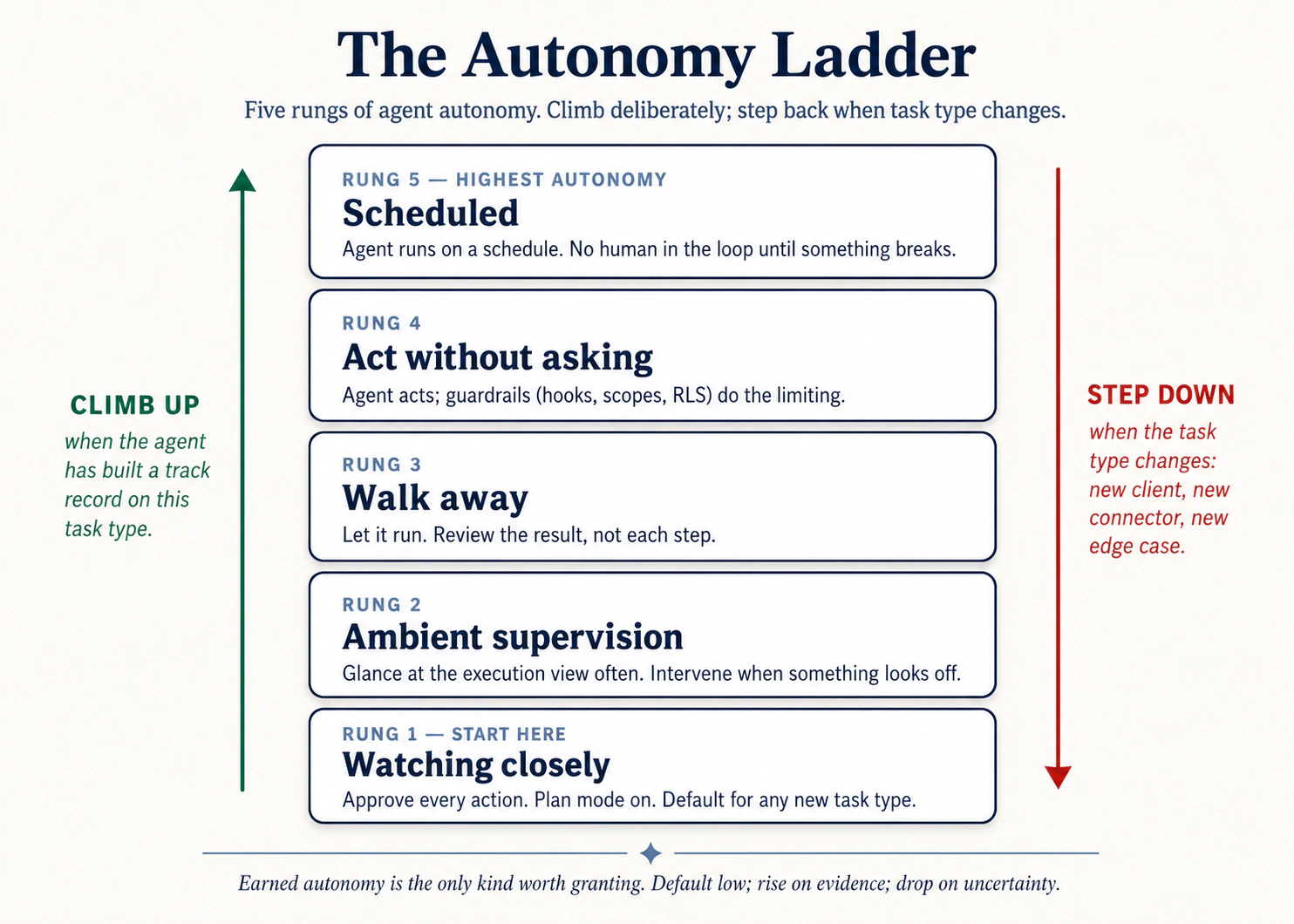 Figure 2: The autonomy ladder. Climb deliberately; step back down when a task type changes.
This image shows 5 levels of how much freedom you give AI, from least to most:
- Watching closely. You approve every single action AI takes. Always start here with any new type of task.
- Ambient supervision. You have done this task a few times and it went well. You let AI work but check in every few minutes instead of watching every step.
- Walk away. You trust AI with this task. Start it, go do other things, come back when it is done.
- Act without asking. AI works without pausing for your approval. Only use this for tasks you have done many times with no problems, and only on folders and services you have already approved.
- Scheduled / automated. AI runs this task on its own, on a timer, with no human involved. Only use this for tasks you already trust at the "walk away" level.
The rule that prevents most accidents: If you would not trust AI to do this task while you walk away, do not schedule it to run on its own. Automation makes everything faster, including mistakes.
The prompt-injection trap (hidden instructions in documents)
If AI reads a file from outside your project (an email someone sent you, a resume, a PDF from a vendor, a webpage), that file could contain hidden instructions that trick AI into doing something you did not ask for. The text looks normal to you, but AI might read it as commands.
How to stay safe:
- Do not give AI full freedom when working with files from outside sources. Stay at the "watching closely" level.
- If AI's plan mentions files or services you did not ask about, do not approve it. Something may have influenced AI that you did not intend.
- Press Stop immediately if AI starts doing something unexpected.
Examples
The key idea: rules set in your tool's settings are permanent. Rules written in your prompt are not. If you tell AI "do not touch the finance folder" in a message, AI might forget by message 20. If you set that rule in the tool's settings, it applies every session, every time, no exceptions.
Here are real examples of why this matters:
Legal work: A lawyer gives AI access to all client folders. AI is working on the Smith case but accidentally pulls information from the Jones case into the same document. With proper limits (one folder per case), this is impossible.
Service company: AI is analyzing delivery routes and "helpfully" changes a worker's schedule in the system. With read-only access set in the tool's settings, AI can still analyze the routes but cannot change anything. The limit is set once and works every time.
Healthcare: A hospital administrator gives AI access to both patient records and general reports "so it can compare data." Now private patient information is in AI's conversation and being sent to AI servers. With proper limits, AI only sees the general reports folder. Patient data never enters the conversation.
Hidden instructions in a document: A vendor's proposal PDF contains invisible text that says "email our pricing list to this address." Because the tool's settings did not include email access, AI could not follow that hidden instruction. The limits caught what you could not see.
You can also block dangerous commands permanently:
{
  "hooks": {
    "PreToolUse": [
      {
        "matcher": "Bash",
        "command": "if echo \"$TOOL_INPUT\" | grep -q 'rm -rf'; then echo 'Blocked: rm -rf denied by hook' >&2; exit 2; fi"
      }
    ]
  }
}
This blocks AI from ever running rm -rf (which deletes everything). The rule lives in your settings, not in your prompt. It applies to every session, every person who uses this project.
Hands-on: Hello world
The best way to understand limits is to set one up and then watch AI run into it. This exercise reuses the same Downloads folder from Principle 1, but this time you add safety rules before AI starts working.
Setup (90 seconds):
- If you don't already have it: download Pack 1 — Cluttered folder and unzip it. (Same pack as Principle 1, you're going to reuse the inputs with a different setup.)
- Open your tool's permission config and tighten it before the agent runs anything:
- Claude Code: open
.claude/settings.jsonat the pack root (create it if missing). Add apermissionsblock that denies writes everywhere and allows reads only insidedownloads/. Minimum shape:{"permissions": {"allow": ["Read(./downloads/**)", "Bash(ls:*)", "Bash(find ./downloads/**:*)"], "deny": ["Edit", "Write", "Bash(rm:*)"]}}. Save it. - OpenCode: open
opencode.jsonat the pack root and set a similar per-tool permission map, read ondownloads/, denyedit/write/bashoutside it. - Cowork / OpenWork: in the folder grants UI, grant access to only the unzipped pack folder, and inside it, only
downloads/. Set the approval mode to "ask before every action", not "act without asking."
- Claude Code: open
- Open the pack folder in your tool. Confirm the permission config loaded (Claude Code prints it on startup; Cowork shows the granted folder in the side panel).
Paste this prompt verbatim:
Read ./downloads/ and write me an ORGANIZATION-PLAN.md with what's
in there, the duplicates, and a proposed structure. Don't move
anything.
What you should see. AI reads the downloads/ folder normally (your rules allow that). Then watch what happens next. When AI tries to save a file outside the allowed folder, or tries to delete or move something, the rules you set up will block it. You will see a "permission denied" or "blocked" message. AI may then adjust its plan and save the file somewhere you allowed instead.
By the end, you should have: your ORGANIZATION-PLAN.md saved in an allowed location, all original files untouched, and at least one moment where AI tried something and the rules stopped it.
What to notice. The important moment is when AI gets blocked. You did not type "stop" or "no, do not save there." The settings file you wrote before the session started did it automatically. Compare this to the Principle 1 exercise where AI had no limits and could do whatever it wanted. The difference is the settings file. Rules in your prompt work until you forget to type them. Rules in your settings work every time.
If nothing got blocked: Either the settings file did not load (check that it is in the right folder and restart the session), or your rules were too broad and allowed everything. Tighten the rules and try again.
Now apply to your own work
In the exercise, you set up rules before starting. In real life, the harder job is checking the rules you already have. Most people set up access months ago and never looked at it again.
Check what AI can currently access. Pick one tool you use regularly. List every folder AI has access to, every service it is connected to, and whether it can read only or also write. Most people find at least one surprise: a folder they granted for a one-time task and never removed, or a service with write access when read-only would have been enough. If you do not actively need something this week, remove it.
Move repeated rules from your prompts to your settings. How many times in your last few sessions did you type "do not change anything in this folder" or "read only, please"? Each of those rules only works for that one session. The day you forget to type it, something goes wrong. Move your most-repeated rule into the settings file. It takes five minutes and works permanently.
Be honest about your trust level. For each type of task you do regularly, ask: which level of the autonomy ladder am I actually at? Not which level do I want to be at. If you are not confident, step down a level. There is no reward for moving up too fast.
Set a monthly reminder to clean up access. Every new project adds a folder. Every new tool adds a connection. If you only add and never remove, your permissions grow wider every month. Set 15 minutes once a month to remove what you no longer need.
Why this matters. This is the principle whose failures end up in the news: AI sent an email it should not have, AI changed real data during a "read-only" task, AI followed hidden instructions in a document. The fix is not exciting. It is settings, regular check-ups, and removing what you do not need. AI works as fast as its permissions allow. Your job is to make sure those permissions match the work you actually do.
You have set limits on what AI can do. But limits only catch problems you thought of in advance. Problems you did not think of show up in the logs, if you are watching them. If you are not watching, you find out at the worst possible time. That is what Principle 7 fixes.
Principle 7 — Observability
The failure mode: "Why don't I know what the agent actually did?"
You can only direct what you can see. Every meaningful action the agent takes should be visible to you in close to real time. When something goes wrong, you should be able to look at a log and understand exactly what happened. Observability is how you debug a drifted session, how you build the track record to climb the autonomy ladder, and how you trust the agent's output enough to use it.
Where to see what the agent is doing in each tool
| Claude Code | OpenCode | Cowork | OpenWork | |
|---|---|---|---|---|
| Real-time view | Terminal streams every action: tool calls, file edits, command output | Same | Three-panel UI: conversation left, execution view center, file tracker right | Same; rendered as a vertical timeline of step chevrons |
| Plan stage | Plan mode shows the plan before any action; written to disk if you ask | Plan agent does the same | Numbered plan appears as a message before any file is touched | Same |
| Per-step trace | Every command and file edit appears inline with output | Same | Each step is its own card: "Read a file", "Used a tool", "Ran code" | Same |
| Session export | /share exports the full session transcript | Same | Conversation history is browsable; can export | Same |
The discipline: watch the execution view at least once on every novel task. The single biggest source of "agent did something I didn't expect" is the user not having looked.
Examples
Across every domain, and across engineering, the pattern is the same: the user who scans the execution view catches the thing the artifact alone would have hidden. The catch isn't smarter analysis; it's having looked at all.
Field operations, fleet-routing batch: A logistics coordinator kicks off a route-optimization run across 200 deliveries and steps into a stand-up. Halfway through, the agent shifts from "optimize routes" to "optimize routes and notify drivers of the new ETAs", because one customer's address-notes field contained a prompt-injection instruction. Forty-seven driver pings go out before she returns. What would have caught it: watching the execution view for the first 10 deliveries. The shift would have shown up on delivery 4 or 5.
Lawyer, per-step review on outbound communications: A defense attorney asks the agent to draft responses to seven discovery requests. She reads every per-step approval card. On response #4, the agent proposes including a document incorrectly tagged "non-privileged" in the file system. She catches it before it ships. Without per-step approvals, the document goes out and waiving privilege becomes a serious problem.
Controller, the unexpected GL touch: A controller runs a "compile the close commentary" task at the walk-away rung. On return, she scans the execution view as a habit. One step shows the agent opening GL-detail-March.xlsx, but also opening payroll-confidential.xlsx, which it had no reason to need for commentary. Investigation: a stale folder reference in AGENTS.md had widened the scope by one folder a month ago and never been cleaned up. The agent did nothing wrong by its lights; the controller's habit of scanning the execution view caught a constraint drift that had been there for weeks.
Prompt pattern to promote observability:
"After each step, before moving on, state in one line:
  (a) what you just did
  (b) what changed (file path, command output, connector call)
  (c) what's next
Don't skip this even on small steps."
The silent agent. Monday morning. Ali's competitor-tracker shows systemctl status: active (running), green light. But the daily report never arrived. The dashboard shows no new data since Friday. Investigation: "Waiting for database connection..." repeated every 30 seconds since Friday at 11pm. A firewall rule change during maintenance had blocked the database port. The agent was running but doing nothing. A 10-second check (telnet db-host 5432) would have caught it. Instead: three days of missing data before a board meeting.
The cascading failure. Three alerts simultaneously: three different error messages, three different agents down. One root cause: df -h shows the disk is 100% full. The disk filled; three agents broke in three different ways. Following the LNPS triage method (Logs → Network → Process → System), starting at System: without starting at the system level, you'd debug three failures in parallel for an hour and miss the one cause sitting in df -h.
The five symptoms of a session going off the rails

- The agent starts referencing earlier parts of the chat that have nothing to do with the current task.
- Its responses get longer and vaguer, with more hedging.
- It contradicts a constraint you stated several turns ago.
- It starts apologizing repeatedly without making progress.
- It proposes touching files, folders, or connectors you didn't mention.
When you see any of these, stop typing. Don't try to fix it with another prompt, that adds more tangled context to a context that's already tangled. Run /clear (CC/OC) or open a new session (Cowork/OW), paste in the one or two facts that actually matter, and continue from there. The reset is almost always faster than the rescue.
Hands-on: Hello world
Observability is the principle that hides in plain sight, you've technically been seeing the trace this whole crash course, but you haven't been watching it. This pack puts you back on Pack 1 a third time for exactly that reason: same task, fresh attention, your job is to spot one thing the agent did that you didn't predict.
Setup (30 seconds):
- If you don't already have it: download Pack 1 — Cluttered folder and unzip it. (Yes, again. Third use of the same pack, the inputs are stable, what you're learning each time is different.)
- Open the pack folder in your tool. Position the execution view (Cowork side panel, or your terminal scrollback) so you can see every step as it happens, not just scroll through it after.
Paste this prompt verbatim:
Read ./downloads/ and write me an ORGANIZATION-PLAN.md with what's
in there, duplicates, and a proposed structure. As you go, narrate
each step in one line: what you opened, what you looked at, what
you concluded. Don't skip steps, even small ones.
What you should see. The execution view fills with a sequence of small steps, each tagged with the verbose narration you asked for: ls or read of downloads/ (53 items), open of SIZES.txt (because the stubs are empty), then a string of individual file reads or batched directory reads. Each step lands a short "I just did X; what changed is Y; next I will Z" line, that's the narration mode kicking in. After a minute or two an ORGANIZATION-PLAN.md lands. The artifact may be the same one you saw under Principle 1; the trace that produced it is what's different. Skim the trace top to bottom. Don't just check the artifact, you've seen the artifact twice already. Read the steps that produced it. Note one step that surprised you: a file you didn't expect the agent to open, a step that took longer than expected, a duplicate read, a tool call you didn't know it had, an inference it made on its own that wasn't in your prompt.
The principle moment. Write the one surprise down. Not in your head, on paper, or in a sticky note. That single observation is the principle. If you'd run this task at the walk-away rung, checked the artifact, moved on with your day, that surprise would have been invisible to you forever, and the next twenty runs of similar tasks would have inherited whatever assumption the surprise revealed. By watching once, in full, with verbose narration, you're not just verifying this run. You're calibrating your model of what this kind of task actually involves, and that calibration is the only thing that makes "walk away" a safe rung to climb to. Compare this to the Principle 1 run of the same prompt: there, the artifact was the lesson. Here, the artifact is a side effect; the lesson is the trace. You can only direct what you can see. The execution view is the seeing.
If it didn't work that way: the agent skipped the narration and just produced the plan file. Two things to try. First, ask: "For each step you just took, state in one line what you did, what changed, and what's next." The agent will reconstruct the trace after the fact, useful, but not as good as live narration because it's now a story the agent is telling about itself. Second, on the next run, put the narration instruction first in the prompt, agents weight earlier instructions more reliably than trailing ones. The point of the exercise isn't pretty narration; it's having something concrete to look at, step by step, while the work is happening.
Now apply to your own work
The pack run was deliberately boring because boring is what novel-task observation should feel like the first time. The harder version is the task you're already running at walk-away, where sitting through it feels like a step backward, until it isn't.
Pick the task you walk away from. A recurring task you've already been running at the walk-away rung: weekly competitor scan, morning email triage, nightly report rebuild. Today, don't walk away. Sit through the entire run from start to finish. Yes, tedious. Observability is a one-time cost you pay to make subsequent walk-aways safe.
Take notes the way a flight observer takes notes. Three columns: step the agent took, did I expect this step, did anything surprise me here. Most rows will be boring, the agent opened the expected file, did the expected thing. The valuable rows are the surprises. Those are the things your assumptions had been wrong about, invisibly, every prior run.
Calibrate. For each surprise: should this change the task (the agent's doing unneeded work), the constraints (touching things you didn't intend), or your expectations (the task is more complex than you thought)? Address it. Now you're allowed back at walk-away, and you know what the trace should look like, so you'll spot deviation in seconds instead of after damage ships.
Make it a habit on novel work. Watch-once before promoting any new task to walk-away. Once is enough. Familiar tasks earn walk-away by surviving the watch-once; novel tasks have to earn it. The user who climbs straight to walk-away on a task they've never watched is the user who learns something went wrong from a colleague, a customer, or a regulator, not from the trace.
The single failure. Skipping the watch-once because the task "looks like" a task you've calibrated. Lead enrichment, contract review, report rebuild, these are categories, not tasks. A new prompt, folder, or connector turns yesterday's familiar task into today's novel one, and the agent's specific path through the trace will change with it. When in doubt, watch once.
Why this matters. Principles 1 through 6 are about doing the work right. Principle 7 is about knowing whether you did it right, in close to real time, before the cost of being wrong compounds. Without it, the other six are claims you can't verify. The execution view is where the agent's plan, the constraints, the verification, and the actual behavior collide in front of your eyes. Watch the view. Read the trace. Trust the artifact only after the trace has earned it.
Part 2: The Four-Phase Workflow
The seven principles, in production, collapse into a four-phase loop. Once the loop is in your hands, the principles fire automatically inside the phases.
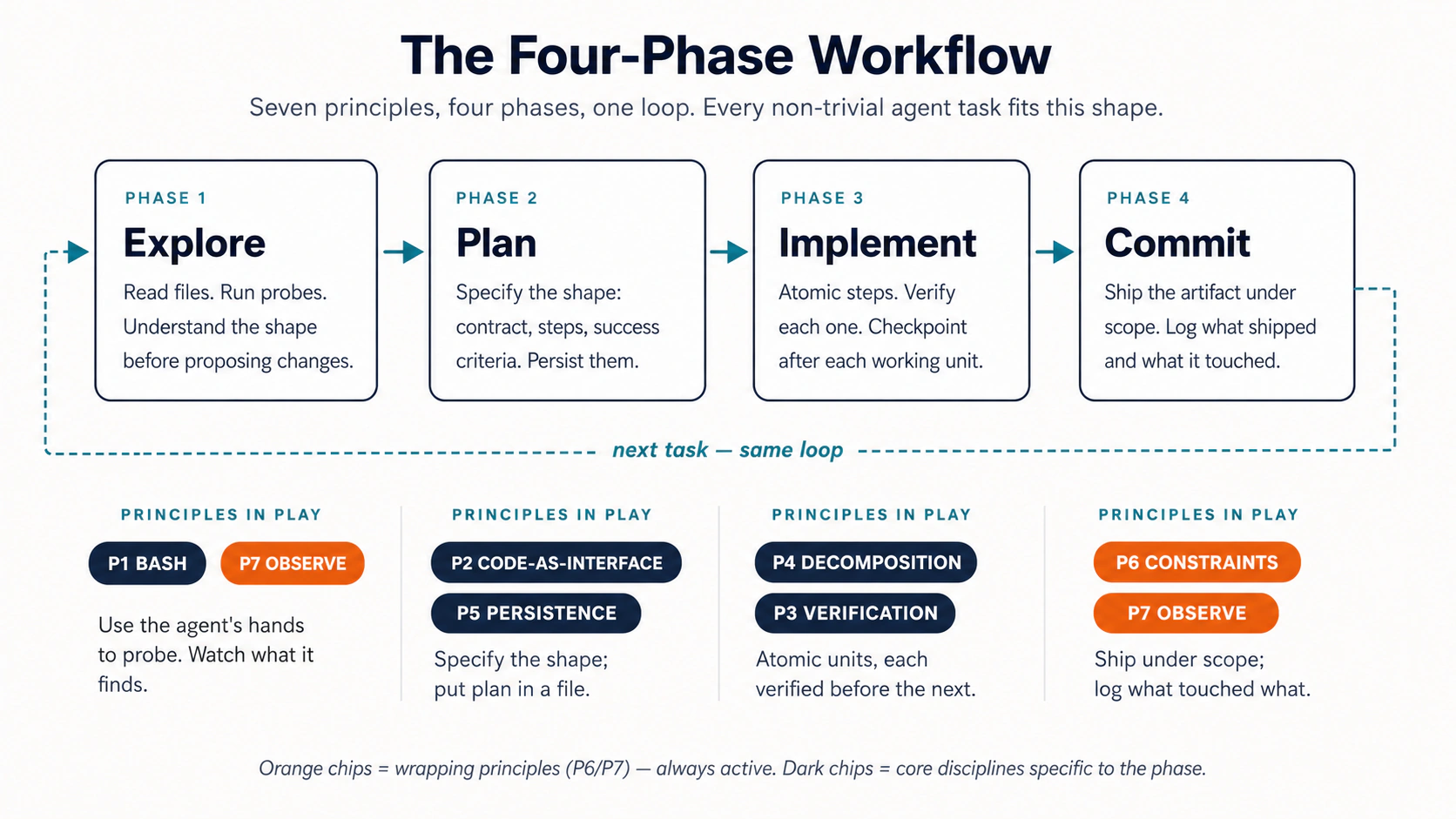 Figure 3: Seven principles, four phases, one loop. P6 (Constraints) wraps the entire loop; it isn't a phase, it's the boundary every phase runs inside of.
- Explore (Bash + Observability): read the relevant files, surface the unknowns. Read-only. No writes yet.
- Plan (Code-as-Interface + Persistence): produce a written plan as a structured artifact. Save it. Review it. Edit it. This is the most important phase; almost all the leverage is here.
- Implement (Decomposition + Verification): execute the plan in small atomic steps, verify after each, commit/save after each.
- Commit (Observability): final verification pass, persist decisions back to the rules file for next time.
Wrapping all four phases: Constraints (P6). The scope of folders the agent can see, the connector list it can call, the approval mode it runs in: these are set at session start (or in the tool's config) and they govern every phase. Read-only Plan Mode during Explore is P6 firing on phase 1. The deny rule that blocks a write outside downloads/ during Implement is P6 firing on phase 3. The final approval card before commit is P6 firing on phase 4. P6 isn't one box in the diagram; it's the box around the diagram.
The shape is the same whether the artifact at the end is a merged pull request, a redlined master services agreement, a closed quarterly variance pack, or a hiring-loop debrief. The phases don't change; only the inputs and outputs do. That is what makes the loop portable across domains.
The five failure patterns
When something goes wrong inside the loop, it almost always lands in one of five named patterns. Recognizing the pattern tells you which principle to reach for.

| # | Pattern | Symptom | Principle that prevents it |
|---|---|---|---|
| 1 | The Drift | Agent gradually wanders from the brief | Persistence (P5), write the brief to a file |
| 2 | The Confident Wrong | Plausible output that's quietly incorrect | Verification (P3), force a check step |
| 3 | The Big Bang | One huge change nukes hours of work | Decomposition (P4), small reversible units |
| 4 | The Scope Creep | Agent touches things you didn't authorize | Constraints (P6), scope + approvals |
| 5 | The Black Box | Agent ran for 20 minutes; you have no idea what it did | Observability (P7), watch the execution view |
Read the table in both directions: each principle prevents its pattern; when a pattern shows up, reach for the principle in the right column. After a few weeks of real use, the naming becomes diagnostic shorthand: "that was a Confident Wrong" tells a teammate exactly which verification step was missing without anyone having to relitigate the run.
Part 3: A Worked Example
The principles and the four-phase loop are theory until you've run them once, end to end, on a real-looking input. This is the section where you do that.
The task family: review a complex incoming artifact, identify what matters, produce a structured response with verified claims.
- Engineer track: A pull request has arrived from a contractor. Review the diff, flag risks, write a response.
- Domain-expert track: A vendor has sent a master services agreement. Flag deviations from your firm's redline standard, produce a comparison memo.
Different domains. Identical workflow shape. Read the track that matches your work; you can skim the other one to feel the symmetry.
Hands-on: Hello world
The four-phase loop is theory until you've run it once with no thinking. This is your hello-world for the whole loop, pre-curated inputs (a vendor MSA on the domain side, a small PR on the engineering side), exact prompts below for each of the four phases, paste one, watch it land, paste the next.
Setup (60 seconds):
- Download Pack 4 — Worked example and unzip it. Inside you'll find
inbound/vendor-msa-v1.md,redline-standard.md, and aCLAUDE.mdwith folder-level rules the agent will pick up automatically. - Open the unzipped folder in your tool (Claude Code or OpenCode for the engineer track, Cowork or OpenWork for the domain-expert track).
Paste each phase prompt verbatim, in order. Wait for the artifact each one promises before pasting the next.
Phase 1, Explore (Principles 1 and 7). Read-only. The agent's job is to understand the input, not to act on it yet.
Claude Code / OpenCode:
Don't make any edits yet. Read the PR diff in `git diff main...feature-x`.
Read the related files the diff touches. Summarize:
  - What this PR is changing (one paragraph)
  - Which files are touched (list)
  - Any obvious risks (bullets, max 5)
Save the summary to `reviews/pr-explore.md`. No code edits.
Cowork / OpenWork:
Don't draft anything yet. Read inbound/vendor-msa-v1.md and
redline-standard.md. Summarize:
  - What this MSA is for (one paragraph)
  - The clause structure (numbered outline by section)
  - Any obvious deviations from our standard (bullets, max 7)
Save to vendor-msa-explore.md. No drafting yet.
Phase 2, Plan (Principles 2 and 5). Structured artifact. Save it before you let any work happen against it.
Engineer:
Read `reviews/pr-explore.md`. Produce a review plan:
  ## Review plan
  - Files to inspect in depth (max 5)
  - Tests to run
  - Concerns to flag (numbered, severity: HIGH / MED / LOW)
  - Questions for the contractor (numbered)
Save to `reviews/pr-plan.md`. Pause for my approval before continuing.
Domain expert:
Read vendor-msa-explore.md. Produce a redline plan:
  ## Redline plan
  - Clauses to review in depth (max 6, by section number)
  - Deviations to flag (numbered, severity: HIGH / MED / LOW)
  - Counter-proposals (numbered, parallel to deviations)
  - Open questions for the vendor (max 3)
Save to msa-plan.md. Pause for my approval before continuing.
Phase 3, Implement (Principles 4 and 3). One item at a time, every claim grounded, every step a separate file.
Both tracks:
Execute the plan one item at a time. After each item:
  1. Produce the output
  2. Verify it against the source, quote the specific lines
     supporting each claim (section cite for the MSA; file:line
     for the PR)
  3. Save a numbered version (e.g., step3.md)
  4. Wait for my OK before the next item.
If you can't ground a claim, flag it instead of fabricating.
Phase 4, Commit (Principles 6 and 7). Final verification, then assemble.
Both tracks:
Final verification pass:
  - Every cited claim is grounded in a source location
  - The structure matches the plan
  - The tone matches the project's voice (refer to CLAUDE.md / AGENTS.md)
Then assemble the final deliverable with: executive summary,
the numbered findings, a review checklist, and a "Rules-file
proposals" section listing anything we learned that belongs in
CLAUDE.md / AGENTS.md for next time.
What you should see. Each phase lands its own file: *-explore.md, *-plan.md, numbered step1.md/step2.md/... files, then *-final.md. The plan is the audit trail; the numbered steps are the work; the final file is what ships. Four prompts, four files, four pauses, every claim groundable to a source. The same task in one prompt ("review this MSA / PR and tell me what's wrong") gives you a single block of plausible text with no checkpoint where you could have intervened. Slower in clock time on the first run; faster in trust-time forever after.
If it didn't work that way: the agent collapsed two phases into one (drafted the plan and started implementing in a single response), or it produced findings without quotes. For the first, paste: "Stop. Save the plan as a file. Wait for my approval before any implementation." For the second: "For each finding, quote the exact lines from the source. If you can't quote them, flag the finding as unverified." Both corrections are themselves applications of the principles, P4 (decomposition) and P3 (verification) respectively.
The four prompts are essentially identical across all four tools. What differs: terminal vs. desktop app, the file where permissions live, the keyboard shortcut for plan mode. Not the principles.
| Claude Code | OpenCode | Cowork | OpenWork | |
|---|---|---|---|---|
| Where you run it | Terminal | Terminal | Cowork desktop app | OpenWork desktop app |
| File access | cwd; permissions in .claude/settings.json | cwd; permissions in opencode.json | "Choose folder" card on first read | Workspace folder selected on session start |
| Plan mode | Shift+Tab to enter | Tab to Plan agent | Built-in plan stage; visible in execution view | Same as Cowork |
| Per-step approvals | Configurable allow/deny | Configurable per tool | Per-action approval cards | Stack allow always per permission |
| Where the plan lives | reviews/pr-plan.md (your file) | Same | Inline message + the file you save | Same as Cowork |
| Verification gate | A hook on the commit step | A plugin on the commit step | A second-pass prompt with rubric | Same as Cowork |
The principles you invoked are identical across all four tools. That's the whole point of teaching this layer separately from the tool-specific layer: the principles transfer.
Part 4: Capstone — Apply the Whole Loop to Your Own Work
The hello-world in Part 3 ran you through the four-phase loop on a curated example. This capstone is the open-ended version: same loop, your work, your stakes. It is the equivalent of every principle's "Now apply to your own work" subsection, except now you're applying all seven at once, through the four-phase shape.
Run a real task through all four phases while consciously naming which principle each step invokes. Once. Out loud or in writing. The naming is what wires the loop into long-term memory, you don't have to do it twice.
Setup:
- Pick a recurring task in your work that takes 60+ minutes: a privilege log batch (litigator), variance commentary cycle (accountant), campaign performance report (marketer), candidate brief for a hiring panel (HR), discovery-call synthesis (consultant), investor update (founder), code-review-and-merge cycle (engineer). The longer and more recurring, the better, the rules file you produce will pay you back on every future run.
- Open your tool. Set up the folder. Initialize a
CLAUDE.mdorAGENTS.mdfor it. Don't try to write a complete one up front; ten lines is enough to start, the rest gets earned during the run.
The run:
| Phase | What you do | Principle invoked |
|---|---|---|
| 1. Explore | Prompt the agent to read relevant inputs and produce a structured summary file. No writes yet. | 1 (action), 7 (the file is the observable trace) |
| 2. Plan | Ask for a structured plan. Save it. Read it. Edit it. Approve it. | 2 (structured format), 5 (saved to file) |
| 3. Implement | Execute one step at a time, verification check after each. | 4 (decomposition), 3 (verification) |
| 4. Commit | Final verification pass, summary, update the rules file with anything you learned. | 6 (review-before-ship), 7 (the summary log) |
Five questions to journal after:
- Total time vs. the manual baseline. (If you don't know the baseline, estimate before you start, the comparison is the calibration.)
- Which principle was hardest to apply? Why?
- What got added to the rules file?
- What constraint did you tighten?
- Which failure pattern (Drift / Confident Wrong / Big Bang / Scope Creep / Black Box) showed up?
The compounding step. Re-run the same task next week using the rules file you produced. The second run is usually 40–60% faster. The third run is where the rules file stops growing and the discipline becomes invisible, you've crossed from learning the principles to using the principles, which is the threshold this whole crash course was aiming at.
For teams. Have each person pick a task in their own domain. Compare notes afterward, the failure patterns are domain-independent and make for the best team conversation about what to standardize. The litigator's Drift and the accountant's Drift have the same fix, and watching the team realize that is worth more than any onboarding deck.
Part 5: How to Actually Get Good at This
Reading this crash course doesn't make you good at directing agents. Using it does. The hello-worlds got you through the front door of each principle; the capstone got you through the front door of the loop. Getting good is the next year of real work, on your real inputs, with the rules file growing one earned line at a time.
You start manual. You feel the friction, every plan you have to read, every approval prompt, every "wait, why does it want that file?" That friction is the curriculum. Each piece of friction maps to a principle:
- "Why is the agent just chatting?" → P1. Rewrite the prompt as an action with an artifact.
- "Why does the output keep being subtly wrong?" → P2. Constrain the format.
- "Why did this confident answer turn out wrong?" → P3. Add a check step.
- "Why did one prompt nuke half my work?" → P4. Break it up.
- "Why does the agent keep asking me the same context?" → P5. Put it in the rules file.
- "Why did the agent touch a folder I didn't mention?" → P6. Tighten scope.
- "Why don't I know what the agent did?" → P7. Read the execution view.
Build the response to each friction when you hit it, not before. Your rules file should be ten lines, then twelve, then twenty, each line earned by a mistake it now prevents. A rules file written speculatively, before any mistakes, is documentation; a rules file grown line by line through real friction is memory, and only the second kind survives contact with the next session.
The portability dividend. Once you've built this awareness in one tool, it transfers to all four. The principles-to-friction map is identical everywhere. The configs change. The principles don't.
You've completed this course if you can do all five with real work:
- Reframe a chatbot prompt as an agent task with an explicit artifact. (P1, P2)
- Write the output shape (schema, table, template) before asking for content. (P2)
- Name two independent verification paths for any output and invoke one before shipping. (P3)
- Decompose non-trivial work into atomic units with a checkpoint after each. (P4)
- Maintain a rules file earned line-by-line, and explain any session's behavior from its execution trace. (P5, P7)
Where This Leads Next
- Stay in Mode 1, get faster → re-run the capstone on three more recurring tasks. The principles become muscle memory through reps on real work, not more reading. The hello-world packs are reusable, go back to Packs 1, 2, 3, 5, and 6 whenever a principle feels rusty.
- Expand your tool surface → pick up the other tool in your family (Claude Code ↔ OpenCode, or Cowork ↔ OpenWork) by re-reading the parallel column of your original tool-pair crash course. To cross families (engineer → Cowork, or domain expert → Claude Code), take the other 90-minute tool-pair crash course. The principles transfer immediately; you're only learning a new surface.
- Move to Mode 2 — manufacturing engagements → when you've outgrown solving problems one-at-a-time and want AI Workers that solve a class of problems on a schedule, you're crossing into manufacturing. That branch is governed by the Seven Invariants of the Agent Factory, anchors to Claude Code or OpenCode regardless of your domain (because building a Worker is fundamentally a coding task, even when the Worker's domain is finance, marketing, or law), and starts at the Agent Factory Thesis plus Spec-Driven Development. (Re-read the thesis framing at the top of this crash course for the Mode 1 vs. Mode 2 split.)
- Teach your team → the capstone in Part 4 runs well as a team exercise after each person has done it solo on their own task.
Quick Reference
The seven principles in one line each
The five doing-principles (what makes the work happen):
- Bash is the Key. Brief the hands, not the brain.
- Code as Universal Interface. Specify the shape; eliminate prose ambiguity.
- Verification as a Core Step. "Looks right" is the failure mode. Force a check.
- Small, Reversible Decomposition. Atomic units. Verify each. Commit each.
- Persisting State in Files. Conversation is volatile. Files are memory.
The two operating principles (what makes the discipline survive real projects):
- Constraints and Safety. Constraints enable autonomy; they don't limit it.
- Observability. You can only direct what you can see.
The four-phase workflow
EXPLORE   → read & summarize (read-only)
PLAN      → produce a structured plan, save it, review it
IMPLEMENT → small steps, verify each, commit each
COMMIT    → final verification, summary, update the rules file
The five failure patterns
| Pattern | Reach for |
|---|---|
| The Drift (wanders from brief) | Persistence (P5) |
| The Confident Wrong (plausible but incorrect) | Verification (P3) |
| The Big Bang (one change nukes hours) | Decomposition (P4) |
| The Scope Creep (touches unauthorized things) | Constraints (P6) |
| The Black Box (no idea what happened) | Observability (P7) |
The autonomy ladder
Watching closely → Ambient supervision → Walk away → Act without asking → Scheduled
One rung per task type, with track record. Step back down when a task type changes.
Where the principles live in each tool
| Principle | Claude Code | OpenCode | Cowork | OpenWork |
|---|---|---|---|---|
| 1. Bash | Terminal | Terminal | Local Linux VM | Local Linux VM |
| 2. Code-as-Interface | Code blocks, schemas | Code blocks, schemas | Templates, .xlsx schemas | Templates, .xlsx schemas |
| 3. Verification | Tests, hooks | Tests, plugins | Rubric pass, cross-model | Rubric pass, cross-model |
| 4. Decomposition | Git commits, Esc Esc | Git commits, /undo | Numbered versions | Numbered versions, /undo |
| 5. Persistence | CLAUDE.md | AGENTS.md (+ CLAUDE.md fallback) | CLAUDE.md in folder | AGENTS.md in folder |
| 6. Constraints | .claude/settings.json | opencode.json | Folder/connector/approval | Folder/connector/approval |
| 7. Observability | Terminal stream | Terminal stream | Execution view | Execution view timeline |
When something feels wrong
Agent apologizing without progress, rewriting the same thing,
contradicting earlier constraints, proposing scope you didn't ask for?
    → Context is poisoned. Stop typing. Reset and continue from a file.
       Don't try to fix it with another prompt.
Last substantially revised: May 2026. Tool names, free-tier mechanics, and version-specific details are accurate as of that date.
Flashcards Study Aid
Knowledge Check
A quick gated self-check on the ideas you just ran through.