Where to Start: Become an Agentic AI Engineer in Days, Not Months
You don't have months to learn AI. Good news: you don't need them. Everyone starts the same way — ten Foundations courses in a browser, nothing installed, whether or not you can code — then makes one decision (use AI to do your work, or build AI that does it for you), and walks the courses from there. Engineer is the destination, not the prerequisite.
This section is the shortest path from beginner to shipping Agentic AI Engineer — measured in days, not semesters: productive with AI in a matter of hours, your first Digital FTE in a weekend, and the full Agent Factory stack inside a month of focused evenings.
Why Days, Not Months
That promise sounds impossible until you see the method behind it. It is the same method anyone uses to survive a new job with little background. First, you get an overview of the work. Second, you identify the few topics that are critical to actually doing the job. Third, you learn the 80% of each topic that gets used routinely, you start working, and you pick up the rest as you go — with reference material at your elbow.
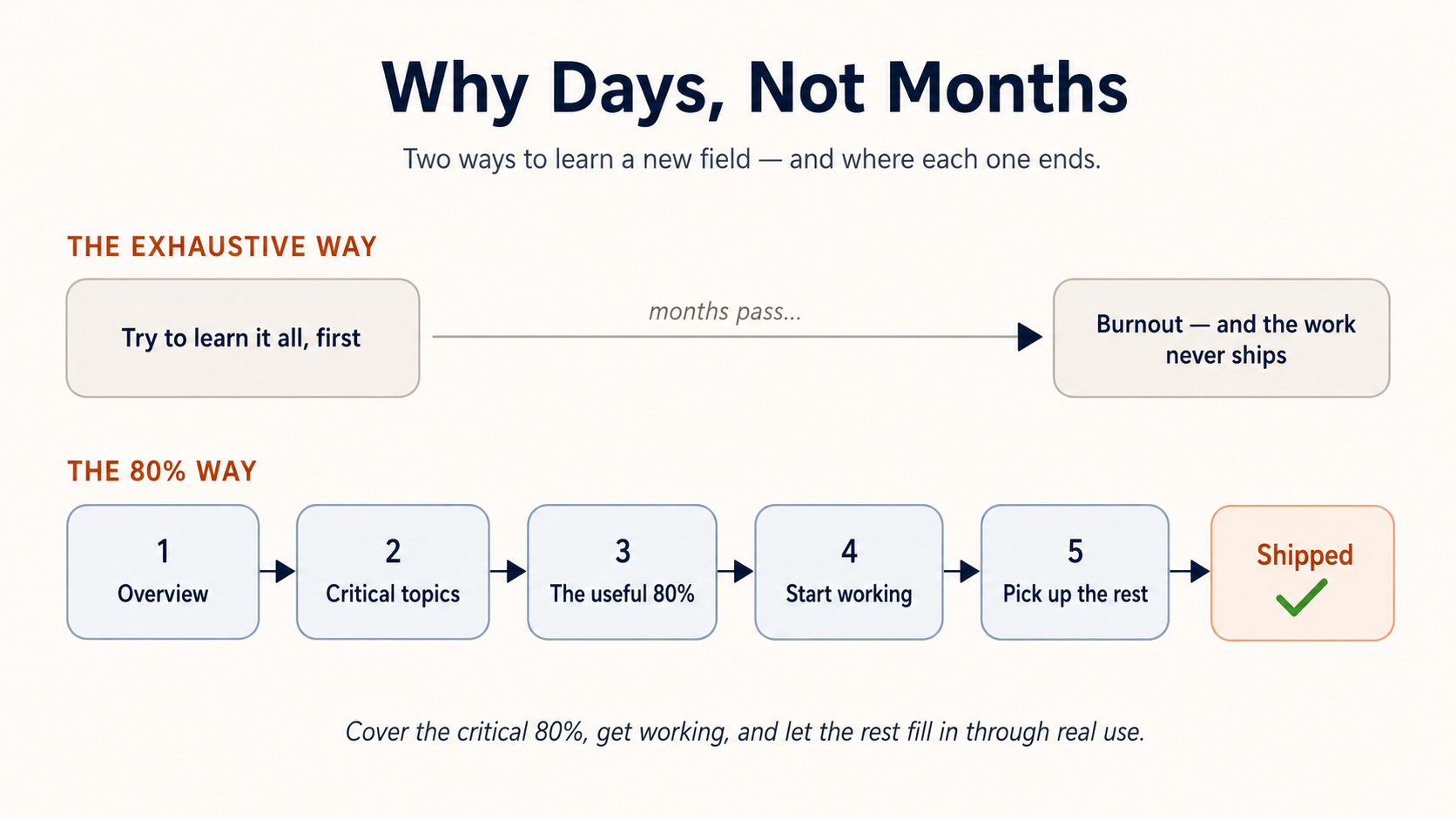
Trying to learn every detail of every topic up front takes months. You would burn out before you shipped anything. Our pedagogy is built on the opposite philosophy: cover the critical 80%, get you working, and let the rest fill in through real use. Every crash course in this section is designed exactly that way.
How This Is Organized (Start Here)
You don't learn this by reading everything; you learn it by walking one clear path — so here is that path, the only map you need to hold. It is the same one the sidebar already shows you: Foundations first, then General Agents, then Personal Agent Harnesses — where everyone gives themselves a persistent agent of their own — then one of two tracks — Mode 1 or Mode 2 — and finally References & Companions. The whole thing turns on a single decision in the middle (which mode), and everything before that decision is shared by every reader.
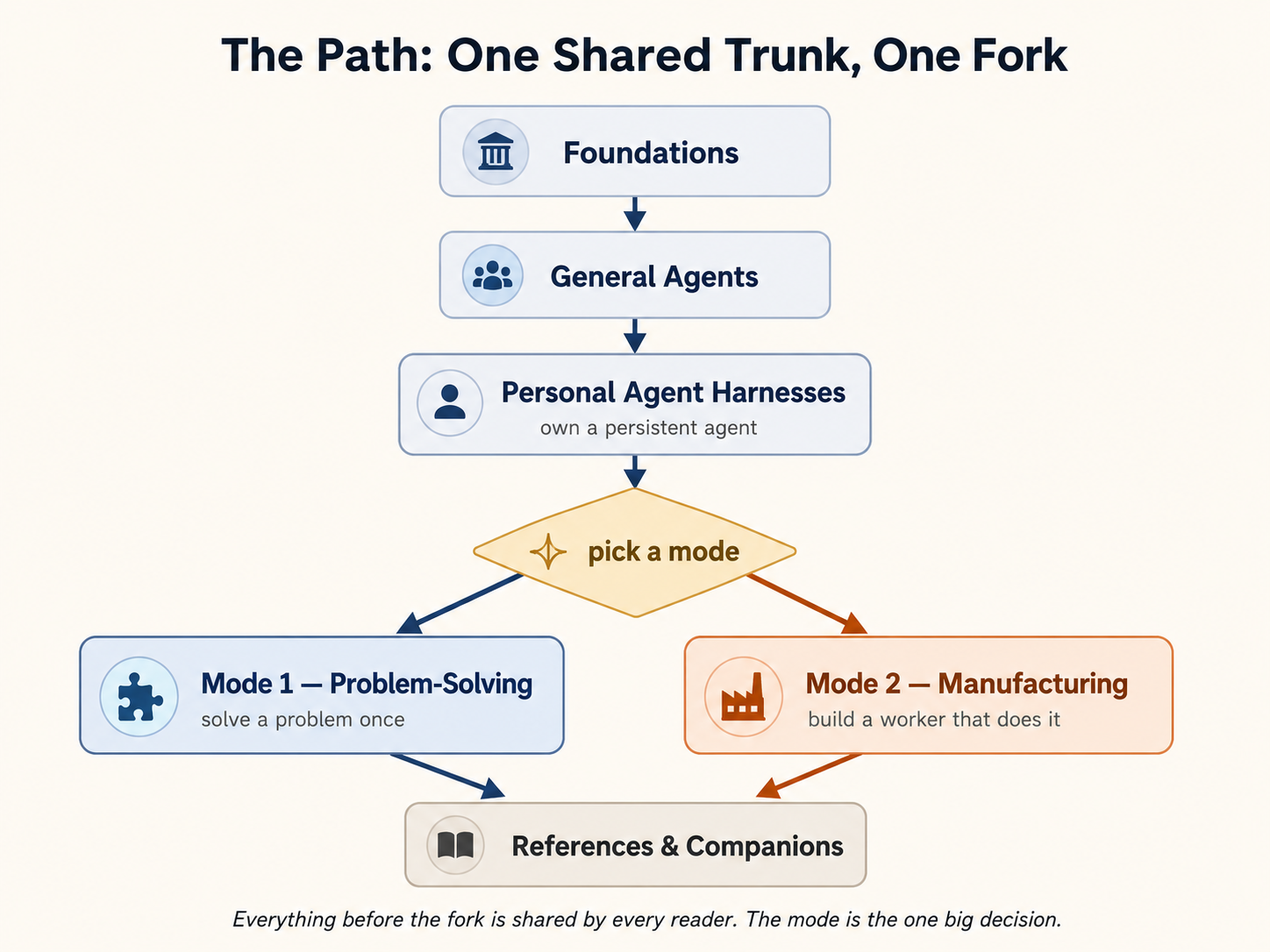
Start by reading the thesis. It comes in two versions — one for technical and business professionals, and one for absolute beginners — so everyone can follow regardless of background. After the thesis come the Foundations: giving AI a real job and checking the result, what a language model actually is, prompting, the two document languages of agentic work, commissioning code you never write, teaching AI a task once and connecting it to your apps, and learning how to think in the AI era. Every reader takes these before picking a mode.
Where do you start? In a browser. Your first ten courses, the Foundations, run in a chat tab — Claude.ai, ChatGPT, or Gemini — with nothing installed, whether or not you can already code. That browser tab is where most everyday AI value already lives. When the work needs your real files, you graduate to a general agent on your own machine, and the three layers of agentic work begin.
The mental model you'll need: work in the AI era happens in three layers. You use general agents to solve problems. You build AI Workers to do specialized jobs. You assemble those Workers into AI-Native Companies. Every professional engagement starts the same way — a human directing a general agent. The only question is which agent, which depends on what you're trying to accomplish.
A quick naming note. Throughout this book, AI Worker, Digital FTE, and AI Employee refer to the same idea — a specialized agentic system doing a real job under human-defined policy. We use Digital FTE when emphasizing business value, AI Worker when emphasizing implementation, and AI Employee when emphasizing role inside the company. For any other unfamiliar term, the glossary is your friend.
Those same three layers are the arc this section walks you along, from where you are now to where it gets you:
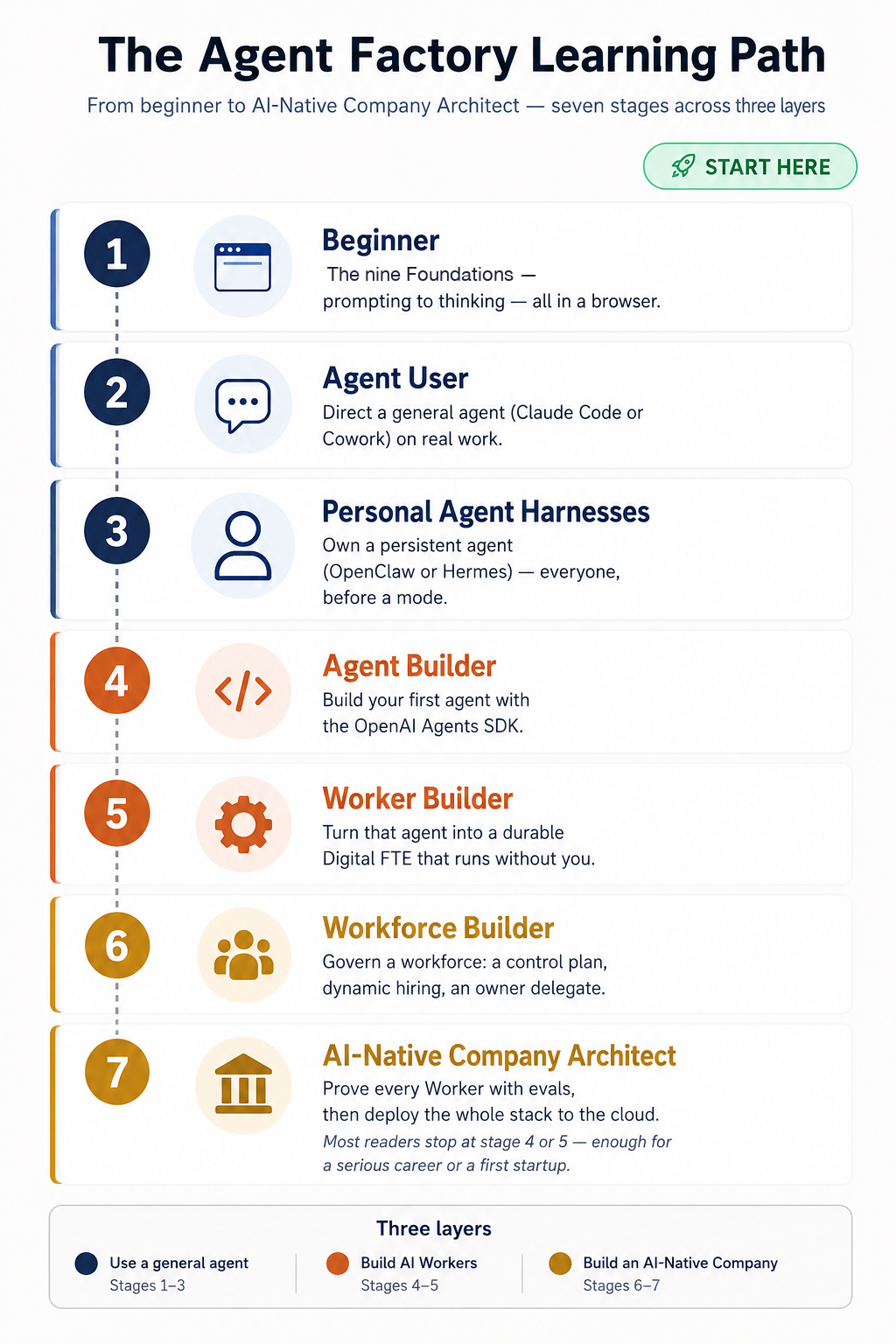
You don't have to walk the whole path. Most readers stop at stage 4 or 5, and that's enough for a serious career or a first startup. The full path is there if you want it.
Pick Your Mode
Here is that decision up close — the fork between using AI and building AI that works for you. Make it first in the abstract, then by finding your own row.
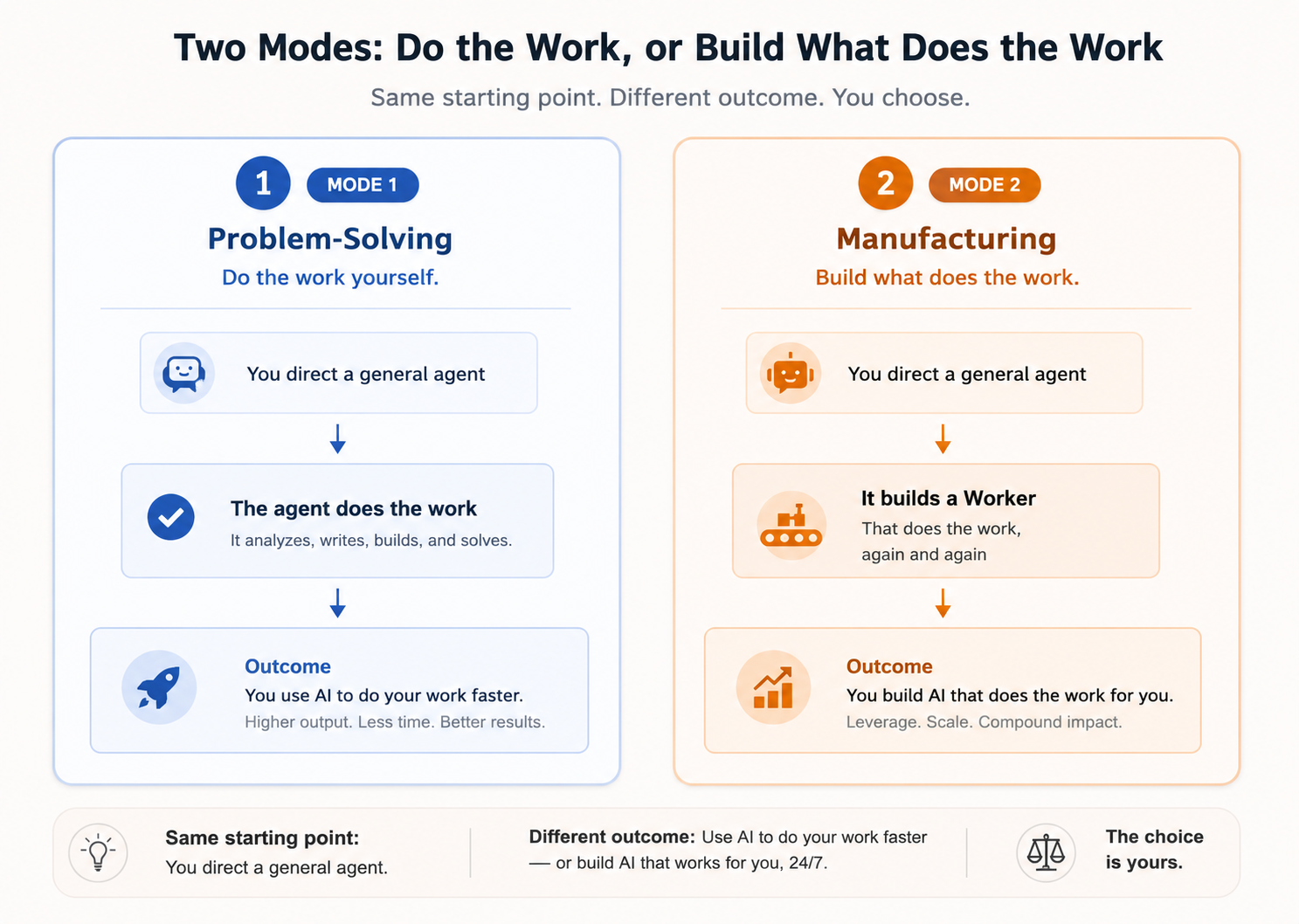
The thesis section The Two Modes of General Agent Use describes the two ways people actually use general-purpose agents. Mode 1 if you want to use AI to do your work. Mode 2 if you want to build AI that does the work for you. The label "Manufacturing" sounds industrial, and it is — building Workers is a different discipline from using them.
One thing the decision does not change: everyone picks a general agent (Course 12 or Course 14) right after Foundations. The mode decision routes you to a track; it does not decide whether you use a general agent. You always do.
| Mode 1 — Problem-Solving | Mode 2 — Manufacturing | |
|---|---|---|
| Pick this if you... | Want AI to help you do work faster | Want to build AI Workers that do work for you |
| Who it's for | Anyone — engineers or knowledge workers | Engineers (or a knowledge worker paired with an engineer) |
| Your tool | Claude Code/OpenCode or Claude Cowork/OpenWork | Claude Code/OpenCode for building; the course pages teach concepts you read on your own first, then ask the agent to build |
| Start with | Course 14 (engineers) or Course 12 (knowledge workers) | Course 40 — Build AI Agents |
| You produce | Completed work | A Worker that produces work, on its own |
| Governed by | Seven Principles of Problem Solving | Seven Invariants of the Agent Factory |
A note before the fork. Before you pick a mode, everyone takes one shared step: give yourself a persistent personal agent of your own. That is the Personal Agent Harnesses section (OpenClaw with General Agents, Course 27, and Hermes with General Agents, Course 28). It is a step on the shared path, not a mode — you build your own agent here, then choose Mode 1 or Mode 2.
A note on Mode 2. The general agent's output is not the outcome — it is the Worker that produces the outcome. A developer uses Claude Code to spec, build, and deploy a code-reviewing Worker. A finance analyst, paired with an engineer, uses Claude Code to spec a close-process Worker that runs every month-end. Same tool, same discipline, different domain.
Your Starter Path
If the Mode picker still feels abstract, here is the same decision in fully concrete terms — pick the row that fits you and start with the leftmost course. Every path begins with the universal Foundations (Courses 1–10).
| You are... | Your starter path | First milestone |
|---|---|---|
| Absolute beginner | Thesis → Course 1 (Just Delegate It) → Course 2 (What AI Is) → Course 3 (AI Fluency) → Course 4 (Prompting) → Course 5 (Markdown & HTML) → Course 6 (Code You Never Write) → Course 7 (Skills & Connectors) → Course 8 (Thinking) → Course 9 (Workflow Design) → Course 10 (Governance) | Foundations laid; continue with a mode below |
| Knowledge worker | Foundations (Courses 1–10) → Course 12 (Cowork) → Course 27 or 24 (own a harness, via a coding agent) → Course 29 (Is This an Agent Problem?) → Course 30 (Principles) | Ship real knowledge work with AI |
| Engineer | Foundations (Courses 1–10) → Course 14 (Claude Code) → Course 27 or 24 (own a harness) → Course 40 → Course 43 (FTE) | Ship your first Digital FTE |
| Workforce builder | The Engineer path, then Course 47 (Paperclip) → Course 50 (Evals) → Course 51 (Deploy) | A governed AI workforce, deployed to the cloud |
The Courses
You've made the call — so here is every course, grouped exactly as the sidebar shows them, with the one fastest route and the time at each depth called out before the full list.
Several courses include a Reader track — a conceptual, no-build pass you take to understand and direct the work rather than implement every line. Using it where offered, the fastest path to a shipped Digital FTE is Foundations (Courses 1–10) → Course 14 → Course 40 → Course 43 → Course 50 (Reader track) — about 15 hours of focused work. The remaining courses turn that Digital FTE into a governed workforce, but you don't need them to ship your first one.
Total time by depth: Mode 1 (productive with AI) ~8h · Mode 2 minimum (first Digital FTE) ~15h · Mode 2 full (governed workforce) ~32h · Full Agent Factory mastery ~52h (with the cloud deployment course).
Everyone shares the same ten Foundations below; after those, the path splits by mode.
Foundations (Everyone)
-
Just Delegate It — The book's Hello World: give AI a job instead of a question, on a free ChatGPT or Claude account in a browser. You pick one job of your own and hand it over eleven times, each time with one more line of a written brief: outcome, context, constraints, authority, deliverable, verification. Along the way the job needs current information, a source only you have, a finished document, a plan you approve before the work starts, a saved brief for when the job comes back, and a fix when it drifts, and each control on the screen is introduced only when the job asks for it. Ends with a four-step verification method (identify, trace, challenge, decide), the same brief run in a second assistant, and a one-page Delegation Record you keep. Every required exercise runs on a free plan; paid plans, connectors, and the agent recordings are optional. About three hours across two or three sittings. Prereq: none.
-
What AI Actually Is — A no-math, no-code mental model of the machine sitting under every other course: nine ideas that explain why a language model predicts rather than looks things up, why it sounds certain even when wrong, why it miscounts the letters in "strawberry," and why its skill is jagged. Read it right after Just Delegate It, and every "why did it do that?" in the courses below already has an answer waiting. About 45 minutes.
-
AI Fluency (The 4Ds) — The four human competencies that decide whether AI actually helps you, taught as one framework rather than a bag of tips: Delegation (what should AI do, and what stays with me), Description (what does it need to know), Discernment (is what came back actually good), and Diligence (is this a responsible use, and who owns the result). Also the three modes of working with AI, automation, augmentation, and agency, and what each of the four turns into once you build for other people: specs, system prompts, evals, and governance. Created by Rick Dakan and Joseph Feller and taught with Anthropic; explained here in the book's own words with an Agent Factory mapping. About 40 minutes plus six practice prompts. Prereq: Course 2.
-
AI Prompting in 2026 — A 45-minute, 13-concept primer on using ChatGPT, Claude, and Gemini well in 2026: context, reasoning modes, deep research, multimodal, and AI desktop apps. The mechanics every chapter of this book assumes you already know.
-
Markdown In, HTML Out — A 13-concept primer on the two document languages of agentic work: writing Markdown specs precise enough for a machine (headings, lists, fences, links, and the spec skeleton with its grade-to-9 validation loop), and demanding HTML output rich enough for a human, with the publishing ladder that turns an artifact into a shareable link. About 90 minutes including the closing prompts. Prereq: Course 3.
-
Code You Never Write — A 13-concept primer on getting AI to write, run, and verify code you never read. Which tasks are code problems (Volume, Precision, Repetition, Files), how to write a five-section brief with no technical words in it, how to force computation over estimation, how to verify a result you cannot read, and the five surfaces where AI runs code for you: Claude.ai, Claude Code, OpenCode, Cowork, and OpenWork. About an hour, plus forty minutes of closing prompts and four projects. Prereq: Courses 3 and 5.
-
Skills & Connectors — A no-code primer on the two upgrades that turn a chat box into a coworker. A Skill teaches AI a task once (a
SKILL.mdit loads only when your request matches) so it works your way every time; a Connector gives AI safe, permission-scoped access to your real apps — Drive, Gmail, Slack, a tracker — over the MCP standard. When to reach for each, how to use the built-in ones, how to have AI build your own (it writes the file for you), and how to do it all safely, across the same five surfaces, with notes on the ChatGPT and Gemini equivalents. These plugins are portable — what you make here travels with you to every tool you use later. Built for accountants, doctors, marketers, engineers, and students. About 75 minutes including the closing prompts and projects. Prereq: Courses 3–6. -
How to Think in the AI Era — The cognitive discipline that separates people who get real value from AI from those who don't: when to reach for an agent, when not to, and how to frame problems so an agent can actually help.
-
Workflow Design & Diagnosis — The course that turns AI from something you use into something a team's workflow runs on. Eighteen concepts in two halves. First the delegation map: write a workflow out step by step and decide who owns each step on three criteria and only three — can it be undone, what does an error cost in the bad case, and who is answerable — then put a Skill, project knowledge, code execution, or a named review gate behind each one. Then what to do when it starts going wrong: four causes of bad output told apart by when the symptom first appeared, a diagnostic sequence that runs the cheapest fix first, where a fix has to live to survive past Friday, and how to describe the result to a manager, a client, or a risk function without overstating it. Sixteen figures, two graded exercises, and a one-page map you can hand to whoever takes the workflow over. About 55 minutes, plus 40 for the exercises and the project. Prereq: Courses 2, 4, 6, and 7.
-
Governance, Risk & Responsible Use — The last Foundations course, and the one that decides whether the other nine are safe to use at work. Four questions to run before AI does meaningful work: can AI do this task, can this information go in, can I turn this tool or Skill on, and could this affect someone unfairly or require disclosure. Each has three answers, and the middle one is the demanding answer, because it is the only one that obliges you to name a reviewer, a control, or an approved route. Also the difference between "a human will review it" and a real gate, why removing names does not make data anonymous, why a Skill has no scope dial the way a connector does, and what to do in the first hour after something goes wrong. Ends with a one-page Governance Record you fill in for a workflow you actually own. About 35 to 45 minutes, plus 15 for the record. Prereq: Courses 3, 7, and 8.
General Agents (Pick Your Co-Worker)
These are the general-purpose agents you'll direct in every mode that follows. Engineers pick the coding agent; knowledge workers pick the desktop co-working agent. Both are reused in Mode 2: they aren't Mode-1-specific, they're the tool layer beneath every mode. Everyone starts on the web, then the path forks immediately: knowledge workers go straight to Cowork, while the coding track opens with Open Source LLMs, which runs an open model at all three scales (your laptop, a server you control, and the cloud) so you see what is under the hood from the start, and then Agentic Coding. From there, run six disciplines on whichever co-worker you picked: Spec-Driven Development, Loop Engineering, Harness Engineering, Graph Engineering, Trusting the Checker, and Token Economics. Specify what to build, design the loop that builds it for you, engineer the harness that makes that loop safe to trust, draw the work as a graph once it is wider than one loop, prove the checker at its center with evals, then learn what the whole thing costs to run and which model each kind of work actually deserves.
-
General Agents on the Web — Your first general agent, driven from a browser tab with nothing installed. A 12-concept tour of the July 2026 web work surfaces (Claude Cowork on the web and ChatGPT Work): what a remote session is, where your files actually live (the three-tier exit discipline), connectors as reach and exit door, the approval that reaches your phone, the four-step delegation loop, and scheduled tasks that run with no device online. Its lasting lesson is a reading lens: every agent product is the same six parts, so each new tool becomes a half-hour read. The gentlest on-ramp to the whole section; everyone starts here in a browser, whether or not you can code, before you install any tool.
-
Cowork Crash Course — A 90-minute, 15-concept primer on Claude Cowork: delegating real desktop knowledge work, the autonomy ladder, prompt-injection defenses, and the plan-review habit that prevents most regrets. The general-agent starting point for knowledge workers.
-
Open Source LLMs: Your Laptop, Your Server/Cluster, the Cloud — The coding track opens here, and it opens with the full range of choices open models actually give you. Three standalone parts, one per tier. Part 1 (local, Ollama): stand up a model on your own machine, free and offline, point Claude Code or OpenCode at it, and meet the two walls every local setup must clear (a capable model, and fast-enough hardware). Part 2 (server, vLLM): serve the same Qwen3 8B from a GPU machine you control, fire fifty concurrent requests at both serving layers, and draw your own two curves showing one crawl while the other climbs. Part 3 (cloud, OpenRouter): drive frontier open models like Kimi K3 and DeepSeek V4 Pro, which no individual can host, from the same two agents, then put one router in front of all three tiers. The lasting idea is one sentence: your agent is a harness plus a swappable brain, and the brain is just an address. Reading takes 2 to 4 hours; Part 1 alone takes about 60 to 90 minutes and needs nothing but a free install. Helpful to have driven a coding agent before; if not, the one-command install gets you there, and Course 14 teaches the driving. The open-model on-ramp to the coding track; pairs with the skills crash course.
-
Agentic Coding Crash Course: Claude Code and OpenCode — A 90-minute, 15-concept tour of Claude Code and OpenCode. Same vocabulary, slightly different keybindings; skills transfer cleanly between the two tools. The general-agent starting point for engineers.
-
Claude Code for Teams — What changes when a second person shares the repository. 16 concepts on the four instruction scopes, rules that load only when they apply, shared skills, settings precedence, and why the field named
allowed-toolsdoes not restrict anything. Prereq: Course 14. -
Claude Code as a CI Worker — Running it with nobody watching: headless and bare mode, structured findings a pipeline can post as inline comments, and how to write a reviewer engineers keep reading instead of muting. Teaches GitHub Actions from zero. Prereq: Course 15.
-
Claude Code Routines — Work that runs on Anthropic's infrastructure with no runner of your own. The five control surfaces, the three triggers, and why a green run status does not mean the task succeeded. Prereq: Course 16.
-
Website Design Crash Course — A 15-concept applied build course that points everything you just learned at one job: design, verify, and ship a real client website, single-page and multi-page, that looks made rather than generated. Taste as a file the model loads, a four-lane media pipeline from free photos to paid video, screenshots used as tests, and a live URL at the end. Your first real build with the agentic machine.
-
Spec-Driven Development — A 13-concept primer on agreeing what to build before you generate how it gets built: the project constitution, the four phases (Research, Specify, Clarify, Build), and the same discipline run three ways, in claude.ai, Claude Code, and OpenCode. A thinking discipline, not a coding skill, so non-programmers run it too. About 90 minutes plus a twice-built worked example and six hands-on projects. The discipline that makes whichever co-worker you picked reliable.
-
The Four Layers — A 12-concept map of the words this field keeps arguing about, and deliberately the shortest course in the section. Prompt, context, harness, and loop are not four skills you choose between, and not four rungs you climb: they are four containers, each one inside the next, each defined by its own unit of work (one model call, the window, one beat, the whole run). You learn the failure signature of each layer, the one success signal a maker beat has by itself and why no prompt can fix it, why the human gate is an exit rather than a stop, which layers you actually own in Mode 1 versus Mode 2, and where graphs fit (which is not as a fifth layer). Ends with an eight-case diagnosis drill and an honest account of when the framework fights you. The payoff is a habit: when an agent burns an afternoon repeating itself, you stop rewriting the prompt and start asking which layer actually broke. About 50 minutes, nothing to install. Prereq: Course 12 or 14; read it before Course 21 (Loop Engineering).
-
Loop Engineering — A 15-concept primer on the shift from prompting an agent turn by turn to designing the loop that prompts it for you. You learn a loop's six parts — a heartbeat, worktree isolation, a skill, the maker–checker sub-agent split, a connector, and the state spine that survives between runs — built once in both Claude Code and OpenCode, then composed into a single morning-triage-to-PR loop. Covers dynamic workflows as the codified body of a beat, the cost-by-cadence discipline that keeps a loop affordable, and why the durable skill lives at the two ends a loop can never automate: intent and accountability. About two hours to read, longer to build. Prereq: Course 14; builds directly on Courses 19 (Spec-Driven Development) and 18 (The Four Layers).
-
Harness Engineering — A 12-concept primer on the layer around the model that turns raw intelligence into an agent you can trust: Agent = Model + Harness. The five verbs that organize every harness surface (constrain, inform, verify, correct, escalate), permission rules sorted by blast radius, sandboxes that make damage impossible instead of forbidden, hooks that check work automatically, typed output a program can validate, the four failure classes, and the ratchet habit that turns every caught mistake into a permanent fix. Ends by hardening Loop Engineering's morning-triage loop end to end, in both Claude Code and OpenCode, plus eight practice harness builds. About two hours to read. Prereq: Course 14; builds directly on Course 21 (Loop Engineering).
-
Graph Engineering — A 12-concept primer on graph engineering as the field now uses the phrase: the shape of one run of agent work, drawn as nodes and edges, for the moment a job is wider than one loop. The thesis is one sentence: the model was never the bottleneck, the line you drew was. Every "do A, then B, then C" is already a graph, the saddest one, and most of its arrows carry no data. The fake-edge test finds them: walk every arrow and ask whether the next step actually needs the last step's result, and whether the two write the same place. Cut the arrows that fail and the line collapses into the one shape worth memorizing, the diamond: fan out in isolated rooms on the cheapest model that passes its evals, reduce with code rather than a model, verify with a skeptic that has never seen the work it is judging, synthesize from the survivors with the count on the first line. Three quiet ways a graph fails (context collapse, false independence, silent node failure) each get a one-line fix, and a section on anchors explains why a ring of nodes citing each other passes its own audit while touching nothing real. Part 4 runs one real diamond both ways: an auth audit as a dynamic workflow in Claude Code (the
ultracodekeyword, the concurrency cap, the counting merge) and the same drawing as a bash script for OpenCode. The two older meanings of the phrase, the memory graph and the governance graph, are kept as short deeper notes. Includes the honest case against itself: a graph buys breadth, not judgment, and six questions tell you when a loop was the answer all along. Core reading about ninety minutes; building the run takes longer. Prereq: Course 14; builds directly on Courses 21 and 22 (Loop and Harness Engineering). Take it when a job is wider than one loop; skip it while it is not. -
Trusting the Checker: An Evals Crash Course — A 12-concept primer on evals at operating size: how to test the tester so "the checker said PASS" becomes a number you can defend. An agent is a distribution, so grade the pass rate, not the single run; the three depths a run can be graded at (answer, actions, trace); building the golden set from real caught failures (the ratchet becomes cases); anchoring the rubric and calibrating the judge against your own blind grading; running the set as a regression gate on every change and on a schedule to catch drift; and staying honest against Goodhart's law with sealed hold-outs. No frameworks: a folder of cases, a shell runner, and jq, in both Claude Code and OpenCode, ending by testing the morning-triage reviewer itself. About two hours to read. Prereq: Course 14; builds directly on Course 22 (Harness Engineering).
-
Token Economics: Which Model for Which Work — A 24-concept primer on what agent work actually costs, opening with one real bill: a $169 day whose activity table blamed the agent's explanations and whose token table showed the real answer, that writing the code cost $10 and re-reading the conversation cost $116. From there, the physics. A bill has four meters, and the cheapest one, cache read, produces most of the cost because it runs on every step; a model has no memory, so each step re-reads the whole context; and because context grows as you go, a session twice as long re-reads about four times as much, which fixes the order of the levers: session shape first, then output, then model choice, then discounts. Part 2 turns that into habits that survive a change of tool (one task one session, what breaks the cache and the subagent TTL bucket almost nobody knows about, keeping noise out of the window, decisions instead of essays, testing in proportion, and the
/usagecache line that turns all of it into a reading). Part 3 is the routing rule: two dials, capability and effort, and three tiers, Judge, Build, and Fetch, with the warning that matters most, that a cheap model's failure is not a wrong answer but a confidently incomplete one, so the Fetch tier returns evidence and never conclusions. Part 4 is a dated price snapshot of the Claude, OpenAI, and Chinese ladders, built to be replaced. Part 5 puts it to work: subscription or API key, a six-question governance gate that comes before the price card, a routing table, standing instructions, and the levers that change when tokens become a Digital FTE's cost of goods sold. Ships a four-file Cost Kit you paste into any repo and six measure-it-yourself projects. About 90 minutes to read. Prereq: Course 14; assumes Courses 21 and 22 (Loop and Harness Engineering). Read it the first time a bill or a usage bar surprises you. -
Leaving the Laptop: A Runtime Crash Course — A 12-concept primer on the runtime decision: where a proven loop should live once it has earned trust, and how to move it without losing the track record. One question sorts every option (who operates the loop, and where the work executes), and four homes answer it: your session, a cloud schedule (Routines or scheduled GitHub Actions), a managed runtime (Claude Managed Agents), or your own process. Headless mode is the bridge every move crosses; the minimum unattended kit keeps a lidless loop honest; the suitcase test separates the discipline that travels from the mechanics that get rebuilt; and trust is re-earned in the new home, not transferred. Four questions pick the home and blast radius sets the speed, in both Claude Code and OpenCode. About 90 minutes to read; the moves take longer. Prereq: Course 14; builds directly on Course 24 (Trusting the Checker), and closes the Stage 3 trilogy.
Personal Agent Harnesses
The shared step between using an agent and picking a mode. Here everyone gives themselves a persistent personal agent — one that remembers across sessions and runs on infrastructure you own — instead of starting fresh in every chat. You build it by directing a coding agent (Claude Code or OpenCode), which does the install for you, so even if Cowork is your daily driver you point a coding agent at this one step. Own your agent here, then pick Mode 1 or Mode 2.
-
OpenClaw with General Agents — A 90-minute, 6-scenario hands-on course where your general agent installs and configures a Personal AI Employee on OpenClaw: from zero to an AI Employee on your phone, with one custom skill, one MCP tool, one heartbeat task, and a closing ACP-spawn demo where the AI Employee summons a coding agent of its own. Karpathy's "little skill," expanded. Prereq: Course 14.
-
Hermes with General Agents — A 90-minute, 6-scenario hands-on course where your general agent installs and runs Hermes (Nous Research), the memory-first, self-improving harness: persistent cross-session memory so it carries what it learns between runs, a learning loop that writes its own skills from the hard tasks it solves, model-agnostic so you avoid vendor lock-in, all running on infrastructure you own. The same Personal AI Employee idea as Course 27, built on a harness designed to compound what it learns. Prereq: Course 14; pairs with Course 27 (OpenClaw).
Mode 1 — The Problem-Solving Track
Mode 1 is a three-course arc: diagnose, solve, cross. You decide whether a task even belongs in an agent and which mode it is (Course 29), solve it well inside a single session (Course 30), and — when a solve proves worth keeping — promote it into a permanent worker (Course 31, the bridge into Mode 2).
-
Is This an Agent Problem? — The ten-minute triage you run before opening any agent. Three gates: is this even an agent job (or a regular tool, or a chatbot that just answers), will you do it once or every week (Mode 1 or Mode 2), and what does "finished" look like? Three gates, three wrong turns, one clear path — closing with a reference card that maps each answer to the right 2026 tool. The course that stops you burning a whole session on a task that never belonged in an agent. Written for beginners and an international audience. The on-ramp and first page of Mode 1.
-
Problem Solving with General Agents — A 90-minute, 7-principle crash course in the operating discipline that turns any general agent — Claude Code, OpenCode, Cowork, or OpenWork — from a clever toy into a tool you can ship real work on. The seven principles apply across all four tools: Bash as the key, code as the universal interface, verification as a core step, small reversible decomposition, persisting state in files, constraints and safety, and observability. Includes the four-phase workflow — explore, plan, implement, commit — and a capstone exercise.
-
From One-Off to Worker: The Handoff to Manufacturing — The bridge that ends Mode 1 and opens Mode 2. When a task you keep solving by hand is proven enough to become a permanent worker, and how to promote it: one signal (the method has stopped changing), four promotions (your brief → a spec, your eyeball check → an eval, you-in-the-loop → an escalation rule, your session → a runtime), and one fork (own a personal harness, or manufacture a Digital FTE). It turns the Mode 1 → Mode 2 crossing from a cliff into a walkable step, and shows that a worker is mostly promotion, not invention. The last page of Mode 1; hands into the Mode 2 track (Course 32 onward).
Mode 2 — The Manufacturing Track
First, a gateway. Every course here assumes you can read the Python your agent writes, so if you have never coded, start with Python in the AI Era. The track then runs in three phases. Building Blocks first — the pieces a worker is made of: the connector-native app you ship before you ever own a loop, the searchable store that gives one worker knowledge of its own, the context layer that reaches the whole company's sources with permission and provenance attached, the plugin that extends your coding agent, and the identity layer that lets a worker act as you. Then Build Workers: you own the agent loop, assemble it into a Digital FTE, and wrap it in a durable nervous system. Finally Scale the Workforce: one trustworthy worker becomes a governed, deployed, earning team — run as human-agent teams, designed for people to trust, and proven measurably trustworthy with evals. Without that last move, manufacturing is unprovable — Workers you can't measure are Workers you can't actually ship.
Phase 1 — Building Blocks
-
Python in the AI Era — A read-before-you-write primer for people who have never coded. You don't write Python from a blank page; you learn to read, predict, test, and verify the Python your agent generates, using the PRIMM-AI+ method and the Test-Driven Generation (TDG) loop. 17 concepts and six small projects, with a companion base that turns your agent into a disciplined tutor. The literacy gateway every Mode 2 build course assumes. Prereq: Course 14.
-
The Loop by Hand: The Anthropic Messages API — Build the agentic loop yourself, with no framework in the middle. 17 concepts on
stop_reasonas the control signal, the two rules for returning tool results, and the seven ways a response can stop. The foundation every SDK in Phase 2 hides from you. Prereq: Course 32. -
Structured Extraction Pipelines — Turning documents into data you can trust: schemas that do not invite fabrication, worked examples for layouts that disagree, retries that can actually help, confidence you calibrated, and the Message Batches API at half the token price. Prereq: Course 33.
-
Connector-Native Apps — The pre-loop build course: ship a remote MCP server a free-tier Claude user adds with one pasted URL and one Authorize click, before you ever write an agent loop. Fourteen concepts on the four invariants of a connector-native app — one gateway, tools only, prove identity from the verified sign-in, fail closed — built into a Reading Room worked example with OAuth 2.1, a two-table Postgres memory, a session-init gate, and a one-command live run in claude.ai. The host brings the model and the loop; your server brings tools, state, and identity. About 90–120 minutes to read, a focused day to build. Prereq: Courses 14 and 32 (Python); Build AI Agents, further on the path, gives you the loop.
-
Give Your AI Searchable Context: RAG on Postgres with pgvector — A 15-concept primer on giving your AI searchable context: you direct your agent to turn Neon + pgvector into a working RAG system — schema, an embedding worker, chunking, semantic and hybrid search, eval-driven retrieval, and a read-only RAG MCP server any agent can call. The retrieval foundation everything after it builds on: Course 37 turns this one store into a whole company's corpus, and the Digital FTE runs on both. From the same Manufacturing base. ~2-hour read plus a build. Prereq: Course 14.
-
Building the Context Layer — The scope jump out of your own store. Course 36 gave one Worker a searchable store you filled yourself; this one builds the corpus a whole workforce reads from, and it builds it around one real customer question that is secretly four professional questions at once. Fifteen concepts across seven parts: the four classes a connected source can be, and why mixing them is the expensive mistake; Onyx Standard deployed and read from the inside; permission inheritance, and the gate you build yourself because Community Edition will not, tested with a role whose correct answer is nothing at all; your Neon record served over MCP so discovery and confirmation stay two separate calls; an
authority-map.yamlwritten before the prompt; and a Context Router that returns the same seven sections every time with citations, and refuses to blend a conflict into one comfortable yes. Ends with the whole build end to end, four ways of breaking it on purpose, an eight-dimension eval set, and a Context Gateway serving the same corpus to Claude Code, OpenCode, and your Digital FTE through one identity boundary. About two hours to read, an afternoon to build. Prereq: Course 36 (keep that Neon project); assumes Courses 7 and 14. -
Plugins for AI Agents — Build and ship one real plugin that extends an AI agent you don't own (Claude Code or OpenCode), and watch the portable skill inside it travel to claude.ai. Thirteen concepts on the four invariants of an agent plugin and its four levers (a skill, a subagent, an MCP server, a hook), plus the deterministic exit-2 guard that turns advice into a guarantee. A tested starter carries you from an empty folder to a plugin a teammate installs in one command. The mirror of Connector-Native Apps: there you extended the chat app; here you extend the coding agent. Prereq: Course 32.
-
AI Identity: Human Sign-In and Agent Access — The identity and access layer, in two halves: own your sign-in (email and social login, sessions, two-factor, and an OAuth/OIDC server that issues real tokens, built on Better Auth), then give an AI worker its own credential and a scoped, time-boxed, revocable, human-approved way to act on a person's behalf. The through-line: whose identity is this, and how does authority pass from a human to an agent? Human sign-in is production-grade today; agent identity is still settling, so the course anchors on durable primitives. Prereq: Course 32.
Phase 2 — Build Workers
-
Build AI Agents Crash Course — A 90-minute, 16-concept primer on the OpenAI Agents SDK: agent loop, tools, sessions, streaming, handoffs, guardrails, tracing (your day-1 eval stand-in), human approval, sandboxed deployment on Cloudflare, and tiered model routing for cost discipline (with an optional DeepSeek swap). Prereq: Course 14.
-
Build AI Agents with the Claude Agent SDK — The Claude track, parallel to Course 40: the agent loop, the three permission fields that decide what runs, hooks that make a rule impossible to break, subagents, escalation, and cost discipline. Do this one or Course 40, not both. Prereq: Course 33.
-
Claude Managed Agents: Renting the Harness — When Anthropic runs the loop, the sandbox, and the session store instead of you. Why harnesses go stale, what a durable event log buys, and how to decide between renting and owning. Prereq: Course 41.
-
From Agent to Digital FTE — A 4-hour workshop on turning a basic agent into a durable Worker: portable Skills, Neon Postgres with pgvector as the system of record, the Model Context Protocol as the wire between them, audit-trail discipline, approval as the authority model, and a worked customer-support Worker built end-to-end. 15 concepts, 8 build decisions. Quick Win in 15 minutes; cheat-sheet skim in 90; full build in roughly 3 more hours. Prereq: Course 40.
-
From Digital FTE to Production Worker with a Nervous System — A 90-minute, 15-concept course on wrapping your Digital FTE in an Inngest operational envelope: durable execution, event-driven triggers, step memoization, concurrency and throttling, replay, and HITL gates. Extends the customer-support Worker so it survives network blips, restarts, and long-pending approvals. Prereq: Course 43.
Phase 3 — Scale the Workforce
-
Human-Agent Teams: The Operating Model for Your Workforce — The operating model for running humans and Digital FTEs as one team: work in the open, one roster with clear roles, a north star, and trust that grows with verified reliability. No code; you direct your agent to draft eight operating documents (roster, role cards, north star, verification rubric, doer-verifier, weekly report, attention budget) and leave with a real team's operating manual. Doable in planning mode before your first worker exists. Prereq: Course 14 for planning mode; live mode assumes a Digital FTE (Course 43).
-
Designing Agent Experiences — A crash course on the design craft that takes over once software acts on its own. An agentic product has two users at once: a human who must trust it, and other agents who must parse it. Across 18 concepts in four parts (the shift, the human trust surface, the machine surface, and the new craft), you learn to make an agent's judgment legible, its autonomy adjustable, and its mistakes survivable. You direct your agent to draft an Agent Experience Brief for one Digital FTE you already built, then ship an MCP App in a hands-on lab by directing a coding agent with the official
create-mcp-appskill. A Reader track of about an hour covers the concepts for leaders and designers who direct the work rather than implement it. Pairs with Course 45 (Human-Agent Teams): that course writes the team's operating model; this one designs the surface where a human experiences the team at work. -
Building a Workforce with Paperclip — A 90-minute, 7-scenario hands-on course where your coding agent stands up Paperclip (the open-source, MIT-licensed AI-native company control plane), hires a keyless CEO agent, approves its strategy as a permanent audited board decision, then watches the CEO hire and delegate to a team that builds real files under a budget rail, and reconstructs the whole company history with one SQL query against the activity log. Every scenario runs keyless on the coding agent you're already logged into (Claude Code, OpenCode, Codex, or Gemini); the budget rail sits armed at $0 until you point a Worker at a paid, per-token model. Prereq: Course 43 or Course 27.
-
From Fixed to Dynamic Workforce — A 90-minute, 7-scenario workshop where the workforce from Course 47 detects a capability gap, drafts a hire proposal, walks it through the same board-approval primitive you used to approve your CEO, and provisions a Reader Support Specialist on your own coding agent (Claude Code or OpenCode). Hiring as a callable function. Closes Invariant 6 (the workforce is expandable under policy). Prereq: Course 47.
-
From Founder Bottleneck to Owner Delegate — A half-day, two-act, six-scenario hands-on build where the owner of the workforce configures an Owner Identic AI on OpenClaw: it reads routine Paperclip approval requests, clears the ones inside a signed delegated envelope, and surfaces only the decisions that genuinely need a human. The owner is the last bottleneck — this course removes it. Closes Invariant 2 (every human needs a delegate). Ships a downloadable companion base whose AGENTS.md brief has your agent stand up Claudia, a local Paperclip sandbox, and a signed governance ledger. Prereq: Course 48.
-
Eval-Driven Development for AI Employees — The discipline that closes the manufacturing arc and wraps everything the manufacturing track built. Four learning tracks — Reader (~3-4 hours, conceptual), Beginner (~1 day), Intermediate (~2 days), Advanced (~3 days for full implementation). 15 concepts plus a 7-decision lab. Teaches the nine-layer evaluation pyramid (unit, integration, output, tool-use, trace, RAG, safety, regression, production) and the four-tool stack that fills it: OpenAI Agent Evals with trace grading, DeepEval, Ragas, Phoenix. End state: a workforce where every member is measurably trustworthy, with a weekly trace-to-regression-test promotion ritual that keeps the eval suite alive over months. Reader track for leaders; Advanced track for shipping teams. Assumes either the OpenAI Agents SDK or Claude Managed Agents runtime.
-
Deploy Your Agent Harness to the Cloud — The course that ships everything the manufacturing track built. It teaches the harness/sandbox split: the control plane (the harness that holds secrets, runs the agent loop, and keeps state) lives in a different security boundary from the execution plane (the sandbox where the agent's generated code actually runs). You deploy one complete production path: FastAPI on Azure Container Apps for the harness, Neon Postgres for durable state, Cloudflare R2 for files, a code-execution sandbox, four-surface observability, and the Course 50 eval suite wired in as a CI gate. Four learning tracks (Reader for leaders and architects; Beginner through Advanced for shipping teams), 17 concepts, and a 9-decision agent-driven lab where your coding agent reads a companion AGENTS.md and builds the harness while you direct it. Prereq: Course 50 (Decision 8 wires its eval suite). The Reader track needs no cloud accounts.
-
Choosing Agentic Architectures — A conceptual crash course on pattern selection: five questions about your task map to one of four core patterns (sequential workflow; single agent + ReAct + tools; planning + ReAct execution; multi-agent specialist), plus reflection as an additive layer on top. The discipline is choosing by architectural fit, not by what looks impressive: each pattern is a bet about the task, and the right one is the bet whose assumptions match reality. Teaches the five-question decision tree, the two equally common failure modes (overshooting and undershooting), the runtime signals that reveal a mismatch, and how each pattern composes with your deployment topology and your eval suite. Four learning tracks (Reader ~2-3 hours conceptual; Beginner ~1 day; Intermediate ~2-3 days; Advanced ~4-5 days), a five-case decision lab, and a printable classify-this-task worksheet for design reviews. Prereq: you can already build and evaluate agents; cross-references the agent-building, operational-envelope, and eval courses.
-
Payment-Enabled Agents: ACP, AP2, x402, and MPP — A multi-track crash course on the four protocols that let agents move money: ACP for consumer shopping, AP2 for authorization mandates, x402 for HTTP-native machine payments, and MPP for session-based settlement. The key idea: the four are layers, not rivals. You read a use case, pick one protocol per layer (discovery, authorization, commerce, settlement), and compose them as OpenAI Agents SDK code, with the tool-input guardrail that stops a payment before it happens. Four learning tracks (Reader ~2-3 hours conceptual; Beginner through Advanced for shipping teams), 19 concepts, a five-decision lab, and the three-level spend-limit discipline that keeps a runaway agent from draining a wallet. Prereq: Course 40 (the OpenAI Agents SDK); pairs with Course 44 (Inngest) and Course 51 (cloud deployment).
References & Companions
-
ChatGPT & Claude Quick Reference — The companion to Course 1. Where every control lives in the two chat workspaces you will actually use, side by side: model tiers and thinking modes, what an attachment really does, projects, the split between instructions and memory, artifacts versus writing blocks, skills and plugins, connectors versus apps and the MCP standard under both, and how to route a question to search, thinking, or research. Read it when a job needs a control you have not met, not before. About 35 minutes if you read it straight through.
-
Which AI Employees Should You Use in 2026? — Five tools matched to who you are and what you need. Find your starting point in under a minute.
-
Cheatsheets — Interactive quick-reference cards for the key tools in this book: Claude Code, the Claude collaborative workspace, and OpenClaw.
-
Agentic Engineering Fundamentals — A 45-minute primer on the engineering discipline that underwrites everything in this section: how to design, ship, and operate agent-based systems with the same rigor you would apply to any other production software. Optional companion read for anyone going past Course 43.
The glossary is your other constant companion. Keep both open in tabs.
What You'll Have When You Finish
When you reach the end of this section, you won't just understand the Agent Factory thesis — you'll have built against it. You'll have used general agents to ship real work. You'll have deployed at least one Digital FTE that runs without you. You'll have connected it to a nervous system, placed it inside a Paperclip-governed workforce, watched that workforce hire its own colleagues, and freed yourself from being its bottleneck through an Identic AI. You'll have wrapped the whole thing in evals you wrote yourself, so you can prove — not hope — that every Worker is trustworthy.
That's the difference between this book and every other AI course: you don't finish with notes. You finish with a working AI workforce.
And this section stays useful after you finish: the References & Companions above are what you reach for whenever you get stuck.
Everything after this section refines what you've already built. Now pick your mode and start.