Your Employee's Memory
You're setting up Claude Code as your General Agent for professional work. Your projects and rules aren't forgotten when you close the session. Claude reads your vault and starts with memory every time.
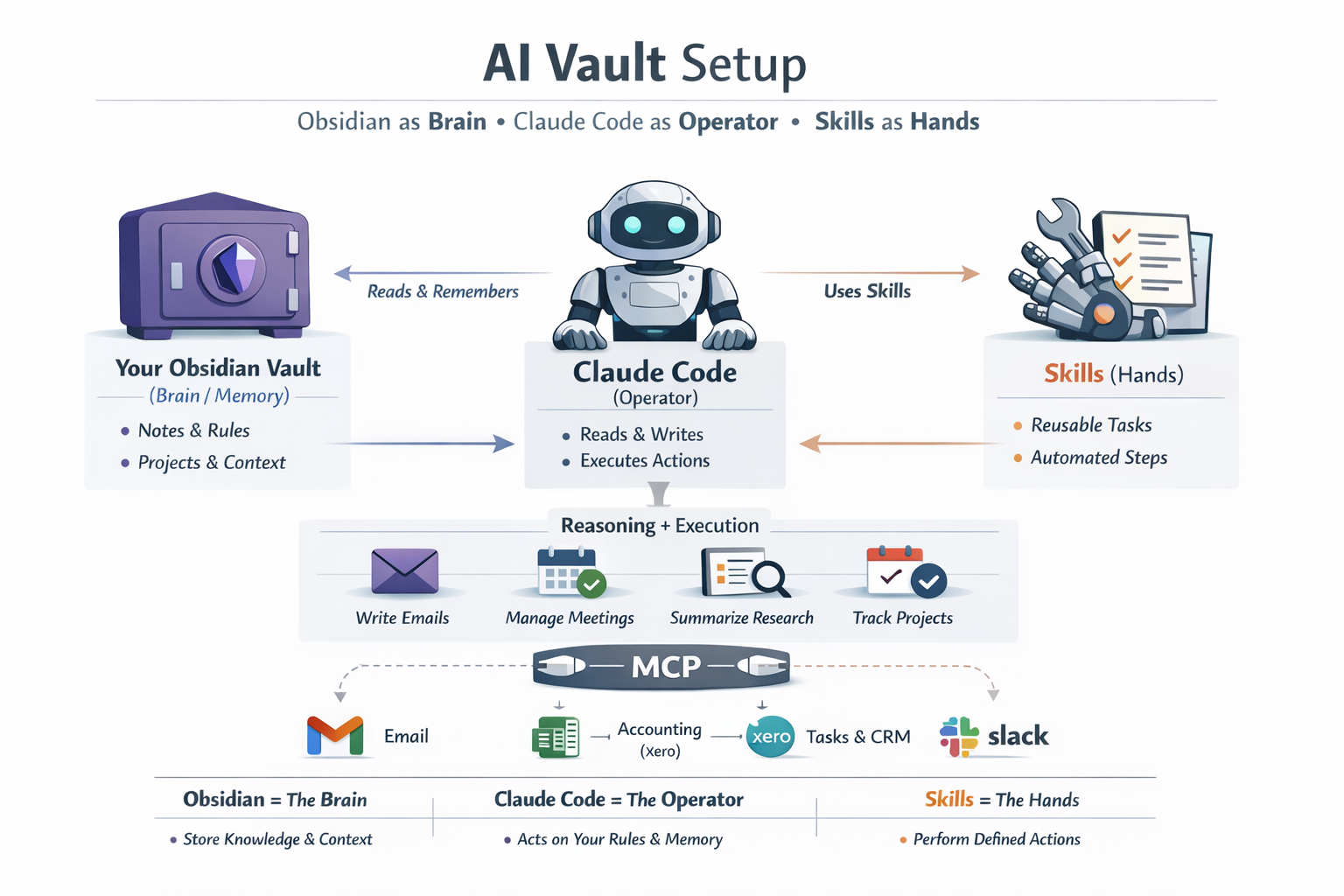
This setup separates memory and reasoning:
- 🗂 Memory Bank – Your vault (SOPs, knowledge base, tasks, rules)
- 🧠 Reasoning – Claude Code reads your Memory Bank and acts on it
- 📘 Skills – Teaching documents that make behavior predictable
- 🛠 MCP – Tool connectors for real-world actions (Gmail, Obsidian vault, etc.)
Think of it this way: Your vault is a Memory Bank — a combination of SOPs (how to do things) and Knowledge Base (what you know). Obsidian MCP makes this Memory Bank accessible to Claude Code from anywhere, not just when you're inside the vault folder.
The Problem
Most AI usage today is:
- Chat-based — conversations that disappear
- Ephemeral — no memory between sessions
- Prompt-heavy — re-explaining context every time
- Inconsistent — different results for same requests
- Ungoverned — no rules, no accountability
Even advanced users copy-paste context, re-explain their rules, and lose knowledge over time.
The question: How do we make AI work like a trained professional, not a clever chat agent without context about your professional work?
The answer: Give it a filesystem. A folder of markdown files solves the memory limitation of chat-only models. Claude Code reads files before every conversation, so it thinks beyond a single session. Your vault becomes Claude's long-term memory.
The Core Insight
Separate memory from reasoning.
| Role | Tool | What It Does |
|---|---|---|
| Memory | Obsidian Vault | Source of truth you curate (notes, rules, SOPs) |
| Reasoning | Claude Code | Reads memory, follows rules, produces work |
| Training | Skills | Explicit teaching — repeatable, reviewable, auditable |
Mental model: Claude Code is a junior professional with access to your shared drive. Not autonomous. Not magical. Just capable and fast — and it follows your written instructions.
Key shift: Skills are teaching, not prompting. You write what the skill does, when to use it, how to do it, what not to do. This makes behavior predictable.
Why This Matters
| Aspect | Without Vault | With Vault |
|---|---|---|
| Context per session | Zero | Full |
| Re-explaining needed | Every time | Never |
| Memory | None | Persistent |
| Aligned advice | Generic | Your goals |
| Pattern detection | Impossible | Automatic |
| Institutional knowledge | Lost | Accumulated |
Claude Code without vault = Smart agent with amnesia
Claude Code with vault = Your personal operator who knows your goals, remembers your history, follows your rules, and builds on previous work.
One sentence: The vault turns Claude Code into a stateful partner that accumulates context, enforces your rules, and compounds knowledge over time.
Step 1: Install Obsidian
Download from obsidian.md
Step 2: Create Your Vault
- Open Obsidian
- Select "Create new vault"
- Name your vault:
ai-vault(or any name you prefer) - Choose location:
~/projects/ai-vault - Click Create
Obsidian opens with an empty vault.
Step 3: Create AGENTS.md
This file contains all the governance rules for how Claude Code should operate in your vault.
In Obsidian, create a new note called AGENTS and paste:
# AGENTS - General Agent Governance

## Purpose

This vault is where I (human) and Claude Code (General Agent) work together on business workflows.

## Workspace Structure

ai-vault/
├── .claude/
│   ├── skills/        # Reusable expertise (SKILL.md format)
│   └── agents/        # Autonomous workers
├── references/        # Supporting documents
├── CLAUDE.md          # Project context (references this file)
└── AGENTS.md          # This file (governance)

## Governance Rules

1. **Skills go in `.claude/skills/{name}/SKILL.md`**
2. **Agents go in `.claude/agents/{name}.md`**
3. **Skills for guidance (2-4 decisions), agents for reasoning (5+)**
4. **Always read this file before operating**

## Active Projects

| Project | Series | Status |
|---------|--------|--------|
| Email Assistant | Email-1 to Email-7 | Starting |
Save the file. Now if you open vault folder you will notice an AGENTS.md file there. See direct markdown without any abstractions.
What Goes In Your Vault?
Your vault isn't just governance files. It's your professional memory:
| Content Type | Example | How Claude Uses It |
|---|---|---|
| SOPs | sops/client-onboarding.md | Follows your documented process |
| Client Notes | clients/acme-corp.md | Knows context when writing emails |
| Task Lists | tasks/this-week.md | Prioritizes based on your priorities |
| Templates | templates/weekly-report.md | Uses your established formats |
| Meeting Notes | meetings/2026-01-03-standup.md | Remembers decisions and action items |
| Reference Docs | references/pricing-tiers.md | Gives accurate answers about your business |
Start simple: Begin with just governance files (AGENTS.md, CLAUDE.md). Add knowledge as you work. Every note you add makes Claude smarter about your specific domain.
The accumulation effect: Each piece of knowledge you add compounds. Client notes help with emails. Meeting notes inform task priorities. SOPs ensure consistent execution. Over months, your vault becomes institutional knowledge that makes Claude increasingly effective.
Step 4: Create CLAUDE.md
This is the entry point Claude Code reads first. Create CLAUDE Note in the vault root:
# Skills Lab

This is my professional Claude Code workspace.

Read @AGENTS.md for governance rules, formats, and structure.

## Current Focus

- **Email-N series**: Building an Email Assistant
Save the file.
Personalizing Your CLAUDE.md
The example above is minimal. As you use your vault, personalize it to reflect how you work:
# Skills Lab

This is my professional Claude Code workspace.

Read @AGENTS.md for governance rules, formats, and structure.

## About Me

- **Role**: Marketing consultant for SaaS startups
- **Timezone**: PST (working hours 9am-5pm)
- **Communication style**: Direct, no fluff, bullet points over paragraphs

## My Preferences

- Use American English spelling
- When drafting emails, match the formality of the recipient
- Default to concise (3 paragraphs max) unless I ask for detail
- Always include next steps at the end of client communications

## Current Focus

- **Email-N series**: Building an Email Assistant
- **Priority client**: Acme Corp (see `clients/acme-corp.md`)

## What I'm NOT Working On

- Internal company communications (use templates from `templates/internal/`)
- Social media (handled separately)
Why this matters: Claude Code reads this file first. The more it knows about your preferences, role, and working style, the less you need to re-explain. Your CLAUDE.md becomes your professional profile that shapes every interaction.
Step 5: Open in Claude Code
Now test that Claude Code picks up your context.
cd ~/projects/ai-vault
claude
Test prompt 1:
What is this workspace and what governance rules should you follow?
Expected: Claude Code reads CLAUDE.md, follows the @AGENTS.md reference, and explains your workspace structure and governance rules.
If Claude Code responds with your vault-specific information, your General Agent is configured.
Step 6: Create the Folder Structure
Now that Claude Code understands your workspace, create the folders:
mkdir -p .claude/skills
mkdir -p .claude/agents
mkdir -p references
Step 7: Connect Memory Bank via MCP
This is the most important step. Without MCP, Claude Code only accesses your vault when you cd into it. With MCP, your Memory Bank is accessible from anywhere.
Why this matters for the architecture:
┌─────────────────────────────────────────────────────────────┐
│              PERSONAL AI EMPLOYEE ARCHITECTURE              │
├─────────────────────────────────────────────────────────────┤
│                                                             │
│  PERCEPTION (Watchers)     REASONING (Claude)     ACTION   │
│  ┌─────────────────┐      ┌─────────────────┐    (MCP)    │
│  │ Gmail Watcher   │─────▶│                 │             │
│  │ runs from       │      │   Claude Code   │─────▶ Gmail │
│  │ /scripts/       │      │   (anywhere)    │             │
│  └─────────────────┘      │        │        │             │
│                           │        ▼        │             │
│                           │  ┌───────────┐  │             │
│                           │  │Memory Bank│◀─┼── Obsidian  │
│                           │  │via MCP    │  │     MCP     │
│                           │  └───────────┘  │             │
│                           └─────────────────┘             │
└─────────────────────────────────────────────────────────────┘
Watchers (Silver tier) run from /scripts/, not inside your vault. When they trigger Claude Code, Claude needs MCP to access your Memory Bank (SOPs, rules, knowledge).
Part A: Install Obsidian REST API Plugin
The most popular Obsidian MCP server (2.7k+ stars) uses Obsidian's REST API.
- In Obsidian, go to Settings → Community plugins
- Click Browse and search for "Local REST API"
- Install and enable Local REST API by Adam Coddington
- Go to the plugin settings and copy your API Key
Default settings:
- Host:
127.0.0.1 - Port:
27124 - Protocol: HTTPS (the MCP handles this automatically)
Verify plugin is working: Open https://127.0.0.1:27124/ in your browser — you should see a JSON response with "status": "OK".
Part B: Install Obsidian MCP
claude mcp add mcp-obsidian --scope user -- uvx mcp-obsidian
Then set the environment variables. Edit ~/.claude.json:
{
  "mcpServers": {
    "mcp-obsidian": {
      "command": "uvx",
      "args": ["mcp-obsidian"],
      "env": {
        "OBSIDIAN_API_KEY": "your-api-key-from-plugin",
        "OBSIDIAN_HOST": "127.0.0.1",
        "OBSIDIAN_PORT": "27124"
      }
    }
  }
}
Replace your-api-key-from-plugin with the API key from the plugin settings.
Part C: Verify Connection
claude mcp list
Expected output:
mcp-obsidian: connected
  Transport: stdio
  Tools: 12 tools
What Obsidian MCP Provides
| Tool | What It Does |
|---|---|
list_files_in_vault | List all files in vault |
get_file_contents | Read any note |
search | Search across all notes |
patch_content | Update specific sections |
append_content | Add to existing notes |
delete_file | Remove notes |
The MCP connects to whichever vault is currently open in Obsidian — not to a specific vault path. To access a different vault:
- In Obsidian, switch vaults (click vault icon or File → Open vault)
- The MCP automatically connects to the new vault (no config change needed)
The REST API plugin must be enabled in each vault you want to access via MCP.
Part D: Test From Another Directory
cd ~/Desktop
claude
Then ask:
Using mcp-obsidian, get the contents of AGENTS.md and tell me my governance rules.
If Claude responds with your vault's governance rules, your Memory Bank is accessible from anywhere.
Without MCP, your AI Employee is "stuck" in the vault directory. With MCP, Claude Code becomes location-independent — the foundation for watchers, scheduled tasks, and autonomous operation.
The REST API plugin requires Obsidian to be open. For always-on access (Silver tier watchers), keep Obsidian running in the background.
Step 8: Enable Hidden Files in Obsidian (Optional)
The .claude folder is hidden by default in Obsidian. This step lets you see and edit skills directly in Obsidian's file explorer.
Skip this if: You prefer editing .claude/skills/ via terminal or VS Code.
Part A: Enable Hidden Folders
- In Obsidian, click Settings (gear icon, bottom-left)
- Click "Files and links"
- Enable "Show hidden folders"
Part B: Install the Plugin
- Go to github.com/polyipseity/obsidian-show-hidden-files/releases/tag/2.5.0
- Download:
main.js,manifest.json,styles.css - Open your vault folder in Finder/Explorer
- Create:
.obsidian/plugins/show-hidden-files/ - Copy the 3 downloaded files into that folder
- Create
data.jsonin the same folder:
{
  "errorNoticeTimeout": 0,
  "language": "",
  "noticeTimeout": 5,
  "openChangelogOnUpdate": true,
  "showConfigurationFolder": true,
  "showHiddenFiles": true,
  "showingRules": [
    "+/",
    "-/\\.git(?:\\/|$)/u",
    "-/\\.venv(?:\\/|$)/u"
  ]
}
Part C: Enable the Plugin
- Go to Settings → Community plugins
- Click "Turn on community plugins"
- Toggle "Show Hidden Files" ON
- Restart Obsidian
Result: You can now see .claude/skills/ and .claude/agents/ in Obsidian's file explorer.
(Optional) Git Version Control
If you want institutional memory — tracking every change to your skills and agents:
cd ~/projects/ai-vault
git init
git add .
git commit -m "Initialize ai-vault workspace"
This is good practice but not required for the Email series.
Your Setup Complete
ai-vault/                        (Your Employee's Memory Bank)
├── .claude/
│   ├── skills/         ← Ready for L02
│   └── agents/         ← Ready for L05
├── .obsidian/          (optional: show-hidden-files plugin)
├── references/
├── AGENTS.md           ← Governance rules (SOPs)
└── CLAUDE.md           ← Entry point for Claude Code

~/.claude.json          (MCP configuration)
└── mcpServers.obsidian ← Memory Bank accessible from anywhere
What you have:
| Component | Role | Why It Matters |
|---|---|---|
| Obsidian | Human interface | Edit Memory Bank visually |
| Memory Bank | SOPs + Knowledge Base | Your employee's long-term memory |
| Obsidian MCP | Location-independent access | Watchers can trigger Claude from anywhere |
| AGENTS.md | Governance rules | Your employee follows your SOPs |
| Claude Code | Reasoning engine | Reads Memory Bank, executes actions |
The architecture in one sentence: Watchers (perception) trigger Claude Code (reasoning) which reads your Memory Bank via MCP and takes actions via other MCP servers (Gmail, browser, etc.).
Try With AI
From inside your vault (cd ~/projects/ai-vault && claude):
Prompt 1: Verify Governance
Read my AGENTS.md and tell me: What are my governance rules? What format should skills use?
What you're practicing: Confirming Claude Code reads your governance file when inside the vault.
Prompt 2: Create First Structure
Based on my AGENTS.md, create the folder structure I need for skills and agents if it doesn't exist.
What you're practicing: Having Claude Code execute based on your governance rules.
From OUTSIDE your vault (cd ~/Desktop && claude):
Prompt 3: Verify MCP Access
Using mcp-obsidian, get the contents of AGENTS.md and summarize my governance rules.
What you're practicing: Confirming your Memory Bank is accessible from anywhere via MCP — this is the foundation for watchers.
Prompt 4: Skill Preview (from anywhere)
Using mcp-obsidian to read my vault, I'm about to create an email-drafter skill. Based on my AGENTS.md governance, show me exactly what the file should look like and where it should go.
What you're practicing: Verifying Claude Code understands your skill conventions AND can access them from any directory.