Setting Up Your AI Vault - Agent Memory
You're setting up Claude Code as your General Agent for professional work. Your projects and rules aren't forgotten when you close the session. Claude reads your vault and starts with memory every time.
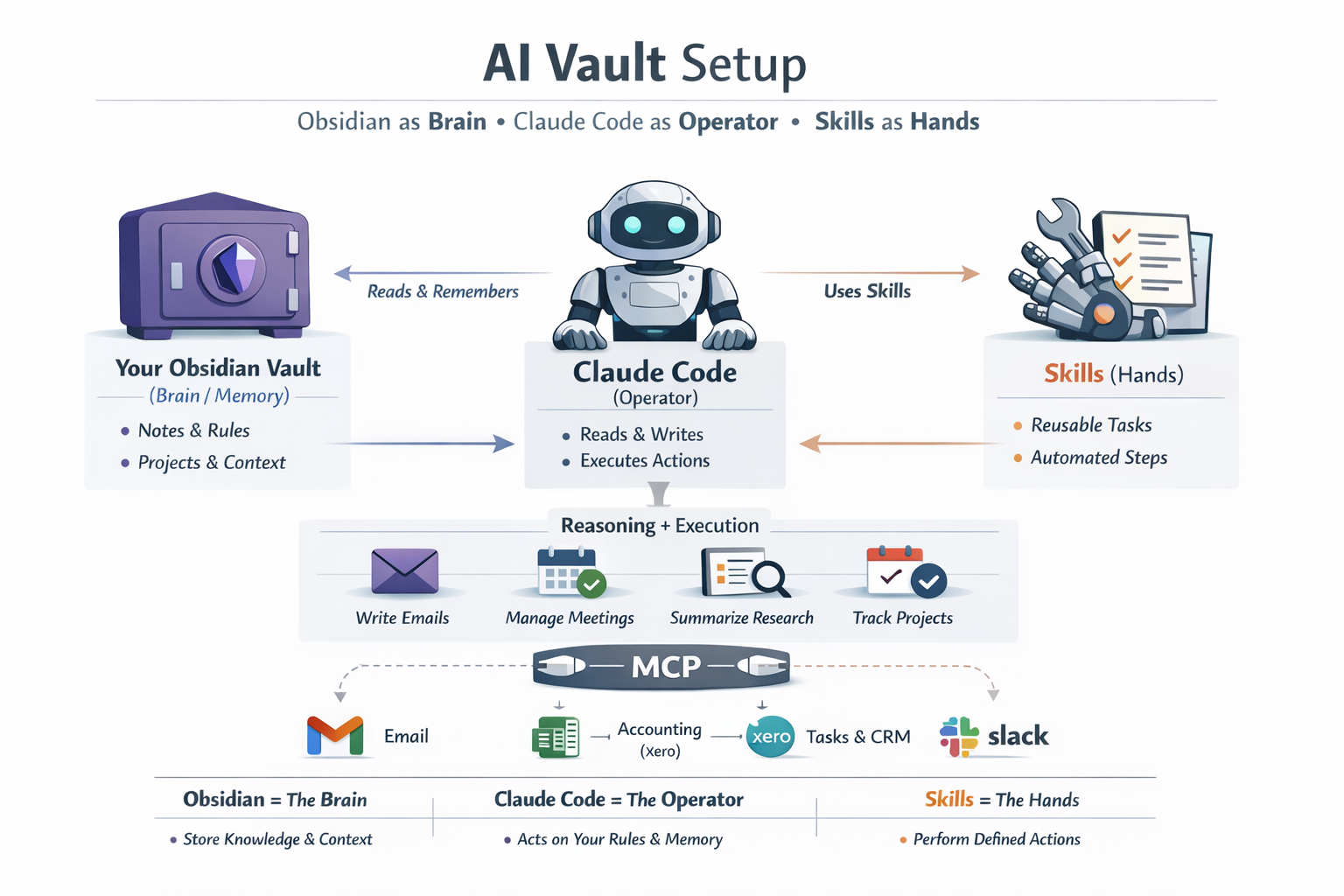
This setup separates memory and reasoning:
- 🗂 Memory – Your vault (notes, SOPs, tasks, rules)
- 🧠 Reasoning – Claude Code reads your vault and acts on it
- 📘 Skills – Teaching documents that make behavior predictable
- 🛠 MCP – Tool connectors for real-world actions (Gmail, Xero, etc.)
Think of it this way: Your vault is a Second Brain. Until now, it just stored knowledge. Skills give your Second Brain hands. Claude Code can now act on your knowledge, not just retrieve it.
The Problem
Most AI usage today is:
- Chat-based — conversations that disappear
- Ephemeral — no memory between sessions
- Prompt-heavy — re-explaining context every time
- Inconsistent — different results for same requests
- Ungoverned — no rules, no accountability
Even advanced users copy-paste context, re-explain their rules, and lose knowledge over time.
The question: How do we make AI work like a trained professional, not a clever chat agent without context about your professional work?
The answer: Give it a filesystem. A folder of markdown files solves the memory limitation of chat-only models. Claude Code reads files before every conversation, so it thinks beyond a single session. Your vault becomes Claude's long-term memory.
The Core Insight
Separate memory from reasoning.
| Role | Tool | What It Does |
|---|---|---|
| Memory | Obsidian Vault | Source of truth you curate (notes, rules, SOPs) |
| Reasoning | Claude Code | Reads memory, follows rules, produces work |
| Training | Skills | Explicit teaching — repeatable, reviewable, auditable |
Mental model: Claude Code is a junior professional with access to your shared drive. Not autonomous. Not magical. Just capable and fast — and it follows your written instructions.
Key shift: Skills are teaching, not prompting. You write what the skill does, when to use it, how to do it, what not to do. This makes behavior predictable.
Why This Matters
| Aspect | Without Vault | With Vault |
|---|---|---|
| Context per session | Zero | Full |
| Re-explaining needed | Every time | Never |
| Memory | None | Persistent |
| Aligned advice | Generic | Your goals |
| Pattern detection | Impossible | Automatic |
| Institutional knowledge | Lost | Accumulated |
Claude Code without vault = Smart agent with amnesia
Claude Code with vault = Your personal operator who knows your goals, remembers your history, follows your rules, and builds on previous work.
One sentence: The vault turns Claude Code into a stateful partner that accumulates context, enforces your rules, and compounds knowledge over time.
Step 1: Install Obsidian
Download from obsidian.md
Step 2: Create Your Vault
- Open Obsidian
- Select "Create new vault"
- Name your vault:
skills-lab - Choose location:
~/projects/skills-lab - Click Create
Obsidian opens with an empty vault.
Step 3: Create AGENTS.md
This file contains all the governance rules for how Claude Code should operate in your vault.
In Obsidian, create a new note called AGENTS and paste:
# AGENTS - General Agent Governance

## Purpose

This vault is where I (human) and Claude Code (General Agent) work together on business workflows.

## Workspace Structure

skills-lab/
├── .claude/
│   ├── skills/        # Reusable expertise (SKILL.md format)
│   └── agents/        # Autonomous workers
├── references/        # Supporting documents
├── CLAUDE.md          # Project context (references this file)
└── AGENTS.md          # This file (governance)

## Governance Rules

1. **Skills go in `.claude/skills/{name}/SKILL.md`**
2. **Agents go in `.claude/agents/{name}.md`**
3. **Skills for guidance (2-4 decisions), agents for reasoning (5+)**
4. **Always read this file before operating**

## Active Projects

| Project | Series | Status |
|---------|--------|--------|
| Email Assistant | Email-1 to Email-7 | Starting |
Save the file. Now if you open vault folder you will notice an AGENTS.md file there. See direct markdown without any abstractions.
What Goes In Your Vault?
Your vault isn't just governance files. It's your professional memory:
| Content Type | Example | How Claude Uses It |
|---|---|---|
| SOPs | sops/client-onboarding.md | Follows your documented process |
| Client Notes | clients/acme-corp.md | Knows context when writing emails |
| Task Lists | tasks/this-week.md | Prioritizes based on your priorities |
| Templates | templates/weekly-report.md | Uses your established formats |
| Meeting Notes | meetings/2026-01-03-standup.md | Remembers decisions and action items |
| Reference Docs | references/pricing-tiers.md | Gives accurate answers about your business |
Start simple: Begin with just governance files (AGENTS.md, CLAUDE.md). Add knowledge as you work. Every note you add makes Claude smarter about your specific domain.
The accumulation effect: Each piece of knowledge you add compounds. Client notes help with emails. Meeting notes inform task priorities. SOPs ensure consistent execution. Over months, your vault becomes institutional knowledge that makes Claude increasingly effective.
Step 4: Create CLAUDE.md
This is the entry point Claude Code reads first. Create CLAUDE Note in the vault root:
# Skills Lab

This is my professional Claude Code workspace.

Read @AGENTS.md for governance rules, formats, and structure.

## Current Focus

- **Email-N series**: Building an Email Assistant
Save the file.
Personalizing Your CLAUDE.md
The example above is minimal. As you use your vault, personalize it to reflect how you work:
# Skills Lab

This is my professional Claude Code workspace.

Read @AGENTS.md for governance rules, formats, and structure.

## About Me

- **Role**: Marketing consultant for SaaS startups
- **Timezone**: PST (working hours 9am-5pm)
- **Communication style**: Direct, no fluff, bullet points over paragraphs

## My Preferences

- Use American English spelling
- When drafting emails, match the formality of the recipient
- Default to concise (3 paragraphs max) unless I ask for detail
- Always include next steps at the end of client communications

## Current Focus

- **Email-N series**: Building an Email Assistant
- **Priority client**: Acme Corp (see `clients/acme-corp.md`)

## What I'm NOT Working On

- Internal company communications (use templates from `templates/internal/`)
- Social media (handled separately)
Why this matters: Claude Code reads this file first. The more it knows about your preferences, role, and working style, the less you need to re-explain. Your CLAUDE.md becomes your professional profile that shapes every interaction.
Step 5: Open in Claude Code
Now test that Claude Code picks up your context.
cd ~/projects/skills-lab
claude
Test prompt 1:
What is this workspace and what governance rules should you follow?
Expected: Claude Code reads CLAUDE.md, follows the @AGENTS.md reference, and explains your workspace structure and governance rules.
If Claude Code responds with your vault-specific information, your General Agent is configured.
Step 6: Create the Folder Structure
Now that Claude Code understands your workspace, create the folders:
mkdir -p .claude/skills
mkdir -p .claude/agents
mkdir -p references
But wait — you can't see .claude in Obsidian. Folders starting with . are hidden by default.
Step 7: Enable Hidden Files in Obsidian
To see and edit .claude/skills/ directly in Obsidian, install the Show Hidden Files plugin.
Part A: Enable Hidden Folders
- In Obsidian, click Settings (gear icon, bottom-left)
- Click "Files and links"
- Enable "Show hidden folders"
Part B: Install the Plugin
- Go to github.com/polyipseity/obsidian-show-hidden-files/releases/tag/2.5.0
- Download:
main.js,manifest.json,styles.css - Open your vault folder in Finder/Explorer
- Create:
.obsidian/plugins/show-hidden-files/ - Copy the 3 downloaded files into that folder
- Create
data.jsonin the same folder:
{
  "errorNoticeTimeout": 0,
  "language": "",
  "noticeTimeout": 5,
  "openChangelogOnUpdate": true,
  "showConfigurationFolder": true,
  "showHiddenFiles": true,
  "showingRules": [
    "+/",
    "-/\\.git(?:\\/|$)/u",
    "-/\\.venv(?:\\/|$)/u"
  ]
}
Part C: Enable the Plugin
- Go to Settings → Community plugins
- Click "Turn on community plugins"
- Toggle "Show Hidden Files" ON
- Restart Obsidian
Result: You can now see .claude/skills/ and .claude/agents/ in Obsidian's file explorer.
Where is MCP for Obsidian?
You might wonder: "Where is Obsidian MCP server to connect Claude Code to my vault?"
Answer: We're completing initial setup to start getting value with the simplest approach first. |
Claude Code can already:
- Read your
CLAUDE.mdandAGENTS.md - Create files in
.claude/skills/ - Execute skills you define
We will setup MCP later as it adds value with actions Claude Code can't do natively.
Note: Obsidian MCP servers exist (like cyanheads/obsidian-mcp-server and mcp-obsidian) and add features beyond filesystem access:
| MCP Feature | What It Does |
|---|---|
| Backlink discovery | Find all notes that link to a given note |
| Graph connections | Traverse note relationships via NetworkX graph |
| Tag/frontmatter search | Query notes by metadata, not just content |
| Vault structure | Get directory tree and connection patterns |
(Optional) Git Version Control
If you want institutional memory — tracking every change to your skills and agents:
cd ~/projects/skills-lab
git init
git add .
git commit -m "Initialize skills-lab vault"
This is good practice but not required for the Email series.
Your Setup Complete
skills-lab/
├── .claude/
│   ├── skills/         ← Visible in Obsidian, ready for Email-1
│   └── agents/         ← Visible in Obsidian, ready for Email-4
├── .obsidian/
│   └── plugins/
│       └── show-hidden-files/
├── references/
├── AGENTS.md           ← Governance rules
└── CLAUDE.md           ← Entry point for Claude Code
What you have:
- Obsidian = Human interface for reading/writing markdown
- Claude Code = General Agent that operates in the same files
- AGENTS.md = Single source of truth for governance
- CLAUDE.md = Entry point that references AGENTS.md
Same files. Different interfaces. No translation layer.
Try With AI
Prompt 1: Verify Governance
Read my AGENTS.md and tell me: What are my governance rules? What format should skills use?
What you're practicing: Confirming Claude Code reads and follows your governance file.
Prompt 2: Create First Structure
Based on my AGENTS.md, create the folder structure I need for skills and agents if it doesn't exist.
What you're practicing: Having Claude Code execute based on your governance rules.
Prompt 3: Skill Preview
I'm about to create an email-drafter skill. Research and show me exactly what the file should look like and where it should go.
What you're practicing: Verifying Claude Code understands your skill conventions before you start Email-1.