OpenClaw with Coding agents: A 90-Minute crash course
6 Scenarios, Zero to Personal AI Employee
OpenClaw is aap ka Personal AI Employee: an open-source assistant that runs on aap ka own laptop and replies through messaging apps you already use (WhatsApp, Telegram, Discord, Slack, iMessage, and more).
It's the project that proved AI Employees are real, they work, and people want them. OpenClaw became the tezest-growing open-source project of 2026, with hundreds of thousands of GitHub stars in its first months. Jensen Huang called it "the next ChatGPT" at GTC 2026; NVIDIA built NemoClaw on top of it.
Aakhir tak of these ninety minutes, aap have one: an AI Employee aap ke phone par that answers messages, uses tools and external services, customizes itself to you, runs on its own schedule, and stays on aap ka laptop. Not a chatbot you visit; a worker you delegate to.
How this crash course works. You download a tiny folder, hand it to aap ka coding agent (Claude Code or OpenCode), and walk through six scenarios. agent reads the folder, installs and runs OpenClaw, connects aap ka phone, picks up new skills, customizes its brain, and schedules one task that runs without you. You steer; agent works; OpenClaw becomes aap ka Personal AI Employee.
Reading path · prereqs · the deep version (click to expand)
Reading path (six scenarios + one monthly habit):
- install & chat in the local dashboard. ~15 min.
- Pair a channel from aap ka phone (WhatsApp / Telegram / Discord). ~15 min.
- Delegate real work and watch agent loop. ~10 min.
- Sound like you & remember you + back up the identity to GitHub. ~15 min.
- Extend it with one skill + one external tool. ~15 min.
- Make it act on its own with one cron job (or heartbeat) that runs for you. ~15 min.
- (Once a month, not today) Run the audit. ~10 min when the time comes.
Each scenario ends on a runnable success. If ninety minutes in one sitting is too much, take them as separate sittings; state persists between them. One optional appendix covers Google Workspace; voice, multi-agent safety, and the ACP-spawn dev finale point to chapter 56.
Pehle se kya chahiye (three things; the page is ke liye pehlem):
- Claude Code or OpenCode installed. Either works. If neither, do the Agentic Coding Crash Course first.
- You've done the Agentic Coding Crash Course. aap kar sakte hain approve tool calls, read agent output, recognize when agent is stuck. We lean on those moves; we don't re-explain them.
- Node.js 22.16 or later (Node 24 recommended). Run
node --versionin a terminal. Belowv22.16→ install a current release from nodejs.org/en/download (aap ka coding agent will walk you through it if you ask).
Want the patient version? Chapter 56: Meet Your Personal AI Employee is seventeen lessons on the same material plus voice, multi-agent, security, and deployment. If anything here feels too tez, jump to the matching Ch56 lesson and come back.
The collaboration pattern
Three actors share yeh page. The diagram makes the relationship concrete:

Every scenario then uses the same five-step rhythm:
- You paste one sentence into aap ka coding agent. It's a brief, not a script. You describe what you want; you don't enumerate the steps.
- aap ka agent consults
AGENTS.md(already in its siyaq o sabaq:CLAUDE.mdin the folder imports it automatically at session start, so no fetch step) and proposes a plan. It will name commands it intends to run and flag any decision points (which channel, which skill, what to remember). It asks before the first destructive command. - You approve and watch. agent runs install commands, sets configuration, restarts the background service, watches the live log output, and shows you what it sees. When it hits a known gotcha, it recognizes the pattern and applies the documented fix.
- aap ka agent stops at the seam. Some moves only aap kar sakte hain make: visiting
aistudio.google.comto grab a Gemini key, scanning a QR with aap ka phone, clicking through Google's OAuth screens, listening to a voice note play. agent names the seam and waits. - You're done when one observable thing happens. A real reply in the dashboard. A message from aap ka phone gets a reply back. file appears on disk. Each scenario tells you what to watch for.

That's it. agent does what agent does well: install, configure, debug, restart, verify, recover. You do what only aap kar sakte hain do: decide, approve, aur the things tied to aap ka phone or aap ka accounts. This rhythm (describe the goal, get the plan, approve, execute with verification at every step) is the same prompting pattern taught in the AI Prompting in 2026 crash course; every scenario below uses two short paste prompts rather than one wall of instructions, so you experience the rhythm instead of reading about it.
If anything goes sideways at any point, you don't need to know CLI commands or error codes. Paste this to aap ka agent:
Something didn't work. Read the gateway log, tell me in plain language what you see, and propose a fix I can approve.
aap ka agent reads the log, names what it sees, and proposes the fix. You approve. That's the recovery loop for every scenario in this crash course.
Each scenario has a budgeted time (shown in the H2). If you run past 2x that budget (e.g., past 30 minutes on a 15-minute scenario), pull aap ka agent back and paste: "What's blocking us, in one sentence? Let's re-plan from there." Spinning past the budget usually means agent is improvising; re-anchoring on the plan fixes it.
The folder aap download has exactly two files: AGENTS.md (a ~600-line operational reference for any coding agent doing OpenClaw work) and CLAUDE.md (one line: @AGENTS.md, which tells Claude Code to import the brief automatically). That's the whole environment. One file plus a one-line index is the entire "skill" you hand to aap ka agent.
Unzip anywhere. Open a terminal in the unzipped folder. Launch aap ka coding agent:
cd openclaw-with-coding-agents
claude
aap ka agent now has the brief loaded. We walk through six scenarios one at a time; each one ends on a runnable success before the next begins. This brief assumes a capable coding agent (Claude Code, or OpenCode running Claude Sonnet/Opus, GPT-5, or Gemini 2.5 Pro). Older or smaller models will drift on the longer scenarios; if aap ka agent's first plan in Scenario 1 looks vague or generic instead of specific to aap ka machine, that's the signal to switch to a stronger one before you go further.
Before Scenario 1: confirm aap ka agent has the brief loaded (~30 sec)
One paste tells you whether CLAUDE.md did its job and pulled AGENTS.md into aap ka agent's siyaq o sabaq:
What can you do for OpenClaw?
If the reply names specific OpenClaw work (install probes, channels, brain files, skills, MCP servers, schedules, the monthly audit), you're loaded and ready for Scenario 1. If it sounds like generic AI capability talk with no OpenClaw-specific details, the import didn't fire: close agent, confirm you're inside the unzipped openclaw-with-coding-agents/ folder, and relaunch.
AGENTS.md (the file your agent is now reading)aap never need to read this file aap kaself; that's the point. But knowing its shape helps you ask better questions ("walk me through the gotchas section" works because the section exists). The brief covers, in order:
PART 1 :: PRINCIPLES (apply everywhere)
  Versions checked against
  Source of truth, in order        ← live docs > this file > the gateway log
  Critical: discover before you act ← table of 17 doc-URL pointers
  Working pattern (every task)      ← read → propose → ask → execute → verify
  Safety rails (non-negotiable)
  Secrets discipline

PART 2 :: OPERATIONS (by task type)
  Install & onboard          ← the probe + onboard + paid-default gotcha
  Configure                  ← config CLI + human-path vs agent-path table
  Diagnose & recover         ← the 5 most common failures and their fixes
  Channels (WhatsApp / Telegram / Discord + the TTY constraint)
  Memory & brain             ← 3 layers, brain files, cross-channel proof
  Skills (via ClawHub) · Plugins · MCP servers
  The activation dance       ← exists → disabled → enabled → configured
  Automation (heartbeats + cron + 3 hook flavors)
  Multi-agent · ACP · Safety & security
  When you don't know what to do  ← three-layer fallback
  Tone                       ← how to talk to you
If a particular section of agents.md feels relevant later, aap kar sakte hain ask aap ka agent to walk you through it before acting (e.g., "walk me through the Channels section of agents.md before we pair WhatsApp"). The brief was written so agent can self-direct from it.
Scenario 1: Get the Employee installed and chatting (~15 min)
The goal: OpenClaw running on aap ka laptop, Gemini set up on the free tier, and a reply coming back when you say "hi" in the dashboard. Three short paste prompts: ask for the plan, approve and execute, then verify.
1a. install and configure
First prompt: describe what you want and ask for the plan.
I'd like to get OpenClaw running on my laptop and chatting back through Gemini's free tier. Before you touch anything, walk me through aap ka plan in plain language: what aap check first, what aap change, and where aap need me to step in.
aap ka agent reads AGENTS.md, looks at aap ka machine, and proposes a plan. It'll flag two places it needs you: getting a free Gemini API key from aistudio.google.com/app/api-keys, and confirming before it makes changes to aap ka system. Read the plan. If it looks reasonable, move on. If something feels off, push back. Ask "why are you doing that?" and agent will explain or adjust.
Second prompt: approve and let it run.
Plan looks good. Go ahead step by step, and tell me what you see at each step. When aap ko chahiye my Gemini key, pause and tell me how to give it to you safely.
agent will pause and ask for aap ka key. Go to aistudio.google.com/app/api-keys, create one (free, no credit card), and follow whatever safe-handling instruction aap ka agent gives you. It should prefer an environment variable in aap ka terminal over you pasting the key into chat.
1a done when: agent reports OpenClaw is installed, configured, and the Gemini key is in place.
1b. verify end-to-end and open the dashboard
Third prompt: verify end-to-end, then hand off to the dashboard.
Now do aap ka own end-to-end check first (a quick "hi" through the gateway from the command line, the way aap ka brief describes), then open the dashboard for me so I can try it from the browser too.
You're done with Scenario 1 when: aap ka agent's own CLI check came back with a real reply, AND the dashboard it opened for you in aap ke browser also replies after you type hi. The dashboard footer should show google/gemini-2.5-flash as the active model. If it shows anything else (especially a pro-preview model), tell aap ka agent and it'll switch you to the free tier before you get charged.
Under the hood, OpenClaw is now three pieces running on aap ka laptop, all coordinated by a background service that starts when you log in:

aap meet each piece in the scenarios ahead. For now: it's installed, and it's talking back.
Scenario 2: Pair a channel from aap ka phone (~15 min)
Goal: send "hi" from aap ka phone to aap ka AI Employee and get a reply back.
Paste this to aap ka agent:
model answers in the dashboard. Now I'd like to talk to my AI Employee from my phone. Walk me through pairing WhatsApp (preferred), or fall back to Telegram or Discord if WhatsApp is too much friction where I live. Explain aap ka plan and any setup I need to do on my end before you start.
aap ka agent will tell you which path it's recommending and why. For WhatsApp it should suggest a second number with WhatsApp Business rather than aap ka personal account (the underlying library is unofficial and Meta can ban personal accounts). For Telegram it'll walk you to BotFather. For Discord it'll walk you through the Developer Portal and the three privacy intents aap ko chahiye to toggle on.
The one thing aap ka agent can't do for you: the login step uses a small terminal-based UI for the QR code or token prompt, and that UI doesn't render properly when agent runs it through its shell tool. So at some point aap ka agent will pause and ask you to open a fresh terminal window in the same folder and run the login command aap kaself. Scan the QR from aap ka phone (WhatsApp Business → Settings → Linked Devices → Link a Device) or paste the bot token you got from BotFather or the Developer Portal. Tell aap ka agent "linked" when you're done.
You're done with this scenario when: you send hi from aap ka phone to the bound number and a real reply comes back.
If you also want the AI Employee to work in WhatsApp group chats (not just one-on-one), tell aap ka agent:
Open the AI Employee up for group chats too. Walk me through what changes and how I add it to a test group.
aap ka phone is now an authenticated path into the OpenClaw service on aap ka laptop. That pairing is real trust aap ka phone just granted. Treat it like a credential: don't share the pairing files, don't commit them to a public repo, and if you lose the laptop revoke the device from aap ka phone (WhatsApp Business → Linked Devices, or the equivalent setting for Telegram or Discord).
Scenario 3: Delegate real work and watch the loop (~10 min)
The concept. What separates an "AI Employee" from a chatbot is the agent loop: a real task comes in, agent decides what tools it needs (web fetch, calendar, file read, whatever), calls them, reads what comes back, and forms an answer. Until you've watched the loop run on a real task, "agent" sounds like marketing. After you've watched it once, aap kar sakte hain name what aap ka AI Employee is actually doing every time it replies.
Paste this to aap ka agent:
The channel works. Let's prove this is more than a chatbot. I'd like to send task from my phone that needs agent to actually go do something. Set up a live view of the gateway log so I can watch agent loop happen in real time, then tell me when you're ready for me to send task.
aap ka agent opens (or asks you to open) a side terminal that streams the gateway log live. When it's ready, send a real task you'd actually delegate from aap ka phone. Pick something from aap ka real life, not a tutorial demo. A few shapes that work well for a first task:
- Research lookup: "What does <a competitor or vendor I care about> charge for their entry plan, and what's included? Give me a one-paragraph summary plus the source URL."
- Web fetch and analyze: "Read this article URL I'll paste and tell me the three claims that most affect <my role or my industry>, with one sentence on whether each is well-supported."
- structured task: "Look at my last five outgoing emails in <a folder or label I name>; tell me which one most needs a follow-up and what the follow-up should say."
The point: it's the kind of task ChatGPT would refuse or do poorly. It needs agent to fetch real data, reason about it, and produce something structured. aap ka AI Employee fetches, reasons, and answers.
In the log stream aap see roughly six lines scroll past:
- An inbound message arriving on aap ka channel.
- model call: agent loop sends the message to Gemini and asks what to do.
- tool call: agent invokes whatever tool task needs (web fetch, file read, calendar lookup).
- tool result: what the tool returned, as a chunk of content.
- A second model call: the loop sends the result back to Gemini with a prompt to summarize.
- An outbound message: the reply going back to aap ka channel.
You're done with this scenario when: you've seen that six-line shape scroll past and the reply arrives aap ke phone par. That shape is the loop. Everything you add in later scenarios (a new skill, an external tool, a scheduled task) just adds more tools or more triggers inside the same loop.
Scenario 4: Make it sound like you and remember you (~15 min)
aap ka AI Employee's behavior comes from a set of markdown files in its workspace at ~/.openclaw/workspace/. A fresh install ships several of them; this scenario touches the three you're most likely to customize on day one (SOUL.md, IDENTITY.md, USER.md), then has you create a fourth (MEMORY.md, which does not exist until agent first writes to it). The rest (AGENTS.md for agent's own operating rules, separate from the companion AGENTS.md in aap ka zip; TOOLS.md for tool policy; HEARTBEAT.md for ambient routine) are covered in Ch56 Lesson 4: Customize Your Employee's Brain.
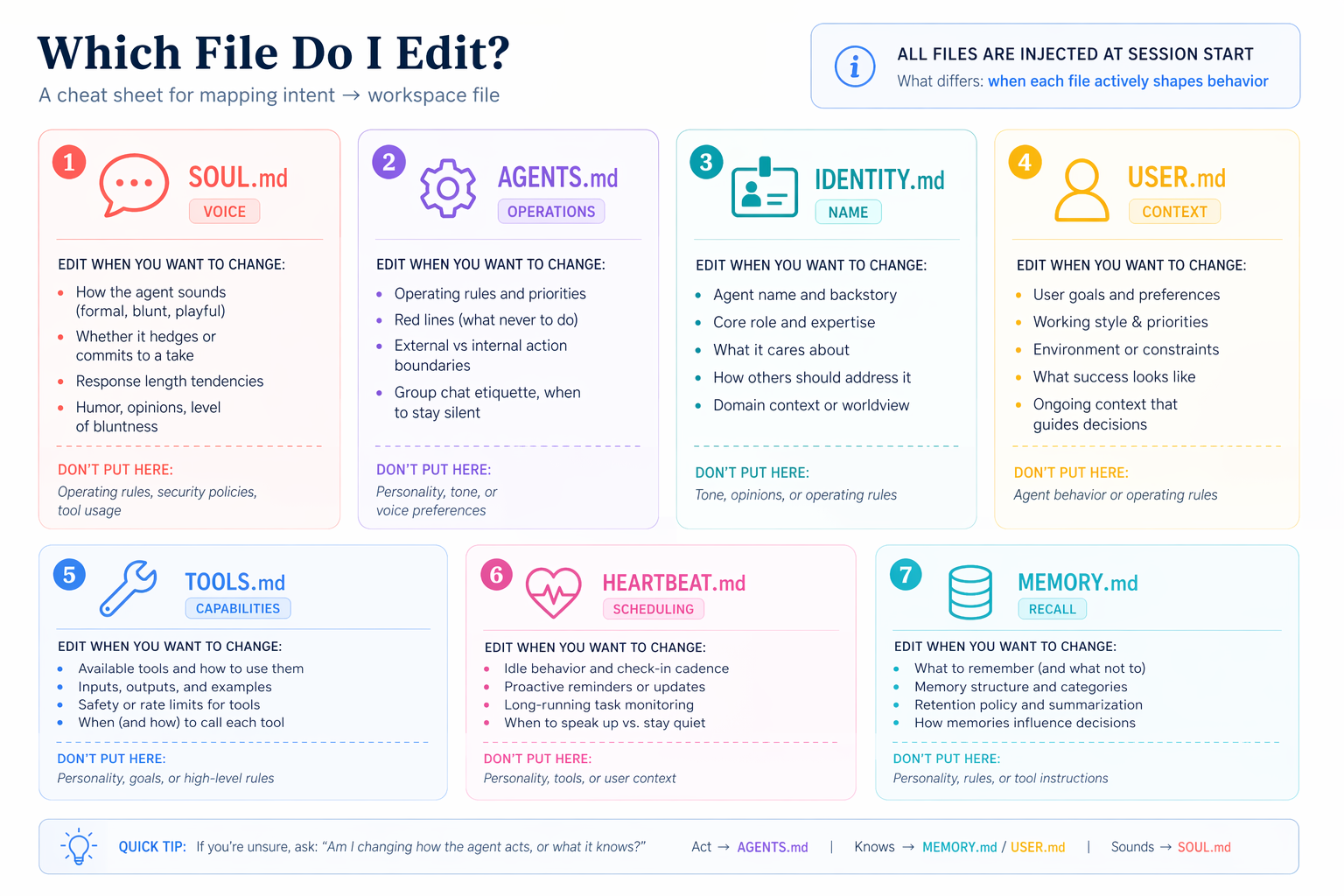
- SOUL.md: personality and tone (how it talks)
- IDENTITY.md: its own name and role (how it introduces itself)
- USER.md: what it knows about you (the persistent siyaq o sabaq)
- MEMORY.md: durable facts it commits across channels
aap touch each file once, send one message after each edit, and feel the difference. Two things worth knowing before you start: keep each file lean (every line is siyaq o sabaq cost agent pays on every single turn, including every channel reply and every scheduled job, so a page or two each is plenty), and don't churn these later because they shape every reply aap ka AI Employee sends.
Before the sub-scenarios start, paste this to aap ka coding agent for a quick orientation:
Quick orientation before we customize anything: open my workspace at
~/.openclaw/workspace/and tell me in one line each what's currently inSOUL.md,IDENTITY.md, andUSER.md. Just the defaults; we'll change them next, then createMEMORY.mdtogether.
aap get a per-file snapshot of where things start. The upcoming edits will feel like changes to specific files you've seen, not edits to abstract files you haven't.
/reset to load (read once, applies to 4a-4d)After any edit to a workspace file (SOUL.md, IDENTITY.md, USER.md, MEMORY.md), the new content is on disk but the running OpenClaw session is still using its cached snapshot of system prompt. Send /reset from aap ka phone (the paired channel) to tell OpenClaw to rebuild system prompt from disk. If you skipped Scenario 2 and don't have a paired channel, send /reset from the dashboard chat at http://127.0.0.1:18789 instead. Each sub-scenario below assumes this step between the edit and the test message.
4a. SOUL.md: change its voice
Paste this to aap ka coding agent:
Take a look at
SOUL.mdand suggest three small changes that would make replies more direct and less hedgy (or whatever style I'm missing). Show me the diff first; apply only after I approve.
After the edit lands, send /reset from aap ka phone, then a casual message like How are you today?
Done when: the reply tone is visibly different from the bland "hi" reply you got in Scenario 1.
4b. IDENTITY.md: give it a name
Paste this to aap ka coding agent:
Give it a name and a role. I'd like it to introduce itself as "Atlas, my research assistant" (or pick whatever name and role feel right to you and run them by me). Show me the diff first.
After the edit lands, /reset and ask Who are you? from aap ka phone.
Done when: it introduces itself with the new name and role, not the default.
4c. USER.md: teach it about you
Paste this to aap ka coding agent:
Teach it about me. Add my full name, my role, my timezone, and the three topics I most often need help with. Ask me for anything you don't already know, and show me the diff before you apply.
It'll ask for whatever's missing. After the edit lands, /reset and ask What should I prioritize this afternoon, given what you know about me?
Done when: the answer factors in aap ka timezone and aap ka top topics, not generic advice.
4d. MEMORY.md: commit across channels
The first three files shape voice. MEMORY.md is different: it only loads in agent's main session, so anything you want it to know across channels has to be deliberately committed. The four-step ladder below proves three layers (session memory, channel cache, long-term commit) one at a time.
The test fact below is something temporary and specific to aap ka week, not a stable identity fact: stable facts like aap ka name are already in USER.md from 4c, so the wall wouldn't fire if we used those. Pick a real in-flight thing: "I'm trying to finish [a real project] by Friday" or "I'm preparing a pitch for [a real client] on Wednesday" works.

Four steps. (You only send three real messages; the rest are short queries.)
- From aap ka paired channel:
Quick context: I'm trying to finish [your real in-flight thing] by Friday. Hold onto this.Then immediately:What am I trying to finish by Friday?It answers (session + channel memory, both automatic). - From the dashboard chat (
@@P0@@ a different session):What am I trying to finish by Friday?` It doesn't know. That's the wall: channel memory is per-channel, not shared across them. - Back in aap ka paired channel:
Commit my Friday goal to your long-term memory.aap ka agent createsMEMORY.md(it did not exist until this first commit) and confirms. - From the dashboard chat again (send
/resetfirst to load the newly committedMEMORY.md):What am I trying to finish by Friday?Now it knows. The deliberate commit crossed the wall.
For the full memory model (edge cases, how /reset interacts with each layer, what happens during gateway restarts), see Ch56 Lesson 5: Memory and Commands.
Voice and memory ladder done when: Step 4 succeeds. aap ka AI Employee now sounds like you, introduces itself the way you want, knows siyaq o sabaq about you, and remembers you across channels because something was deliberately committed, not just cached. One more step (4e) before Scenario 4 is fully done.
4e. Back up the identity you just built
The workspace at ~/.openclaw/workspace/ IS aap ka AI Employee: the brain files you just customized, plus the other workspace markdown (operating rules, tool policy, heartbeat routine) and anything aap add later (schedules in Scenario 6, installed skills, etc.). If aap ka laptop dies tonight, you lose all of it unless it lives somewhere else. Treat the whole workspace like dotfiles.
Paste this to aap ka coding agent:
Back up my agent's workspace at
~/.openclaw/workspace/to a private GitHub repo so I don't lose it if my laptop dies. Include all workspace files (the SOUL/IDENTITY/USER/MEMORY brain files plusAGENTS.md,TOOLS.md,HEARTBEAT.md, and any future additions like schedule files), and exclude secrets and session caches. Set it up however's easiest based on the Git tools I already have, and when you're done give me a one-liner I can save somewhere safe that re-clones this onto a fresh laptop after I install OpenClaw there.
You're done with Scenario 4 when: the private repo exists on GitHub, aap ka kaamspace is pushed (the brain files plus the other workspace markdown), and you have a recovery one-liner saved (paste it into a note app or password manager aap find later). aap ka AI Employee's identity now survives a laptop wipe.
Scenario 5: Extend it with one skill and one tool (~15 min)
The concept. Two different ways to add capabilities to aap ka AI Employee, with different shapes:
- A skill is a folder containing a
SKILL.mdfile: expertise agent auto-invokes when task matches. skills follow a cross-runtime spec (agentskills.io) so the same folder works in OpenClaw, Claude Code, OpenCode, and 50+ others. Two registries distribute against the spec: skills.sh (broad, cross-runtime) and ClawHub (OpenClaw-curated, more vetted). - An MCP tool is capability agent can call: an external service exposing functions through model siyaq o sabaq Protocol (get the current time in any zone, query a database, send a calendar invite, etc.). configure, restart, verify; agent gains new tools without any code.
skills inject know-how; tools add reach. Both follow the same shape: install (or configure), restart the gateway so OpenClaw picks them up, verify they're loaded, then test from aap ka phone.
Each prompt below hands agent a Ch56 lesson URL plus aap ka USER.md. The lesson holds the exact commands; you stay in natural language while agent reads, plans, executes, and verifies.
5a. Add one skill that fits something you actually do
Heads up: an installed skill that doesn't fire is almost always a description mismatch. The install worked; aap ka message just didn't match the skill's trigger description. That is data about the description, not a broken install: the gateway log shows the skill-load event when it does fire.
First prompt: read the lesson, get the discovery skill, propose.
Read https://agentfactory.panaversity.org/docs/Building-OpenClaw-Apps/meet-your-personal-ai-employee/install-skills-discover-ecosystem so you know how OpenClaw installs skills (cross-runtime spec, scopes, gateway restart). Then check whether the
find-skillsskill is already installed. If it isn't, install just that one skill from skills.sh with Global scope (so it lands in both Claude Code aur OpenClaw) and restart the gateway. Oncefind-skillsis available, use it to search skills.sh against myUSER.mdand propose two or three real skills that fit how I work. For each, tell me what its description triggers on (a sharp description fires when it should; a vague one never fires), how I'd verify it actually fired versus a vanilla reply, and which one you'd pick first. Don't install the chosen one yet; I want to pick first.
You get a short list grounded in aap ka actual work, with real install URLs. Pick one.
Second prompt: install across both runtimes, then verify.
install [aap ka pick] with Global scope so it lands in both Claude Code's aur OpenClaw's skills directories at once, then restart the gateway. Tell me which directories it wrote to so I can see it. List the SKILL.md description back to me so I know exactly what to send from my paired channel to trigger it, and what to watch for in the reply that proves the skill fired versus a vanillmodel response.
From aap ka paired channel, send the test input aap ka agent suggested (a meeting transcript, a draft email, a code snippet, whatever the skill is for).
5a done when: aap ka agent has confirmed the skill is installed (and shown you where) AND the test input produces a reply with the skill's specific format or framing (not a generic answer). If the skill doesn't fire, that's usually a description mismatch (aap ka message doesn't trigger the skill's description) or a missed restart; paste the universal recovery prompt.
5b. Connect one external tool (no credentials needed)
The canonical hello-world MCP is mcp-server-time: API key ke baghair, two tools (get_current_time, convert_time). It's the standard "you've connected an external tool" proof. Heads up: MCP fails silently. A misconfigured server produces no error in chat; agent just doesn't get the tool. The gateway log is the only diagnostic.
First prompt: read the lesson, configure, verify.
Read https://agentfactory.panaversity.org/docs/Building-OpenClaw-Apps/meet-your-personal-ai-employee/connect-external-tools so you know the configure-then-restart shape and the Silent Failure pattern. Then set up the
mcp-server-timeexample from the lesson (API key ke baghair needed). Show me the plan first, then execute. After the gateway restart, provetimeis registered with 2 tools. If it's missing or shows 0 tools, that's Silent Failure: read the gateway log, tell me in plain language what you see, and propose a fix.
agent walks the lesson, runs the commands, and shows you the registration list. The line you want to see: time with 2 tools. If it's not there, agent diagnoses; you approve the fix.
Second prompt: trigger the tool from aap ka phone, watch for the dashboard badge.
The time MCP is connected. I'll ask a real timezone question from my paired channel. Tail the gateway log live so we can see
get_current_timeinvoked in real time, and tell me what to watch for in the dashboard athttp://127.0.0.1:18789: there should be tool badge showing agent used the time MCP rather than guessing from training data.
From aap ka phone, ask a real time question that matters to you. Misaals:
- "If I send this proposal to my client in <their city> right now, what's their local time? Is that a reasonable hour to email?"
- "My team in <another timezone> ends their workday in how many hours? Should I wait until tomorrow morning my time?"
- "What's the deadline in <the timezone the deadline is set in> if it's currently 3pm my time?"
5b done when: aap ka agent has shown you the time server registered with its 2 tools, AND a real time question from aap ka phone produces a specific live time (not a generic timezone rule), AND the dashboard shows a get_current_time tool badge on the reply. The badge is the proof agent called the tool instead of hallucinating.
You're done with Scenario 5 when: both 5a and 5b done conditions hold.
Along the way, aap ka agent names the activation dance explicitly: every OpenClaw extension (skills, plugins, MCP servers, channels, hooks) goes through the same four steps: exists → disabled by default → enabled → configured (restart). Once you see the pattern, every new feature feels familiar instead of broken-on-first-try.

Add this scenario's additions to aap ka USER.md so scheduled jobs (coming next) know they exist. Paste this to aap ka agent:
Add the skill and the MCP tool we just set up to my
USER.mdso when scheduled jobs run they know what's available. Then commit and push the updatedUSER.mdto my backup repo from 4e.
aap ka AI Employee's capabilities, not just its identity, now survive a laptop wipe.
Scenario 6: Make it act on its own (~15 min)
The concept. Up to now you've messaged the AI Employee and it has replied. Schedules flip that: agent acts on a clock or interval, without you messaging it. OpenClaw has three flavors of proactivity:
- Cron for precise times ("every morning at 7am", "every Monday at 9am", "at end of day"). This is what aap use most. aap ka real life has clock times.
- Heartbeat for ambient checks at a fixed cadence ("every 30 minutes scan for urgent unread", "every 4 hours look at calendar for prep notes"). Use this when the trigger is "check on something periodically" rather than "do this at exactly X o'clock".
- Hooks for event triggers (a webhook fires, a session resets). Out of scope here; see Ch56 if aap ko chahiye them.
This scenario has two parts. Part 6a is a tez heartbeat demo that proves the proactive mechanism is wired. Part 6b is the keeper: one real schedule (usually a cron job) that will actually serve you tomorrow. Don't stop after 6a; a demo you disable isn't the proactive dimension. A real schedule that runs daily is.
6a. Watch one demo heartbeat fire (then turn it off)
Paste this to aap ka agent:
Schedule a five-minute demo heartbeat with a low-cost task: every five minutes, check the gateway log for errors and post a one-line summary. Once I see one fire in the log, disable just this demo so it doesn't burn my Gemini quota. We'll add a real schedule next.
Done when: the log shows one heartbeat-driven tool call AND the demo is disabled. A five-minute window watching the log is fair.
6b. Schedule one thing aap actually keep (cron or heartbeat)
A demo you disable proves nothing about whether aap ka AI Employee is tool aap use tomorrow. One real schedule does. For most first-time keepers, cron is the right choice: aap ka real workdays are organized around clock times, not check-intervals.
First prompt: suggest options grounded in what you know about me.
I'd like to add one real schedule that actually serves me, not a demo I'll forget about. Look at what you know about me from
USER.mdand suggest two or three options I might keep. For each one, tell me what it'd do, when it'd fire, and whether cron (precise time) or heartbeat (ambient interval) is the right primitive. I'll pick one.
aap ka agent will offer options grounded in aap ka USER.md (a 7am summary, a Monday morning priorities list, an end-of-day check on outstanding commitments, an interval calendar scan, and so on). Pick the one that feels most kaam ka tomorrow.
Second prompt: set it up and back it up.
Go with the [name aap ka choice]. Set it up, confirm when it'll next fire, and commit the schedule file to my backup repo from 4e so it survives a laptop wipe.
Done when: the schedule you chose is running, committed to the backup repo, and aap ka agent has told you when it'll next fire. Leave it on. (If you regret it tomorrow, aap kar sakte hain disable just that one schedule without touching anything else.)
Scenario 7: aap ka monthly AI Employee audit (~10 min/month)
The concept. aap ka AI Employee accumulates over time: skills you installed, credentials it captured, MCP tools you connected, memory entries it wrote down, autonomous tool calls in the logs. Each addition is a small decision you approved; the chain compounds opaquely. The defense isn't vigilance at install time (you'd never catch what doesn't yet exist); it's a ten-minute review on a fixed cadence. This scenario isn't part of aap ka first ninety minutes; it's the move you make once a month for the rest of aap ka AI Employee's life.
Paste this to aap ka agent (when the time comes):
Run my OpenClaw monthly audit. Walk through everything that's been installed, stored, scheduled, or written since the last audit, and flag anything I didn't explicitly approve, anything that looks revealing in memory, and any approval setting that's looser than it should be. Summarize the lot as a single short report I can either approve or trim.
aap ka agent goes through the running inventory (skills, memory entries, approvals, MCP tools, recent tool calls) plus the stored credentials, then writes a single report naming what changed since the last audit and where you should tighten or trim.
Done when: you've spent ten minutes reviewing the report and made at least one decision (delete a forgotten credential, revoke an over-broad approval, prune a stale memory entry, uninstall an unused skill). Mark aap ka calendar for next month.
Why this works
Two things stay fresh; one thing stays durable.
Fresh #1: The scenarios on yeh page live on the book site. agent fetches the current version every session (you tell it which scenario you're on, and it reads the relevant section).
Fresh #2: The current OpenClaw commands live at docs.openclaw.ai/llms.txt, an LLM-friendly index of the full docs. aap ka agent reads them fresh every time it's about to run a command it isn't sure about. OpenClaw ships tez; this is how the brief stays accurate even when individual flags drift.
durable: AGENTS.md (the operational reference from aap ka two-file zip) carries what OpenClaw is, how to navigate its docs, the safety rails (no sudo without asking, no paid models, no writing keys outside ~/.openclaw/), the recovery patterns, and the activation dance. It covers the full platform: install, debugging, channels, memory, skills, plugins, MCP, automation, multi-agent, ACP, and sandboxing. It's longer than yeh page because it covers everything a coding agent might be asked to do with OpenClaw, not just the six scenarios above. Nothing in the folder ever goes stale, so you download it once and reuse it.
The intelligence isn't in files; it's in aap ka coding agent reading them and applying them to whatever you ask next. You didn't walk through six disconnected demos; you assembled tool aap touch tomorrow.
What's actually running now
Not six demos: one system. Inventory of what persists after Scenario 6:
| Artifact | What it actually is | Why it matters tomorrow |
|---|---|---|
| Background service | OpenClaw, auto-starting with aap ka OS | aap ka AI Employee survives closing the terminal and rebooting |
| Channel pairing | A trusted link between aap ka phone and aap ka laptop | The path aap ka phone uses to reach the service |
| Workspace files | Seven markdown files in ~/.openclaw/workspace/ | aap ka AI Employee's identity, siyaq o sabaq, behavior, and memory |
| GitHub backup | Private repo of the workspace plus a recovery one-liner | Workspace survives laptop loss |
| One installed skill | One expertise pack from ClawHub | One real know-how extension aap ka agent auto-invokes |
| One external tool | One MCP server agent can call | One real external service available to agent |
| One scheduled task | One cron job or heartbeat that fires without you | One thing that runs for you on a schedule |
This is the picture. None of these are demos you walked through and disabled; all of them are pieces of tool aap touch tomorrow.
A working day with this looks like: aap ka phone buzzes at 7am with whichever schedule you chose (a cron job, if that 7am summary is the keeper); mid-morning you reply with a quick question that triggers the time MCP or the skill from S5; mid-afternoon you ask agent to draft replies to three emails; end of day you commit one new fact to long-term memory. You never opened aap ka laptop.
If any of those artifacts go missing later (laptop wipe, accidental delete, a version upgrade gone wrong), the GitHub repo from 4e plus a fresh OpenClaw install plus the recovery one-liner gets you back to this exact picture.
The crash course is ke liye pehle AI Employee only reads messages from you. If you ever plan to connect a public-facing channel (a support inbox, a contact form, anything strangers can write to), stop here and read Chapter 56 Lesson 14: Gate Your Agent's Tools and Lesson 16: Isolate with NemoClaw first. The sandboxed-reader pattern is aap ka structural defense against prompt injection (the threat where adversarial instructions hidden in an email could trick aap ka AI Employee into taking actions on aap ki taraf se). Pairing locks down who can write to aap ka bot; sandboxing locks down what aap ka bot can do with what it reads. Both matter.
Where to go next
After Scenario 6, you have a working AI Employee with its workspace customized (voice, identity, what it knows about you, committed memory), the workspace backed up to GitHub, one installed skill, one external tool, and one scheduled task that fires for you. That's most of the surface most people need.
For the patient walkthrough of any topic yeh page touched (or anything it skipped), Chapter 56 has seventeen lessons covering the full platform. Quick map:
| You want... | Go to |
|---|---|
| Voice replies (audio on WhatsApp / Telegram / Discord) | Ch56 L10: Give it a voice |
| Reader-agent pattern (untrusted-email safety, sandboxing) | Ch56 L14: Gate Your Agent's Tools |
| Running a second specialized agent (routing, separate identity) | Ch56 L11: Add a second agent |
AI Employee summoning coding agents (the /acp spawn choreography finale, for developers) | Ch56 L13: Orchestrate other agents |
| Sandboxing modes and security hardening | Ch56 L14: Gate Your Agent's Tools, L16: Isolate with NemoClaw |
| More channels (Slack, Matrix, Signal, iMessage, Zalo) | Ask aap ka coding agent: "Walk me through the <channel> setup using aap ka brief." |
For everything else, aap ka AGENTS.md already covers most of the platform. Ask aap ka coding agent: "What does agents.md say about sandboxing?" The brief is the reference; the page is the tour.
The meta-lesson: the most valuable thing in aap ka unzipped folder is AGENTS.md. Take an evening to read it end to end (not for the install steps, but for the shape of the document: the discover-before-act table, the insani-path-vs-agent-path table, the working pattern, the gotcha catalog, the activation dance). Then write one for whatever tool aap next put a coding agent in front of. The pattern is portable: every tool with a learnable surface has a "little skill" worth writing. OpenClaw was the early example because the install actively benefits from agent-driven setup; aap find others. Author the next one.
Appendix: Connect Google Workspace
Frame upfront. Fifteen-plus minutes of Google Cloud Platform OAuth screens, on a real account that you should treat as throwaway. The Google consent flows are time-bound (some links expire in ten minutes) and click-heavy. That's the price of integrating Google specifically; it has nothing to do with OpenClaw, and won't make any other integration easier.
Paste this to aap ka agent:
Connect Google Workspace (Gmail, Calendar, Drive) to my AI Employee. Use a throwaway Google account; walk me through the GCP and OAuth steps with explicit STOP conditions if any consent screen asks for scopes you didn't tell me to grant.
aap ka agent fetches the live Workspace plugin docs, installs the plugin (typically named gog or similar; verify before assuming), opens the OAuth flow in aap ke browser, captures the consent token via env-var-backed reference, and verifies with a small probe (e.g., "list my next three calendar events").
STOP conditions. Any quota or permission error that recurs after one fix attempt. Any indication you're being asked to grant scopes agent didn't tell you to grant. Any sign the GCP project itself is misconfigured (this appendix assumes a clean throwaway account; debugging an existing GCP project's auth is well outside crash-course scope).
Pointer. The deep walkthrough is Ch56 Lesson 12: Connect Google Workspace.