Skills & Connectors: AI ko Aik Dafa Sikhayein, Apni Apps se Connect Karein
2 Features, 5 Tools, 0 Code From You - apne chat box ko coworker mein badlein.
Zyada log AI ko vending machine ki tarah use karte hain. Woh paas jaate hain, request type karte hain, jo girta hai lete hain, aur chale jaate hain. Kal dobara aate hain aur poori request phir type karte hain - wahi instructions, wahi context, wahi "no, our invoices look like this," wahi explanation ke woh kaun hain aur un ki team cheezein kaise karti hai. Machine kuch yaad nahin rakhti. Har visit zero se start hoti hai.
Kaam karne ka doosra tareeqa hai, aur 2026 mein yeh sirf programmers ke liye reserved nahin. Aap AI ko task aik dafa sikha sakte hain aur phir woh task har dafa aap ke tareeqe se karwate hain, dobara explain kiye baghair - yeh Skill hai. Aur aap AI ko un apps tak safe access de sakte hain jahan aap ka real work rehta hai - files, email, spreadsheets, project tracker - taake woh copy-paste maangna chhor kar khud cheezein la sake - yeh Connector hai.
Yeh page woh afternoon hai jahan yeh do ideas click karte hain. Programming background assume nahin. Agar aap accountant, doctor, marketer, engineer, teacher, ya student hain, yahan har example aap ke liye built hai. Aakhir tak aap jaanenge Skills aur Connectors kya hain, har aik kab use karna hai, jo already exist karte hain unhein kaise use karna hai, apna kaise banana hai (AI aap ke liye banata hai), aur yeh sab safely kaise karna hai - five different tools ke across.
Yeh Foundations crash course hai; yeh What AI Actually Is wale mental model ko assume karta hai, jo pehla Foundations course hai. Yeh naturally do aur courses ke saath pair hota hai:
- AI Prompting in 2026 aap ko AI se achi tarah baat karna sikhata hai - context, reasoning, flattery se bachna. Agar "context window" ya "novice vs power user" phrases naye hain, to is primer ko pehle ya saath skim karein; dono aik doosre ko reinforce karte hain.
- How to Think in the AI Era baad mein aata hai, aur is sab ke neeche deeper skill train karta hai: pehle sahi sawal poochna.
Yeh course "dekhein kya possible ho jata hai" course hai. Doosre dono "yeh achi tarah kaise karna hai" courses hain.
Yahan kuch details point-in-time hain aur drift hongi: menu paths, free-plan limits (aaj free tier par aik custom connector), aur open-standard timeline (December 2025 mein published). Ideas stable hain - teach once, connect your apps, automatic invocation, scope your access. Jab step screen par aap ki dekhi cheez se match na kare, screen par trust karein aur current docs search karein.
📚 Teaching Aid
View Full Presentation — Skills & Connectors
The one idea under everything
Details se pehle aik sentence dimagh mein rakhein, kyun ke neeche har section usi ki variation hai:
Chat message AI ko batata hai abhi is dafa kya karna hai. Skill AI ko sikhati hai har dafa kuch kaise karna hai. Connector AI ko haath deta hai taake aap ki real apps aur data tak pohnch sake.
Working kitchen isay concrete banati hai. Professional kitchen imagine karein.
- One-time chat message counter ke us paar shout ki gayi order hai: "make me a sandwich." Aik dafa banti hai aur serve hote hi bhool jati hai. Aap usay kaise pasand karte hain, us mein se kuch kal tak nahin bachta.
- Connectors kitchen khud hain: stove, knives, stocked pantry, fridge jo aap ke actual ingredients se bhara hai. In ke baghair cook meal describe kar sakta hai lekin bana nahin sakta - tools nahin, ingredients nahin.
- Skills recipe cards hain: specific dish ko aap ke tareeqe se banane ki step-by-step instructions, jis tarah aap ka restaurant hamesha banata hai, taake nateeja same aaye chahe aap kitchen mein hon ya new hire.
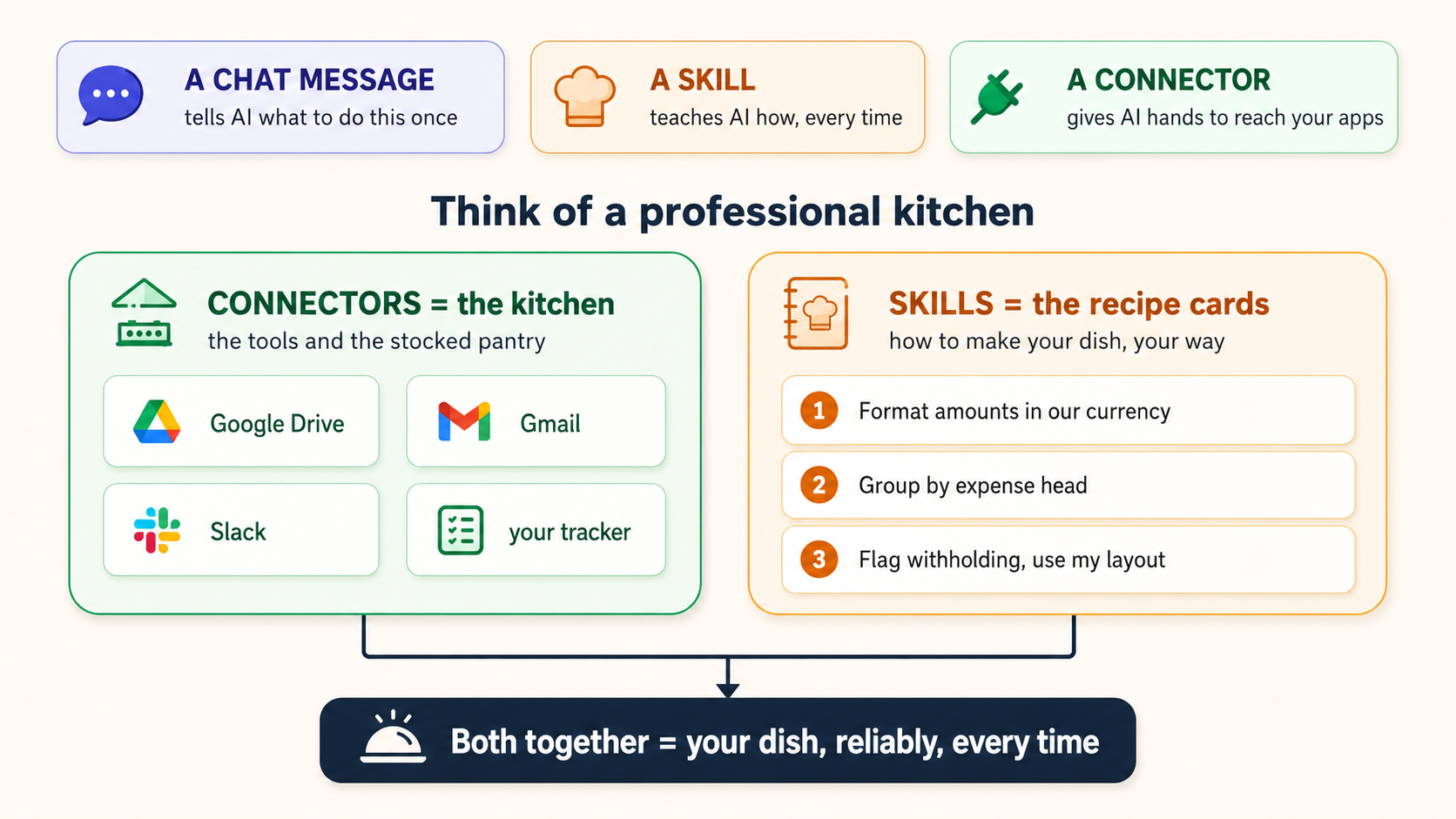
Cook ko kitchen dein lekin recipes nahin, to har dish improvised aur inconsistent hogi. Recipes dein lekin kitchen nahin, to woh parh sakta hai lekin cook nahin kar sakta. Dono dein, aur woh aap ki dish reliably produce karta hai, aap ke sar par kharay hue baghair. Yeh poora game hai. Baqi page bas yeh sikhata hai ke recipes aur kitchen kahan rehte hain, recipe kaise likhte hain, aur kisi stranger ko apne card box mein bad recipe slip karne se kaise rokte hain.
Chhota glossary taake baad mein kuch trip na kare:
- Skill - saved instructions ka set jo AI ko sikhata hai ke aik task aap ke tareeqe se kaise karna hai.
- Connector - safe link jo AI ko aap ki kisi app tak pohnchne deta hai (files, email, messages).
- Fire / trigger - jab AI khud aik skill activate karta hai kyun ke aap ki request us se match hui.
- Scope - aap kitna access dete hain: aik folder, ya sab kuch. Smaller scope = safer.
- Read-only - AI dekh sakta hai lekin change nahin kar sakta. Opposite write access hai (edit ya send kar sakta hai).
- Progressive disclosure - AI har skill ka sirf short summary loaded rakhta hai, aur full instructions sirf zaroorat par kholta hai. Isi liye many skills installed hon to bhi woh slow nahin hota.
Part 1: The two upgrades
1. From chat box to operating layer
Yeh daily friction hai jo Skills aur Connectors remove karte hain. Inhein "before" pictures ki tarah parhein.
- Accountant har month client summary prepare karne ke liye fresh chat kholta hai. Har month wahi instructions paste karta hai: "Format amounts in our reporting currency with thousands separators, group by expense head, flag anything over the tax-withholding reporting threshold, and format it like the template I'm pasting below." AI achi tarah karta hai - aur chat end hote hi sab bhool jata hai.
- Doctor consultation notes dictate karti hai aur har dafa SOAP format chahte hain, allergies hamesha top par pulled. Woh format daily re-explain karti hai.
- Marketer chahta hai har social caption brand voice mein ho - exclamation marks nahin, "game-changer" nahin, hamesha question as hook. Woh har single chat mein brand rules paste karta hai.
- Engineer design review notes severity ke hisaab se structured chahta hai, fixed checklist har finding par apply. Same paste, every review.
Shape notice karein: repeatable task, aap ke specific tareeqe se, jahan sirf input badalta hai. Yeh exactly woh shape hai jiske liye Skill built hai. Aap "how" aik dafa likhte hain, aur AI jab bhi task aaye automatically apply karta hai.
Ab doosri kind of friction:
- Accountant ke actual numbers Excel file mein hain aur last quarter figures email attachment mein. AI dono nahin dekh sakta jab tak haath se upload na hon.
- Doctor ka patient history Google Drive folder mein hai.
- Marketer ka content calendar project tool mein hai; past posts Drive folder mein.
- Engineer ke open issues Jira ya Linear jaisay tracker mein hain.
AI in sab par brilliantly reason kar sakta hai - agar information us tak pohnche. Copy-paste woh price hai jo aap AI ke haath na hone par pay karte hain. Connector yeh cost remove karta hai: aap ki permission se AI app mein pohnchta hai, jo chahiye pull karta hai, aur (jab aap allow karein) results wapas likhta hai.
Dono ko milayein to chat box chat box nahin rehta. Woh capable colleague ke qareeb ho jata hai jo aap ke standards already jaanta hai (Skills) aur aap ki files/tools tak pohnch sakta hai (Connectors). Yeh shift - "thing I type into" se "thing that acts on my real work" - wahi hai jo log AI ko chatbot ke bajaye operating layer kehte waqt mean karte hain.
2. What a Skill actually is
Mystery hata dein to Skill lag bhag embarrassingly simple hai: yeh aik folder hai jismein text file hoti hai.
Required text file ka naam SKILL.md hota hai (exactly yahi, capital letters samait). Is ke top par do cheezein hoti hain - name aur description - aur neeche woh instructions jo aap chahte hain AI follow kare. Minimum bas itna hai. Skill sirf name, description, aur plain-English instructions ke paragraph se bhi kaam karti hai.
Optionally folder mein aur cheezein ho sakti hain: example files, template document, reference notes, even small scripts. Lekin start karne ke liye kuch required nahin. Accountant ki first skill formatting rules ke five sentences ho sakti hai. Marketer ki brand voice guide pasted ho sakti hai. Aur optional scripts? Woh real code hain - lekin aap us ki aik line nahin likhte; skill build karte waqt AI koi bhi required code likhta hai (Part 3).
Anthropic ki apni description: skills "folders of instructions, scripts, and resources that Claude loads dynamically to improve performance on specialized tasks." Key word dynamically hai - AI har waqt har skill apne dimagh mein nahin rakhta. Woh short list rakhta hai ke har skill kis ke liye hai (description), aur full instructions sirf tab kholta hai jab aap ki request match kare. Engineers isay progressive disclosure kehte hain, aur isi liye dozens of skills installed ho sakte hain bina slow kiye ya AI ko confuse kiye. Jab aap skill banayenge to hum is par wapas aayenge.
Skill aik recipe card hai jo aap aik dafa likh kar kitchen wall par pin kar dete hain. Har dafa woh dish order ho, cook card follow karta hai - same result, no reminding. Aap kitchen mein nahin, lekin aap ke standards hain.
3. What a Connector actually is
Connector AI ko safely aap ki apps aur data tak pohnchata hai. Claude ko Google Drive se connect karein aur woh aap ki files search kar sakta hai; Gmail se connect karein to mail read kar sakta hai aur replies draft kar sakta hai jo aap send karein; Slack, Linear, Asana, Notion se connect karein to un tools se pull aur un mein act kar sakta hai.
Under the hood, connectors MCP (Model Context Protocol) naam ke open standard par run karte hain. Connector chhota software piece hai - "MCP server" - jo company, ya barhti hui had tak AI, code se banata hai. Aap usay build ya read nahin karte; aap Connect click karte hain. Yeh wahi bargain hai jise baqi book code you never write kehti hai: code real hai aur aap ke liye kaam kar raha hai, lekin usay likhna aap ka job kabhi nahin tha. Connector use karne ke liye MCP samajhna utna hi zaroori hai jitna email send karne ke liye email delivery samajhna. Matter teen facts karte hain:
- AI aap ki permissions inherit karta hai. Connector kabhi us cheez tak nahin pohnch sakta jahan aap khud nahin pohnch sakte. Agar original app mein aap ko file, channel, ya record ka access nahin, connector bhi nahin pohnch sakta. Google Drive connect karna AI ko aap ki poori company drive nahin deta - sirf woh jo aap ka account already open kar sakta hai.
- Aap read-only ya read-and-write choose karte hain. "Search and summarize my email" read-only aur low-risk hai. "Send this email" ya "create this issue" write action hai. Good practice yeh hai ke read-only se start karein aur write access sirf tab dein jab tool ka behavior trust ho jaye (safety section mein zyada).
- Aap unhein per conversation on karte hain. App ko aik dafa connect karna usay available banata hai; aap ab bhi decide karte hain given chat kaun se connectors use kar sakti hai.
Ready-made connectors ki directory hai (Google Drive, Gmail, Slack, Notion, Figma, Linear, Atlassian, aur bohat se), aur aap kisi bhi MCP bolne wali service ke liye custom connector bhi add kar sakte hain. Kuch connectors interactive hote hain - woh conversation ke andar live dashboard, task board, ya design surface render karte hain, sirf text return nahin karte.
Connector kitchen hai - tools aur stocked pantry. Yeh AI ko aap ke real ingredients se waqai kuch karne deta hai, sirf aisa meal describe karne ke bajaye jo woh cook nahin kar sakta.
4. Skills vs Connectors vs Projects vs Custom Instructions
Four features similar sound karte hain aur beginners inhein constantly mix karte hain. Yeh clean separation hai. Skills aur Connectors is course ke two stars hain; baqi two close cousins hain, taake aap unhein confuse karna chhor dein.
| Feature | What it is | Best for | The one-line test |
|---|---|---|---|
| Skill | Reusable how-to instructions AI loads only when relevant | A repeatable task done your specific way (formatting, voice, methodology, checklists) | "I keep re-explaining how to do this." |
| Connector | Safe access to an external app or data source | Reaching files, email, messages, tickets - reading them or acting in them | "I keep copy-pasting from another app." |
| Project | A workspace with files and instructions always loaded for every chat inside it | A body of work with standing context (a client, a course, a book) | "These same files and rules apply to everything in this area." |
| Custom instructions | Preferences applied broadly to all your chats | Global style ("be concise," "use metric units," "spell out acronyms the first time you use them") | "I want this to be true everywhere, always." |
Distinctions jo log confuse karte hain:
- Skill vs Project. Project apna context us waqt always load karta hai jab aap us mein chat kholte hain - useful, lekin woh hamesha on hai. Skill dormant rehti hai jab tak request match na kare, phir kahin bhi activate hoti hai, project ke bahar bhi. Standing background knowledge -> Project. Demand par fire hone wali procedure -> Skill.
- Skill vs Connector. Yeh sab se important pair hai aur jise aap sab se zyada use karenge. Connector access hai (AI kya reach kar sakta hai); Skill expertise hai (AI kaise behave kare). Yeh alternatives nahin - partners hain, jiska point section 8 hai.
- Skill vs Custom instructions. Custom instructions aap ke har kaam ko touch karte hain. Skill aik task type ko touch karti hai. "Always reply in the same language I write to you in" custom instruction hai. "When I ask for a board paper, use this eight-section structure" skill hai.
5. The question everyone asks: do I type a slash command, or does AI just know?
Yeh confusion ka sab se common point hai, aur YouTube tutorials isay half-right karte hain, to isay clean settle karte hain.
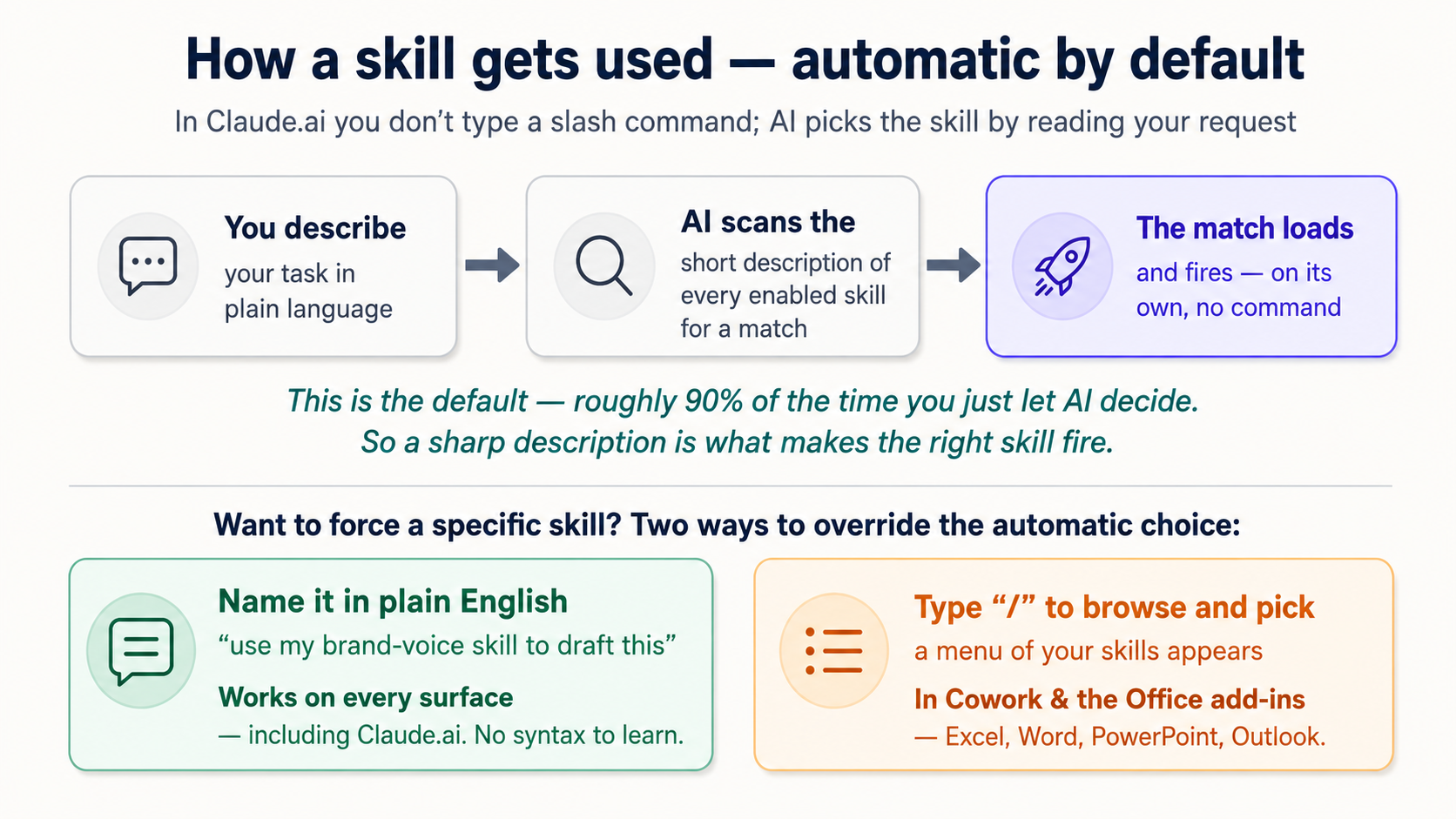
Claude.ai mein (web aur mobile app - aap ka main tool), Skills automatically fire hoti hain. ("Fire" yahan activate ka matlab hai; term is page mein repeat hoti hai.) Aap slash command type nahin karte. Aap plain language mein task describe karte hain, AI aap ki request parhta hai, har switched-on skill ki short description se match karta hai, aur matching one khud load karta hai. "create a PowerPoint about Q3 results" poochein aur PowerPoint skill activate ho jati hai bina naam liye. Accountant ka "prepare this month's client summary" poochein aur - agar summary skill on hai - bas ho jata hai, un ke tareeqe se formatted.
Yeh by design hai. Section 2 ka progressive disclosure yaad rakhein: AI hamesha quietly aap ki request ko installed skills ki descriptions ke against scan karta hai. Achi description right skill ko right moment par fire karwati hai. (Isi liye sharp description likhna skill banane ka sab se important part hai - section 12.)
To slash commands kab dikhte hain? Zyada hands-on surfaces mein:
- Cowork aur Microsoft 365 add-ins (Excel, Word, PowerPoint, Outlook ke andar Claude) mein aap
/type kar ke skills browse aur explicit pick kar sakte hain - handy jab aap specific skill force karna chahein instead of auto-detection trust karna. Natural task describe karna bhi kaam karta hai; dono work. - Claude Code aur OpenCode (developer tools, Part 4 mein covered) mein skills relevant hone par automatic load hoti hain, aur aap deliberately invoke bhi kar sakte hain.
Aur third option jo har jagah kaam karta hai, Claude.ai samait: skill ka plain English mein naam lein. Agar auto-detection miss kare, likhein "use my brand-voice skill to draft this caption." Special syntax seekhe baghair skill force karne ka simplest tareeqa hai.
| You want to... | In Claude.ai (web/app) | In Cowork / Excel-Word-PPT add-ins | In Claude Code / OpenCode |
|---|---|---|---|
| Let AI decide | Just describe the task - automatic | Just describe the task - automatic | Just describe the task - automatic |
| Force a specific skill | Name it: "use my X skill" | Type / and pick it, or name it | Name it, or invoke it directly |
| Browse what's available | Customize -> Skills | Type / in the sidebar | List your skills directory |
Default behavior automatic hai - AI prompt parh kar right skill choose karta hai. Slash commands aur skill ka naam lena override tools hain jab explicit hona ho. Aap 90% waqt usay decide karne denge, isi liye skill ki description itni matter karti hai.
Connectors ke liye bhi yahi true hai: jab app connect ho aur conversation ke liye enabled ho, AI apne aap usay le aata hai jab request usay demand kare - "summarize the contract in my Drive" Drive se pull karta hai bina aap ke kuch click kiye. Connector ko command se invoke nahin karte; aap bas woh cheez maangte hain jise us ki zaroorat hai.
Part 2: Using what already exists (no building required)
Aap kuch build kiye baghair enormous value le sakte hain. Anthropic aur partners ne skills aur connectors already banaye hain jo aap two minutes mein switch on kar sakte hain.
6. The skills that come built in
Anthropic built-in skills maintain karta hai jo finished files banati hain, aur yeh sab aik switch par ride karti hain: Code execution and file creation (Settings -> Capabilities). Isay on karein aur yeh kaam karti hain:
- Word - professionally formatted
.docxdocuments - PowerPoint - description se full slide decks
- Excel - formulas aur formatting wali real spreadsheets, sirf chat mein pasted table nahin
- PDF - PDFs create aur fill karna
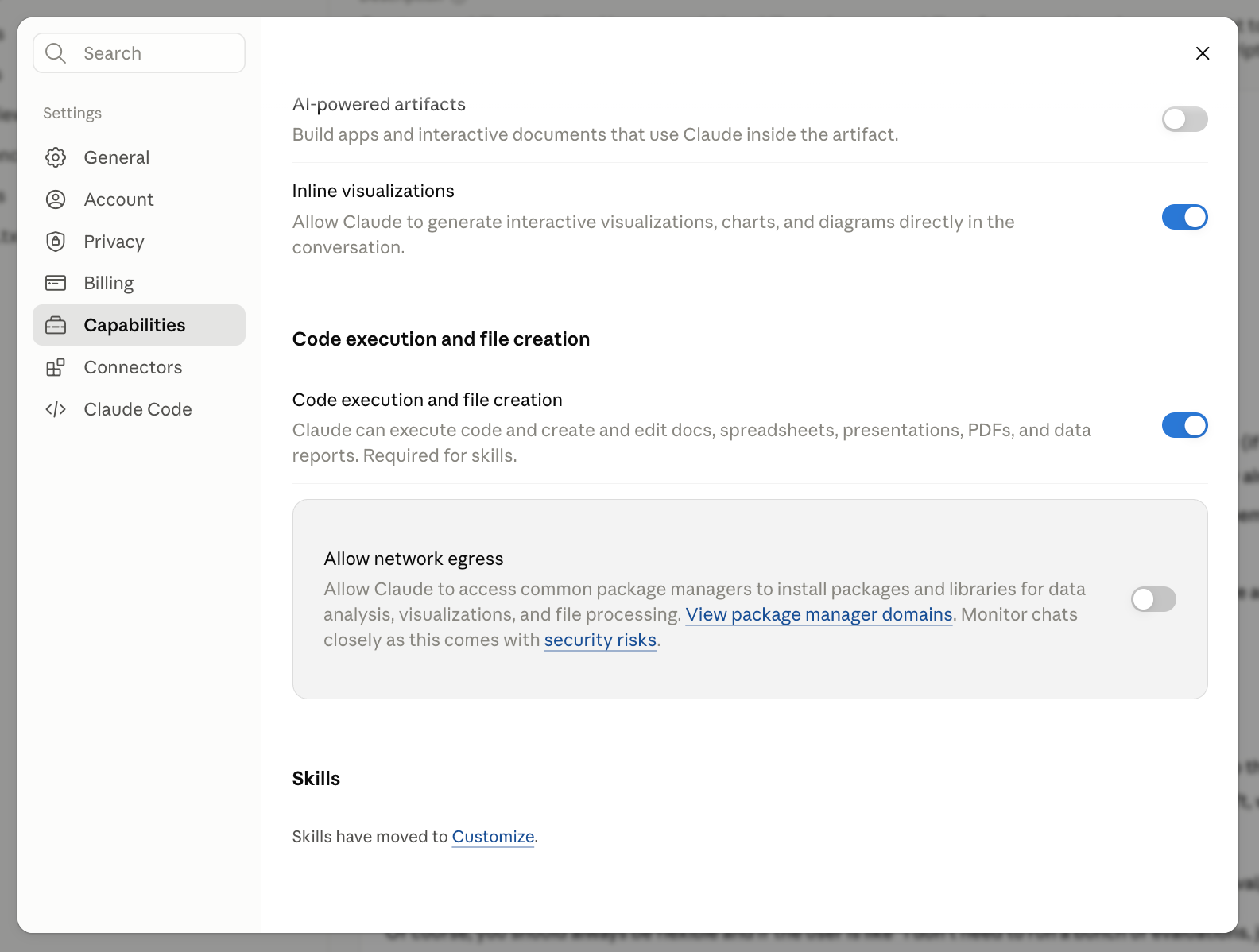
Settings -> Capabilities. Yeh aik switch engine hai. Isay on karein aur file skills work. Label "Required for skills" notice karein, aur Skills panel khud ab sirf kehta hai "moved to Customize."
Aap bas poochte hain. Claude se kahen "prepare a slide deck introducing agentfactory.panaversity.org to a general audience" aur finished deck wapas aata hai, download ke liye ready.
Jab aap Customize -> Skills kholte hain (yeh left sidebar mein apna item hai, Connectors ke saath), fresh account par sirf aik skill dekh kar surprise na hon: skill-creator, Anthropic skill jiska poora job aap ko apni skills banane mein help karna hai (aap later exactly yahi karenge). Yeh correct hai, bug nahin. Document skills missing nahin; woh engine mein rehti hain, shelf par nahin.
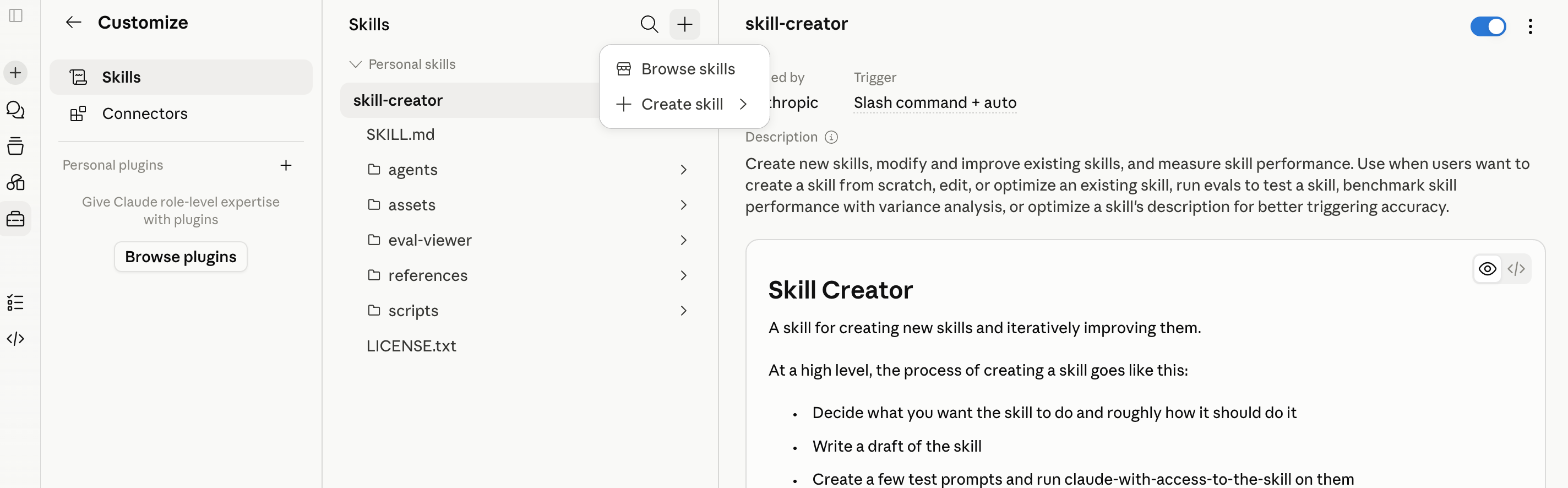
Customize -> Skills. Shelf. Aaj aik skill, skill-creator, plus "+" browse ya create ke liye. Word, PowerPoint, Excel, aur PDF skills deliberately yahan listed nahin.
Us "+" par click karein aur Browse skills choose karein to directory khulti hai: one-click installable skills, including partner skills Notion, Figma, Atlassian jaisi companies se, jo un ke connectors ke saath hand in hand kaam karne ke liye built hain. Jo bhi install karein woh same shelf par drop hota hai. Installed skills view-only hain: aap use aur toggle off kar sakte hain, lekin change karna ho to copy download karein, edit karein, aur apni skill ke taur par re-upload karein.
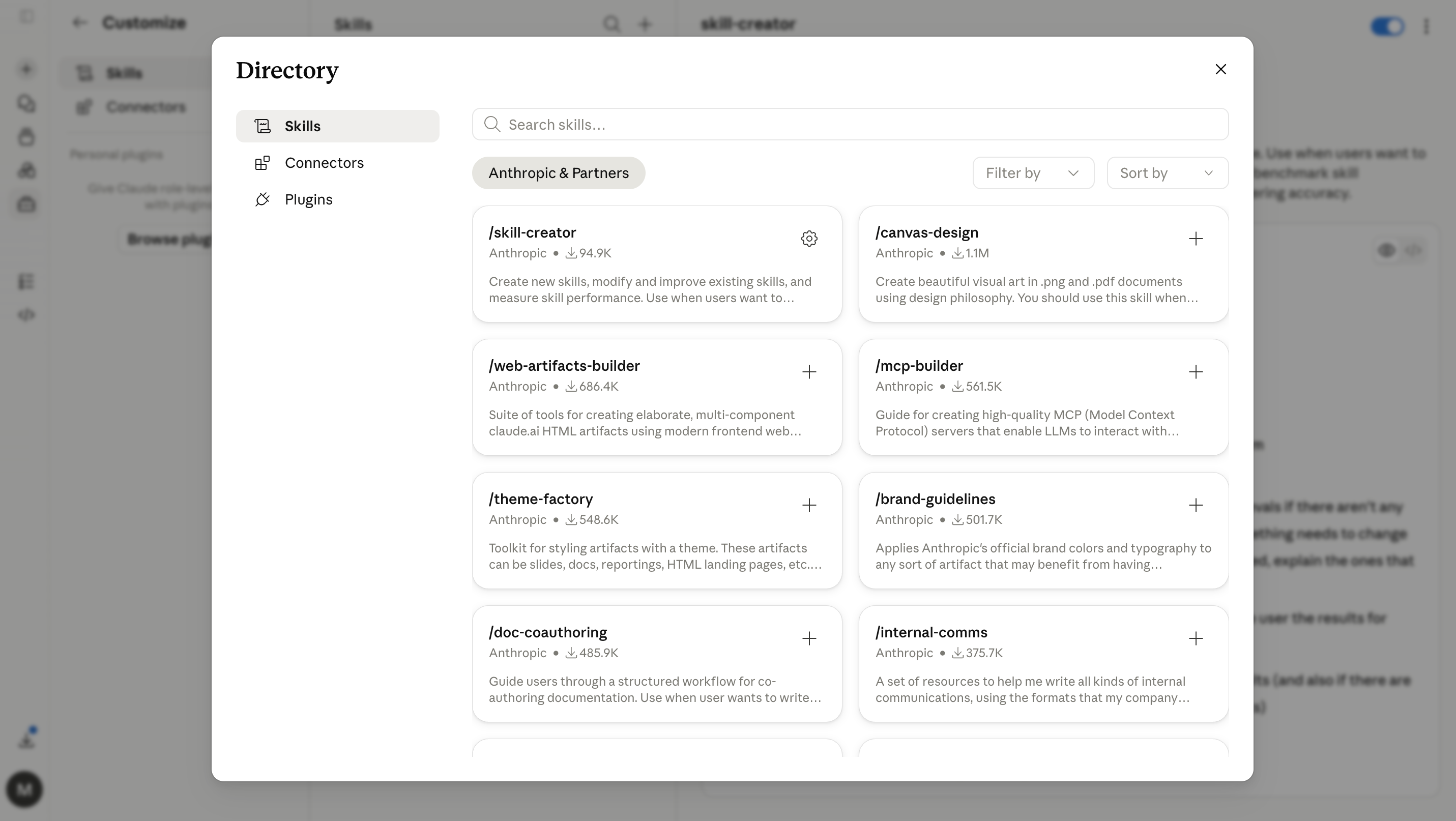
"+ -> Browse skills" ke peeche directory: Anthropic aur partners se one-click installs. Jo add karein shelf par land hota hai.
Wider ecosystem bhi jaan'ne layak hai. Kyun ke skills late 2025 mein open standard ban gayin (Part 4 mein zyada), public marketplaces fast appear hue - community sites ab tens of thousands of skills list karte hain jo aap download kar sakte hain. Yeh gift bhi hai aur hazard bhi: stranger se free skill aik text file hai jise aap AI ko follow karne de rahe hain. Safety section mein isay handle karenge. Abhi ke liye: built-in skills aur official directory safe starting place hain.
7. Connecting your apps
App connect karne mein lag bhag aik minute lagta hai. Chat se lower-left ka "+" click karein (ya / type karein), Connectors hover karein, Manage connectors choose karein, phir Connectors ke paas "+" click kar ke directory kholein; ya left sidebar se Customize -> Connectors kholein. Service choose karein, Connect click karein, aur sign-in/authorization prompts complete karein - yeh wohi "allow this app to access your account" flow hai jo aap hundred times kar chuke hain.
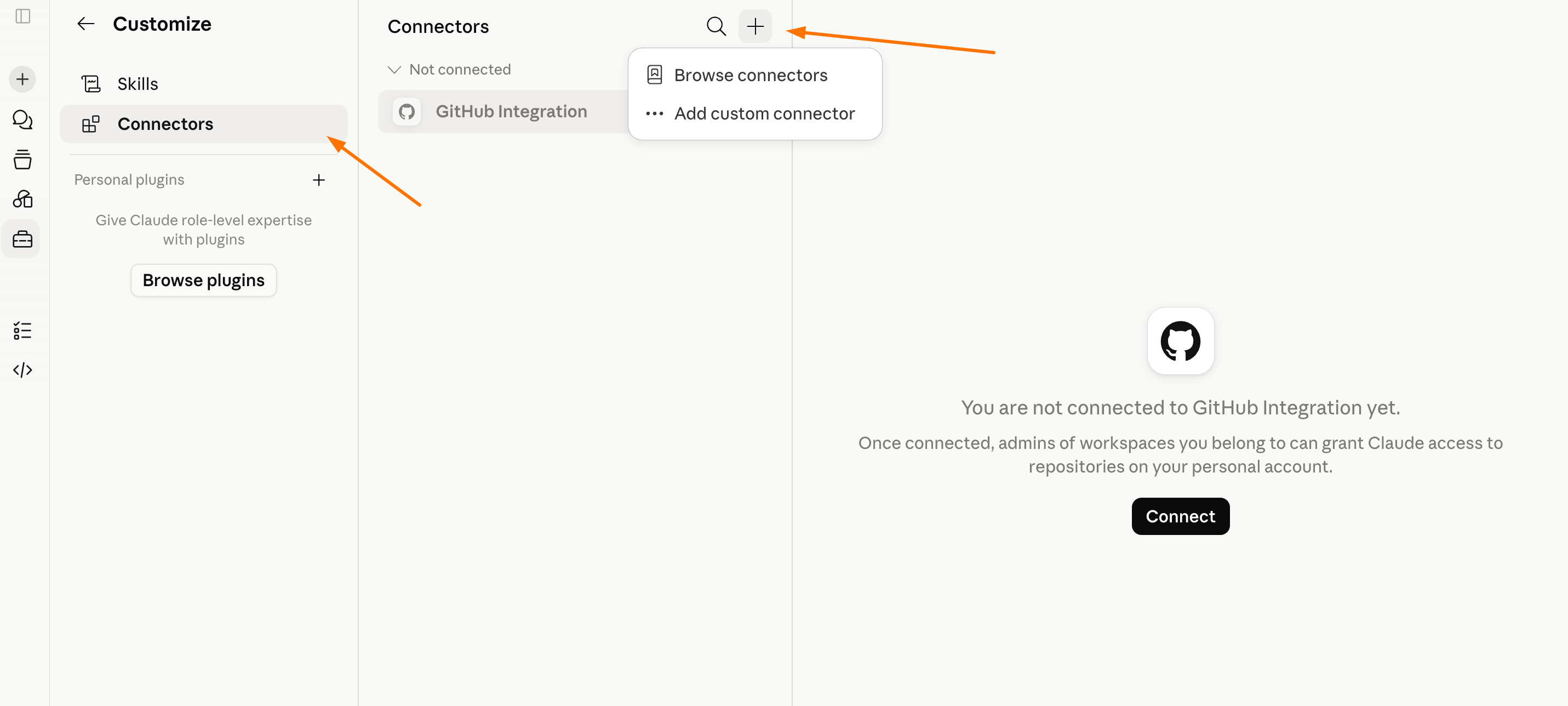
Customize -> Connectors. "+" Browse connectors (ready-made directory) ya Add custom connector kholta hai kisi bhi MCP bolne wali app ke liye.
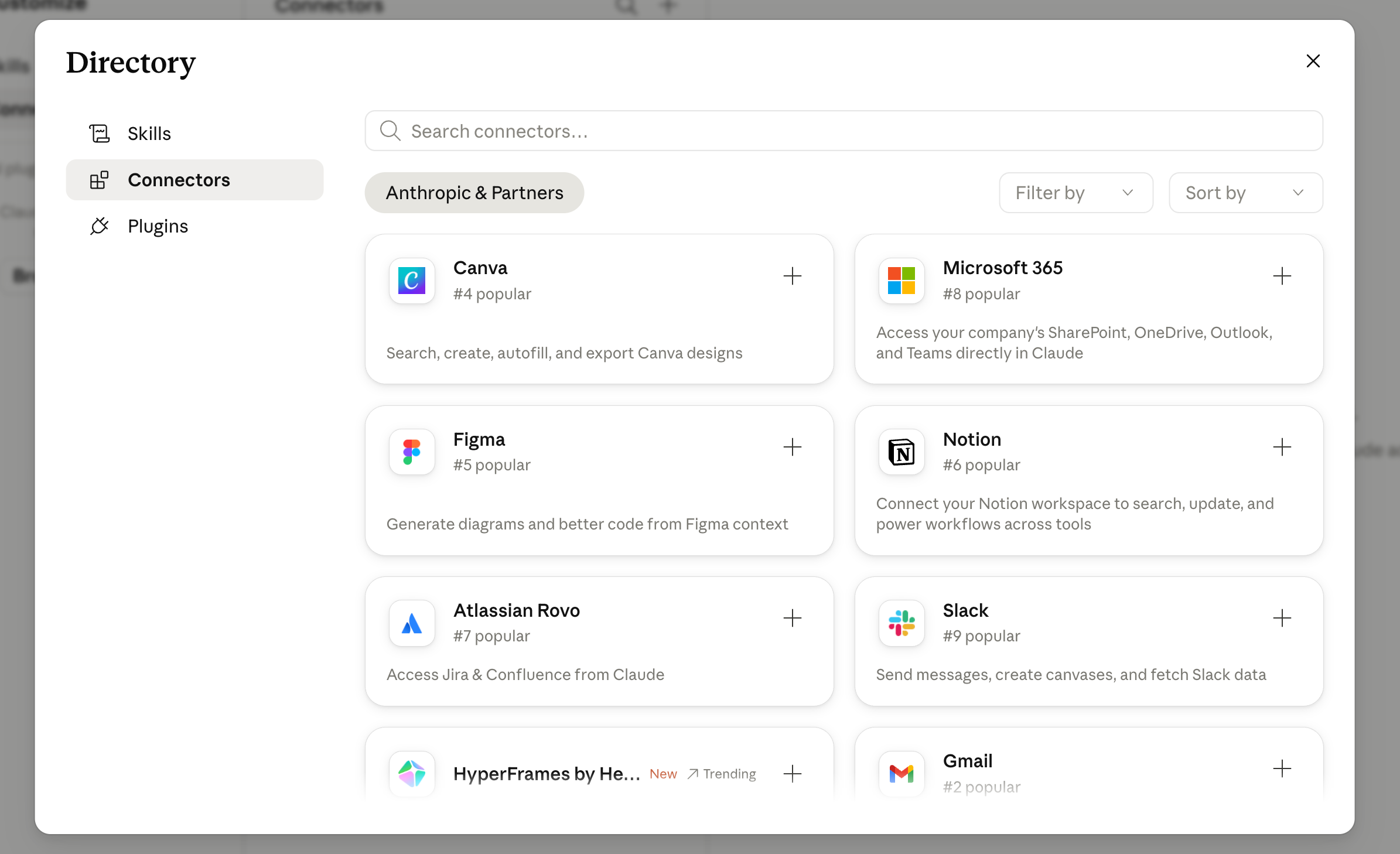
Directory: search ya browse karein, app choose karein, "+" click karein, aur sign-in complete karein. Yeh ready-made Anthropic aur partner connectors hain.
Trouble bachane wali kuch practical notes:
- Connect karne ke baad, connector ko conversation ke liye enable karein usi "+" -> Connectors menu ko khol kar aur jo this chat use karni chahiye unhein toggle on kar ke.
- Free plans aik custom connector include karte hain; ready-made directory connectors broadly available hain.
- Agar aap many apps connect karte hain, Tool access setting hoti hai jo tools sirf zaroorat par load kar sakti hai. Zyada logon ke liye automatically load fine hai; agar ten ya more connectors active hon aur conversations focused rakhni hon to load-on-demand par switch karein.
- Interactive badge watch karein - woh connectors chat ke andar live interfaces (task board, design canvas) render karte hain.
Worked example, doctor, made-up data ke saath taake koi real record mishandle na ho. Pehle Claude se practice file banwayein: "Make a one-page Word doc of a fake patient intake form (call it DEMO-Okafor-2026-03, with three invented medications and one allergy) and save it to my Google Drive." Yeh section 6 ka file engine hai jo document seedha Drive mein likh raha hai. Ab usay wapas parhein: "Find DEMO-Okafor-2026-03 in my Drive and summarize the medications into a SOAP-style note." Claude aap ki Drive search karta hai (sirf woh jo aap ka account dekh sakta hai), file pull karta hai, aur note draft karta hai, download ya copy-paste ke baghair. Aik connector mein aap ne dono directions dekhin: Claude ne Drive mein file likhi, phir search aur read ki.
Do honest notes. Drive connector documents read karta hai lekin in-place edit nahin kar sakta, is liye yahan "write" step ka matlab new file save karna hai, jiske liye Code execution and file creation on (section 6 se) plus Drive write permission chahiye. Aur kyun ke har detail invented thi, aap ne real record chhuye baghair full read-and-write loop run kiya. Regulated data (healthcare, legal, finance, student records) ke liye yeh habit rakhein: made-up examples par practice karein, aur data real ho to sirf woh accounts aur connectors use karein jo organization ne approve kiye hon.
8. The real magic: Skills + Connectors together
Har aik akela useful hai. Saath mein yeh kitchen-with-recipes hain, aur yahin work assist hone ke bajaye delegate hota hai.
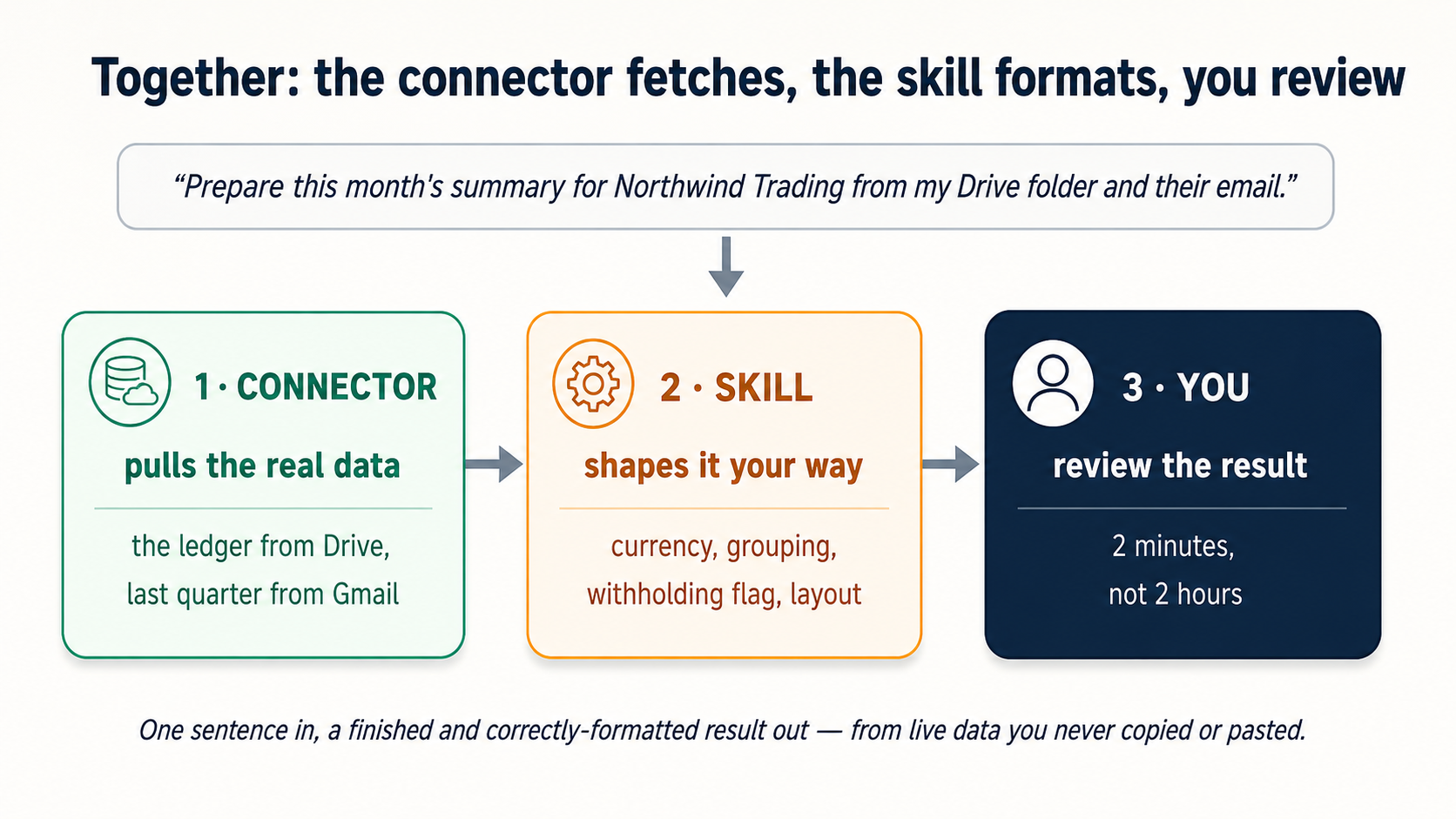
Pattern: Connector real data fetch karta hai; Skill output ko aap ke tareeqe se shape karti hai. Do worked examples.
Accountant ka monthly close. "client-summary" skill built (Part 3 dikhata hai kaise) aur Google Drive connected ho, to monthly ritual do short messages mein collapse hota hai, dono invented data par runnable. Pehle ledger banayein:
Create a sample ledger spreadsheet for a made-up client called DEMO Trading:
a dozen March transactions across a few expense heads, two or three of them
deliberately above a typical withholding threshold. Save it to my Google
Drive as DEMO-ledger-March.
Phir monthly request aik sentence hai:
Prepare the March client summary for DEMO Trading from DEMO-ledger-March
in my Drive.
Drive connector ledger fetch karta hai; client-summary skill har amount reporting currency mein format karti hai, expense head se group karti hai, withholding line se upar payments flag karti hai, aur firm ke four-section template mein lay out karti hai. Two-hour paste-and-format ritual two-minute review ban jata hai, aise data par jise aap kabhi bhi re-run kar sakte hain.
Marketer ka weekly content batch. "brand-voice" skill rules encode karti hai (no exclamation marks, question-hook openings, banned buzzwords, call-to-action format). Connector Notion mein content calendar tak pohnchta hai. Request: "Draft captions for this week's three scheduled posts in Notion, in our voice." Connector calendar parhta hai; skill captions on-brand likhti hai. Woh compose ke bajaye edit karte hain.
Wahi template engineer par fit hota hai ("design-review" skill + Linear connector -> "review the three open issues tagged arch and write findings by severity") aur teacher par ("lesson-plan" skill + Drive connector -> "build next week's plan from the syllabus and last week's graded worksheets in my Drive").
9. Which problems need a Skill, which need a Connector, which need both?
Yeh simple test handy rakhein. Jab task repetitive ya tedious lage, apne aap se order mein poochein:
- Kya friction yeh hai ke main baar baar explain karta hoon kaise karna hai? -> Skill chahiye.
- Kya friction yeh hai ke main data doosri app se fetch karta rehta hoon? -> Connector chahiye.
- Dono? -> Dono chahiye. (Yeh aap ke khayal se zyada common hai.)
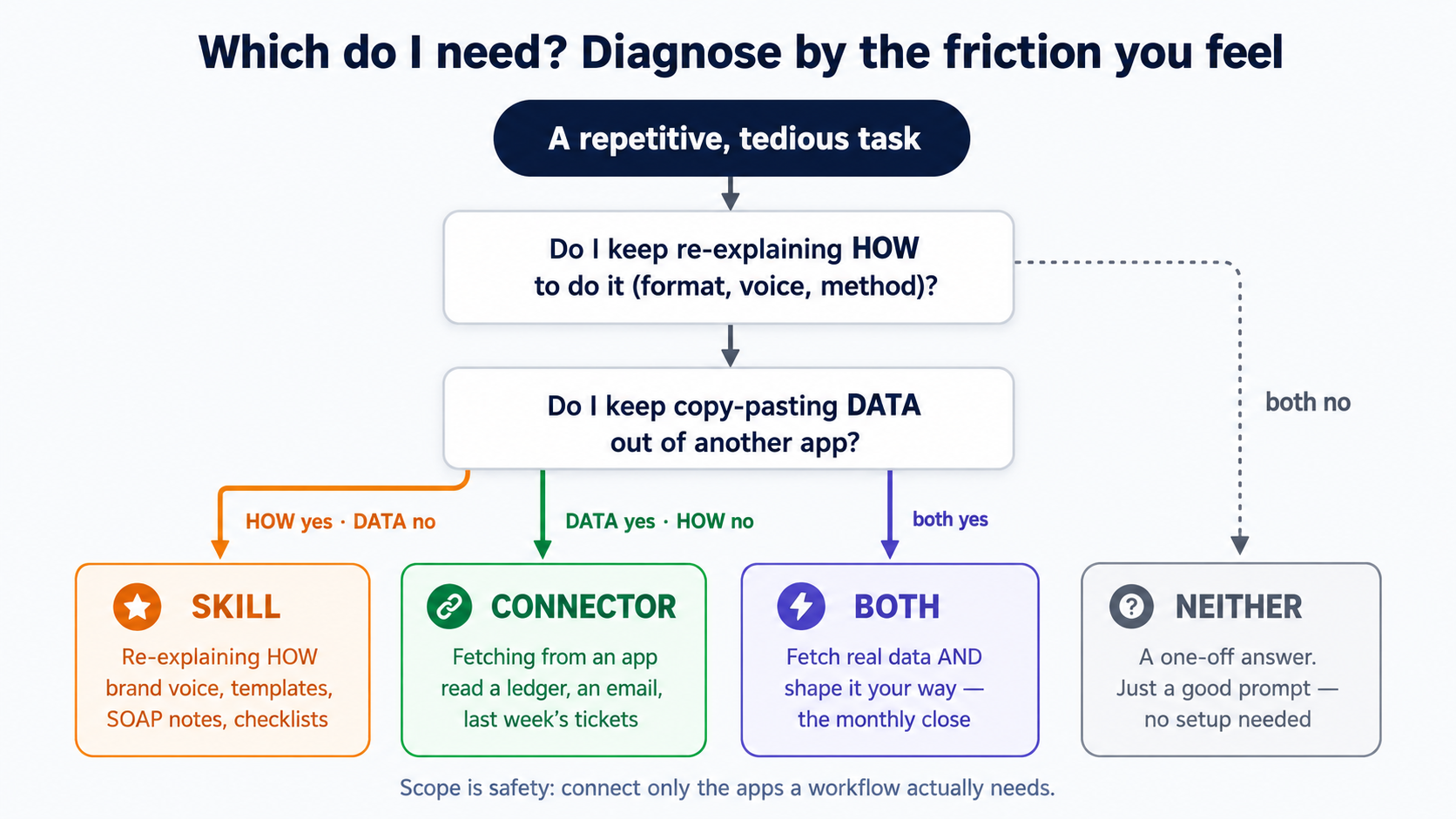
| The friction you feel | What it needs | Example |
|---|---|---|
| "I paste the same formatting/voice/method rules every time." | Skill | Brand voice; report template; SOAP notes; review checklist |
| "The output should always look a certain way." | Skill | Board-paper structure; invoice layout |
| "I keep copying data out of Drive / Gmail / Slack / a tracker." | Connector | Pulling a ledger, an email thread, last week's tickets |
| "I want AI to do something in another app." | Connector (write access) | Create a Linear issue; draft an email reply; update a Notion page |
| "I fetch real data and it must come out my specific way." | Both | Monthly client close; weekly content batch; design review |
| "I just want a one-off answer right now." | Neither | A single question; a quick draft you'll never repeat |
Do honest cautions. Pehla, har cheez skill deserve nahin karti. Jo task aap aik dafa karte hain woh sirf good prompt hai; skill tab worth hai jab task repeat hota hai. Doosra, jo connector chahiye nahin woh khula darwaza hai. Workflow ko jo apps waqai chahiye woh connect karein, har app nahin jo aap own karte hain. Scope safety hai.
Part 3: Building your own Skill (the AI builds it for you)
Yeh woh hissa hai jo programming jaisa sound karta hai lekin nahin. Aap plain English mein describe karenge kya chahte hain, aur AI SKILL.md aap ke liye likhega. Phir aap test, fix, aur done. No code. Running example ke taur par accountant ki client-summary skill banate hain.
10. The fastest path: let AI write it
Anthropic skills banane ke liye skill provide karta hai, called skill-creator, aur similar helpers ki community hai. Aap simply ask karte hain. Claude.ai mein:
Use the skill-creator skill to help me build a skill.

The skill prepares a monthly client financial summary for my
accounting firm. Whenever I ask for a "client summary"
or "monthly close," it should:
- Format all amounts in our reporting currency with thousands separators.
- Group line items by expense head.
- Flag any payment above the tax-withholding reporting threshold.
- Output using my standard four-section report layout
  (Overview, Income, Expenses by Head, Flags & Notes).

Ask me anything you need, then build it.
AI kuch clarifying questions poochega (threshold figure kya hai? template kaisa dikhta hai?), phir complete, correctly formatted skill generate karega. Yeh prompting primer ka brainstorm-iterate loop hai, draft likhne ke bajaye tool build karne par pointed: context dein, draft karne dein, parhein, feedback dein, repeat.
Notice karein kya hua: aap ne outcome describe kiya, aur AI ne artifact produce kiya - SKILL.md, aur skill ko jo code chahiye - bina aap ke us ki aik line likhe ya parhe. Yeh exact move previous Foundations crash course, Code You Never Write, ne full discipline mein badla: aap client hain, contractor nahin. Acha client bricks nahin lagata; woh clear brief likhta hai, result ko un cheezon ke against check karta hai jo woh measure kar sakta hai, aur jo pay kiya use rakhta hai. Skill bas woh idea permanent bana deta hai: aik dafa commissioned, forever reused. Aap ne us course mein commissioning practice ki; yahan us commission ko skill ke taur par save kar ke durable banate hain.
Aap yahi cheez doosre surfaces par bhi kar sakte hain - skill describe karein, agent se file likhwaiye - aur jo shape produce hoti hai woh har jagah identical hoti hai, kyun ke skills open standard hain. (Part 4 batata hai har surface isay kahan save karta hai aur ChatGPT/Gemini equivalents kaise differ karte hain.) Is liye us shape ko samajhna worth hai.
11. Anatomy of a SKILL.md
Har skill same simple structure hai. Yeh hamari accountant skill ka minimal version hai - aik dafa parhein aur mystery gone:
---
name: client-monthly-summary
description: Prepares a monthly client financial summary for an
  accounting firm. Use when the user asks for a "client summary",
  "monthly close", or "month-end report". Formats amounts in the
  firm's reporting currency, groups by expense head, and flags
  tax-withholding items.
---

# Client Monthly Summary

## Settings (edit these to make it yours)

- Reporting currency: your currency (e.g., USD, EUR, NGN)
- Withholding threshold: the amount above which to flag a payment (e.g., 50,000)

## Instructions

When asked to prepare a client summary or monthly close:

1. Format every amount in the reporting currency above, with thousands
   separators (e.g., "1,250,000").
2. Group all line items by expense head. Sort heads by total,
   largest first.
3. Flag any single payment above the withholding threshold above
   with a "⚑ WITHHOLDING" note.
4. Produce the report in exactly four sections, in this order:
   Overview, Income, Expenses by Head, Flags & Notes.

## Example

User: "Prepare the March summary for DEMO Trading."
Result: A four-section report, currency-formatted, withholding lines flagged.
Do parts, bas:
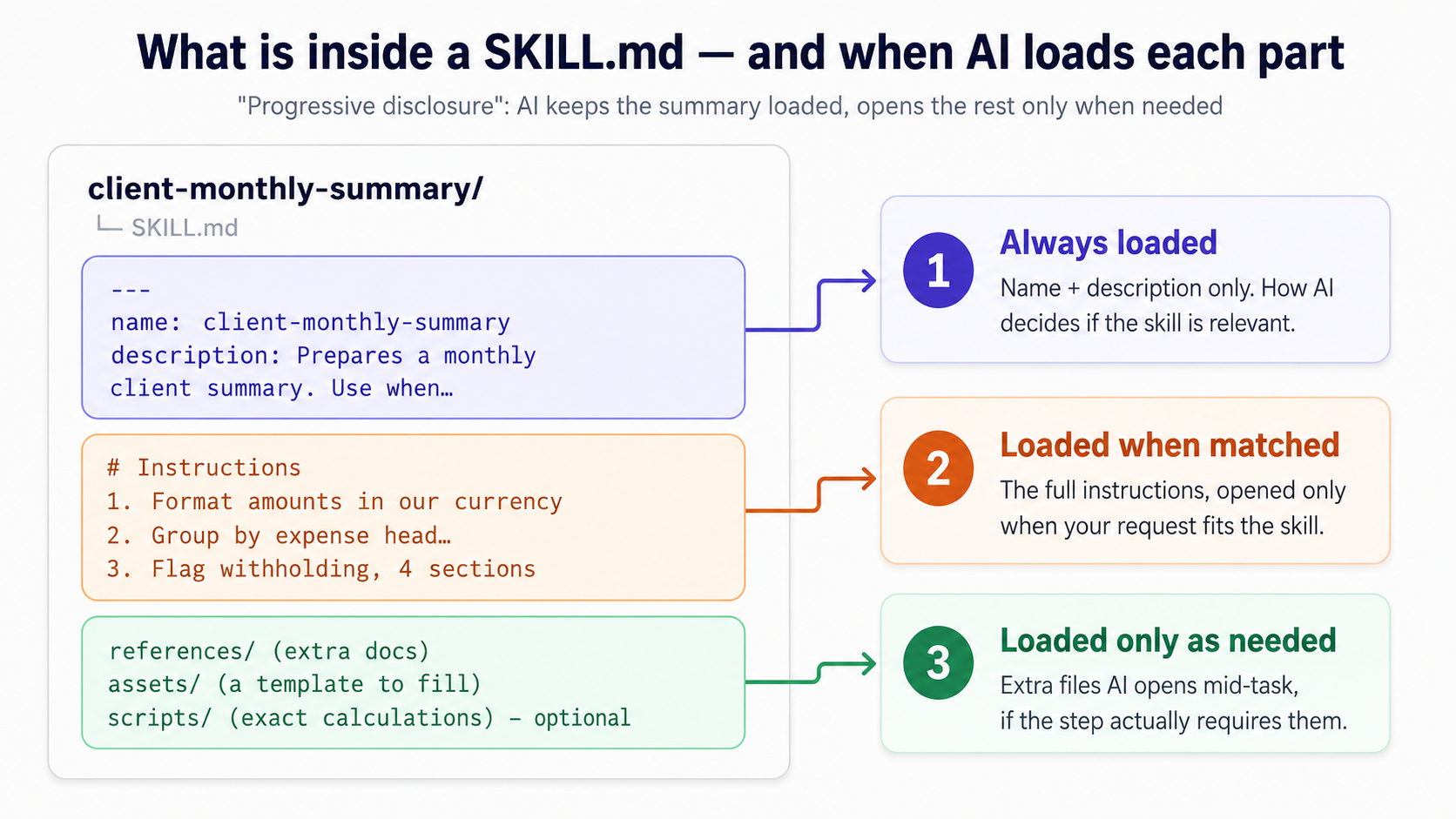
- Frontmatter (
---lines ke beech):nameaurdescription. Yeh sirf cheez hai jo AI har waqt loaded rakhta hai. Isi se AI decide karta hai kya skill relevant hai - progressive disclosure, level one. - Body (baad ka sab kuch): actual instructions, sirf tab loaded jab description aap ki request se match kare - level two.
Complex skills ke liye aap references/ folder (detailed docs jo AI zaroorat par parhta hai - level three), assets/ folder (fill karne ke liye template file), aur scripts/ (steps ke liye chhote programs jo exact hone chahiye) add kar sakte hain. Start ke liye in ki zaroorat nahin. Kuch rules jo common upload errors rokte hain:
- File ka naam exactly
SKILL.mdhona chahiye. - Folder name
kebab-caseuse kare:client-monthly-summary✅,Client Monthly Summary❌ yaclient_monthly_summary❌ nahin. nameaurdescriptionmein XML-style tags nahin hone chahiye (angle brackets ke andar kuch bhi, jaise<note>), aur description short aur specific rahe, platform ki length limit ke andar comfortably (aik ya do sentence ideal hain).- Skill ke naam mein "claude" ya "anthropic" na rakhein - yeh reserved hain.
12. The description field is the whole game
Agar skill build karne ke bare mein aik cheez yaad rakhein, yeh rakhein: description decide karti hai skill kabhi fire hoti hai ya nahin. AI relevance decide karne ke liye aap ki instructions nahin parhta - sirf description parhta hai. Vague description ka matlab skill jo kabhi trigger nahin hoti; sharp description ka matlab woh exactly jab chahiye activate hoti hai.
Formula: what it does + when to use it + exact phrases jo aap waqai kahenge.
| Bad description | Why it fails | Better description |
|---|---|---|
| "Helps with reports." | Too vague - fires for everything or nothing. | "Prepares a monthly client financial summary. Use when the user asks for a 'client summary', 'monthly close', or 'month-end report'." |
| "Handles patient documentation." | No trigger words a user would say. | "Converts consultation notes into SOAP-format clinical notes. Use when the user asks for a 'SOAP note', 'clinical note', or to 'write up' a consultation." |
| "Brand stuff for marketing." | No idea what or when. | "Writes social captions in our brand voice (no exclamation marks, question-hook openings). Use when drafting Instagram, LinkedIn, or X captions." |
Skill installed hone ke baad handy debugging trick: AI se poochein, "When would you use my client-summary skill?" Woh description paraphrase kar ke wapas dega. Agar answer aap ki intent se narrow ya wide hai, aap ko exactly pata chal gaya description mein kya fix karna hai.
Agar skill bohat eagerly fire hoti hai to negative triggers bhi add kar sakte hain: "Do NOT use for one-off calculations or quick questions - only for full month-end reports."
13. Test, then iterate
Skill first draft par kabhi "done" nahin. Reliable build loop, experienced skill-builders ke workflow se adapted:
- Skill describe karein aur AI ko first version generate karne dein.
- Usay parhein aur testing se pehle obvious wrong cheezein fix karein.
- Triggering test karein. Woh phrases try karein jo activate honi chahiye ("prepare the client summary," "do the monthly close," "write up the month-end report") aur confirm karein load hoti hai. Unrelated requests try karein aur confirm karein woh un par takeover nahin karti jin par nahin karni chahiye.
- Output test karein. Skill ko real (ya realistic) input par run karein. Kya right currency mein format karti hai? Head se group? Withholding flag? Chaaron sections hit?
- Hard cases ke saath test karein. Aisa client jiska month mein no income ho. Payment exactly threshold par. Messy ledger. Jahan fail ho, instructions zyada precise karein - aur consider karein kya tricky calculation prose instruction ke bajaye chhota
scripthona chahiye, kyun ke code exact hai aur prose interpreted. - Failures skill-creator ko wapas dein: "This skill double-counted reversed entries. Update it to net out reversals before grouping."
Do failure patterns aur fixes:
- It never triggers -> description too vague hai ya aap ke actual words missing hain. Unhein add karein.
- It triggers on the wrong things -> description too broad hai. Narrow karein, ya negative trigger add karein.
Modest testing bohat effective hoti hai. Personal formatting skill ke liye fifty test runs ki zaroorat nahin; real client work par trust karne se pehle kuch runs chahiye, including aik deliberately awkward case.
14. Saving and sharing your skill
Skill ready ho to save karna one click hai. Jab skill-creator finish karta hai, chat ke side panel mein skill dikhata hai Save skill button ke saath. Click karein, aur skill seedha Personal skills (Customize -> Skills) mein drop hoti hai, toggled on, ready, aur aap ke account ke liye private. No zip, no upload.
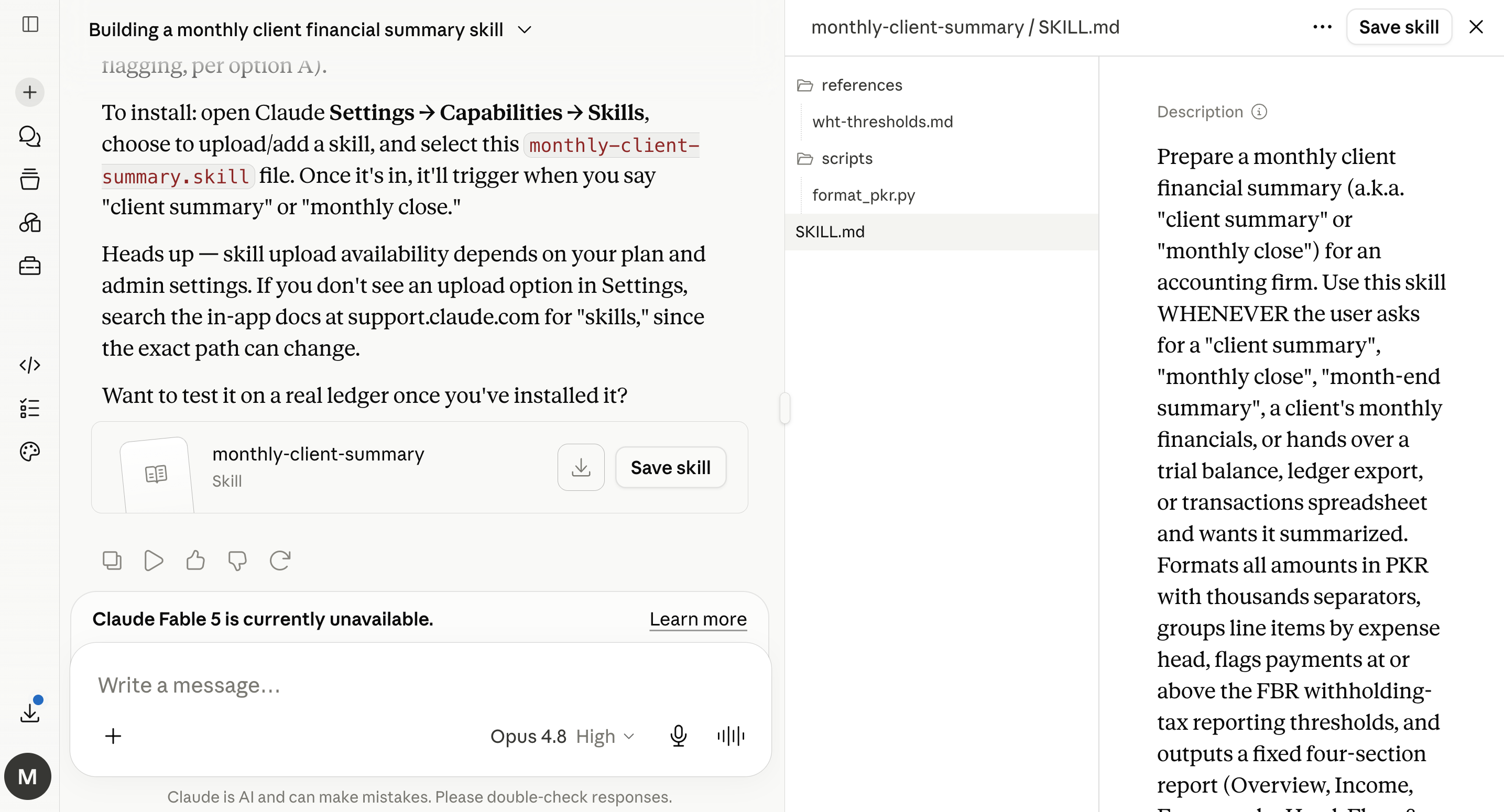
Build done ho to aik Save skill click usay shelf par rakh deta hai. Kahin aur se skill folder hai? Ab bhi hand se add kar sakte hain: Customize -> Skills -> "+" -> Create skill -> folder upload.
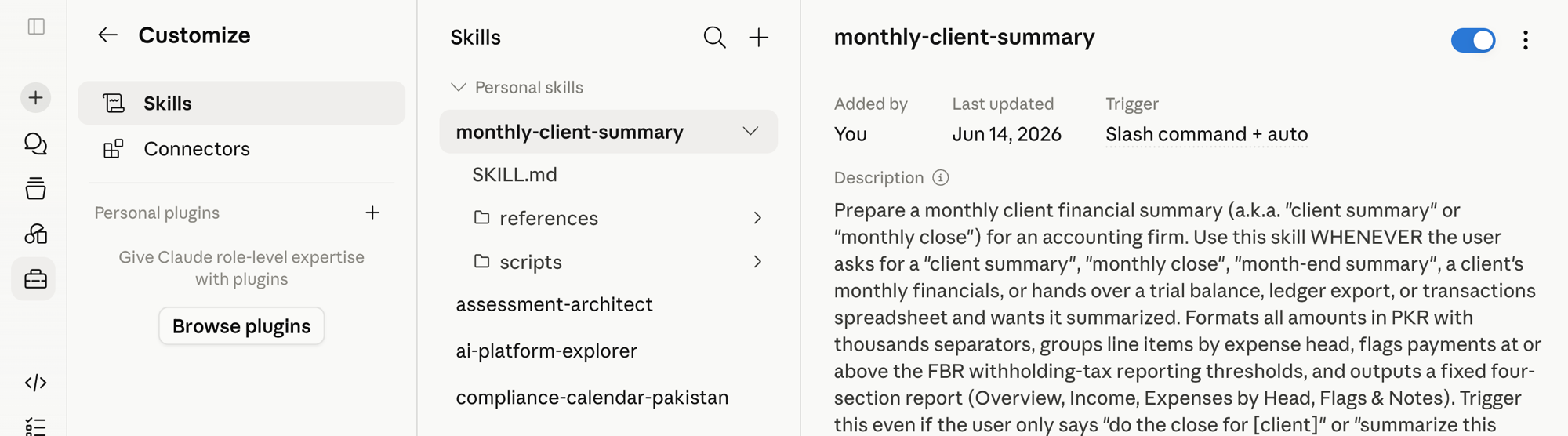
Wahi shelf jahan section 6 mein sirf skill-creator tha, ab aap ki apni skill rakhti hai, "Added by You", ready to fire jab bhi aap "client summary" ya "monthly close" kahen.
Team ya Enterprise plans par, aap aage ja sakte hain: specific colleagues ke saath skill share karein ya organization directory mein publish karein taake sab install kar sakein. Shared skills view-only hoti hain aur jab aap original change karte hain auto-update hoti hain, jo poori accounting firm ya clinic ke documents standardize karne ke liye handy hai. (Sharing default off hai; owner pehle enable karta hai.)
Part 4: The same skill, five places
Aap is work ke liye five tools ke bare mein sunenge, aur achi khabar real hai: jo skill aap aik dafa likhte hain woh portable hai. December 2025 mein Anthropic ne Agent Skills open standard publish kiya (agentskills.io par), aur adoption fast tha. Months ke andar other vendors ke tools, including OpenAI ka Codex CLI aur Google ka Gemini CLI, same SKILL.md files parhne par agree hue. Honest caveat: basic SKILL.md skill skills-compatible tools ke across travel karti hai, lekin har product apna install path, invocation syntax, permissions, aur extra features add karta hai - core portable hai, edges differ. Jo recipe aap ne likhi woh many kitchens mein hang hoti hai, chahe har kitchen apni shelves thora different arrange kare.
Usi month, Linux Foundation ne Agentic AI Foundation form ki taake is tarah ke infrastructure ko neutral, cross-vendor governance mile. Us ke founding projects mein se aik MCP hai - standard jis par aap ke connectors run karte hain - to ab Skills aur Connectors dono ke neeche ki plumbing kisi single company ke bajaye openly steer hoti hai. Skill use karne ke liye is mein se kuch nahin chahiye; yeh bas wajah hai ke "portable" safe bet hai, kisi aik vendor ka wada nahin.
Har surface, kis ke liye hai, aur teen core moves - skill install karna, app connect karna, aur apna build karna - wahan kaise hotay hain:
| Surface | Who it's for | Install a skill | Connect an app | Build your own |
|---|---|---|---|---|
| Claude.ai (web/mobile) | Everyone - your main tool | Click Install in the directory, or upload a zip | "+" -> Connectors -> pick -> sign in | skill-creator writes it; click Save skill |
| Cowork / OpenWork (desktop) | Knowledge workers, non-coders | Same directory; enabled skills appear automatically | Same flow, plus reaches files already on your computer | Describe it; the agent can save it straight to a folder |
| Claude Code / OpenCode (terminal) | People who work with code | Drop the skill folder into the skills directory | Set up once in a config file, then ask in plain language | Ask the agent to "create a skill for..."; it writes the files |
Har pair mein pehla commercial tool hai aur doosra open-source alternative; dono same SKILL.md parhte hain.
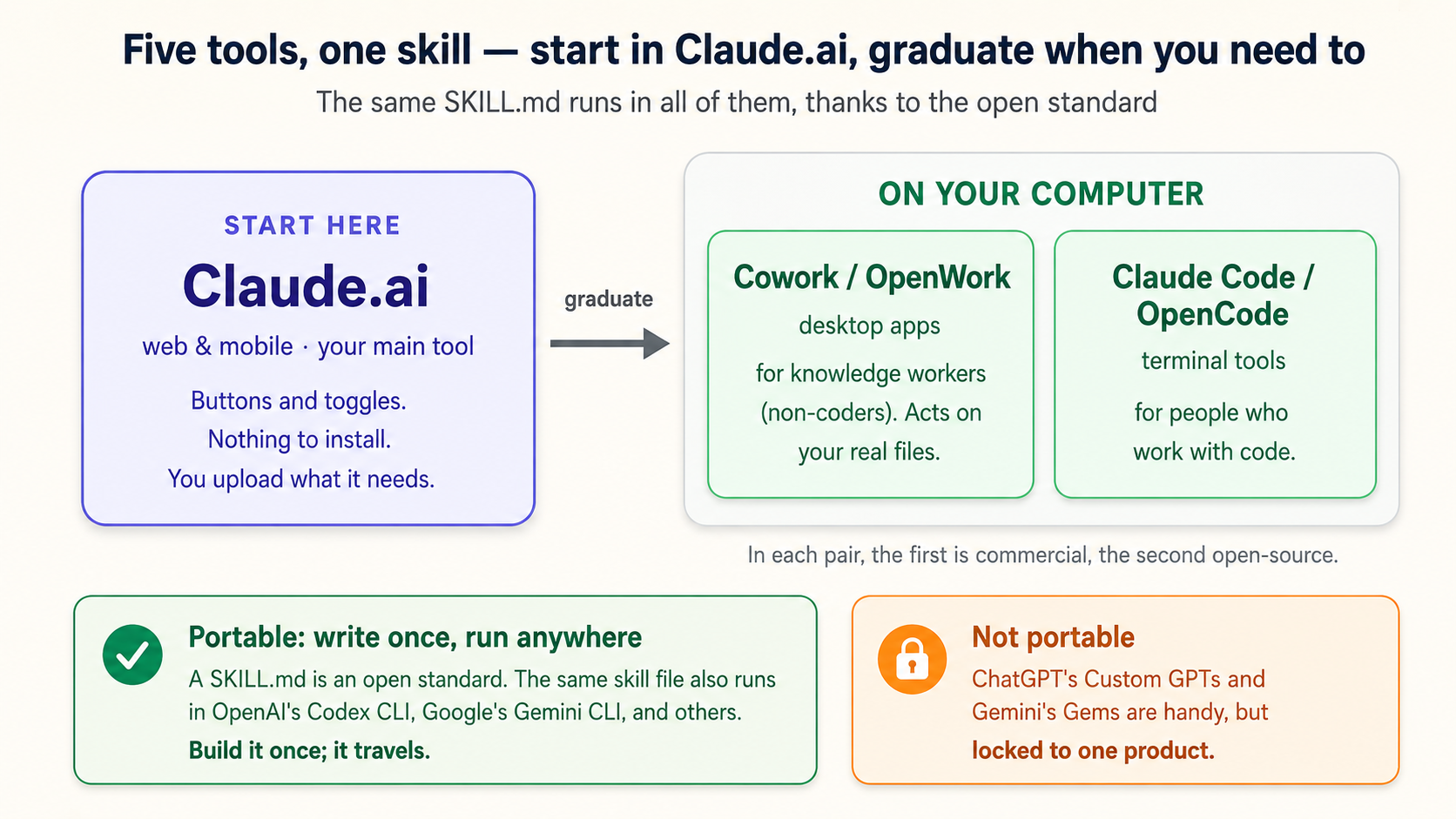
Non-programmers ke liye honest guidance: Claude.ai mein start aur stay karein. Parts 1-3 mein sab kuch wahan buttons aur toggles se hota hai, files manage nahin. Cowork (aur us ka open cousin OpenWork) natural next step hai jab aap AI ko directly apne computer ki files/folders par kaam karwana chahte hain instead of one-at-a-time uploads - same skills, real desktop par applied. Claude Code aur OpenCode terminal mein rehte hain aur un logon ke liye hain jo code likhte ya code ke saath kaam karte hain; open standard ka matlab Claude.ai mein built skill wahan bhi carry over hoti hai, us tool ke own setup ke saath.
What about ChatGPT and Gemini?
Do cheezein aik saath true hain, aur precise hona worth hai kyun ke marketing inhein blur kar deti hai.
Skills par picture genuinely cross-vendor hai. Kyun ke Agent Skills open standard hai, OpenAI (Codex CLI) aur Google (Gemini CLI) ke command-line tools, along with VS Code, Cursor, aur others, same SKILL.md files parhte hain. Skill is course ka woh aik piece hai jo Claude se locked nahin. Aik dafa likhein; tools ke across run karein.
Consumer chat apps ke andar "teach it once" par, har vendor ka apna non-portable version hai:
- ChatGPT ke paas Custom GPTs hain - saved ChatGPT version aap ki instructions aur optional knowledge files ke saath, GPT Store ke through distributed. Powerful, lekin sirf ChatGPT ke andar rehta hai.
- Gemini ke paas Gems hain - saved Gemini persona instructions aur knowledge files ke saath, sirf Google ki apps mein living.
Jo difference matter karta hai: Skill portable hai (open standard, many tools); GPT ya Gem vendor-specific custom assistant hai jise aap elsewhere nahin le ja sakte. Agar aap sirf aik tool use karte hain, GPT ya Gem perfectly fine hai. Agar aap ki strategy more than one model span karti hai - jaisa yeh book argue karti hai - Skills future-proof choice hain.
Connectors par, teenon ke paas equivalent hai: ChatGPT aur Gemini dono apps/data se connect karte hain (ChatGPT apne connectors/apps ke through; Gemini Workspace integration aur extensions ke through). Underlying MCP technology increasingly shared hai. Principle har jagah identical hai: aap access grant karte hain, AI aap ki permissions inherit karta hai, read-only se start karte hain.
Claude.ai mein seekhein. Concepts - teach-once, connect-your-apps, automatic invocation, scope-your-access - har tool par transfer hote hain. Jahan feature Claude-specific hai, hum ne keh diya hai.
Part 5: Use this safely (the part most tutorials rush)
Wohi principle jo What AI Actually Is (Idea 3) mein hai: model ke andar koi cheez check nahin karti ke action safe ya correct hai; woh check aap hain. Skill enable karne se pehle parhein; connector par trust karne se pehle us ka scope set karein.
Skills aur connectors powerful hain, is liye thori care worth hai. Is section ka sab se important sentence:
Skill instructions ka set hai jise aap AI ko follow karne de rahe hain, aur connector aap ke real data mein darwaza hai. Stranger ki skill ko us contract ki tarah treat karein jise aap sign karne wale hain, aur connector ko us key ki tarah jo aap hand over karne wale hain.
The two real risks
-
Malicious skills. Kyun ke skill sirf text file hai (aur shayad scripts), malicious person aisi hidden instructions wali skill likh sakta hai jo AI se woh karwaye jo aap intend nahin karte - data leak, suspicious server contact, ya quietly misbehave. Do named dangers prompt injection (skill AI ko unintended actions mein manipulate karti hai) aur data exfiltration (skill ka code ya instructions secretly information bahar bhejte hain) hain. Yeh hypothetical nahin; isi liye "I downloaded a free skill from social media" woh sentence hai jo aap ko pause aur think karwaye.
-
Over-broad connector access. Connector sirf woh reach kar sakta hai jo aap reach kar sakte hain - lekin agar write access carelessly grant karein, AI aap ki taraf se cheezein change kar sakta hai. Risk usually dramatic nahin; wrong edit, ghalat jagah bana hua record, ya deleted file jiska aasan undo nahin.
The safe-use checklist
- Trusted sources se skills install karein. Built-in Anthropic skills aur official directory safe default hain. Forum se random zip nahin.
- Skill enable karne se pehle parhein.
SKILL.mdaur bundled files kholein. Aap AI se bhi karwa sakte hain: "Read this skill and tell me exactly what it instructs you to do. Flag anything that contacts external servers, handles credentials, or could leak my data." Scripts aur internet reach karne wali kisi instruction par special attention dein. - Connectors read-only se start karein. "search and summarize" pehle, "send" ya "create" ya "delete" baad mein. Write access tab tak na dein jab tak tool ko well behave karte na dekh lein.
- Task ke liye smallest folder ya app scope karein. Sab kuch connect na karein; one-folder job ke liye whole-drive access na dein.
- AI ko files edit, move, ya delete allow karne se pehle confirm karein ke woh specific connector recovery, version history, aur undo kaise handle karta hai. Kuch write actions expected recovery path overwrite ya bypass kar sakti hain, is liye jis cheez ka khona afford nahin kar sakte us ki apni backups rakhein.
- Team par, shared skills organization directory se route karein, jahan owner ne review kiya ho, zips pass around karne ke bajaye.
Is mein se kuch aap ko scare off nahin karna chahiye - built-in tools safe hain aur everyday workflow low-risk hai. Point sirf yeh hai ke jaise aap "use what comes built in" se "community skills install aur write access grant" tak jate hain, aap ki caution capability ke saath rise honi chahiye. Capability aur care saath upar jate hain.
Recap
Pura page chand lines mein:
- Chat AI ko batata hai aik dafa kya karna hai; Skill har dafa kaise karna hai sikhati hai; Connector usay apps tak pohnchne ke haath deta hai. (Kitchen: connectors kitchen hain, skills recipes.)
- Skill
SKILL.mdtext file wala folder hai - name, description, aur plain-English instructions. Start ke liye code required nahin. - Connector app tak safe, permission-scoped access hai (Drive, Gmail, Slack, tracker), MCP standard par running. AI aap ki permissions inherit karta hai.
- Claude.ai mein skills automatically fire hoti hain jab prompt description se match kare. Slash commands aur skill ka naam lena override tools hain, zyada Cowork aur developer apps mein used. Is liye description sab se important cheez hai jo aap likhte hain.
- Friction se diagnose karein: how re-explain karna -> Skill; app se copy-paste -> Connector; dono -> dono.
- Aap skills describe kar ke AI se banwate hain (skill-creator writing karta hai); phir triggering aur output test kar ke iterate.
- Aik dafa likhi skill many tools ke across run karti hai Agent Skills open standard ki wajah se - unlike ChatGPT's GPTs ya Gemini's Gems, jo vendor-locked hain. Claude.ai mein seekhein; concepts Claude Code, OpenCode, Cowork, OpenWork, aur beyond tak carry karte hain.
- Care capability ke saath scale hoti hai: enable se pehle skills parhein, trusted sources se install karein, connectors read-only se start karein, access tightly scope karein.
Neeche shift wahi hai jahan book baar baar wapas aati hai: AI box nahin rehta jismein aap type karte hain; woh layer ban jata hai jo aap ke standards jaanta hai aur tools tak pohnchta hai. Skills aur Connectors woh tareeqa hain jis se ordinary professional - no programming, no setup beyond a few toggles - is shift ko is week kar sakta hai.
Try this now
Reading doing ka substitute nahin. Claude.ai kholein (free tier enough hai) aur yeh order mein run karein. Lag bhag thirty minutes budget karein.
1. Built-in skill trigger karein. Confirm karein file-creation on hai (Settings -> Capabilities), phir:
Turn this into a one-slide PowerPoint with a title and three
bullet points: [paste any three facts about your work].
Aap ne skill ka naam nahin liya - watch karein PowerPoint skill khud fire hoti hai.
2. Aik app connect karein, read-only. Google Drive (ya Gmail) connect karein, chat ke liye enable karein, phir:
Find [a specific document] in my Drive and give me a three-sentence
summary plus the three numbers that matter most.
Notice karein aap ne kuch download ya paste nahin kiya.
3. Apni pehli skill, baat kar ke build karein. Apne week ka sab se repetitive "I keep re-explaining how" task choose karein. Phir:
Use the skill-creator skill to help me build a skill for [your task].
Here's exactly how I want it done every time: [list your rules,
your format, your must-dos and must-nots]. Ask me anything you
need, then build it.
4. Description pressure-test karein. Built aur installed hone ke baad:
When would you use the skill we just made? And when would you
NOT use it?
Agar answer bohat wide ya narrow hai, fix batayein aur description update karwayein.
5. Safety ke liye skill audit karein. Koi bhi skill jo aap ne khud nahin likhi:
Read this skill and tell me, in plain language, exactly what it
instructs you to do. Flag anything that contacts an external
server, handles credentials, or could send my data anywhere.
6. Apne teen tasks diagnose karein. Work ki teen recurring annoyances likhein. Har aik ke liye answer karein: friction re-explaining how hai (Skill), app se fetching hai (Connector), ya dono? Ab aap ke first three projects hain.
🚀 Projects
Upar ki exercises ne har idea ko alag isolate kiya. Yeh projects poore chapter ko aisi cheez mein chain karte hain jo aap rakhte hain: aik real asset jo aap own karte hain aur kisi aur ko hand kar sakte hain, plus skill ko trust karne se pehle usay vet karne ki habit. Show-off ke liye screen nahin, publish karne ke liye link nahin. Jo aap saath le kar jate hain woh aik private skill hai (SKILL.md plus us ke ird-gird connected workflow) aur aik sentence jo aap kisi real person se keh sakte hain ke yeh ab aap ke liye kya karti hai.
Aik filter decide karta hai ke task skill deserve karta hai ya nahin: market-of-one test. Skill apni jagah tab earn karti hai jab woh aap ka specific repeated tareeqa encode karti hai, woh cheez jo koi app aap ke liye nahin karti. Koi aisi app nahin bechta jo aap ke class notes aap ke format mein likhe, ya aap ki firm ki report aap ki firm ke chaar sections mein; woh gap exactly wahan hai jahan skill store ke har tool ko beat karti hai. Jo task koi app sab ke liye already karti hai woh sirf good prompt hai, skill nahin.
Yeh sequenced hain. Project 1 is week karein, us task par jo aap waqai repeat karte hain, aur har aik free account fit karta hai.
Project 130-45 minBuild your first real skillApne most re-explained task ko aisi skill banayein jo bas aap ka tareeqa jaanti hai.
Part 3 ka poora build loop bas teen messages hai. Claude.ai kholein aur yeh ek word for word paste karein, taake baat kar ke aik real skill build karein:
Use the skill-creator skill to build me a weekly study-notes skill.
Whenever I ask for "study notes" or "weekly notes", take my raw class
notes and format them as a heading per topic, a short bold key-terms
list, and exactly three review questions at the end. Ask me anything
you need, then build it.
skill-creator aap se do quick questions poochta hai, SKILL.md likhta hai, aur usay aik sample par test-run karta hai taake aap output dekhein. Save skill click karein aur woh aap ki shelf (Customize -> Skills) par land hoti hai, aap ke liye private. (Yeh study-notes skill banata hai. Usay apne task ke bare mein banane ke liye, same shape rakhein aur woh cheez swap karein jo aap baar baar re-type karte hain, apna report format, apni brand voice, apni review checklist, aur apne exact rules.)
Phir description check karein, woh hissa jo decide karta hai ke woh khud fire hoti hai ya nahin. Paste karein:
When would you use the weekly-study-notes skill, and when would you NOT use it?
Agar answer bohat wide ya narrow hai, usay fix batayein. Phir prove karein ke woh kaam karti hai: aik brand-new chat kholein aur, bina skill ka naam liye, apne notes ka aik real week is line ke foran baad paste karein:
Make study notes from this:
Aap dekheenge woh apni skill ke liye khud reach karti hai aur aap ka exact format wapas deti hai, har dafa: per topic aik heading, aap ke key terms bold mein, teen review questions. Koi app notes aap ke tareeqe se nahin likhti, jo poori wajah hai ke yeh skill deserve karti hai.
The win you can say out loud: 'I taught AI how I do my weekly notes once, and now it does it in one sentence, every time.'
Done when: skill natural request se khud fire hoti hai (slash command nahin, naam nahin), reminders ke baghair aap ka format produce karti hai, aur unrelated request hijack nahin karti.
Project 220-30 minConnect one app, read-only, and use itZero copy-paste ke saath apne data se seedha real answer lein.
Aik app connect karein jo aap waqai use karte hain - Google Drive ya Gmail easiest hai - aur isay read-only rakhein. Phir aisa real sawal poochein jise us ke andar kuch chahiye. Drive ke liye paste karein:
Find my most recent document in my Drive, pull the three facts or
numbers that matter most, and give me a one-line summary of what it is.
Ya Gmail ke liye:
Summarize my most recent email thread, and list anything it is waiting
on me to do.
AI app ke andar pohnch kar answer deta hai, bina kuch upload ke aur bina kuch paste ke. Phir reflective half karein: exactly bolein ke aap ne kya access grant kiya, aur decide karein kya is task ko kabhi write access chahiye hoga, aur agar haan, allow karne se pehle aap kya dekhna chahenge.
The win you can say out loud: 'I asked one question and AI pulled the answer out of my own files; I never copied or pasted a thing.'
Done when: aap ne connector se real data pull kiya, aur aik sentence mein state kar sakte hain ke connector aap ke account ke saath kya kar sakta hai aur kya nahin.
Project 345-60 minWire a skill and a connector togetherThe monthly-close / weekly-batch machine, apne data par running.
Projects 1 aur 2 combine karein: connector aap ka real data fetch karta hai, aap ki skill usay aap ke tareeqe se shape karti hai. study-notes skill aap ki shelf par aur Drive connected ho, to poora weekly ritual aik sentence ban jata hai. Paste karein:
Find this week's class notes in my Drive and make study notes from them.
Connector file read karta hai, skill usay format karti hai, aap bas review karte hain, no pasting aur format re-explain karne ki zaroorat nahin. Accountant version exactly same shape hai:
Prepare this month's summary for DEMO Trading; the ledger is the file
called DEMO-ledger-March in my Drive.
Poore thing par trust karne se pehle result ko aik slice ke against verify karein jo aap haath se check kar sakte hain. Connector live data laata hai, skill aap ka format laati hai, aur dono mil kar aisi cheez hain jo koi single app aap ko nahin bechti.
The win you can say out loud: 'I taught AI my monthly report once and pointed it at my files; now the whole thing runs from one sentence and I just review it.'
Done when: aik plain-English sentence live data se finished, correctly-formatted result produce karta hai jo aap ne kabhi copy ya paste nahin kiya.
Project 430 minMake it portable, or hand it offCapstone: prove karein ke asset chat AUR tool dono se zyada zinda rehta hai.
Project 1 ki skill lein aur do cheezon mein se aik karein.
Hand it off. Usay kisi friend ya colleague ke saath share karein (ya Team/Enterprise plan par organization directory mein publish karein), phir un se usay cold run karwayein, sirf skill khud se, aap ki taraf se koi explanation ke baghair.
Ya travel it. Aik second surface kholein, Cowork ya Claude Code, same SKILL.md load karein, aur wahan run karein. Apne notes ka aik real week is line ke foran baad paste karein:
Use this skill to make study notes from:
Open standard ko action mein mehsoos karein: jo recipe aap ne aik kitchen mein likhi, woh doosri mein cook ho rahi hai. Dono paths same lesson sikhate hain, ke skill aik asset hai jo aik conversation aur aik product se aage survive karti hai.
The win you can say out loud: 'I handed my skill to a friend and it just worked, without me in the room.'
Done when: koi jo original conversation mein nahin tha, ya aik second tool, aap ki skill se correct result produce karta hai, aap ki koi help ke baghair.
Project 515-20 minAudit a skill before you trust itKisi stranger ki aik skill install karein, phir usay chalane se pehle apne aap ko prove karein ke woh safe hai.
Part 5 ne saaf keh diya: skill instructions ka set hai jise aap AI ko follow karne dene wale hain, to internet se aik woh contract hai jise sign karne se pehle aap ko parhna chahiye. Yeh wohi habit hai jo aap ko safe rakhti hai jis lamha aap community skills install karna shuru karte hain. Aik aisi skill install karein jo aap ne nahin likhi (official directory se start karein, "+" -> Browse skills), phir, us par bharosa karne se pehle, AI se usay aap ko wapas parhwayein:
Read the skill I just installed and tell me, in plain language, exactly
what it instructs you to do. Then flag anything in it that contacts an
external server, handles passwords or credentials, or could send my data
somewhere I didn't intend. If it's clean, say so plainly.
AI skill kholta hai, aik paragraph mein samjhata hai ke woh waqai kya karti hai, aur aap ko seedha verdict deta hai: clean, ya "yeh woh line hai jo internet reach karti hai." Zyadatar dafa woh clean wapas aati hai, aur yahi point hai: aap ne bees seconds laga kar ab jaan liya, ummeed karne ke bajaye. Jis aik dafa woh clean nahin hoti, aap ne abhi aap ke data ko chhune se pehle kuch pakar liya.
The win you can say out loud: 'I read a skill before trusting it, in plain English, without understanding a single line of code.'
Done when: aap aik sentence mein keh sakte hain ke jo skill aap ne nahin likhi woh waqai kya karti hai, aur kya woh aap ke apne account ke bahar kuch reach karti hai.
Har stall jo hum ne dekha in mein se aik mein land hota hai. Kisi ko samajhne ki zaroorat nahin kyun break hua; stuckness ko AI se describe karna khud fix hai.
- Skill never triggers. Description too vague hai ya woh words missing hain jo aap waqai kahenge. AI se poochein: 'When would you use my [name] skill, and when would you not?', phir description ko apni intent ke mutabiq tighten karein.
- Skill wrong things par trigger hoti hai. Description too broad hai. Narrow karein, ya negative trigger add karein: 'Do NOT use for quick one-off questions.'
- Connector file "can't find" karta hai. Aksar permissions ya scope: confirm karein connector is chat ke liye enabled hai, aur aap ka apna account file open kar sakta hai (AI aap ka access inherit karta hai, to jo aap nahin reach kar sakte woh bhi nahin).
- AI ne connected data use karne ke bajaye glance se answer diya. Explicit naam lein: 'Use my [app] connector to fetch the actual file before answering, and tell me which file you used.'
- Write access ya sensitive data se nervous hain. Read-only rahein aur pehle jo needed nahin woh strip karein; write access sirf us tool ko dein jo well behave kar chuka ho, task ke smallest folder tak scoped.
- Chat long aur confused ho gayi hai. Fresh chat start karein, task do lines mein restate karein, aur continue. Tangled chat rescue karne se abandon karna cheaper hai.
Where to next
- How to Think in the AI Era - aap ka next Foundations course, aur yahan sab ke neeche deeper discipline: pehle sahi questions poochna, jo useful skill ko transformative skill se alag karta hai.
- Code You Never Write - previous course, ab second look worth: skills code contain kar sakti hain, aur connectors are code. Yeh "commission code you never read, then verify it" ko discipline banata hai, aur skill bas woh discipline permanent hai.
- AI Prompting in 2026 - prompting fundamentals jo har skill ko great inputs dete hain; revisit karein agar yahan koi prompt unfamiliar laga.
The Agent Factory ka baqi hissa directly is foundation par build karta hai. Jab aap comfortable hon AI ko task sikhane aur apne tools se connect karne mein, aap agents ke bare mein sochne ke liye ready hain jo yeh work khud karte hain - aur book agay wahi jati hai.
Flashcards Study Aid
Test Your Understanding
Aik sentence poora course hold karta hai: chat AI ko batata hai kya is dafa karna hai, Skill usay sikhati hai har dafa kaise karna hai, Connector usay aap ki apps tak haath deta hai. Yeh scenarios us idea ko doosre logon ke offices, clinics, aur studios mein apply karte hain. Har sawal definition recite karne ke bajaye yeh reward karta hai ke waqai kya karna hai; reasoning se answer dein, longest option se nahin.