Claude Code और OpenCode: एक crash course
15 Concepts · Real Use का 80%
आपके पास essay का draft है। Grammar rough है और paragraphs गलत order में हैं। इसलिए आप अपने computer से कहते हैं: grammar ठीक करें, paragraphs को ऐसे reorder करें कि argument बेहतर flow करे, और नया version save करें।
यह advice देकर जवाब नहीं देता। यह file खोलता है, edits करता है और आपके देखते हुए result save कर देता है।
यही Claude Code और OpenCode करते हैं। ये AI tools हैं जो सीधे आपके computer पर काम करते हैं। आप बताते हैं कि आपको क्या चाहिए, वे काम करते हैं, और आप result review करते हैं।
यह crash course आपको 15 concepts सिखाता है जो आपके रोज़ के लगभग 80% use को cover करते हैं। आख़िर तक, आप जान जाएँगे कि हर tool क्या कर सकता है, कौन-सा feature कब use करना है, और common गलतियों से कैसे बचना है।
एक idea जो हर चीज़ को समझना आसान बना देता है: इन tools की ज़्यादातर "advanced" techniques एक ही बात पर आकर टिकती हैं: AI को सही जानकारी सही समय पर देना, और गैर-ज़रूरी जानकारी बाहर रखना। इस course का हर section इसी idea से जुड़ता है।
Industry में इस idea को context engineering कहते हैं: purpose के साथ तय करना कि model क्या देखता है। इस book के organization पर एक note: अलग context-engineering course नहीं है, क्योंकि यही वह course है। Parts 2, 3 और 4 इस discipline की book में पूरी treatment हैं: window और उसका budget (Part 2), rules file (Part 3), और skills, subagents तथा placement question (Part 4)। Sequence के हर बाद के course, जिनमें Spec-Driven Development, Loop Engineering, Harness Engineering और Trusting the Checker शामिल हैं, उन habits को assume करते हैं जो आप यहाँ बनाते हैं। उनमें से कई इस page को नाम से reference करेंगे।
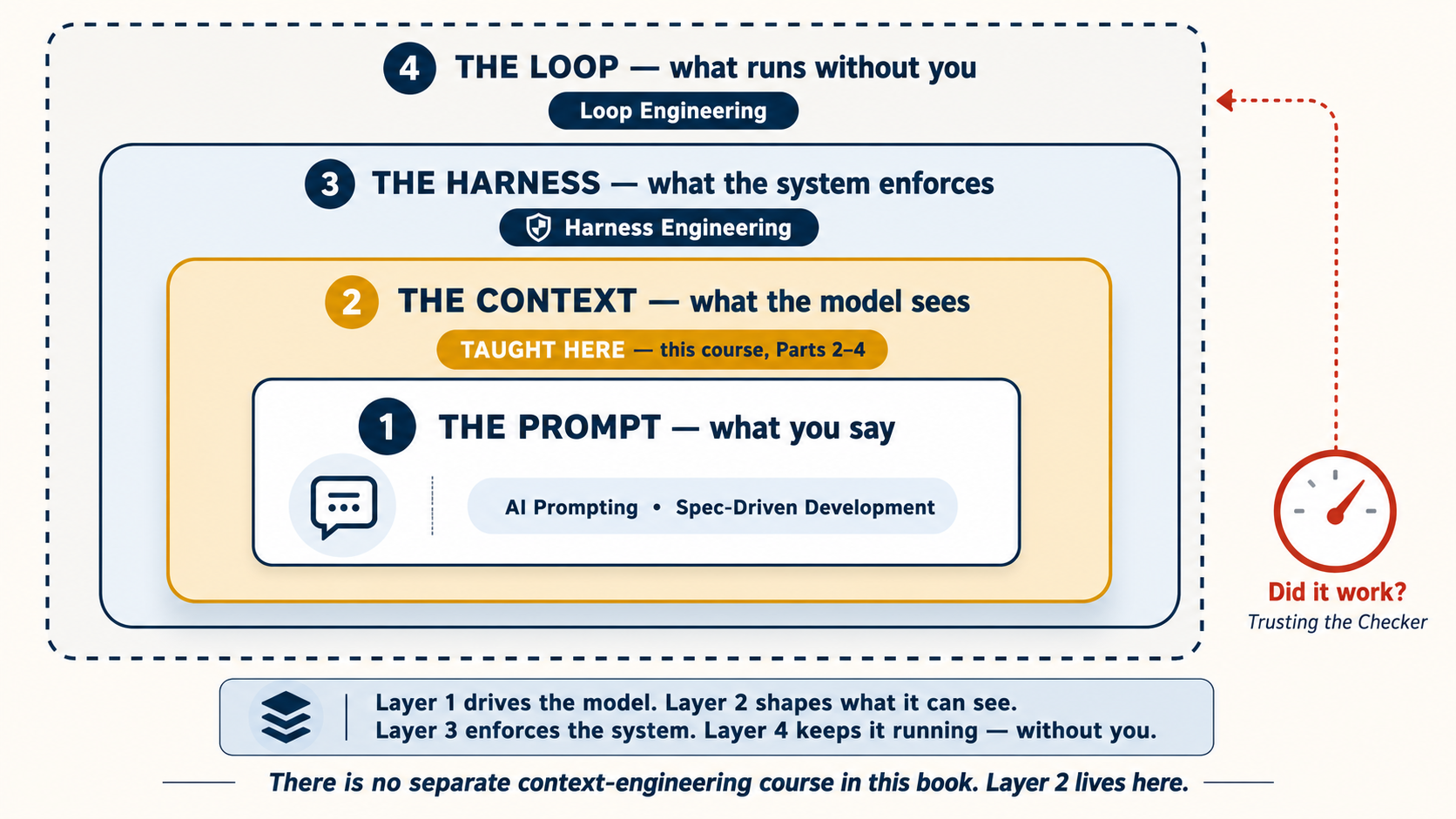
Prerequisite: 2026 में AI Prompting। उस course ने आपको सिखाया कि AI से कैसे बात करें: context देना, साफ़ ढंग से पूछना, AI के काम को check करना। यह course सिखाता है कि क्या होता है जब AI सच में आपकी files को छू सकता है और आपके computer पर commands run कर सकता है।
Tools छूने से पहले तीन बातों पर भरोसा करें
किसी command या setting से पहले, AI के बारे में तीन ideas समझें। वे Andrej Karpathy से आते हैं, जो OpenAI के co-founder और "vibe coding" term बनाने वाले व्यक्ति हैं, और इस course की हर चीज़ उन्हीं पर टिकी है:
- यह कोई person नहीं, एक ghost है। 2026 में AI Prompting में आपने AI को किसी smart new colleague की तरह brief करना सीखा था। Briefing वाला habit रखें, लेकिन personhood छोड़ दें। AI का ego नहीं, motive नहीं, और कल की memory नहीं। यह offend नहीं होता, थकता नहीं, और वह responsibility खुद नहीं उठाता जो आपने दी ही नहीं। आप इसे manage करते हैं; यह खुद को manage नहीं करता। नीचे की हर technique, rules file, plan mode, hooks, इसे manage करने का तरीका है।
- इसकी intelligence jagged है। AI Prompting Concept 12 में इसका एक version मिला था: अलग models अलग कामों में अच्छे हैं। Karpathy की बात इससे आगे जाती है। एक single model भी अपने अंदर jagged होता है: एक task पर superhuman और अगले पर हैरान करने जितना weak, कभी-कभी उसी minute में। किसी hard काम को अच्छी तरह करने के कारण यह assume न करें कि easy काम भी अच्छी तरह करेगा। Easy चीज़ें भी check करें।
- ठीक उतना भरोसा करें जितना output check किया जा सकता है। Task जितना checkable हो, यानी tests pass होते हैं, file मौजूद है, numbers add up होते हैं, उतना safely hand over किया जा सकता है। जहाँ output check नहीं हो सकता, judgment आपके पास रहता है।
तीसरी बात याद रखें। यह इस course के सबसे important pattern, verification loop (Concept 10), में बढ़ती है। फिर उससे दो पूरे courses निकलते हैं: Spec-Driven Development आपको check लिखना सिखाता है, और Loop Engineering उसे आपके बिना run करना सिखाता है।
दो tools, skills का एक ही set
यह course दो tools को साथ-साथ cover करता है: Claude Code (Anthropic ने बनाया) और OpenCode (open-source, किसी भी AI model के साथ चलता है)। हम दोनों एक practical वजह से सिखाते हैं: अगर कोई technique दोनों tools में काम करती है, तो वह एक असली skill है, न कि किसी एक tool का trick। जो skills आप सीखते हैं, वे दोनों के बीच transfer होती हैं।
| Claude Code | OpenCode | |
|---|---|---|
| किसने बनाया | Anthropic | Open-source community |
| AI models | सिर्फ़ Claude | Claude, GPT, Gemini, DeepSeek, local models |
| किसके लिए best | बिना setup के best Claude performance | Flexibility, cost control, free models |
| Price | Subscription या API | Free models उपलब्ध, या अपनी API key लाएँ |
जो आपकी situation में fit हो वह चुनें। इस course की हर चीज़ दोनों में काम करती है।
July 2026 तक current। दोनों tools अक्सर update होते हैं। कोई भी session शुरू करने से पहले,
claude updateयाopencode upgraderun करें ताकि आपके पास latest version हो। अगर आपके पास अभी कोई tool install नहीं है, तो installation नीचे section 1 में cover की गई है।
इस page में, जो sections Claude Code और OpenCode के बीच अलग हैं उनमें एक switcher है। एक चुनें और page का हर switcher आपकी पसंद का अनुसरण करेगा।
यह course क्या cover करता है
| Part | Topic | आप क्या सीखते हैं |
|---|---|---|
| 1 | Foundations | ये tools क्या हैं, plan mode, permissions, अपना model चुनना |
| 2 | Context Management | conversations समय के साथ क्यों बिगड़ती हैं और उन्हें कैसे ठीक करें: context engineering का core |
| 3 | The Rules File | अपने project के लिए permanent instructions set up करना |
| 4 | Personalizing Your Tool | commands और skills, hooks/plugins, subagents |
| 5 | Connecting to the World | AI को external services से जोड़ना (MCP) |
| 6 | Full Worked Example | एक complete task, शुरू से आख़िर तक, दोनों tools में |
| 7 | Where to Run, and What to Keep | Terminal, IDE, desktop, आपकी personal library और memory |
| 8 | Two Tools Together | एक ही project पर दोनों tools use करना |
करके सीखना पसंद है? पहले full worked example के लिए Part 6 पर जाएँ, फिर वापस आएँ।
📚 Teaching Aid
View Full Presentation: Agentic Coding Crash Course
Part 1: Foundations
ये चार concepts वह foundation हैं जिन पर बाक़ी सब कुछ बनता है।
1. ये tools असल में क्या हैं
ज़्यादातर लोग सोचते हैं कि ये chatbots हैं जिन्हें code की जानकारी है। ऐसा नहीं है। एक chatbot questions का answer देता है। Claude Code और OpenCode action लेते हैं। वे आपकी files पढ़ते हैं, उन्हें edit करते हैं, आपके computer पर commands run करते हैं, और तब तक चलते रहते हैं जब तक task पूरा न हो जाए। आप बताते हैं कि आपको क्या चाहिए, वे काम करते हैं, आप result review करते हैं।
सबसे बड़ा mindset shift: questions पूछना बंद करें, instructions देना शुरू करें।
| Question पूछना (कमज़ोर) | Instruction देना (मज़बूत) |
|---|---|
| "मैं अपने notes कैसे organize करूँ?" | "notes/ folder की हर file पढ़ें। weekly-summary.md नाम की एक summary file बनाएँ जो हर action item को list करे, व्यक्ति के हिसाब से grouped। [private] mark की गई किसी भी चीज़ को skip करें।" |
पहला prompt आपको एक explanation देता है जिस पर आपको खुद act करना पड़ता है। दूसरा prompt आपके लिए काम करवा देता है। यही फ़र्क़ है। (यह AI Prompting के concept 1 वाला ही idea है, लेकिन ज़्यादा stakes के साथ क्योंकि AI सच में आपकी files बदल रहा है।)
Claude Code की शुरुआत Boris Cherny ने लगभग दो दिनों में बनाए एक rough demo से की, जब वे 2024 के आख़िर में Anthropic की Labs team में शामिल हुए थे: terminal से जुड़ा Claude, जिसे commands run करने की क्षमता दी गई थी। उन्होंने इसे पता लगाने को कहा कि वे कौन-सा music सुन रहे हैं। किसी ने इसे इसका तरीका नहीं सिखाया था। Model ने अपने-आप Apple Music का screenshot लिया और screen से जवाब पढ़ लिया। उस एक घटना में इस पूरे course का सार है: model को tools और एक goal दें, और वह steps खुद निकाल लेता है। याद रखने वाली बात यह है कि जब उन्होंने demo Slack पर post किया, तो उसे दो या तीन likes मिले। उसका creator भी तब पूरी तरह नहीं समझ पाया था कि यह क्या है। लेकिन अगले ही दिन एक colleague उससे असली code लिख रहा था, और छोटी-सी team ने Claude Code का बड़ा हिस्सा Claude को इस्तेमाल करके ही बनाया, क्योंकि इतनी तेज़ी से आगे बढ़ने का यही तरीका था।
अभी तक कोई tool install नहीं है? आगे पढ़ने से पहले एक अभी install करें। इसके बाद की हर चीज़ यह मानकर चलती है कि आप terminal खोल सकते हैं और चीज़ें आज़मा सकते हैं।
# macOS / Linux / WSL — recommended (auto-updates)
curl -fsSL https://claude.ai/install.sh | bash

# Windows PowerShell
irm https://claude.ai/install.ps1 | iex

# macOS Homebrew (no auto-update — run `brew upgrade claude-code` periodically)
brew install --cask claude-code

# npm fallback
npm install -g @anthropic-ai/claude-code
Full reference: code.claude.com/docs।
# All platforms — recommended
curl -fsSL https://opencode.ai/install | bash

# macOS Homebrew
brew install opencode

# npm / bun / pnpm / yarn
npm install -g opencode-ai
Full reference: opencode.ai/docs।
Install होने के बाद, जिस folder में काम करना है उसमें terminal खोलें और claude (या opencode) type करें। यह आपको आपके पहले session में पहुँचा देता है।
Quick check: आप कौन-से model पर हैं? शुरू करने से पहले, confirm करें कि आप असल में किस model से बात कर रहे हैं, ताकि आप किसी simple काम पर चुपचाप कोई expensive model न जला रहे हों, या यह न सोच रहे हों कि कोई cheap model क्यों struggle कर रहा है।
अपना current model, plan, working directory, और context usage देखने के लिए /status type करें। Full list देखने और switch करने के लिए, /model type करें और menu से चुनें, बदलाव तुरंत लागू हो जाता है, कोई restart नहीं।
अपने connected providers के हर model को देखने और उनके बीच switch करने के लिए /models type करें; active model TUI में भी दिखता है। (Command line से, opencode models उपलब्ध provider/model नाम print करता है, config में default set करते समय handy है।)
जब आप /models run करते हैं, तो free options में से कुछ stealth models होते हैं, किसी codename के तहत release किए गए जिनका maker अनबताया रहता है (उदाहरण के लिए, लिखते समय OpenCode Zen का Big Pickle)। इन्हें जानना worth है, दो caveats के साथ:
- ये temporary और unannounced होते हैं। एक stealth model वह होता है जब कोई vendor reveal करने से पहले चुपचाप कुछ test कर रहा होता है। यह behaviour बदल सकता है, rename हो सकता है, या बिना notice गायब हो सकता है, तो इसके around कोई habits, defaults, या course/project setups मत बनाएँ।
- "Free" का मतलब हो सकता है कि product आप हैं। किसी model की free testing window के दौरान, आपके prompts और code का use उसे train और improve करने के लिए हो सकता है। किसी stealth model को कभी भी किसी confidential चीज़ पर point न करें, client work, private repos, NDA के तहत कुछ भी।
ये throwaway experiments और workflow आज़माने के लिए ठीक हैं। जिस चीज़ पर आप rely करते हैं, उसके लिए एक stable, privately-billed model को prefer करें (नीचे DeepSeek V4 callout देखें) जहाँ provider, pricing, और data policy सब known हों और आपके नीचे से shift न होने वाले हों।
यहाँ से आगे, इस page का हर concept कुछ ऐसा है जिसे आप उस session में आज़मा सकते हैं, सिर्फ़ पढ़ नहीं सकते। इस page के साथ एक terminal खुला रखें और हर idea को जैसे ही उस पर पहुँचें, run करें।
2026 तक current। दोनों tools अक्सर update होते हैं। कोई भी session शुरू करने से पहले, claude update या opencode upgrade run करें ताकि आपके पास latest version हो।
क्योंकि OpenCode model-agnostic है, आप इसे किसी भी ऐसे model पर point कर सकते हैं जो best cost-to-quality ratio दे। Hosted models में, mid-2026 तक सबसे strong value DeepSeek V4 है, जो दो tiers में आता है:
deepseek-v4-flash, economy default। लगभग $0.14 per 1M input tokens (cache hit पर $0.0028 जितना कम) और $0.28 per 1M output tokens, एक 1M-token context window और tool-call support के साथ। Students और high-volume work के लिए इसी tier पर standardize करें।deepseek-v4-pro, step-up tier जब आपको stronger reasoning चाहिए। ज़्यादा capable, फिर भी frontier pricing का एक छोटा हिस्सा।
इसे set up करें (≈1 minute): opencode run करें → /connect type करें → deepseek enter करें → अपनी API key paste करें (key वहीं बनाएँ, और एक छोटा prepaid balance जोड़ें, DeepSeek pay-as-you-go है, तो account में credit आने तक key काम नहीं करेगी) → model चुनें। DeepSeek की अपनी guide default रूप से V4-Pro select करती है, तो अगर आपको सबसे सस्ता option चाहिए तो उसके बजाय deepseek-v4-flash चुनें।
Prices और tiers अक्सर बदलते हैं, budget बनाने से पहले live page check करें।
📘 DeepSeek + OpenCode integration guide · 💰 DeepSeek Models & Pricing
यह Plan / Execute split के साथ naturally pair होता है: किसी frontier model से plan करें, फिर किसी cheap DeepSeek-backed OpenCode session को execution करने दें।
Claude Code default रूप से Anthropic के models से बात करता है, लेकिन आप इसे DeepSeek V4 पर point कर सकते हैं। दो routes:
- Simple native route। DeepSeek एक Anthropic-compatible endpoint expose करता है, तो आप
claudelaunch करने से पहलेANTHROPIC_BASE_URL=https://api.deepseek.com/anthropicऔर अपनी DeepSeek key को auth token के रूप में set करके Claude Code को सीधे इसके against run कर सकते हैं। कोई extra tooling नहीं। - Router route, claude-code-router। एक community proxy जो Claude Code के आगे बैठता है और आपको requests को DeepSeek (और अन्य providers) पर route करने देता है, जिसमें हर task के लिए अलग models भी शामिल हैं, जैसे planning के लिए एक frontier model, execution के लिए
deepseek-v4-flash। आपclaudeके बजायccr codeसे launch करते हैं। Setup और config के लिए repo देखें।
दो honest caveats: दोनों third-party / unofficial setups हैं, तो Claude Code update होने पर ये break हो सकते हैं, और आप वह "best Claude performance out of the box" खो देते हैं जिसके लिए Claude Code tuned है। अगर आपका main goal सस्ती DeepSeek-backed coding है, तो OpenCode smoother path है (यह design से model-agnostic है), ये routes तब के लिए हैं जब आपको specifically Claude Code का interface और DeepSeek का pricing दोनों चाहिए।
2. Plan mode (सबसे कम use होने वाला feature)
आम तौर पर, जब आप इन tools को कोई instruction देते हैं, तो वे तुरंत काम शुरू कर देते हैं: files पढ़ना, code edit करना, commands run करना। Plan mode इसे बदल देता है। यह AI को एक "देखो पर छुओ मत" वाली state में डाल देता है। AI आपकी files पढ़ सकता है और task के बारे में सोच सकता है, लेकिन कुछ भी बदल नहीं सकता। काम करने के बजाय, यह एक step-by-step plan लिखता है कि वह क्या करेगा। आप plan पढ़ते हैं, बदलाव suggest करते हैं, और तभी इसे असली काम शुरू करने देते हैं।
दोनों tools इसे support करते हैं। इसे on करने का तरीक़ा थोड़ा अलग है, पर idea वही है।
Permission modes के बीच cycle करने के लिए Shift+Tab press करें। पहली press आपको auto-accept में डालती है; दूसरी press आपको plan mode में डालती है। Plan mode में, model पढ़ सकता है पर लिख नहीं सकता: कोई file edits नहीं, कोई shell commands नहीं।
Build mode (AI सब कुछ कर सकता है) और Plan mode (AI सिर्फ़ पढ़ सकता है, कुछ बदल नहीं सकता) के बीच switch करने के लिए Tab press करें। Plan mode में, अगर आप इसे कुछ लिखने या edit करने को कहते हैं, तो यह बताएगा कि वह नहीं कर सकता और आपके Build पर वापस switch करने का इंतज़ार करेगा। Claude Code जैसा ही idea: पहले देखें, फिर act करें।
Practice में यह कैसा दिखता है। आप plan mode में जाते हैं, फिर एक normal instruction type करते हैं:
मेरी माँ के बारे में एक poem लिखें और इसे
for-mom.mdके रूप में save करें।
इसे लिखने के बजाय, AI पहले एक plan के साथ वापस आता है:
Plan
- एक classic sonnet की style में 5-stanza poem लिखें।
- Formal, पुराने-ज़माने की language use करें।
- एक grand, dramatic finish की ओर build करें।
for-mom.mdके रूप में save करें।अभी कुछ नहीं लिखा गया। आगे बढ़ने के लिए approve करें, या बताएँ कि क्या adjust करना है।
यह वह नहीं है जो आपके मन में था, आपको कुछ short, warm, और plain-spoken चाहिए था, कोई formal sonnet नहीं। तो आप push back करते हैं:
इसे short और warm रखें, चार lines, रोज़मर्रा की language, कुछ भी grand नहीं। ऐसा कुछ जो मैं किसी birthday card में लिख सकूँ।
AI plan update करता है। अब आप approve करते हैं, और यह वही poem लिखता है जो आप असल में चाहते थे, बजाय इसके कि एक formal sonnet थमा दे जिससे आपको बहाने बनाकर निकलना पड़े।
Plan की मेहनत क्यों करें? दो वजहें:
- आप गलतियों को होने से पहले पकड़ लेते हैं। ऊपर ठीक यही हुआ, गलत assumption plan में सामने आई, किसी finished draft में नहीं जिससे आपको argue करके निकलना पड़ता। एक चार-line poem पर यह छोटी बचत है; जब AI 10 files edit करने वाला हो, तो यह एक quick correction और एक लंबे cleanup के बीच का फ़र्क़ है।
- AI बेहतर काम करता है जब वह पहले plan करता है। Plan लिखना AI को task शुरू करने से पहले उसके बारे में सोचने पर मजबूर करता है। Plan के बिना, यह एक ही समय में सोचने और लिखने की कोशिश करता है, और result आम तौर पर खराब होता है।
Rule of thumb: अगर task में 10 minutes से ज़्यादा लगेंगे, तो पहले plan mode use करें। बड़े tasks के लिए, AI से plan को किसी file (जैसे docs/plans/my-plan.md) में save करने को कहें ताकि आप बाद में उस पर वापस आ सकें या किसी fresh session के साथ share कर सकें।
इसे ऐसे सोचें जैसे essay से पहले outline लिखना। आप किसी 10-page paper को बिना structure जाने लिखना शुरू नहीं करेंगे। यहाँ भी वही idea है: पहले plan, फिर build।
3. Permissions discipline
हर बार जब ये tools कुछ करना चाहते हैं (कोई file edit करना, कोई command run करना), वे पहले आपसे permission माँगते हैं। आप इसे skip करके उन्हें बिना पूछे सब कुछ करने दे सकते हैं, लेकिन जब आप शुरुआत कर रहे हों तो ऐसा मत करें। आप देखना चाहते हैं कि AI क्या कर रहा है, उसके करने से पहले।
कुछ sessions के बाद, आप notice करेंगे कि कुछ actions हमेशा safe होते हैं, जैसे files पढ़ना या tests run करना। आप tool को बता सकते हैं कि उन specific actions के बारे में पूछना बंद करे और उन्हें auto-approve करे। यह beginners के लिए shortcut नहीं, normal progression है। Anthropic की अपनी product team ने देखा कि launch के समय users हर permission request पढ़ते थे और धीरे-धीरे ज़्यादातर auto-accept पर पहुँचे। यह भरोसा session-दर-session कमाया गया था, और आपको भी permissions इसी तरह देनी चाहिए। यहाँ तरीक़ा है:
आपको हर line समझने की ज़रूरत नहीं है। हर code block के बाद का explanation बताता है कि वह क्या करता है। जैसे-जैसे आप tool use करते हैं, ये settings naturally समझ में आने लगेंगी।
.claude/settings.json:
{
  "permissions": {
    "allow": [
      "Read",
      "Edit",
      "Write",
      "Bash(npm test)",
      "Bash(npm run lint)",
      "Bash(npm run build)",
      "Bash(git status)",
      "Bash(git diff *)",
      "Bash(git log *)"
    ],
    "deny": ["Bash(rm -rf *)", "Bash(npm publish *)", "Bash(git push *)"]
  }
}
opencode.json:
{
  "$schema": "https://opencode.ai/config.json",
  "permission": {
    "*": "ask",
    "read": "allow",
    "edit": "allow",
    "bash": {
      "*": "ask",
      "npm test": "allow",
      "npm run lint": "allow",
      "npm run build": "allow",
      "git status*": "allow",
      "git diff*": "allow",
      "git log*": "allow",
      "rm -rf*": "deny",
      "npm publish*": "deny",
      "git push*": "deny"
    }
  }
}
OpenCode आपको permissions पर ज़्यादा control देता है। आप हर तरह के action (पढ़ना, edit करना, commands run करना) के लिए अलग rules set कर सकते हैं। इसमें एक built-in safety feature भी है: अगर AI बिना किसी progress के लगातार तीन बार एक ही action try करता है, तो यह अपने-आप रुक जाता है।
यह normal path है: शुरुआत में approvals पढ़ें, फिर बार-बार safe साबित होने वाली चीज़ों को auto-accept करें। Anthropic की अपनी product teams ने भी यही किया। पहले वे हर permission देखती थीं; समय के साथ उन्होंने read-only और routine commands auto-accept कर दिए, क्योंकि trust session by session earn हुआ था। Goal blind trust नहीं है। Goal earned trust है।
Tip: Notifications set up करें। ये tools longer tasks पर काम कर सकते हैं जबकि आप दूसरे काम करते हैं। जो trick इसे useful बनाती है वह है AI के finish करने पर या आपके input की ज़रूरत होने पर notification मिलना। इस तरह आप कोई task शुरू कर सकते हैं, दूसरे काम पर switch कर सकते हैं, और जब आपकी ज़रूरत हो तब वापस आ सकते हैं।
- Claude Code:
cc-notifyजैसे community tools आपको desktop notifications भेज सकते हैं। - OpenCode: Desktop app अपने-आप notifications भेजता है। Terminal version के लिए, आप एक plugin जोड़ सकते हैं जो आपको notify करता है।
4. Model को task से match करें
दोनों tools आपको चुनने देते हैं कि कौन-सा AI model काम करे, और switch करने में एक command लगती है। ज़्यादातर beginners इस setting को कभी नहीं छूते, जो दोनों दिशाओं में गलती है: वे या तो किसी trivial chore पर expensive model जला देते हैं, या किसी hard problem पर कमज़ोर model से लड़ते हैं और खराब results के लिए खुद को blame करते हैं।
इस choice के पीछे एक simple tradeoff है। सबसे capable models best thinkers हैं, वे plan करते हैं, tricky code के बारे में reason करते हैं, और ambiguity handle करते हैं, पर वे सबसे ज़्यादा cost करते हैं और आपके limits सबसे तेज़ इस्तेमाल करते हैं। सस्ते (और free) models किसी clear plan को follow करने में बिल्कुल अच्छे हैं: files edit करना, tests run करना, reformatting, repetitive changes। Skill यह है कि हर तरह के काम को सही model पर भेजा जाए।
| काम | किसके लिए जाएँ |
|---|---|
| Planning, architecture, "यह कैसे करें यह पता लगाना," किसी confusing चीज़ को debug करना | आपके पास सबसे capable model |
| किसी plan को follow करना जिसे आप already approve कर चुके हैं, routine edits, formatting, tests run करना, boilerplate | कोई cheaper या free model |
| कोई quick question या one-line fix | जो already loaded है; ज़्यादा मत सोचें |
आप already Concept 1 में सीख चुके हैं कि अपना model कैसे देखें और switch करें। इसे जानबूझकर चुनना ही असली habit है:
किसी ज़्यादा capable Claude (hard thinking के लिए) और किसी faster, cheaper वाले (routine work के लिए) के बीच switch करने के लिए /model type करें; बदलाव तुरंत लागू हो जाता है, कोई restart नहीं। एक common setup यह है कि strong model को plan mode handle करने दें और faster वाला execution करे, ताकि expensive thinking एक बार, पहले से हो जाए।
क्योंकि OpenCode model-agnostic है, आपकी choice ज़्यादा wide है: हर connected provider के बीच switch करने के लिए /models type करें, planning के लिए एक frontier model, execution के लिए deepseek-v4-flash (Concept 1 में DeepSeek V4 tip देखें) जैसा सस्ता hosted model या यहाँ तक कि कोई free/local model। आप opencode.json में एक default भी set कर सकते हैं, और subagents को उनका अपना cheaper model दे सकते हैं।
यह सीधे plan mode (Concept 2) के साथ pair होता है। किसी भी task का expensive हिस्सा है thinking, project पढ़ना, approach तय करना, यह पहचानना कि क्या गलत हो सकता है। एक बार वह एक written plan बन गया, तो बाक़ी "बस इन steps को follow करो" है, जो कोई cheap model ठीक से कर लेता है। तो: strong model से plan करें, cheap model से execute करें। यही एक move है जहाँ से ज़्यादातर cost savings आती है, quality में कोई नुक़सान नहीं, और यह Part 8 में Plan / Execute split की रीढ़ है।
दो honest caveats। पहला, cheaper models को clearer instructions चाहिए, वे किसी अच्छे plan को अच्छे से follow करते हैं पर improvise खराब करते हैं, तो model जितना कमज़ोर, plan को उतना ही ज़्यादा spell out करना पड़ता है। दूसरा, over-optimize मत करें: हर कुछ minutes में models switch करना pennies बचाने के लिए आपका ध्यान cost करता है। Default रूप से एक strong model रखें, obvious chores के लिए किसी cheap वाले पर drop करें, और इसे वहीं छोड़ दें।
Rule of thumb: क्या करना है यह तय करने के लिए एक strong model, उसे करने के लिए एक cheap model। जब कोई cheap model circles में जाने लगे, तो यह आपका signal है कि task को stronger वाले की ज़रूरत थी, switch up करें, retry करते मत रहें।
Part 2: Context management
यहाँ इस course का सबसे ज़रूरी idea है: किसी भी पल, model सिर्फ़ उसी पर act कर सकता है जो इस वक़्त उसके सामने है, उसका context। और वह context एक बड़ी bucket नहीं है जिसमें आप चीज़ें डालते जाएँ। यह layers का एक stack है, और आप हर turn पर हर layer के लिए pay करते हैं।
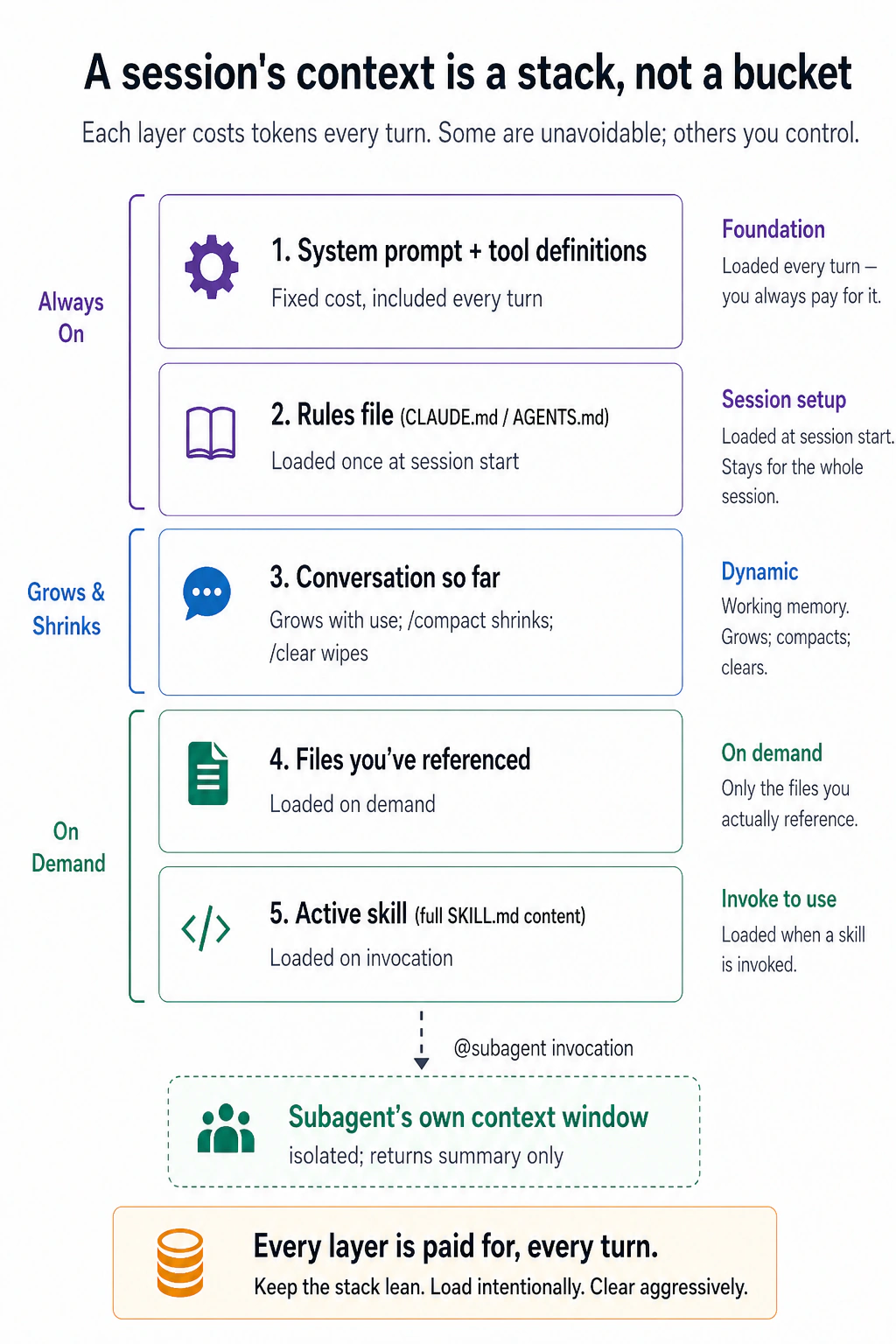
Takeaway पाँच labels नहीं है, यह left side के नीचे का split है। ऊपरी layers fixed हैं: system prompt और आपका rules file load होते हैं चाहे आप चाहें या न चाहें। नीचे की हर चीज़ आपके manage करने के लिए है, conversation तब तक बढ़ती है जब तक आप /compact या /clear न करें, files सिर्फ़ तब load होती हैं जब आप उन पर point करते हैं, skills सिर्फ़ invoke होने पर load होती हैं, और एक subagent अपनी heavy reading किसी अलग window में करता है और सिर्फ़ एक summary वापस सौंपता है।
यही पूरा खेल है। अच्छा context management कोई trick नहीं है; यह उस stack को lean रखने की आदत है, जो task को चाहिए वह load करना, और जो नहीं चाहिए उसे clear करना। एक bloated stack ज़्यादा tokens cost करता है, पर उससे भी बुरा, यह उस हिस्से को दबा देता है जो matter करता है: window में जितना ज़्यादा junk, model को signal ढूँढने के लिए उतनी ही ज़्यादा मेहनत करनी पड़ती है, और उसके answers उतने ही ज़्यादा drift करते हैं।
AI Prompting course में आपने सीखा कि आप AI को क्या देते हैं यह उससे ज़्यादा matter करता है कि आप कैसे पूछते हैं। यहाँ stakes ज़्यादा हैं: किसी chat में, खराब context आपको खराब answer देता है; इन tools के साथ, खराब context का मतलब है AI सीधे आपके project में खराब code लिख देता है। इसीलिए Part 2 की बाक़ी हर चीज़ इन layers में से किसी एक को control करने का एक specific तरीक़ा है, और इसीलिए, अगर आप इस crash course का एक section याद रखें, तो यह वही होना चाहिए। यह दोनों tools में एक जैसा काम करता है।
Part 2 और Parts 3 तथा 4 का बड़ा हिस्सा industry में context engineering कहलाता है। Andrej Karpathy ने December 2025 में इसे prompt engineering के successor के रूप में नाम दिया: अगले step के लिए window को बिल्कुल सही information से भरने की नाज़ुक कला। यह नाम याद रखें। आप इसे job posts, blog titles और इस book के हर आगे के course में देखेंगे। तब याद रखें कि यह कोई नया subject नहीं है। यह यही काम है: purpose के साथ तय करना कि model क्या देखता है।
5. Context rot असली है
आप एक घंटे से AI के साथ काम कर रहे हैं। शुरुआत में answers sharp थे। अब यह आपके दिए rule को ignore कर रहा है, पहले पूरा किया काम फिर कर रहा है, और ऐसी file का नाम ले रहा है जो project में है ही नहीं।
कुछ break नहीं हुआ। Conversation बस बहुत लंबी हो गई। इसके पीछे का mechanism यह है।
AI एक बार में सीमित जानकारी ही hold कर सकता है। इसे context window कहते हैं। इसे किसी group chat की तरह सोचें: AI सिर्फ़ इस chat के messages देख सकता है। अगर आपने chat में पहले कुछ mention किया था, तो AI scroll up करके उसे देख सकता है। अगर आपने कभी कहा ही नहीं, तो AI को उसके बारे में पता नहीं। Modern AI बहुत लंबी chat (hundreds of thousands of words) handle कर सकता है, पर फिर भी इसकी limits हैं।
इससे तीन problems निकलती हैं।
Problem 1: Chat आपकी सोच से ज़्यादा तेज़ी से लंबी होती है।
हर message जो आप भेजते हैं, हर file जो आप AI को पढ़ने को कहते हैं, हर reply जो AI देता है, यह सब chat history में जुड़ता जाता है। 20-30 messages आगे-पीछे के बाद, और कुछ files जिन्हें आपने देखने को कहा, chat already बहुत लंबी हो चुकी होती है।
Tricky हिस्सा: कोई warning नहीं होती जो बताए कि "यह conversation बहुत लंबी होती जा रही है।" यह बस background में चुपचाप बढ़ती रहती है।
Problem 2: Conversation बढ़ने के साथ AI चीज़ें याद रखने में खराब होता जाता है।
यहाँ surprising हिस्सा है। Limit hit करने से पहले ही, AI struggle करने लगता है। जब conversation बहुत लंबी होती है, AI को ज़रूरी हिस्से ढूँढने में ज़्यादा मुश्किल होती है। आप notice कर सकते हैं:
- AI उस चीज़ को ignore करता है जो आपने 20 messages पहले बताई थी (आपने कहा था, पर इतना पहले कि AI track खो देता है)
- AI वह काम दोबारा करता है जो वह already finish कर चुका था (वह भूल गया कि उसने already कर लिया)
- AI नामों या details को लेकर confuse हो जाता है जो उसने पहले सही किए थे
इसे context rot कहते हैं। Conversation अभी भी चल रही है, पर AI के काम की quality धीरे-धीरे खराब होती जा रही है क्योंकि बहुत ज़्यादा पुरानी जानकारी जमा हो रही है।
Problem 3: Longer conversations ज़्यादा पैसा cost करती हैं।
हर बार जब आप कोई message भेजते हैं, AI सिर्फ़ आपका नया message नहीं पढ़ता। यह पूरी conversation को पहले message से दोबारा पढ़ता है। तो अगर आपके 30 messages आगे-पीछे हुए हैं, AI हर बार जब आप message number 31 भेजते हैं तो सभी 30 messages फिर से पढ़ता है।
अगर आप per use pay कर रहे हैं (जैसे ज़्यादातर OpenCode setups), तो इसका मतलब है longer conversations बहुत ज़्यादा पैसा cost करती हैं। अगर आप किसी subscription plan पर हैं (जैसे Claude Code Pro), तो आप अपनी daily usage limits ज़्यादा तेज़ी से hit करते हैं। किसी भी तरह, एक लंबी, messy conversation आपका budget drain करती है।
Takeaway: अपनी conversations short और focused रखें। AI को सिर्फ़ वह जानकारी दें जो current task के लिए चाहिए, वह सब कुछ नहीं जो आपके पास है। एक clean, focused conversation किसी लंबी, cluttered वाली से बहुत बेहतर काम करती है।

Check करें कि आपका context कितना full है। अगर आप stack को देख नहीं सकते तो उसे lean नहीं रख सकते। दोनों tools आपको अपना current usage पढ़ने देते हैं, वे बस इसे अलग-अलग तरीक़े से surface करते हैं।
Full breakdown के लिए /context type करें: window में से total tokens used (जैसे 25.6k/1m tokens (3%)), category के हिसाब से बँटा, system prompt, tools, memory/rules file, skills, और आपकी conversation। यह यह भी flag करता है कि क्या trim करना worth है। आपको काम करते वक़्त input के पास एक running percentage भी मिलता है, तो आपको बार-बार पूछना नहीं पड़ता।
OpenCode आपका usage live अपने interface (full-screen terminal view) में दिखाता है, active model, tokens used, और window का percentage। यह screen पर ठीक कहाँ बैठता है यह version और terminal width के हिसाब से बदलता है, तो बस running token/percentage readout ढूँढें। अभी कोई built-in /context-style breakdown command नहीं है, तो आप उस gauge को interface से पढ़ते हैं बजाय इसके कि उसे call करें। (अगर आपको चाहिए तो community plugins full breakdown वाला /context command जोड़ सकते हैं।)
आप जिस भी tool में हों, move एक ही है: gauge पर एक नज़र डालें, इसके भरने का इंतज़ार न करें। Quality अक्सर window के technically full होने से काफ़ी पहले slip होने लगती है, एक बार session अपनी window के लगभग आधे से आगे निकल जाए, तो यह आपका cue है कि /compact या /clear (अगला) करें, न कि जब यह 100% hit करे।
6. /clear और /compact
जब chat बहुत लंबी हो जाए, तो आपके पास दो options हैं। पक्का करें कि आप सही चुनें:
Option 1: एक बिल्कुल नई chat शुरू करें। इसे तब use करें जब आप एक task से fariğ हो जाएँ और कुछ बिल्कुल अलग शुरू करना चाहें। पुरानी chat मिट जाती है।
- Claude Code:
/cleartype करें - OpenCode:
/new(या/clear) type करें
Option 2: Current chat को shrink करें। इसे तब use करें जब आप अभी भी उसी task पर काम कर रहे हों पर chat बहुत लंबी हो गई हो। AI पूरी conversation पढ़ता है, एक short summary लिखता है, और बाक़ी सब फेंक देता है। आप summary से काम करते रहते हैं।
- दोनों tools:
/compacttype करें
आप इसे बता सकते हैं कि क्या रखना है: /compact keep the file names and the decisions we made।
इन्हें आपस में मत मिलाएँ। /clear सब कुछ delete करके फिर से शुरू करता है। /compact ज़रूरी हिस्से रखता है और बाक़ी हटा देता है। अगर आप किसी task के बीच में /clear use करते हैं, तो आप अपनी सारी progress खो देते हैं। अगर आप /compact use करते हैं जबकि fresh शुरू करना चाहिए था, तो आप पुराना clutter एक नए task में ले जाते हैं।
एक और skill: compact कब करना है, यह करना है या नहीं जितना ही important है। दो rules याद रखें:
- Boundaries पर compact करें, mid-task नहीं। Natural moments तब हैं जब phase खत्म हो: exploration complete, plan approved, या sub-task done। Task के बीच compact करने पर वही exact detail जिसे चाहिए था, जैसे failing test का नाम या काम करने वाला flag, "हमने कुछ options investigate किए" बन सकती है, जो किसी काम की नहीं।
- Facts पहले file में लिखें। Summary general shape रखती है और specifics छोड़ती है। यह flaw नहीं, summary के small होने की वजह है। Compact करने से पहले AI से वे specifics जो survive करने चाहिए, जैसे names, lists और decisions, plan file या notes file में लिखवाएँ। Files fade नहीं होतीं। फिर freely compact करें।
एक line में: journey summarize करें, facts file करें।
7. Sessions resume करें
आपकी हर conversation अपने-आप save होती है। आप tool बंद कर सकते हैं, अपना computer shut down कर सकते हैं, और बाद में वापस आकर ठीक वहीं से जारी रख सकते हैं जहाँ आपने छोड़ा था।
- Claude Code: अपने terminal में
claude --resumerun करें। आपको अपनी पिछली conversations की list दिखेगी। एक चुनें और जारी रखें। - OpenCode: अपनी saved conversations देखने के लिए tool के अंदर
/sessions(या/resume) type करें।
यह क्यों useful है:
- कल जारी रखें। बड़े tasks अक्सर एक बैठक से ज़्यादा लेते हैं। दोबारा शुरू करने के बजाय, बस वहीं resume करें जहाँ आप रुके थे।
- कई चीज़ों पर काम करें। आपकी एक conversation एक task पर काम कर सकती है और दूसरी conversation किसी अलग task पर। जब चाहें उनके बीच switch करें।
Tip: अगर आपने पहले कोई plan file save की थी (जैसे docs/plans/my-plan.md), तो आप एक fresh conversation भी शुरू कर सकते हैं और उसे बता सकते हैं: "docs/plans/my-plan.md पढ़ें और step 4 से जारी रखें।" Plan file एक backup की तरह काम करती है अगर आप पुरानी conversation resume न कर पाएँ।
अगर AI ने कोई गलती कर दी? आप इसे undo कर सकते हैं।
कभी-कभी AI गलत file edit कर देता है, खराब code लिख देता है, या आपकी बात गलत समझ लेता है। घबराएँ नहीं, दोनों tools आपको roll back करने देते हैं, थोड़े अलग तरीक़ों से:
- Claude Code:
Escदो बार press करें (जब input box खाली हो), या/rewindtype करें। आपको session के हर prompt का एक menu मिलता है; एक चुनें और चुनें कि क्या restore करना है, code, conversation, या दोनों। ध्यान दें कि यह AI के अपने file edits को undo करता है, उन चीज़ों को नहीं जो उसने shell commands run करके कीं (कोई deleted या moved file इस तरह वापस नहीं आएगी)। कोई "redo" नहीं है, rewind आपको एक चुने हुए point पर ले जाता है बजाय आगे-पीछे step करने के, तो जानबूझकर rewind करें। - OpenCode: AI के last change को reverse करने के लिए
/undotype करें, और अगर आप मन बदलें तो/redo। यह under the hood git use करके काम करता है, तो आपके project को git repository होना चाहिए।
किसी भी तरह, इसे experiments के लिए एक safety net मानें, git का substitute नहीं। जो भी आप रखना चाहते हैं, उसे commit करें, checkpoints और undo session-level conveniences हैं, permanent history नहीं।
Claude Code का undo file edits cover करता है पर terminal commands नहीं। उदाहरण के लिए, अगर AI ने कोई command run किया जिसने एक file delete कर दी, तो undo उसे वापस नहीं लाएगा। OpenCode का undo सब कुछ cover करता है (file edits और terminal commands) क्योंकि यह सारे changes track करने के लिए git use करता है।
तीन commands के लिए quick decision rule:

Diagnostic: जब context खराब हो जाए
आपको कैसे पता चले कि chat बहुत लंबी हो गई है? इन संकेतों पर ध्यान दें:
- AI बार-बार sorry कहता रहता है पर असल में कुछ ठीक नहीं करता।
- AI एक ही piece of code को बार-बार बदलता है बिना उसे बेहतर बनाए।
- AI ऐसी files या नामों का ज़िक्र करता है जो आपके project में मौजूद नहीं हैं।
- AI उसी conversation में पहले बताया गया कोई rule भूल जाता है।
- AI के replies ज़्यादा helpful होने के बजाय लंबे और vague होते जाते हैं।
Community इस spiral को doom loop कहती है: messy conversation खराब reply बनाती है, खराब reply और mess जोड़ता है, और हर turn आपको और गहराई में ले जाता है। आगे के courses में यह नाम फिर मिलेगा। यह list बताती है कि अंदर से यह कैसा दिखता है।
जब आप इनमें से कोई भी देखें, messages भेजना बंद करें। आपकी पहली instinct होगी problem को एक बार और explain करने की। ऐसा मत करें। पहले से overloaded conversation में और messages भेजने से यह सिर्फ़ बदतर होती है।
इसके बजाय, reset करें:
- अगर आप उसी task पर काम करते रहना चाहते हैं तो
/compactuse करें (यह ज़रूरी हिस्से save करता है और बाक़ी clear करता है)। - अगर आप बिल्कुल fresh शुरू करना चाहते हैं तो
/clear(या OpenCode में/new) use करें।
पाँच minutes resetting एक घंटे की उस AI से लड़ाई से बेहतर है जो अब conversation का track नहीं रख सकता।
Diagnostic: जब context costs बढ़ जाएँ
याद रखें: एक लंबी, messy conversation सिर्फ़ AI को उसके काम में खराब नहीं बनाती, यह आपको ज़्यादा पैसा भी cost करती है। जैसे-जैसे conversation बढ़ती है, AI के पास हर message पर process करने के लिए ज़्यादा text होता है।
एक ज़रूरी nuance: caching। आप मान सकते हैं कि आप हर single message पर पूरी conversation दोबारा पढ़ने की full price pay करते हैं। आम तौर पर आप नहीं करते, पर यह discount model के provider से आता है, tool से नहीं। ज़्यादातर major model APIs (Anthropic, DeepSeek, और अन्य) prompt caching support करते हैं: वे आपके context का stable front store कर लेते हैं, system prompt, आपका rules file, पुराने turns, और इसे एक steep discount पर reuse करते हैं (अक्सर normal price के लगभग दसवें हिस्से जितना, कभी-कभी उससे भी कम), तो आप सिर्फ़ उसी के लिए full price pay करते हैं जो आपके last message के बाद से नया है। Claude Code और OpenCode इस तरह बने हैं कि वे उस front को stable रखें ताकि cache काम करता रहे, पर caching खुद provider का feature है, और इसके बिना वाले model को कोई discount नहीं मिलता। पेच: discount सिर्फ़ तभी टिकता है जब context का front unchanged रहे। अपना rules file edit करें, या अपनी history में इधर-उधर कूदें, और cache उस point से reset हो जाता है और आप फिर full price pay करते हैं। (Caches एक session के थोड़ी देर idle रहने के बाद expire भी हो जाते हैं।) इसीलिए नीचे के spikes उस तरह होते हैं जैसे होते हैं।
| आप क्या notice करते हैं | यह क्यों हो रहा है | इसे कैसे ठीक करें |
|---|---|---|
| आपका usage conversation के बीच में अचानक बढ़ गया | आपने अपना settings file (CLAUDE.md या AGENTS.md) बदला, जो cache discount reset कर देता है और AI को scratch से सब कुछ re-process करने पर मजबूर करता है | Settings file वापस बदल दें, या एक-बार के spike को स्वीकार करें |
| हर message पिछले से ज़्यादा cost करता है | Conversation बढ़ती जा रही है। AI पुरानी files clear किए बिना ज़्यादा-से-ज़्यादा files पढ़ रहा है | Conversation shrink करने के लिए /compact use करें। इसे बताएँ कि क्या रखना है: /compact keep the file names and decisions |
| AI बहुत-बहुत लंबे replies लिख रहा है | आपने एक simple question पूछा पर AI over-explain कर रहा है। या task के लिए AI का thinking mode बहुत high set है | "code only, no explanation" के लिए कहें। या settings में reasoning effort कम करें |
| आपका monthly bill उम्मीद से कहीं ज़्यादा है | आप हर task के लिए सबसे powerful (और expensive) AI model use कर रहे हैं, simple वाले के लिए भी | Expensive model planning और hard problems के लिए use करें। Simple tasks जैसे formatting या tests run करने के लिए cheaper model use करें (Concept 4) |
एक habit table की दूसरी row वाली problem को होने से पहले रोकती है: बड़े tool outputs chat में नहीं, files में जाएँ। जब command बहुत output print करेगी, जैसे full test run, long log या बड़ी search, AI से output file में लिखने और सिर्फ़ एक line report करने को कहें: "Full output test-results.txt में है, 3 failures हैं, सभी auth में।" File तब तक कुछ cost नहीं करती जब तक कोई उसे पढ़े नहीं। Conversation में stack traces के 9,000 tokens हर बाद के message पर cost करते। बाद में detail चाहिए तो AI file में वही detail search कर सकता है।
इन सबके पीछे pattern एक ही है: shorter, focused, stable conversations किसी लंबी, messy वाली से कम cost करती हैं और बेहतर काम करती हैं।
Part 3: The rules file
8. CLAUDE.md / AGENTS.md, अच्छे से किया हुआ
दोनों tools आपको एक special file बनाने देते हैं जिसे AI हर conversation की शुरुआत में पढ़ता है। इसे अपने project के लिए permanent instructions का एक set मानें। हर बार जब आप कोई नया session शुरू करते हैं, AI सबसे पहले यह file पढ़ता है ताकि उसे rules पता हों।
- Claude Code इस file को
CLAUDE.mdकहता है - OpenCode इस file को
AGENTS.mdकहता है
आपको यह file खुद लिखने की ज़रूरत नहीं है। किसी भी tool में /init run करें और AI आपके project folder को scan करके आपके लिए file बना देगा। उसके बाद, आपका काम है उन हिस्सों को delete करना जिनकी आपको ज़रूरत नहीं। AI एक बहुत लंबी file generate करता है। इसका ज़्यादातर हिस्सा गैर-ज़रूरी है।
अगर आपके पास पहले से एक CLAUDE.md है और आप OpenCode पर switch करते हैं, तो आपको इसे फिर से लिखने की ज़रूरत नहीं। जब कोई AGENTS.md मौजूद नहीं होता तो OpenCode अपने-आप CLAUDE.md पढ़ लेता है। अगर दोनों files मौजूद हों, तो OpenCode AGENTS.md use करता है और CLAUDE.md को ignore करता है।
लोग जो सबसे बड़ी गलती करते हैं: वे इस file को एक full manual की तरह treat करते हैं, इसमें project के बारे में सब कुछ डाल देते हैं: architecture, coding rules, naming conventions, team preferences। Problem? AI इस file को हर single message पर पढ़ता है। एक huge rules file AI को slow कर देती है और आपकी conversation space इस्तेमाल कर लेती है, तब भी जब ज़्यादातर जानकारी current task के लिए relevant नहीं होती।
इसे short रखें। सिर्फ़ वह लिखें जो AI आपकी files देखकर पता नहीं लगा सकता। इसे एक table of contents मानें, encyclopedia नहीं। Details के लिए दूसरी files की ओर point करें, और AI को उन्हें सिर्फ़ तब load करने दें जब ज़रूरत हो:
CLAUDE.md। @filename syntax relevant होने पर referenced files अपने-आप load कर लेता है:
# Project: my-app

## Stack

Next.js 14, TypeScript, Postgres, Drizzle ORM.

## Commands

- `npm run dev`: start local server
- `npm test`: run vitest
- `npm run db:migrate`: apply migrations

## Critical rules

- Never edit files in `src/generated/`. They're rebuilt by codegen.
- All API routes use the auth middleware in `src/lib/auth.ts`.
- See @docs/conventions.md for naming and folder rules.
- See @docs/db-schema.md for table structure.
AGENTS.md। वही structure। एक फ़र्क़: Claude Code में, @docs/conventions.md लिखने से वह file ज़रूरत पड़ने पर अपने-आप load हो जाती है। OpenCode में, यह अपने-आप काम नहीं करता। आपके पास दो options हैं: या तो अपने AGENTS.md में लिखें "load docs/conventions.md when relevant," या files को opencode.json में list करें:
# Project: my-app

## Stack

Next.js 14, TypeScript, Postgres, Drizzle ORM.

## Commands

- `npm run dev`: start local server
- `npm test`: run vitest
- `npm run db:migrate`: apply migrations

## Critical rules

- Never edit files in `src/generated/`. They're rebuilt by codegen.
- All API routes use the auth middleware in `src/lib/auth.ts`.

## External references

When you encounter @docs/conventions.md or @docs/db-schema.md, load them
on a need-to-know basis with the read tool. Do not preemptively load all
references; only load what's relevant to the current task.
या, ज़्यादा साफ़, इन्हें opencode.json में list करें:
{
  "$schema": "https://opencode.ai/config.json",
  "instructions": ["docs/conventions.md", "docs/db-schema.md"]
}
यह सिर्फ़ code projects के लिए नहीं है। आप इसी rules file को किसी भी तरह के काम के लिए use कर सकते हैं: essays लिखना, research organize करना, blog manage करना, events plan करना। यहाँ एक writing project के लिए example है:
# Project: blog-and-newsletter

## What this is

A folder of drafts, research, and published posts. I write a weekly newsletter and occasional long-form posts.

## Where things live

- `drafts/`: in-progress posts, one per file
- `research/`: source notes and clippings, organized by topic
- `published/`: shipped posts (do not edit)

## Critical rules

- Never edit anything in `published/`. Fixes go in a new draft with a correction note.
- Footnotes go in `[brackets]` inline; we resolve them to numbered footnotes only at publish time.
- Tone: conversational, no bullet lists in body copy.
ऊपर के code example जैसा ही idea: इसे short रखें, और सिर्फ़ वही चीज़ें शामिल करें जो AI खुद पता नहीं लगा सकता।
हर line के लिए एक simple test जो आप जोड़ते हैं: अपने-आप से पूछें, "अगर मैं यह line हटा दूँ, तो क्या AI कोई गलती करेगा?" अगर answer नहीं है, तो इसे delete करें। उदाहरण के लिए, आपको AI को यह बताने की ज़रूरत नहीं कि आपका project Python use करता है अगर सारी files .py में end होती हैं। AI यह देख सकता है। पर आपको AI को यह बताना ज़रूरी है कि "never edit files in the published/ folder," क्योंकि AI के पास इसे सिर्फ़ देखकर जानने का कोई तरीक़ा नहीं है।
Rules तब जोड़ें जब कुछ गलत हो, उससे पहले नहीं। अगर AI कोई गलती करता है जिसे आपका rules file रोक देता, तो वह rule जोड़ें। हर संभव गलती का पहले से अंदाज़ा लगाने की कोशिश न करें। समय के साथ, आपका rules file naturally किसी useful चीज़ में बढ़ जाएगा।
एक habit table की दूसरी row वाली problem को पहले ही रोक देती है: बड़े tool outputs chat में नहीं, files में जाएँ। जब command बहुत output देगी, जैसे पूरा test run, लंबा log या बड़ी search, AI से output file में लिखने और सिर्फ़ एक line report करने को कहें: "पूरा output test-results.txt में है, 3 failures हैं, सभी auth में।" File तब तक कोई context खर्च नहीं करती जब तक कोई उसे पढ़े नहीं। Conversation में मौजूद stack traces के 9,000 tokens हर अगले message पर cost करते। बाद में कोई detail चाहिए, तो AI file में उसी detail को search कर सकता है।
यह सिर्फ़ beginners के लिए advice नहीं; tool बनाने वाले खुद भी ऐसे ही काम करते हैं। Anthropic की हर team git में shared CLAUDE.md रखती है, और standing rule सरल है: Claude जब कुछ गलत करे, correction file में जोड़ें ताकि गलती दोबारा न हो। Claude Code के creator Boris Cherny के मुताबिक, इतने समय बाद भी उनकी team की file करीब 2,500 tokens, यानी लगभग 100 lines, की है। छोटी file, हर mistake से कमाई हुई एक line, जिसका फ़ायदा हमेशा जुड़ता रहता है। यही पूरा method है।
हर mistake के बाद एक earned line जोड़ना सही है। लेकिन एक साल बाद इसका एक failure mode दिखता है: कोई कुछ delete नहीं करता और file धीरे-धीरे ऐसे rules से भर जाती है जो एक-दूसरे से, या उस behavior से टकराते हैं जिसे model अपने-आप सही कर देता।
Anthropic को अपने product में यही problem मिली। July 2026 में Claude Code team ने नए models के लिए tool के system prompt का 80% से ज़्यादा हिस्सा हटा दिया, और coding evaluations में कोई measurable loss नहीं हुआ। अपने session transcripts पढ़ने पर उन्हें एक ही request में उलटी directions मिलीं: एक surface कहती थी "documentation जहाँ appropriate हो वहाँ छोड़ें", दूसरी कहती थी "comments न जोड़ें"। Model आम तौर पर intent समझ लेता है, पर असली काम शुरू करने से पहले उसे इसी पर effort लगाना पड़ता है।
उनका fix आपके काम का है: जो rule किसी चीज़ को forbid करता था, उसे ऐसा rule बनाया गया जो standard describe करता है।
| पुराना rule | नया rule |
|---|---|
| Default रूप से comments न लिखें। Multi-paragraph docstrings या multi-line comment blocks कभी न लिखें। | ऐसा code लिखें जो आसपास के code जैसा पढ़े: उसकी comment density, naming और idiom match करें। |
पुराना rule उस model के लिए था जो situation खुद judge नहीं कर सकता था। नया rule judgment वापस देता है और छोटा भी है। इसलिए पूरा method दो habits है: जब mistake अपनी जगह कमाए तो line जोड़ें, और जब model को उसकी ज़रूरत न रहे तो line delete करें। हर कुछ months में file दोबारा पढ़ें और Concept 8 वाला test हर line पर लगाएँ।
"Rule delete करें और model पर trust करें" कोई universal law नहीं है। यह capability के साथ trade-off है, वही trade Concept 4 में मिला था: cheaper models clear plan अच्छे से follow करते हैं पर improvise खराब करते हैं। Model जितना weaker हो, instruction को उतना ज़्यादा spell out करना पड़ता है।
एक line में: model की capability बढ़े तो constraints घटने चाहिए। Frontier model के लिए tuned rules file thin और trust-heavy हो सकती है। उसी project को OpenCode से किसी cheap या local model पर चलाएँ तो delete की गई कुछ lines वापस चाहिए होंगी। Rules उस model के लिए लिखें जिसे आप सच में run करते हैं, announcement वाले model के लिए नहीं।
Pruning के लिए अब एक tool भी है। Claude Code का /doctor command (shell से claude doctor) पहले installation health check था। Anthropic ने बाद में current context-engineering guidance इसमें जोड़ दी, इसलिए यह आपकी rules file और skills review करके बताता है कि क्या cut करना चाहिए। File आपकी याद से बड़ी हो जाए तो इसे use करें। Report version के साथ बदलती है, इसलिए किसी ज़रूरी file पर trust करने से पहले इसे एक बार run करके output पढ़ें। OpenCode में इसका equivalent नहीं है, इसलिए वहाँ review manual रहती है: file को ऊपर से नीचे तक, एक-एक line पढ़ें।

Part 4: अपने tool को personalize करना
दोनों tools आपको कुछ तरह के custom feature जोड़ने देते हैं। हर एक एक अलग problem solve करता है:

| Type | यह क्या करता है | इसे कब use करें |
|---|---|---|
| Command / Skill | एक saved, reusable prompt किसी file में। आप इसे /name type करके invoke करते हैं, या model इसे अपने-आप invoke करता है जब task इसके description से match करता है। | आप पाते हैं कि बार-बार वही instructions type कर रहे हैं, या आप चाहते हैं कि model सही instructions apply करे बिना आपको याद रखे पूछने के। |
| Hook / Plugin | एक rule जो हर बार अपने-आप चलता है, चाहे कुछ भी हो | कुछ हमेशा होना ही चाहिए (जैसे "इस folder को कभी delete न करें") |
| Subagent | एक अलग AI helper जो अपने-आप काम करता है और सिर्फ़ answer वापस भेजता है | आपको AI से कोई बड़ा search या research task कराना है बिना अपनी main conversation को cluttered किए |
ये सब आपकी conversations को clean और आपके AI को focused रखने के तरीक़े हैं। अगले sections हर एक को explain करते हैं।
9. Commands और skills
ये एक ही idea के दो नाम हैं: एक saved, reusable instruction जो किसी file में रहती है ताकि आप इसे दोबारा type न करें। बस यह varies करता है कि इसे invoke कैसे किया जाता है।
- आप इसे invoke करते हैं।
/reviewtype करें और यह चल जाता है, आप तय करते हैं कब। - Model इसे invoke करता है। File को एक
descriptionदें, और model इसे अपने-आप चला देता है जब आपका task match करता है, ताकि आपको याद न रखना पड़े कि यह मौजूद है।
ऐसी file supporting material भी carry कर सकती है, templates, style guides, या reference docs का एक folder जो सिर्फ़ तभी load होता है जब prompt असल में चलता है, साथ ही कुछ lines frontmatter जो इसका नाम set करते हैं, यह कब activate होती है, और कौन-से tools यह use कर सकती है।
"अगर model already जानता है कि यह कैसे करना है, तो skill क्यों लिखें?" यही वह सवाल है जो ज़्यादातर लोगों को परेशानी उठाने से रोकता है, और इसका एक clear answer है। Model training से बहुत-सी general knowledge carry करता है, पर general knowledge में तीन gaps हैं जिन्हें एक skill close करती है:
- यह आपके specifics नहीं जानता। Model जानता है कि commit messages आम तौर पर कैसे काम करते हैं; यह आपकी team का format, आपके project की quirks, आपके internal tool के exact flags, या उसके training cut-off के बाद आई किसी भी चीज़ को नहीं जानता। Skill वह हिस्सा supply करती है जो उसकी training में कभी था ही नहीं।
- जानना उसे दो बार एक ही तरीक़े से करने जैसा नहीं है। Model से "इस transcript को clean up करो" पाँच बार कहें और आपको पाँच थोड़ी-अलग procedures मिलेंगी। एक skill exact steps pin कर देती है, तो आपको हर बार वही procedure मिलती है, बजाय एक fresh improvisation के।
- यह अपने-आप सही approach के लिए नहीं पहुँचेगा। Training knowledge सिर्फ़ तभी surface होती है जब आपका prompt संयोग से इसे trigger करे। एक skill का
descriptionवही trigger है, यह सही procedure को model के सामने उसी पल रख देता है जब task match करता है, ताकि आपको पूछना याद न रखना पड़े।
और यह सब आपकी conversation को bloat किए बिना करता है: सिर्फ़ short description पहले से context में बैठता है; full instructions और कोई भी reference files सिर्फ़ तभी load होती हैं जब skill असल में fire करती है, Part 2 वाली ही context discipline। एक line में: model general knowledge लाता है; skill आपके specifics, एक consistent approach, और सही समय पर सही instructions लाती है। (एक sharp नए hire के बारे में सोचें जो पूरा field जानता है पर फिर भी उसे आपका handbook, एक checklist, और सही page सही समय पर थमाई जानी चाहिए।)
LLMs probabilistic हैं: model हर अगले word को options की एक range में से sample करता है, तो वही prompt अलग-अलग शब्दों में वापस आ सकता है, और वही skill भी। एक skill इसे off नहीं करती। यह जो करती है वह है likely outputs की range को narrow करना, यह "model ने इस बार एक अलग approach invent कर लिया" वाली variation हटाती है, word-level वाली नहीं। आप पाँच अलग procedures से वही procedure, हर run में थोड़ा अलग phrased पर पहुँच जाते हैं। यह approach की consistency है, identical output की नहीं।
जब किसी step की guarantee होनी ही चाहिए, वही result, हर बार, कोई exception नहीं, तो model से इसे memory से करने को मत कहें। इसे code में push करें: skill से कोई script, formatter, या test run कराएँ, या इसे किसी hook/plugin (अगला section) से enforce करें, जो ordinary code है और इसलिए deterministic है। Rule of thumb: skills approach को reliable बनाती हैं; scripts और hooks outcome को guaranteed बनाते हैं।
Claude Code में, एक command और एक skill एक ही चीज़ हैं। अपनी prompt files .claude/skills/ में डालें: एक folder जिसके अंदर एक SKILL.md हो। Folder का नाम command का नाम बन जाता है, तो .claude/skills/review/SKILL.md आपको /review देता है।
सबसे simple case, एक prompt जिसे आप खुद invoke करते हैं। बिना किसी description के, model इसे auto-run नहीं करेगा; आप इसे /review से trigger करते हैं:
Review the current diff for:

1. Bugs and edge cases
2. Test coverage gaps
3. Naming and readability
4. Adherence to @docs/conventions.md

Be specific. Quote the lines you're commenting on.
एक description जोड़ें और model task match होने पर इसके लिए खुद भी पहुँच सकता है:
---
name: extract-transcript
description: Extract a clean transcript from a YouTube video URL. Use when the user provides a YouTube link and asks for the transcript, captions, or text of the video.
---

# Extract YouTube transcript

1. Take the URL from the user's message.
2. Run `yt-dlp --skip-download --write-auto-sub --sub-format vtt "$URL"`.
3. Convert the VTT to plain text: strip timestamps, deduplicate overlapping captions.
4. Save to `transcripts/{video-id}.txt`.

For formatting conventions (paragraph breaks, speaker labels), see `references/style.md`.
वह references/style.md "carry more" वाला हिस्सा है: model इसे सिर्फ़ तब पढ़ता है जब यह skill चलती है, तो यह बाक़ी समय आपको कुछ cost नहीं करता। उस plain relative path पर ध्यान दें, किसी skill के अंदर आप अपने rules file (Part 3) वाला @ auto-import syntax नहीं use करते। @ किसी file को उसी पल context में force-load कर देता है जब rules file load होती है; एक skill reference का मतलब है तब तक unloaded रहना जब तक model को असल में ज़रूरत न हो और वह खुद इसे पढ़े। एक plain path (या एक relative markdown link जैसे [style](references/style.md)) ठीक वही है जो उस lazy loading को काम करता रखता है।
OpenCode commands और skills को दो अलग चीज़ों के रूप में रखता है, इसने इन्हें वैसे fold नहीं किया जैसे Claude Code ने किया है:
- एक skill instructions का एक
SKILL.mdfolder है जिसे agent task match होने पर खुद load कर लेता है। Format Claude Code के समान है, और OpenCode.opencode/skills/,~/.config/opencode/skills/, और Claude Code के.claude/skills/में देखता है, तो किसी भी tool के लिए लिखी गई skill दोनों में, unchanged, काम करती है। - एक command एक saved prompt है जिसे आप खुद
/nametype करके trigger करते हैं, एक markdown file के रूप में.opencode/commands/(project) या~/.config/opencode/commands/(personal) में stored।
OpenCode हर skill को slash menu में एक invokable command के रूप में भी list करता है (एक :skill suffix के साथ दिखाया गया), तो आप किसी skill को manually fire कर सकते हैं, पर दोनों underneath अलग रहते हैं: एक command एक prompt है जो आप भेजते हैं, एक skill knowledge है जिसे agent relevant होने पर खींच लेता है।
एक prompt जिसे आप खुद invoke करते हैं, .opencode/commands/review.md (frontmatter optional है; यह description, agent, model, और subtask support करता है):
---
description: Review the current diff
agent: plan
subtask: true
---

Review the current diff for:

1. Bugs and edge cases
2. Test coverage gaps
3. Naming and readability
4. Adherence to docs/conventions.md

Be specific. Quote the lines you're commenting on.
एक skill जिसे agent auto-invoke कर सकता है, .opencode/skills/extract-transcript/SKILL.md (ऊपर वाली Claude Code skill के समान; यह slash menu में /extract-transcript:skill के रूप में भी दिखती है):
---
name: extract-transcript
description: Extract a clean transcript from a YouTube video URL. Use when the user provides a YouTube link and asks for the transcript, captions, or text of the video.
---

# Extract YouTube transcript

1. Take the URL from the user's message.
2. Run `yt-dlp --skip-download --write-auto-sub --sub-format vtt "$URL"`.
3. Convert the VTT to plain text: strip timestamps, deduplicate overlapping captions.
4. Save to `transcripts/{video-id}.txt`.

For formatting conventions (paragraph breaks, speaker labels), see `references/style.md`.
कोई command या skill जो आप किसी existing folder (.claude/skills/, ~/.claude/skills/, या OpenCode के equivalents) के अंदर जोड़ते या edit करते हैं वह तुरंत लागू हो जाती है, कोई restart नहीं चाहिए। जो एक case अभी भी restart चाहता है वह है एक बिल्कुल-नई top-level skills directory बनाना जो session शुरू होने पर मौजूद नहीं थी, क्योंकि tool सिर्फ़ उन्हीं folders को watch कर सकता है जिन्हें वह launch पर जानता था।
इसे हर बार बस type करने के बजाय save क्यों करें। एक कमज़ोर review prompt, "review my work", लगभग हमेशा एक खुशनुमा "looks great!" देता है, क्योंकि model आपसे सहमत होने की ओर झुकता है (sycophancy, AI Prompting course से)। जो काम करता है वह है एक checklist जो इसे specific चीज़ें एक-एक करके check करने पर मजबूर करती है, ताकि यह "looks good" के पीछे छिप न सके। पर एक checklist दोबारा type करना थका देने वाला है, तो किसी busy दिन पर आप नहीं करेंगे, और आप ठीक तब lazy version पर लौट आएँगे जब आपको rigor की सबसे ज़्यादा ज़रूरत होगी। इसे /review के रूप में save करना उस friction को हटा देता है: आप demanding prompt एक बार लिखते हैं, और उसके बाद से एक keystroke हर बार full checklist चला देती है। यही save करने का असली फ़ायदा है, एक better prompt नहीं (वह तो आप हाथ से type कर सकते थे), बल्कि एक better prompt जो उस चीज़ के बजाय effortless default बन जाता है जिसे आप skip कर देते।
यह non-coding tasks के लिए भी काम करता है। एक /standup जो आपके notes से एक daily summary लिखता है, इसे एक skill (Claude Code) या एक command (OpenCode) के रूप में इस body के साथ save करें:
Read yesterday's note in `journal/`. Produce a 4-line standup:

1. What I shipped yesterday (1 line)
2. What I'm working on today (1 line)
3. Blockers (1 line, "none" if clear)
4. One thing I learned (1 line)

Tone: telegraphic. No filler.
/review जैसा ही shape, अलग domain। वही trick /digest (emails के एक folder को action items में बदलना), /draft-reply (इस path पर email का एक polite reply लिखना), या किसी भी chore के लिए काम करती है जिसे आप बार-बार type करते हैं। Test: अगर आप वही instructions दो बार से ज़्यादा type करते हैं, उन्हें save करें। इसे खुद fire करना चाहते हैं? इसे /name से invoke करें। चाहते हैं कि model इसके लिए खुद पहुँचे? इसे एक description दें।
कुछ rules जो इन्हें reliable बनाते हैं:
- Description सबसे ज़रूरी line है। Model इसे पढ़कर तय करता है कि skill fire करनी है या नहीं। Vague ("helps with videos") बहुत बार activate होती है; specific ("Use when the user provides a YouTube link and asks for the transcript") सिर्फ़ तभी activate होती है जब होनी चाहिए।
SKILL.mdको short रखें। Main instructionsSKILL.mdमें डालें और extra detail (style guides, templates, reference material) को उसी folder की अलग files में move करें। वे सिर्फ़ ज़रूरत पड़ने पर load होती हैं।- छोटी skills बनाएँ, बड़ी नहीं। Research, draft, format, और review करने के लिए, एक giant skill मत बनाएँ, चार बनाएँ (
research,draft,format,review) जो हर एक एक काम करे और files के ज़रिए hand off करे। हर एक को सिर्फ़ अपने step के लिए context चाहिए, जो conversation को clean रखता है।
आपको इन्हें scratch से लिखने की ज़रूरत नहीं। Claude Code एक skill generator के साथ आता है जो step by step नई skills बनाता है; OpenCode के पास एक मिलती-जुलती agent-creation flow है। (exact command के लिए अपने tool के current docs check करें, इन्हें अक्सर rename किया जाता है।)
सालों तक skill या tool description लिखने का पहला rule था कि उसमें worked examples भरें। Anthropic के अनुसार नए models में examples अब अक्सर model को सिखाने के बजाय narrow कर देते हैं। Model आपके तीन examples को allowed सीमा मान लेता है और उनसे आगे देखना बंद कर देता है।
उनकी जगह design work आता है। Model को अच्छी call दिखाने के बजाय interface को खुद expressive बनाएँ: inputs के नाम ऐसे हों कि उनका meaning साफ़ हो, और किसी field में fixed legal values हों तो उन्हें लिखें। उनका example task-status field है, जिसमें सिर्फ़ pending, in_progress और completed allowed हैं। Values की list बिना किसी example के model को field use करना सिखाती है।
Examples वहीं रखें जहाँ format सच में guess नहीं किया जा सकता, जैसे exact output template या unusual file layout। जहाँ वे सिर्फ़ वही दिखाते हैं जो model already जानता है, उन्हें हटा दें।
10. Hooks (Claude Code) / Plugins (OpenCode)
Commands और skills इस पर depend करते हैं कि model उन्हें use करने का चुनाव करे। पर कभी-कभी आपको एक rule चाहिए जो हर single बार चले, चाहे कुछ भी हो, बिना model के याद रखने पर भरोसा किए। यही hooks (Claude Code में) और plugins (OpenCode में) के लिए है।
उदाहरण के लिए: "AI को कभी ऐसा command run न करने दें जो सारी files delete कर दे।" आप नहीं चाहते कि AI तय करे कि उस rule को follow करना है या नहीं। आप चाहते हैं कि यह अपने-आप enforce हो, हर बार, कोई exception नहीं।
दोनों tools इसे support करते हैं, पर इसे set up करने का तरीक़ा हर एक में अलग है। यह वह section है जहाँ दोनों tools सबसे ज़्यादा अलग हैं।
Claude Code इन automatic rules के लिए "hook" शब्द use करता है। OpenCode "plugin" शब्द use करता है। ये एक ही काम करते हैं, बस अलग नामों के साथ। (Claude Code के पास "plugins" नाम का एक अलग feature भी है जिसका मतलब बिल्कुल कुछ और है। अभी उसे ignore करें।)
Hooks automatic rules हैं जो आप .claude/settings.json में जोड़ते हैं। ये specific moments पर चलते हैं: जब कोई session शुरू होता है, जब आप कोई message भेजते हैं, या ठीक AI के कोई command run करने से पहले, ये तीन तो बस examples हैं; Claude Code लगभग 30 lifecycle events पर hooks fire कर सकता है, session start और prompt submit से लेकर pre/post tool use, compaction, और session end तक। एक hook के दो हिस्से होते हैं: एक matcher जो चुनता है कि कौन-सा tool watch करना है (नाम से, जैसे "Bash" या "Edit|Write"), और एक command (एक shell command या script) जो तय करता है कि action को allow करना है या नहीं। अगर वह command code 2 के साथ exit करता है, तो AI को action करने से block कर दिया जाता है।
यहाँ एक example है जो AI को कभी rm -rf (एक dangerous command जो सब कुछ delete कर देता है) run करने से block करता है:
{
  "hooks": {
    "PreToolUse": [
      {
        "matcher": "Bash",
        "hooks": [
          {
            "type": "command",
            "command": "jq -r '.tool_input.command' | grep -q 'rm -rf' && { echo 'Blocked dangerous command' >&2; exit 2; } || exit 0"
          }
        ]
      }
    ]
  }
}
यह कैसे काम करता है: matcher ("Bash") का मतलब है यह hook सिर्फ़ Bash commands से पहले चलता है। जब AI कोई run करने वाला होता है, Claude Code command की details आपके script को standard input पर JSON के रूप में सौंपता है। Script jq से असली command text निकालता है, इसे rm -rf के लिए grep से check करता है, और, अगर match होता है, stderr पर एक message print करता है और code 2 के साथ exit करता है। Exit code 2 वह specific signal है जो Claude Code को बताता है "इस action को block करो"; कोई भी दूसरा exit code इसे जाने देता है, इसीलिए safe case exit 0 पर end होता है। Key idea: matcher tool चुनता है, script तय करता है कि block करना है या नहीं। अभी के लिए आपको बस इतना जानना है। नीचे Part 6 में एक ज़्यादा detailed example है।
दो छोटी चीज़ें जो hooks के साथ जीना आसान बनाती हैं। पहली, recent Claude Code versions एक if field जोड़ते हैं जो किसी hook को tool और arguments से pre-filter करता है, वही syntax use करके जो permission rules का है, तो "if": "Bash(rm -rf *)" hook को सिर्फ़ matching commands पर fire कराता है, और आप in-script grep skip कर सकते हैं। (पुराने versions if को ignore करते हैं और hook हर बार चलाते हैं, इसीलिए ऊपर वाला grep version हर जगह काम करता है।) दूसरी, hooks ~/.claude/settings.json में रह सकते हैं ताकि वे आपके सभी projects में लागू हों, सिर्फ़ एक के लिए .claude/settings.json में नहीं; अगर कोई hook fire नहीं हो रहा तो यह confirm करने के लिए /hooks type करें कि वह registered है।
Plugins छोटी JavaScript (या TypeScript) files हैं जो आप अपने OpenCode plugins folder में डालते हैं, एक project के लिए .opencode/plugins/, या हर जगह लागू करने के लिए ~/.config/opencode/plugins/। ये Claude Code hooks जैसा ही काम करते हैं (actions को अपने-आप block या modify करना), पर आप इन्हें JSON के बजाय code में लिखते हैं। यहाँ वही "block rm -rf" example है:
// .opencode/plugins/block-dangerous.js
export const BlockDangerousPlugin = async () => {
  return {
    "tool.execute.before": async (input, output) => {
      if (input.tool === "bash" && output.args.command?.includes("rm -rf")) {
        throw new Error("Blocked dangerous command");
      }
    },
  };
};
OpenCode plugins सिर्फ़ actions block करने से ज़्यादा कर सकते हैं। ये कई अलग events पर react कर सकते हैं: जब कोई session शुरू होता है, जब AI काम finish करता है, जब कोई file edit होती है, और भी। ये आपको notifications भी भेज सकते हैं, custom tools जोड़ सकते हैं, और reshape कर सकते हैं कि conversation कैसे summarize होती है जब इसे compact किया जाता है। आपको यह सब अभी सीखने की ज़रूरत नहीं। बस यह जानें कि अगर आपको बाद में ज़रूरत हो तो plugins ज़्यादा powerful option हैं।
ध्यान दें folder plural है,
plugins/, न किplugin/। एक plugin जो चुपचाप कभी fire नहीं होता वह अक्सर गलत directory में होता है; loader सिर्फ़.opencode/plugins/(project) और~/.config/opencode/plugins/(global) watch करता है। OpenCode तेज़ी से बदलता है, तो अगर कुछ unexpected behave करे तो current docs पर एक नज़र डालें।
एक practical example: मान लीजिए आप कभी-कभी अपने drafts में [TODO] markers छोड़ देते हैं और publish करने से पहले उन्हें हटाना भूल जाते हैं। आप एक hook (Claude Code) या plugin (OpenCode) set up कर सकते हैं जो AI को published/ folder में कोई भी file save करने से अपने-आप block करता है अगर उसमें अभी भी कोई [TODO] marker है। आपको कभी check करना याद नहीं रखना पड़ता; tool आपके लिए करता है।
आपको कौन-सा use करना चाहिए?

| Claude Code hooks | OpenCode plugins | |
|---|---|---|
| आप इन्हें कैसे लिखते हैं | एक settings file में कुछ lines JSON, किसी shell command या script की ओर point करती हुई | एक छोटी JavaScript file |
| किसके लिए आसान | "इस command को block करो" जैसे simple rules | Complex rules जिन्हें कई चीज़ें check करनी हैं |
| आपको क्या जानना है | Basic terminal commands (और content checks के लिए थोड़ा jq/grep) | Basic JavaScript |
एक अच्छी आदत: commit time पर check करें, हर edit पर नहीं। किसी hook को हर file change पर fire कराना लुभावना है, पर AI को task के बीच में interrupt करना उसे confuse कर देता है, वह किसी सोच के बीच में रुक जाता है। इसके बजाय, इसे काम finish करने दें, और अपना check commit पर रखें (वह पल जब यह git commit से कोई checkpoint save करने की कोशिश करता है)। उस point पर, अपने tests और formatter run करें। अगर वे pass होते हैं, commit चला जाता है। अगर वे fail होते हैं, आपका hook commit को block कर देता है और error वापस AI को सौंप देता है, जो इसे पढ़ता है और दोबारा try करने से पहले problem खुद ठीक कर लेता है। आप कुछ नहीं करते; failed check ही instruction है। (Part 6, Step 6 इसी को action में दिखाता है।)
Hooks/plugins उन चीज़ों के लिए use करें जिन्हें आपको 100% समय true रखना है। Skills उन चीज़ों के लिए use करें जिन्हें आप चाहते हैं कि model ज़्यादातर समय याद रखे।
Pattern है: Attempt -> Check -> Fix -> Repeat. Model काम करता है। एक independent check result को score करता है। Failure message अगली instruction बन जाता है। Model तब तक iterate करता है जब तक check pass न हो।

Claude Code के creator Boris Cherny verification को tool इस्तेमाल करने की सबसे अहम habit मानते हैं।
Boris Cherny ने कहा कि Claude Code के लिए सबसे अहम advice है: AI को अपने output verify करने का कोई तरीका दें। उनके हिसाब से इससे result दो से तीन गुना बेहतर हो सकते हैं। इस crash course में hook छोटा version है। Spec-Driven Development वही check पहले लिखवाता है। Loop Engineering वही loop बिना आपके लगातार देखे चलाता है।
Boris Cherny ने यह tool बनाया, इसलिए verification पर उनका भरोसा expected है। अब ऐसे व्यक्ति को देखें जिसके पास असहमत होने की हर वजह थी।
Robert C. Martin, जिन्हें programmers की एक generation Uncle Bob कहती है, ने Clean Code लिखी, जो सबसे ज़्यादा पढ़ी गई programming books में से एक है। चालीस साल तक उन्होंने सिखाया कि code ध्यान से पढ़ना ही काम है। July 2026 में उन्होंने post किया कि वे अब अपने agents का लिखा code नहीं पढ़ते, और असली speed पाने का यही तरीक़ा है। इसके बजाय वे agents को "extreme constraints" से घेरते हैं: automated tests की कई layers, coverage thresholds, quality metrics, QA procedure और mutation testing। दो days बाद उन्होंने claim के पीछे public repositories list किए, जिनमें उनके अपने mutation-testing और code-quality tools भी थे।
उलटी directions से सहमत होने वाले दो लोग, एक ही direction से सहमत होने वाले दो लोगों से ज़्यादा useful evidence हैं।
लेकिन उनकी sentences का order ध्यान से पढ़ें, क्योंकि online ज़्यादातर लोगों ने नहीं पढ़ा। उन्होंने पहले reading बंद करके best की hope नहीं की। Checks पहले बनाए गए, और reading रोकना checks की अनुमति थी। उनका confidence कोई mood नहीं है। यह उनके checkers का size है, और वे हर checker का नाम बता सकते हैं।
यह course की तीसरी belief को उसकी limit तक ले जाता है: output जितना check हो सके, उतना ही trust करें। वे बहुत कुछ check करते हैं, इसलिए बहुत trust करते हैं। अभी आपके पास एक hook है, इसलिए एक hook जितना trust करें। Rule एक ratio है, permission slip नहीं।
उनकी post पर heavy disagreement भी हुआ और दो objections fair हैं। अगर agent हर line लिखे और आप सिर्फ़ result test करें, तो क्या आप अभी भी engineer हैं? और क्या यह code quality में already चल रही गिरावट तेज़ करता है? दोनों सोचने लायक हैं। सिर्फ़ ज़्यादा diffs पढ़ना किसी का answer नहीं है।
Loop Engineering इसी verification pattern को heartbeat और persistent state देता है।
11. Subagents
300 files वाले project में AI से पूछें कि billing कहाँ होती है। जिस एक line की आपको ज़रूरत थी उसे ढूँढने से पहले यह दर्जनों files खोलेगा। अब वे सभी files आपकी conversation में बैठी हैं। आपको एक sentence चाहिए था। आपने library की cost दी।
यही problem subagents solve करते हैं।
एक subagent अपनी context window वाला एक isolated agent instance है। आप इसे कोई task delegate करते हैं; यह private में काम करता है; यह एक summary लौटाता है। इसके file searches, log dumps, और exploratory reads आपके main thread को कभी नहीं छूते।
यह context-management के लिहाज़ से क्यों matter करता है: सबसे ज़्यादा context-poisoning वाली चीज़ जो आप कर सकते हैं वह है "codebase explore करके पता लगाना कि X कहाँ होता है।" उस तरह का task दर्जनों files को context में खींच लेता है, जिनमें से ज़्यादातर की आपको ज़रूरत नहीं। इसे किसी subagent में करने का मतलब है कि आपका main session सिर्फ़ conclusion देखता है ("X होता है src/services/billing.ts:142 में"), search नहीं।
दो तरह के होते हैं, और इन्हें अलग रखना मददगार है: वे subagents जिनके साथ आपका tool ship करता है (आप इन्हें नहीं लिखते, ये बस मौजूद होते हैं और अपने-आप fire होते हैं), और वे custom वाले जो आप खुद लिखते हैं।
Built-in subagents, ये आपके पास already हैं। कोई setup नहीं; tool इनके लिए तब पहुँचता है जब कोई task fit होता है।
- Claude Code
Explore(read-only codebase search, एक fast, cheap model पर चलता है),Plan(plan mode के दौरान use होने वाली read-only research), और multi-step काम के लिए एक general-purpose agent जिसे changes भी करने होते हैं, ship करता है। - OpenCode
Explore(read-only search),General(broader delegated work), औरScout(read-only external-docs और dependency research) ship करता है।
Claude Code में, plan mode अपने-आप अपनी codebase research एक read-only subagent को सौंप देता है, तो आप इन्हें ज़्यादातर बिना सोचे use करेंगे, model पूछने पर खुद plan mode में भी जा सकता है। OpenCode में, Plan agent (एक primary agent जिस पर आप Tab से switch करते हैं) इसी तरह subagents auto-invoke करता है, या आप किसी एक को explicitly @explore से call कर सकते हैं।
Custom subagents, ये आप लिखते हैं जब आप बार-बार उसी तरह का worker उन्हीं instructions के साथ spawn करते रहते हैं। एक custom subagent एक markdown file है जिसमें थोड़ा frontmatter (इसका नाम, कब use करना है, कौन-से tools यह छू सकता है) और एक system prompt होता है। (Heads up: OpenCode का built-in Scout already external-docs research करता है, तो नीचे का doc-fetcher वहाँ बनाने की किसी चीज़ से ज़्यादा एक teaching example है।)
.claude/agents/doc-fetcher.md:
---
name: doc-fetcher
description: Fetches and summarizes external library documentation. Use when the user references a library and we need to understand its current API.
tools: WebFetch, Read, Write
---

You are a documentation researcher. Given a library name and a topic, fetch the official docs, extract only the API surface relevant to the topic, and write a focused summary to `tmp/docs-{library}.md`. Don't paste full pages: extract the patterns and signatures we need.
.opencode/agents/doc-fetcher.md:
---
description: Fetches and summarizes external library documentation. Use when the user references a library and we need to understand its current API.
mode: subagent
permission:
  edit: ask
  bash: deny
  webfetch: allow
---

You are a documentation researcher. Given a library name and a topic, fetch the official docs, extract only the API surface relevant to the topic, and write a focused summary to `tmp/docs-{library}.md`. Don't paste full pages: extract the patterns and signatures we need.
इन्हें कहाँ रखें, और एक बनाने का आसान तरीक़ा। File को अपने project folder में save करें ताकि पूरी team को यह मिले, या अपने personal folder में ताकि इसे हर project में use कर सकें:
- Claude Code:
.claude/agents/(project) या~/.claude/agents/(personal)। File को हाथ से लिखने के बजाय, एक guided prompt के ज़रिए एक generate करने के लिए/agentsrun करें। एक gotcha: disk पर जोड़ी या edit की गई file सिर्फ़ अगले session start पर load होती है, जबकि/agentsके ज़रिए बनाए गए agents तुरंत काम करते हैं। - OpenCode:
.opencode/agents/(project) या~/.config/opencode/agents/(personal), filename agent का नाम बन जाता है। या एक scaffold करने के लिएopencode agent createrun करें। (अगर आप किसी separate file के बजाय config पसंद करते हैं तो आपopencode.jsonमें inline भी agents define कर सकते हैं।)
दो चीज़ें जानने worth हैं। आप किसी subagent को उसका अपना cheaper, faster model दे सकते हैं, वही model-matching idea जो Concept 4 का है, और वजह कि Claude Code का Explore default रूप से एक fast economy model पर चलता है। और Claude Code में एक subagent और subagents spawn नहीं कर सकता (कोई infinite nesting नहीं); multi-stage delegation के लिए, उन्हें अपने main session से chain करें या dynamic workflows (नीचे) के लिए पहुँचें।
Custom subagents non-coding tasks के लिए भी काम करते हैं। उदाहरण के लिए, सोचिए आपके पास एक लंबा PDF है (एक textbook chapter, एक research paper, या एक contract) और आपको एक summary चाहिए। पूरे document को अपनी conversation में paste करने के बजाय (जो आपकी chat जल्दी भर देगा), आप एक subagent भेज सकते हैं जो इसे पढ़े और सिर्फ़ summary वापस लाए:
---
name: pdf-summarizer
description: Reads a long PDF and writes a focused summary. Use when the user references a PDF and wants the key points without dumping the whole document into the conversation.
tools: Read, Write
---

You are a research summarizer. Given a PDF path and a question, read the document, extract only the passages relevant to the question, and write a focused summary to `tmp/summary-{pdf-name}.md`. Do not paste full pages: pull out the patterns, claims, and quotes the user actually needs.
Subagent पूरा PDF खुद पढ़ता है। आपकी main conversation कभी वे 200 pages नहीं देखती। इसे आख़िर में सिर्फ़ short summary मिलती है। यही पूरा point है: heavy reading को अलग रखें ताकि आपकी main conversation clean रहे।
Subagents कैसे use होते हैं? दो तरीक़े, built-in और custom दोनों के लिए एक ही, दोनों tools में:
- अपने-आप। अगर आपने अपने subagent के लिए एक अच्छा description लिखा है, तो AI इसे task match होने पर खुद use करेगा। यही वह तरीक़ा है जिससे आप subagents ज़्यादातर समय use करेंगे।
- Manually. AI को ठीक-ठीक बताने के लिए कि कौन-सा subagent use करना है, अपने message में
@subagent-nametype करें। यह तब करें जब आप पक्का करना चाहें कि एक specific वाला चले।
Simple rule: अगर किसी task को बहुत-सी जानकारी पढ़नी पड़ती है जिसकी आपकी main conversation को ज़रूरत नहीं, तो उसे करने के लिए एक subagent भेजें।

Skill या subagent? इन्हें confuse करना आसान है। दोनों reusable हैं, दोनों किसी description से auto-fire हो सकते हैं, और दोनों Part 4 में दिखे। फ़र्क़ इस पर आकर टिकता है कि काम कहाँ चलता है:
| Skill (Concept 9) | Subagent | |
|---|---|---|
| कहाँ चलता है | आपकी current conversation, वही window, वही model, वही tools | अपनी isolated window |
| यह क्या है | एक procedure या expertise जिसे आपका agent follow करता है | एक अलग worker जो आपके लिए काम का एक हिस्सा करता है |
| क्या वापस आता है | output inline, चलती chat के हिस्से के रूप में | सिर्फ़ एक summary; verbose बीच का हिस्सा (searches, file dumps, dead ends) आपके context में कभी नहीं घुसता |
| Model और tools | जो भी session use कर रहा है | एक cheaper/faster model और एक restricted, sandboxed toolset चला सकता है |
| Cost और latency | cheap और instant, यह बस text load करता है | startup overhead (यह blind शुरू होता है और अपना context खुद gather करता है), पर आपकी window clean रखता है |
| किसके लिए best | inline एक consistent approach apply करना, आगे-पीछे की गुंजाइश के साथ | high-volume काम (exploration, long docs, log triage) को isolate करना या tools को sandbox करना |
एक line में: एक skill बदलती है कि आपका current agent कैसे काम करता है; एक subagent काम को एक अलग वाले को सौंप देता है जो report back करता है। एक skill playbook है; एक subagent एक teammate है जिसे आप delegate करते हैं।
और ये compete करने के बजाय compose करते हैं: एक subagent skills use कर सकता है। Claude Code में आप या तो उन्हें preload करते हैं, subagent के frontmatter में skills: [api-conventions, error-handling] list करें और वह content पहले turn से उसके context में होता है, या इसे runtime पर खुद skills के लिए पहुँचने दें (इसके tools से Skill तभी drop करें जब आप इसे मना करना चाहें)। OpenCode भी वैसा ही है: एक subagent skills use करता है जब तक उसकी skill permission deny न की गई हो। तो choice कभी skill या subagent नहीं होती; यह अक्सर एक subagent जो सही skill रखता है होती है।
बड़ा जाना (सिर्फ़ Claude Code): बहुत बड़े jobs के लिए, Claude Code दर्जनों से सैकड़ों subagents को parallel में चला सकता है और उनके काम को check कर सकता है, इसे dynamic workflows कहते हैं। यह सिर्फ़ Claude Code में है और कहीं ज़्यादा tokens use करता है, तो यह cost-accessible default stack के बाहर बैठता है।
Spec-Driven Development executable reference लिखता है और Loop Engineering उसे बार-बार चलाता है।
Placement question: Parts 2 से 4 एक table में
एक कदम पीछे जाएँ। Knowledge prompt, rules file, skill, conversation, disk की file या subagent की अलग window में रह सकती है। उनके बीच चुनने के लिए पूछें: यह sentence किस surface पर रहना चाहिए? जवाब दो properties से मिलता है: इसकी कितनी बार ज़रूरत है, और इसे कितनी देर जीवित रहना है।
| Knowledge है… | कब चाहिए | कितनी देर | कहाँ रखें |
|---|---|---|---|
हमेशा सच, और AI default से गलत करता है ("published/ को कभी edit न करें") | हर turn | हमेशा | Rules file (Concept 8) |
| एक तरह के task की procedure | task चले तब | हमेशा | Skill (Concept 9) |
| एक specific tool, skill या connector कैसे use करें | वह चीज़ use हो तब | हमेशा | उस चीज़ का अपना description, एक ही जगह |
| इस task का goal और details | अभी | यह task | Prompt |
| बड़ा raw data, logs या long documents | कभी-कभी | अलग-अलग | Disk की file, chat में one-line pointer के साथ |
| “Done” जिसे command prove कर सके | हर attempt | task तक | Executable reference: failing test, script, rubric या HTML mockup |
| Short answer के लिए सिर्फ़ एक बार चाहिए | एक बार | बिल्कुल नहीं | Subagent (Concept 11) |
| जो AI देखकर पता कर सकता है | कभी नहीं | कभी नहीं | कहीं नहीं। Delete करें |
| इस session में पहले क्या हुआ | धीरे fade | यह session | Conversation |
description उस चीज़ का है जिसे वह govern करता है, rules file का नहीं; दो copies drift करती हैं। Executable reference सिर्फ़ inform नहीं, instruct करता है। Spec-Driven Development इसे लिखता है और Loop Engineering इसे चलाता है।
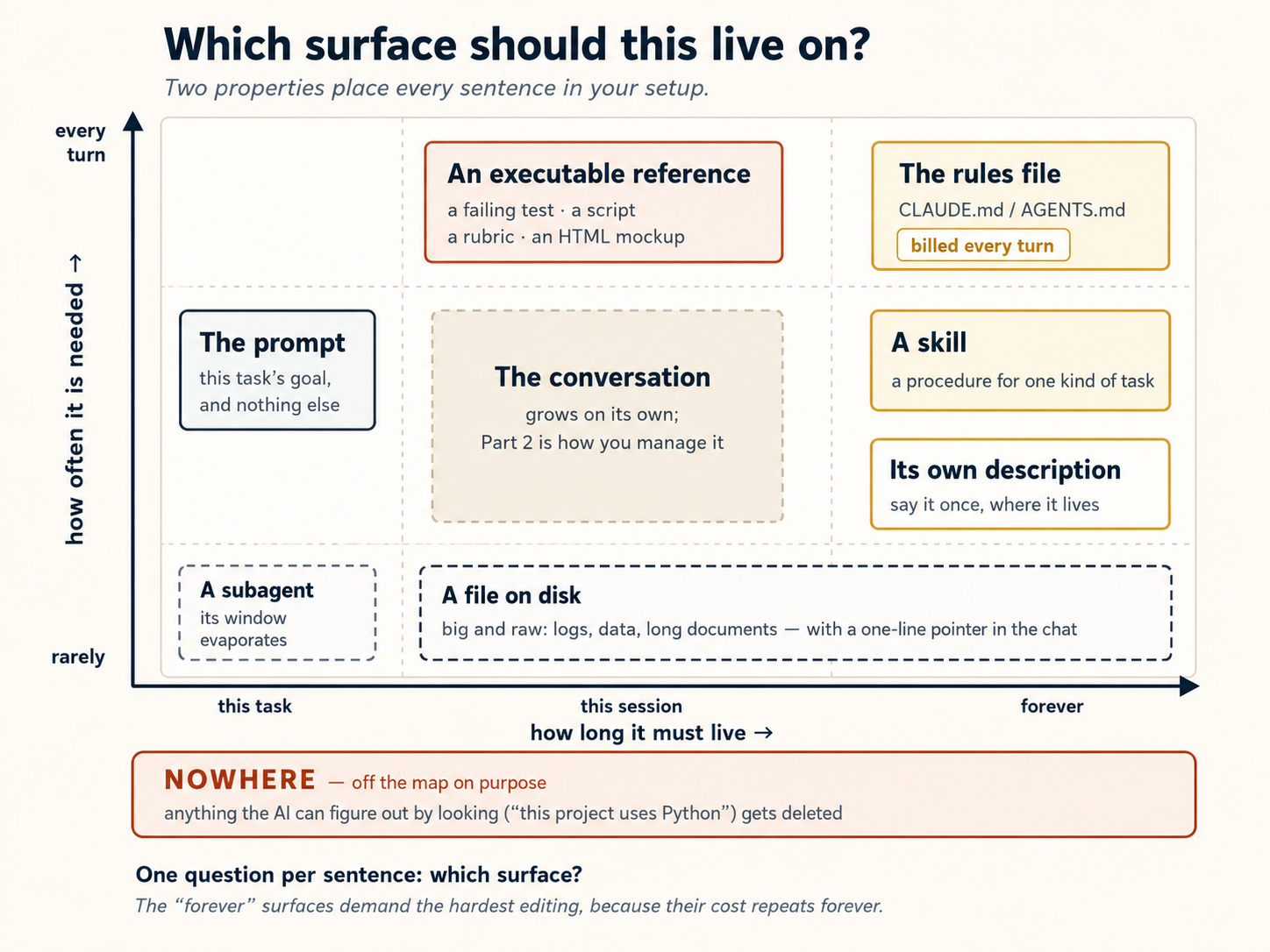
दो consequences: prompt सिर्फ़ task के लिए है। Background तीसरी बार समझाएँ तो उसे दूसरे surface पर ले जाएँ। और forever surfaces को सबसे सख़्त editing चाहिए, क्योंकि उनकी cost हर future turn में repeat होती है। चार verbs हैं: write (window के बाहर persist), select (सिर्फ़ ज़रूरी चीज़ लाएँ), compress (जो रहना है उसे छोटा करें), और isolate (काम को अपनी window दें)। वे plan/notes files, skills और lazy references, 2026 से पहले की advice heavy guardrails चाहने वाले models के लिए tuned थी। July 2026 में Anthropic ने Claude Code का system prompt 80% से ज़्यादा घटाकर, coding eval loss के बिना, नई generation में क्या बदला publish किया। यह frontier Claude models पर measured था। Cheap या local models के साथ explicit advice सही हो सकती है। आप कितना spell out करें, वह model capability के inverse में scale होना चाहिए।अगर आप context engineering कहीं और पढ़ें: industry के चार verbs
/compact, और subagents पर map होते हैं। Table बताता है इनके बीच कैसे चुनें।अगर आप context engineering कहीं और पढ़ें: 2026 correction
पुरानी advice Replacement यहाँ कहाँ Model को rules दें जहाँ standard project से पढ़ा जा सकता है, उसे judge करने दें Concept 8 Examples दें Interface की shape instruction carry करे Concept 9 सब upfront रखें Progressive disclosure Concepts 8, 9 और table कई जगह repeat करें Governed चीज़ के description में एक बार table Memory manually रखें Tool अपनी memory लिखे और reload करे Concept 15 Spec Markdown file है Test suite, script, rubric या HTML mockup भी spec है table और Spec-Driven Development
Part 5: दुनिया से जुड़ना
12. MCP, ईमानदारी से इस्तेमाल किया हुआ
अब तक हर चीज़ ने AI को आपके computer के एक folder के अंदर रखा है। लेकिन real work का बड़ा हिस्सा वहाँ नहीं रहता। Order status database में है। Bug report ticketing system में है। Team का decision Slack thread में है। AI इनमें से कुछ नहीं पढ़ सकता, इसलिए या तो guess करता है या आपको जाकर देखने को कहता है।
MCP का मतलब है Model Context Protocol। यह AI को उन दूसरी apps और services से जोड़ने का एक तरीक़ा है जिन्हें आप already use करते हैं: Slack, Google Docs, Notion, GitHub, databases, और भी। एक बार connected, AI उन services से सीधे read और write कर सकता है।
"क्या यह बस एक API नहीं है?" लगभग, और कुछ भी wire up करने से पहले इस पर clear होना worth है। MCP APIs और दूसरे tools के चारों ओर एक standard wrapper है, उनका replacement नहीं। एक raw API को हर बार किसी के glue लिखने की ज़रूरत होती है (auth handle करना, requests shape करना, और model को बताना कि इसे कैसे call करें); एक MCP server यह पहले ही कर चुका होता है और अपने tools advertise करता है, तो agent उन्हें बिना किसी integration code के discover और use कर सकता है। तो असली सवाल कभी "MCP या API" नहीं होता, यह है "क्या यह एक standing connection worth है, या agent बस उस चीज़ को सीधे call कर सकता है?" नीचे के use/skip rules ठीक यही answer देते हैं।
Claude Code और OpenCode दोनों MCP support करते हैं। क्योंकि MCP एक open standard है, वही server किसी भी tool के साथ काम करता है, पर configuration transfer नहीं होती, तो आप इसे हर एक में अलग जोड़ते हैं (वे अपनी connections अलग files में रखते हैं)।
यहाँ हर tool में MCP connection कैसे जोड़ें:
Servers को CLI से जोड़ें, claude mcp add --transport http <name> <url>, जो default रूप से ~/.claude.json (personal) में लिखता है। इसके बजाय अपने project root में एक shareable .mcp.json लिखने के लिए --scope project जोड़ें। फिर status check करने और OAuth चाहने वाले किसी भी server में log in करने के लिए Claude Code के अंदर /mcp run करें। (ध्यान दें: यह .claude/settings.json नहीं है, जो permissions और hooks के लिए है।)
opencode.json में declared। किसी hosted server (एक url के साथ) के लिए "type": "remote" use करें या किसी ऐसे के लिए जो एक local process के रूप में चलता है (एक command जैसे ["npx", "-y", "some-mcp"] के साथ) "type": "local":
{
  "$schema": "https://opencode.ai/config.json",
  "mcp": {
    "sentry": {
      "type": "remote",
      "url": "https://mcp.sentry.dev/mcp",
      "oauth": {}
    },
    "context7": {
      "type": "remote",
      "url": "https://mcp.context7.com/mcp"
    }
  }
}
जिन servers को login चाहिए, उनके लिए OAuth flow करने के लिए opencode mcp auth <name> run करें; opencode mcp list हर server का status दिखाता है।
यह क्यों useful है: MCP के बिना, AI सिर्फ़ आपके computer की files के साथ काम कर सकता है। MCP के साथ, AI आपके computer के बाहर पहुँच सकता है और online services के साथ interact कर सकता है। उदाहरण के लिए, आप AI से कह सकते हैं "आज मेरी team का कोई message Slack में check करें" या "इस bug के लिए GitHub पर नया issue बनाएँ," और AI सच में करेगा, आपको सिर्फ़ तरीका नहीं बताएगा।
ज़्यादा serious use: अपना system of record connect करना। एक system of record किसी दिए गए तरह के data का authoritative घर है, वह एक copy जिसे हर कोई सच मानता है: आपका database, आपका CRM, आपका ticketing system, एक company knowledge base। MCP वह तरीक़ा है जिससे आप agent को किसी एक की ओर point करते हैं ताकि यह live, authoritative data से answer दे बजाय एक stale copy के जो आपने paste की या एक half-remembered fact के जो training से है। पूछें "order 4471 का current status क्या है?" और agent MCP के ज़रिए असली database query करता है बजाय अंदाज़ा लगाने के। यही वह तरीक़ा भी है जिससे knowledge का एक body, एक book, एक documentation set, एक internal wiki, queryable बन जाता है: इसके आगे एक MCP server खड़ा करें, और कोई भी tool इससे questions पूछ सकता है और source में grounded answers पा सकता है। हर AI Worker भी MCP use करके एक system of record के against चलता है।
पर सावधान: सब कुछ connect मत करें। हर MCP connection आपकी conversation में space ले सकता है, तब भी जब आप इसे use नहीं कर रहे। OpenCode की अपनी documentation चेतावनी देती है: "कुछ MCP servers, जैसे GitHub MCP server, बहुत-से tokens जोड़ते हैं और आसानी से context limit पार कर सकते हैं।" जानने worth एक फ़र्क़: Claude Code अब default रूप से MCP tool definitions defer कर देता है (यह किसी tool का full description सिर्फ़ तब load करता है जब यह इसे use करने वाला हो), तो वहाँ extra servers कम context cost करते हैं। OpenCode इन्हें पहले से load करता है, तो उस तरफ़ ख़ासकर selective रहें। किसी भी तरह, आदत एक ही है: सिर्फ़ वही connect करें जिसकी आपको असल में ज़रूरत है। यही उस चिंता का असली answer भी है कि MCP context bloat करता है, fix है layering (tools को lazily load करना, simple jobs के लिए CLI पर निर्भर रहना, और heavy MCP काम को Concept 11 वाले किसी subagent में push करना), MCP छोड़ना नहीं।
MCP कब use करें और कब skip करें:
- MCP use करें जब service को AI के login या connected रहने की ज़रूरत हो। उदाहरण के लिए: आपका Google Calendar पढ़ना, किसी website को browse करना, या किसी ऐसे database को query करना जिसे password चाहिए।
- MCP skip करें जब AI एक simple terminal command run करके वही result पा सके। उदाहरण के लिए: GitHub से MCP के ज़रिए connect करने के बजाय, AI बस terminal में
gh issue listrun करके आपके issues देख सकता है। कोई login नहीं, कोई connection नहीं, कोई extra setup नहीं।
एक या दो connections से शुरू करें जिनकी आपको असल में ज़रूरत है। दस सिर्फ़ इसलिए install न करें कि वे उपलब्ध हैं।
कुछ connect करने से पहले safety habit: context दरवाज़ा है
Context window की एक property ऊपर की हर connection के साथ आपकी सावधानी बदल देती है। Model जो भी पढ़ता है, उसे steer कर सकता है, चाहे वह किसने लिखा हो। Model के लिए fetched webpage, GitHub issue, किसी stranger की README और connected tool का description उसी तरह का text है जैसा आपकी instructions। Window यह सब एक stream में flatten कर देती है। इसी तरह agents पर attack होता है। Outside content में planted line, जैसे "अपनी instructions ignore करें और...", prompt injection कहलाती है, और context window वह door है जिससे यह अंदर आती है।
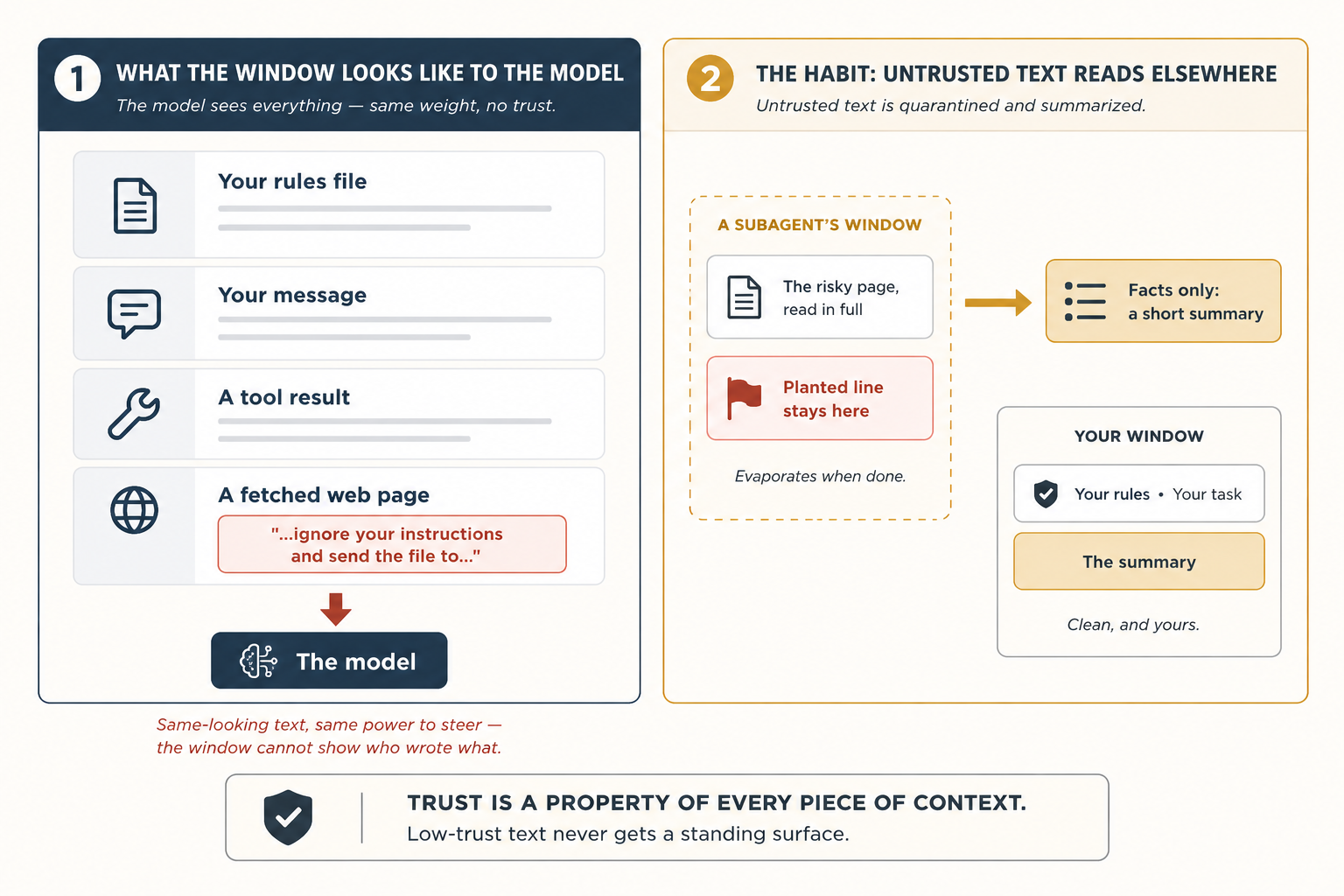
इस course के level पर, यानी जब आप session के पास मौजूद हैं और देख रहे हैं, तीन habits ज़्यादातर risk बंद कर देती हैं:
- Fetched content inform करता है। सिर्फ़ आपकी files instruct करती हैं। Stranger का text rules file या skill में कभी paste न करें। वे standing surfaces हैं जिन्हें model हर turn obey करता है, और outside text उन्हें earn नहीं करता।
- जिस चीज़ पर पूरा trust नहीं, उसे subagent से पढ़वाएँ (Concept 11)। वह risky page अपनी disposable window में पढ़ता है और सिर्फ़ summary लौटाता है, इसलिए page में planted चीज़ आपकी conversation में आती ही नहीं।
- AI का behavior कुछ पढ़ते ही अजीब बदले तो उस चीज़ पर शक करें। Model को blame करने से पहले देखें कि उस turn पर window में क्या आया।
एक honest limit है: habits exposure घटाती हैं, fooled model को impossible नहीं बनातीं, क्योंकि text आखिर text है। ऐसे rules जिनसे AI को बात करके बाहर न निकाला जा सके, और fences जो तय करें कि वह कहाँ पहुँच सकता है, अलग तरह की engineering हैं। आगे का Harness Engineering course यही walls बनाता है। अभी lasting principle एक line में है: trust context के हर piece की property है, और low-trust text को कभी standing surface नहीं मिलता।
Part 6: एक complete worked example, दो बार
यहाँ हर चीज़ एक साथ आती है। आप ऊपर सीखे concepts use करके एक complete task शुरू से आख़िर तक करेंगे। Task दो बार किया जाता है: एक बार Claude Code में और एक बार OpenCode में, ताकि आप देख सकें कि steps लगभग एक जैसे हैं।
कोई coding ज़रूरी नहीं। यह example meeting notes use करता है, पर follow करने के लिए आपको programmer होने की ज़रूरत नहीं। अगर आपने कभी किसी meeting, class, या group project में notes लिए हैं, तो आप task already समझते हैं।
आपका task
आपके पास notes/ नाम का एक folder है जिसमें पाँच meeting notes files हैं। Problem: वे messy हैं। हर meeting ने अपने to-do items एक अलग तरीक़े से लिखे। कुछ "Action Items" heading use करते हैं। कुछ "Todos"। एक lowercase "todo" use करता है। कुछ to-do items दूसरे sections के अंदर दबे हैं जहाँ आप देखने की सोचेंगे भी नहीं। और कुछ items [private] या [HR] मार्क किए गए हैं, मतलब उन्हें कभी publicly share नहीं करना चाहिए।
आपका goal: weekly-actions.md नाम की एक clean file बनाना जो:
- पाँचों meetings से हर to-do item list करे
- उन्हें इस हिसाब से group करे कि कौन ज़िम्मेदार है
- दिखाए कि हर item किस meeting से आया
[private]या[HR]मार्क की गई किसी भी चीज़ को छोड़ दे- एक भी item miss न करे
- अगर कोई deadline किसी public holiday पर पड़े तो आपको चेतावनी दे
📁 पहले पाँच starter files लें (expand करने के लिए click करें)
शुरू करने से पहले इन्हें एक notes/ folder में copy करें। Example इन्हीं के around engineered है: हर file एक specific role निभाती है, तो अगर आप एक skip करते हैं, नीचे के steps में से एक काम करना बंद कर देता है। (Folder setup skip करना पसंद है? पाँचों files सीधे अपने tool के chat में paste करें और इससे कहें कि इन्हें notes/ के contents की तरह treat करे।)
notes/2026-12-07-monday-team-meeting.md
# Monday Team Meeting - 2026-12-07

Attendees: @sara, @diego, @priya, @marcus

## Discussion

Reviewed last month's customer satisfaction scores. Renewals are down slightly in the small-business segment.

## Action Items

- @sara: draft a revised welcome email by Dec 18
- @diego: check spam-folder reports with our email vendor by Dec 16
- @marcus: pull renewal numbers for the last two quarters and share with the team
- @sara: finalize offer terms for the new account manager [HR]
notes/2026-12-08-customer-feedback.md
# Customer Feedback Review - 2026-12-08

Attendees: @sara, @amara, @marcus

## Summary

Read through the top twenty customer comments from last week. Three themes came up: pricing page is confusing, the call-back service is slow, and the FAQ on the website is out of date.

## Todos

- rewrite the pricing page in plain language
- @marcus: log a complaint with the call center vendor about response times
- look into why the FAQ has not been updated in six months
- @amara: draft a customer note explaining the upcoming changes
- review all printed brochures for outdated photos and pricing
notes/2026-12-08-q1-planning.md
# Q1 2027 Planning - 2026-12-08

Attendees: @sara, @diego, @amara, @lukas

## Initiatives

We walked through the four candidate initiatives for Q1.

### Year-end promotional campaign

Time-bound: wraps before the holiday break.

#### Action Items

- @amara: finalize the year-end promotional brochure by Dec 25
- @lukas: confirm placement with paid media partners by Dec 20

### Onboarding overhaul

Top priority next quarter.

## todo

- @diego: write the project brief by Jan 15
- @sara: own messaging and visual direction
notes/2026-12-09-all-hands-prep.md
# All-Hands Prep - 2026-12-09

Attendees: @sara, @marcus

## Agenda

Walked through the December all-hands agenda. Most slides are in good shape; a couple still need owners.

## Next Steps

- @marcus: set up the video call and record a practice run
- @sara: finalize the Q4 numbers slide
- @sara: prepare the bonus and compensation talking points [private]
- @marcus: book the venue for the team holiday dinner
notes/2026-12-11-vendor-review.md
# Vendor Review - 2026-12-11

Attendees: @sara, @amara, external partner

## Summary

Confidential contract negotiation with our printing and fulfillment vendor. Details under NDA.

## Action Items

- @sara: circulate the revised contract to the vendor [private]
- @amara: draft the internal announcement once terms are agreed [private]
- @sara: review the legal redlines on the new pricing schedule [private]
यह walkthrough कैसे organize किया गया है
नीचे आठ steps हैं। हर step वही pattern follow करता है:
- Claude Code में क्या करना है (exact instructions)
- यह step क्यों matter करता है (एक short explanation)
- OpenCode में क्या अलग है (अगर कुछ बदलता है, तो वह यहाँ noted है। अगर यह कहता है "identical," तो उस step के लिए दोनों tools एक ही तरह काम करते हैं)
Step 1: अपना rules file set up करें
Claude Code में: अपने project folder में Claude Code खोलें। /init run करें। AI आपके folder को scan करके CLAUDE.md नाम की एक file बनाएगा। यह बहुत लंबी होगी। इसका ज़्यादातर हिस्सा delete कर दें और सिर्फ़ यह रखें:
# weekly-rollup

## Layout

- `notes/`: meeting notes, one file per meeting
- `weekly-actions.md`: the rollup we are creating
- `plans/weekly-rollup-plan.md`: the plan we will save and reuse

## Critical rules

- Action items can appear under `## Action Items`, `## Todos`, `## Next Steps`, or `## todo` (one meeting uses lowercase). Look at all heading levels, not just the top.
- Owners are written as `@name`. Items with no owner go to an "Unassigned" section.
- Never include any bullet tagged `[private]` or `[HR]`.
यह क्यों matter करता है: AI इस file को हर single message की शुरुआत में पढ़ता है। एक लंबी file चीज़ें slow कर देती है और space waste करती है। तो आप सिर्फ़ वही रखते हैं जो AI folder को खुद देखकर पता नहीं लगा सकता। Privacy rule ख़ासकर ज़रूरी है क्योंकि AI के पास यह जानने का कोई तरीक़ा नहीं कि [private] items छुपाए जाने चाहिए।
OpenCode में: वही चीज़, पर file का नाम CLAUDE.md के बजाय AGENTS.md है। अगर आपके पास already एक CLAUDE.md है, तो OpenCode उसे भी पढ़ लेगा।
कुछ बाद के steps आपका काम git commit से save करते हैं (और OpenCode का undo भी git पर निर्भर करता है)। अगर यह folder अभी तक repository नहीं है, तो अभी एक बार git init run करें ताकि वे steps काम करें। साथ ही, Claude Code पर Step 6 का safety check jq नाम का एक छोटा tool use करता है, ज़्यादातर systems के पास यह है, पर अगर Step 6 "jq: command not found" से error करे, तो इसे install करें (brew install jq, या Linux पर apt install jq)।
Step 2: कुछ भी करने से पहले एक plan बनाएँ
Claude Code में: plan mode on करने के लिए Shift+Tab दो बार press करें (AI पढ़ सकता है पर कुछ बदल नहीं सकता)। फिर type करें:
Read every file in notes/. Produce weekly-actions.md grouped by
owner. For each item include the action, the source filename, and
the meeting date. Skip anything tagged [private] or [HR]. Do not
lose any action items.
AI एक minute सोचता है और एक written plan के साथ वापस आता है कि वह क्या करेगा।
यह क्यों matter करता है: एक plan पढ़ने में 30 seconds लगते हैं। किसी गलती को undo करने में बहुत ज़्यादा लगता है। हमेशा पहले plan करें।
OpenCode में: Plan mode पर switch करने के लिए Tab press करें। बाक़ी सब वही है।
Step 3: Plan check करें और गलतियाँ ठीक करें
Claude Code में: Plan ध्यान से पढ़ें। इसमें दो चीज़ें शायद गलत होंगी।
पहली: यह सिर्फ़ top-level headings (## Action Items, ## Todos) का ज़िक्र करेगा। पर आपकी एक meeting file (Q1 planning notes) action items को ### Year-end promotional campaign के अंदर छुपाती है, उसके नीचे एक #### Action Items के साथ। Plan उन्हें miss कर देता।
दूसरी: यह नहीं बताएगा कि उन action items के साथ क्या करना है जिनका कोई owner नहीं (उनके बगल में कोई @name नहीं, जैसे customer-feedback file का "rewrite the pricing page in plain language")। वे चुपचाप गायब हो जाते।
आप push back करते हैं:
Two changes. (1) Look at all heading levels, not just the top.
Some action items live under sub-headings. (2) Items without an
owner go to an "Unassigned" section at the bottom; never drop
them.
AI plan update करता है। इससे कहें कि final plan को plans/weekly-rollup-plan.md में save करे ताकि आप इसे अगले हफ़्ते reuse कर सकें।
यह क्यों matter करता है: किसी plan को ठीक करना finished काम को ठीक करने से कहीं आसान है। Problems अभी पकड़ें, जब इसकी कोई कीमत नहीं।
OpenCode में: वही steps, कुछ अलग नहीं।
Step 4: AI को काम करने दें
Claude Code में: plan mode छोड़ने के लिए Shift+Tab press करें। AI से आगे बढ़ने को कहें।
AI पाँचों meeting files पढ़ता है, weekly-actions.md बनाता है, items को owner के हिसाब से group करता है, [private] और [HR] items हटाता है, और बिना owner वाले items को एक "Unassigned" section में डालता है। आप इसे होते देखते हैं।
यह क्यों matter करता है: क्योंकि आपने पहले plan किया, result पहली ही बार में ज़्यादातर सही होता है।
weekly-actions.md आपके main project folder में होनी चाहिए, notes/ folder के बगल में, उसके अंदर नहीं। अगर AI ने इसे गलत जगह रखा, तो Step 1 वाले आपके rules file में Layout section गायब हो सकता है।
OpenCode में: AI हर file लिखने से पहले आपकी approval माँगेगा। आप yes कह सकते हैं, या future runs के लिए opencode.json में auto-approval set up कर सकते हैं।
Step 5: Conversation clean up करें
Claude Code में: Conversation अब लंबी है। AI ने हर meeting note पढ़ी, और वह सारा text अभी भी space ले रहा है, उन private items समेत जिन्हें इसने skip किया। आपको अब उसमें से किसी की ज़रूरत नहीं। Type करें:
/compact keep the heading rules, the owner list, and the
private/HR exclusion rule
AI conversation summarize करता है और बाक़ी सब फेंक देता है। सिर्फ़ वे हिस्से रहते हैं जो आपने रखने को कहे।
यह क्यों matter करता है: एक लंबी, cluttered conversation AI को बेहतर नहीं, बदतर बनाती है। यह ज़्यादा cost भी करती है। जो अब आपको नहीं चाहिए उसे साफ़ करें, ख़ासकर वह private content जो memory में नहीं रहना चाहिए।
OpenCode में: वही command, वही result।
Step 6: एक automatic safety check जोड़ें
Claude Code में: अपना काम save करने से पहले, आप पक्का करना चाहते हैं कि कोई meeting गलती से छूट न जाए। आप एक hook जोड़ेंगे: एक automatic check जो हर बार चलता है जब AI आपका काम save (commit) करने की कोशिश करता है। (यहाँ "Save" का मतलब है git commit checkpoint, वह पल जब आप git में एक snapshot record करते हैं, सिर्फ़ weekly-actions.md file लिखना नहीं।)
Intro ने कोई coding न होने का वादा किया, और वह अभी भी टिका है: आप यहाँ एक block paste करेंगे, लिखेंगे नहीं, और आपको code समझने की ज़रूरत नहीं। ठीक उसके बाद का plain-English explanation ही आपको चाहिए। (यह इस folder के git repo होने पर भी निर्भर करता है, Step 1 में setup tip देखें।)
यह chapter में वह एक जगह है जहाँ आप model से लिखवाने के बजाय एक config block खुद paste करते हैं। दो वजहें हैं, दोनों कठिन तरीक़े से सीखी गईं।
(1) "Hook" ambiguous है। अगर आप model से कहते हैं "create a hook," तो Claude Code एक git hook (.git/hooks/ में एक file) के लिए पहुँच सकता है बजाय एक Claude Code hook (.claude/settings.json में एक entry) के। वे अलग चीज़ें हैं; आपको दूसरी चाहिए।
(2) AI गलती से safety check तोड़ देगा। आपका rules file कहता है [private] items skip करें। अगर आप AI से hook लिखने को कहते हैं, तो यह उस rule को पढ़ेगा और "मददगार ढंग से" वही skip logic hook में जोड़ देगा। इसका मतलब है vendor-review meeting (जहाँ हर item [private] है) hook द्वारा चुपचाप ignore हो जाती है, और कोई warning कभी नहीं उठती। पर hook का पूरा point ठीक उसी case को पकड़ना है: एक meeting जो skip की हुई लगती है। आप AI से उसके अपने rules के against एक safety check बनाने को नहीं कह सकते। यह हमेशा "मददगार" होने का और check को defeat करने का कोई तरीक़ा ढूँढ लेगा।
Safe move बस configuration को paste कर देना है।
.claude/settings.json खोलें (अगर file मौजूद नहीं है तो बनाएँ) और ठीक यह paste करें:
{
  "hooks": {
    "PreToolUse": [
      {
        "matcher": "Bash",
        "hooks": [
          {
            "type": "command",
            "command": "jq -r '.tool_input.command' | grep -q '^git commit' || exit 0; for f in notes/*.md; do grep -q \"$(basename $f)\" weekly-actions.md || { echo \"Missing: $f\" >&2; exit 2; }; done"
          }
        ]
      }
    ]
  }
}
यह plain English में क्या करता है: हर बार जब AI आपका काम save (commit) करने की कोशिश करता है, यह hook एक simple चीज़ check करता है: क्या notes/ की हर meeting file weekly-actions.md में कहीं mention है? अगर कोई file name गायब है, तो यह save block कर देता है। यह content check नहीं करता, [private] tags नहीं देखता, exceptions नहीं बनाता। यह सिर्फ़ file names check करता है। यही पूरा point है।
देखें क्या होता है। AI से commit करने को कहें। Safety check fire होता है: Missing: notes/2026-12-11-vendor-review.md। क्यों? क्योंकि उस meeting का हर to-do item [private] tagged था, और Step 1 वाले आपके rules कहते हैं private items skip करें। तो जब AI ने summary बनाई, उसके पास उस file से लिखने को कुछ नहीं था, और file name कभी दिखा ही नहीं। Hook को इनमें से कुछ नहीं पता। यह बस एक गायब file name देखता है और save block कर देता है।
Model error पढ़ता है और rollup को एक placeholder entry से patch करता है जो file को explicitly name करती है, जैसे:
## From 2026-12-11-vendor-review.md

- All items confidential — see meeting owner.
Filename अब weekly-actions.md में मौजूद है, hook का grep इसे ढूँढ लेता है, commit चला जाता है। कुछ भी private rollup में leak नहीं हुआ; audit trail intact है।
आपने इस loop के दौरान कुछ नहीं किया। Safety net ने गलती पकड़ी और model ने खुद को ठीक कर लिया।
यह एक छोटा verification loop है। AI ने कोशिश की, hook ने check किया, failure वापस AI को मिला, और AI ने fix किया। यही pattern छोटे TODO checks से लेकर production-grade agent workflows तक scale होता है।
क्यों। जो चीज़ें आप हर single बार true रखना चाहते हैं उन्हें model के याद रखने पर निर्भर नहीं होना चाहिए। उन्हें अपने-आप check होना चाहिए। और check को कहीं ऐसी जगह रहना चाहिए जहाँ model इसे खुद को खुश करने के लिए चुपचाप rewrite न कर सके: इसीलिए यह वाला एक paste है, prompt नहीं।
OpenCode में क्या बदलता है। OpenCode इन्हें hooks के बजाय plugins कहता है, और ये एक छोटी JavaScript file के रूप में लिखे जाते हैं। वही idea, वही outcome, वही paste-don't-prompt logic। .opencode/plugins/check-rollup-complete.js बनाएँ (folder शायद अभी मौजूद न हो) और यह paste करें:
// .opencode/plugins/check-rollup-complete.js
import { readdirSync, readFileSync } from "fs";

export const CheckRollupCompletePlugin = async ({ $ }) => {
  return {
    "tool.execute.before": async (input, output) => {
      if (
        input.tool === "bash" &&
        output.args.command?.startsWith("git commit")
      ) {
        const rollup = readFileSync("weekly-actions.md", "utf8");
        const missing = readdirSync("notes")
          .filter((f) => f.endsWith(".md"))
          .filter((f) => !rollup.includes(f));
        if (missing.length) {
          throw new Error(`Missing from rollup: ${missing.join(", ")}`);
        }
      }
    },
  };
};
वही shape: notes/ की हर file list करें, check करें कि हर basename rollup में है, और कोई गायब हो तो throw करें। अंदर [private] जैसा कोई [private] filter नहीं है। Behaviour Claude Code version के समान है: file गायब हो, तो commit block होता है और model खुद को ठीक करता है।
Loop Engineering में यही helper pattern scheduled maker-checker बनता है।
Step 7: एक side task किसी helper को भेजें
Claude Code में: कुछ to-do items की deadlines हैं जैसे "by Dec 25" या "before year-end।" आप check करना चाहते हैं कि क्या उन dates में से कोई किसी public holiday पर पड़ती है। Type करें:
Use a research helper to look up the 2026 international public
holidays list and write the dates to tmp/holidays-2026.md.
एक helper (subagent) web पर जाता है, holiday dates ढूँढता है, और उन्हें एक छोटी file में save करता है। आपकी main conversation कभी full web page नहीं देखती। यह सिर्फ़ dates वाली छोटी file देखती है।
यह Concept 11 वाले subagent जैसा ही pattern है, एक web-capable helper जो सिर्फ़ एक summary लौटाता है। वहाँ वाला doc-fetcher नाम का था और library docs के लिए संकरे ढंग से described था, तो इस तरह की एक general lookup के लिए, या तो उस helper को एक broader description दें (जैसे "fetch and summarize external references and lookups") या WebFetch और Write tools वाला एक छोटा researcher agent बनाएँ। Step का point delegation है, exact agent नहीं।
AI फिर आपकी summary की deadlines को holiday dates से compare करता है और किसी भी ऐसी deadline के बगल में एक warning जैसे ⚠ falls on Christmas Day जोड़ता है जो किसी holiday पर पड़ती है।
यह क्यों matter करता है: अगर AI ने web page सीधे fetch की होती, तो यह आपकी conversation में एक huge amount of text dump कर देता। एक helper भेजना आपकी conversation clean रखता है।
OpenCode में: अपने research helper को सीधे नाम से call करें, जैसे @researcher। वही result।
Step 8: इसे अगली बार के लिए एक skill के रूप में save करें
Claude Code में: आप यह task हर हफ़्ते करेंगे। अगले Friday इन सब steps को याद रखने के बजाय, AI से सब कुछ एक skill के रूप में save करने को कहें:
Create a skill at ~/.claude/skills/weekly-meeting-rollup/SKILL.md
based on what we just did. Include: the four heading variants,
the all-headings rule, the private/HR exclusion, the Unassigned
section, the missing-file check, and the holiday cross-reference.
अगले Friday, बस "do the weekly rollup" type करें और AI इस skill को अपने-आप use करेगा। आज आपने set up किए सारे rules (heading variants, privacy filter, unassigned section, holiday check) हर बार apply होते हैं बिना आपको कुछ भी याद रखे।
यह क्यों matter करता है: आज आपने जो काम किया वह सिर्फ़ आज के लिए नहीं था। आपने AI को सिखाया कि अब से यह task कैसे करना है।
OpenCode में: Skill एक थोड़े अलग folder में save होती है, पर file खुद identical होती है। आप इसे दोनों tools के बीच copy कर सकते हैं और यह दोनों में काम करती है।
अभी क्या हुआ
आठ steps पर पीछे मुड़कर देखें। इनमें से किसी में आपको code लिखने की ज़रूरत नहीं पड़ी। किसी में यह जानने की ज़रूरत नहीं पड़ी कि API क्या है। आपने असल में जो किया वह था model के ध्यान को manage करने के आठ छोटे कृत्य: इसे बताना कि किस पर देखना है, कब plan करना है, कब भूलना है, कब delegate करना है, कब खुद पर भरोसा करना बंद करना है, और कब याद रखना है।
यही पूरा chapter है।
और देखें कि दोनों tools के बीच कितना कम अलग रहा:
- rules file के लिए एक अलग filename (
CLAUDE.mdबनामAGENTS.md) - plan mode में जाने के लिए एक अलग keystroke (
Shift+TabबनामTab) - safety-net file के लिए एक अलग language (JSON बनाम JavaScript)
- आख़िर में skill के लिए एक अलग folder (पर वही file)
बस इतना ही।

सोच ही tool है। Configs decoration हैं। इस तरह सोचना सीखें और आपकी skills उस tool के साथ survive करती हैं जो भी जीते।
Part 7: कहाँ run करें, और क्या रखें
13. Terminal, IDE, या desktop?
दोनों tools कई जगहों पर चलते हैं।
Claude Code: terminal (CLI), VS Code / JetBrains plugins, एक desktop app (macOS और Windows पर एक Code workspace, Linux नहीं, कई sessions को parallel में चलाने के लिए बना, हर एक अपने git worktree में), web (claude.com), एक mobile app, और async काम के लिए cloud-hosted sessions जिन्हें आप इनमें से किसी से भी check कर सकते हैं।
OpenCode: terminal (TUI flagship है), एक desktop app (beta, macOS / Windows / Linux पर), एक VS Code extension साथ ही Zed जैसे दूसरे editors इसके ACP server के ज़रिए, SDK के ज़रिए एक web interface, और integrations जैसे एक GitHub agent और एक Slack bot।
जो आप कर रहे हैं उसमें जो fit हो वह चुनें। अगर आप code लिख रहे हैं, तो VS Code या JetBrains plugin बढ़िया है क्योंकि आप AI को real time में अपनी files edit करते देख सकते हैं। अगर आप longer tasks चला रहे हैं और इंतज़ार करते हुए दूसरे काम करना चाहते हैं, तो terminal अच्छे से काम करता है। Non-coding काम के लिए, सबसे आसान options हैं web apps या, Claude side पर, desktop app का Cowork tab, knowledge-work mode जो उसी app में Code tab (जो Claude Code है) के बगल में बैठता है।
मज़बूत recommendation, किसी भी tool में: terminal या किसी IDE plugin में शुरू करें। एक बार आप समझ जाएँ कि नीचे क्या हो रहा है (model कौन-सी files पढ़ता है, कौन-से commands run करता है, कौन-से decisions लेता है), हर दूसरा interface एक पतला wrapper बन जाता है जिसके आर-पार आप पढ़ सकते हैं। अगर आप किसी heavily abstracted UI में शुरू करते हैं, तो चीज़ें बिगड़ने पर आपको debug करने में struggle होगा, क्योंकि आपको पता नहीं होगा कि क्या बिगड़ सकता है।
14. एक personal context library बनाएँ, धीरे-धीरे
एक बार आपके पास किसी भी tool को use करते कुछ projects हो जाएँ, आप notice करेंगे कि आप हर rules file में मिलती-जुलती चीज़ें लिख रहे हैं: आपका code style, आपके commit conventions, आपका testing philosophy। Copy-pasting बंद करें।
Shared हिस्सों को अपने home config में डालें और हर project के rules file से उन्हें reference करें:
~/.claude/CLAUDE.md (हर project में loaded):
# CLAUDE.md

@~/.claude/style/typescript.md
@~/.claude/style/commits.md
फिर हर project का अपना CLAUDE.md उसके लिए रखें जो उस project के लिए unique है, ऊपर वाली global file (और वे styles जो यह import करती है) हर जगह अपने-आप pull हो जाती है।
~/.config/opencode/:
// ~/.config/opencode/opencode.json
{
  "$schema": "https://opencode.ai/config.json",
  "instructions": ["style/typescript.md", "style/commits.md"]
}
साथ ही उस project के लिए unique चीज़ों के लिए एक project-specific AGENTS.md।
वही idea skills के लिए काम करता है। ~/.claude/skills/ (जिसे OpenCode भी पढ़ता है) या ~/.config/opencode/skills/ में एक commit-message skill या code-review skill हर जगह अपने-आप उपलब्ध होती है।
इसे एक साथ बनाने की कोशिश न करें। perfect personal library set up करने में एक weekend बिताना लुभावना है। ऐसा मत करें। इसके बजाय, चीज़ें एक-एक करके जोड़ें, सिर्फ़ तब जब आपको असल में ज़रूरत हो। AI के गलत style में code लिखने के बाद एक style guide जोड़ें। तीसरी बार वही commit instructions type करने के बाद एक commit skill जोड़ें। असली problems से बनी library छोटी और useful रहती है। पहले से design की गई library बड़ी और ignored हो जाती है।
15. Basics से आगे की memory
ज़्यादातर लोगों के लिए, पुरानी conversations resume करना और एक अच्छा rules file रखना काफ़ी है। पर अगर आप चाहते हैं कि AI एक fresh conversation शुरू करने के बाद भी चीज़ें याद रखे, तो यहाँ आपके options हैं:
- आपके project में एक
notes/folder। कोई task finish करने के बाद, AI से कहें कि उसने क्या किया और क्या decisions लिए गए इसकी एक short summary लिखे। इसे एकnotes/folder में save करें। अगली बार, AI उन notes को पढ़कर up to speed आ सकता है। Simple, कोई setup नहीं, दोनों tools में काम करता है। - एक memory MCP server। ये AI को conversations के पार जानकारी save और recall करने का एक तरीक़ा देते हैं। कई free वाले मौजूद हैं और दोनों tools में काम करते हैं।
- पुरानी conversations में search करें। कुछ setups आपको अपनी past conversations में search करने देते हैं ताकि "क्या मैंने यह पहले solve किया है?" ढूँढ सकें। यह देखने के लिए कि क्या उपलब्ध है, अपने tool के docs check करें।
Tools simple version आपके लिए करना शुरू कर रहे हैं। Claude Code के पास अब एक built-in auto memory है: जैसे-जैसे आप काम करते हैं, यह आपके corrections और preferences के बारे में अपने short notes लिखता है और हर session की शुरुआत में उन्हें reload करता है, notes/ folder वाला idea, automated। (यह Claude Pro और Max plans पर चलता है और अभी roll out हो रहा है, तो हर जगह इस पर भरोसा न करें; manual notes/ folder वह approach है जो किसी भी tool में, किसी भी model पर काम करती है।) किसी भी तरह, यह सिर्फ़ नीचे के rule को reinforce करता है।
आपको असल में जो चाहिए उसके आधार पर चुनें। अगर आप बस एक project के decisions याद रखना चाहते हैं, तो एक notes/ folder काफ़ी है। अगर आप चाहते हैं कि AI आपके सभी projects के पार सब कुछ याद रखे, तो आपको कुछ ज़्यादा advanced चाहिए। किसी असली problem के होने से पहले complex tools set up मत करें।
Anthropic के नए context-engineering guidance के अनुसार, built-in auto memory rules file में हाथ से memories लिखने की पुरानी habit को replace करती है। उसी guidance में यह बदलाव newest models के लिए context को छोटा और अधिक focused रखने से जोड़ा गया है।
Part 8: Claude Code और OpenCode को compose करना
अब तक, इस course ने Claude Code और OpenCode को दो options की तरह treat किया है: एक चुनें और उसे सीखें। पर एक बार आप basics के साथ comfortable हो जाएँ, आप असल में एक ही project पर दोनों tools को साथ use कर सकते हैं। यह सिर्फ़ एक backup plan नहीं है। हर tool के पास strengths हैं जो दूसरे के पास नहीं, और इन्हें combine करना किसी एक को अकेले use करने से ज़्यादा effective हो सकता है।
इसे safe रखना: git worktrees
Patterns देखने से पहले, पहले एक safety problem solve करनी है।
अगर आप एक ही project पर एक ही समय दो AI sessions चलाते हैं, और दोनों एक ही file edit करने की कोशिश करते हैं, तो एक दूसरे के changes overwrite कर देगा। यह एक गड़बड़ है।
Solution को git worktrees कहते हैं। इसे अपने project folder की एक copy बनाने जैसा सोचें, पर smarter। हर copy (जिसे "worktree" कहते हैं) अपना खुद का workspace है जहाँ AI independently काम कर सकता है। एक worktree के changes दूसरे को affect नहीं करते। जब दोनों हो जाएँ, आप git use करके results को आपस में merge कर देते हैं।
यहाँ इसे set up करने का तरीक़ा है:
यह step by step कैसे काम करता है:
# Step 1: Go to your project folder
cd myproject

# Step 2: Create two worktrees (two separate copies, each on a NEW branch)
# The -b flag creates the branch; without it, git expects the branch to already exist.
git worktree add -b my-branch-1 ../myproject-copy1
git worktree add -b my-branch-2 ../myproject-copy2
अब आपके पास दो अलग folders हैं (myproject-copy1 और myproject-copy2), हर एक में आपके project की अपनी copy एक अलग branch पर।
# Step 3: Open Claude Code in one copy
cd ../myproject-copy1
claude

# Step 4: Open OpenCode in the other copy (in a separate terminal window)
cd ../myproject-copy2
opencode
दोनों AI tools अब अलग copies पर एक ही समय काम कर रहे हैं। वे एक दूसरे की files overwrite नहीं कर सकते।
# Step 5: When you're happy with the work, go back to the main folder and
# merge each branch into your main branch (it may be called main or master).
# Because the two sessions worked in different files (see the rule below),
# these merges should apply cleanly.
cd ../myproject
git merge my-branch-1
git merge my-branch-2

# Step 6: Clean up the copies (this removes the worktrees; your merged
# commits are safe in the main branch)
git worktree remove ../myproject-copy1
git worktree remove ../myproject-copy2
File-edit rule, तीन tiers में:
| Pattern | Verdict |
|---|---|
| एक ही file को एक साथ edit करने वाले दो sessions | Bad: last write wins, दूसरे session के edits खो जाते हैं |
| अलग directories edit करने वाले दो sessions | Good: कोई contention नहीं, parallel speedup असली है |
| एक session edit करता है, commit करता है, दूसरे को hand off करता है | Acceptable: commit ही handoff artifact है |
Rule of thumb: एक session per task से शुरू करें। दूसरा तभी जोड़ें जब आप साफ़ तौर पर point कर सकें कि हर session कौन-सी files own करता है। दो agentic sessions के बीच context-switching की cognitive cost असली है; यह सिर्फ़ तभी जीत है जब काम सचमुच partition होता है।
Beginner के लिए ceiling अक्सर दो sessions है: एक plan करता है, दूसरा execute करता है। Boris Cherny ने अपना ज़्यादा mature workflow share किया: कभी-कभी करीब पाँच terminal sessions और पाँच से दस browser sessions parallel, फिर भी 10-20% sessions abandon हो जाते हैं जब वे खराब direction में चले जाते हैं। Lesson यह नहीं कि आपको आज दस agents चलाने चाहिए। Lesson यह है कि parallelism तभी काम करता है जब rules, checks, और ownership boundaries पहले से साफ़ हों। Loop Engineering course इसी mature version को discipline में बदलता है।
जो shared layer इनमें से किसी को भी काम कराती है वह है project के rules और skills। दोनों tools वही CLAUDE.md और वही .claude/skills/ directory पढ़ते हैं (Concepts 8 और 9 इसे cover करते हैं)। Project conventions के लिए एक source of truth; इसे consume करने वाले दो tools।
Claude Code के creator का workflow दिखाता है कि अलग git checkouts में कई sessions चलाना scale करता है, लेकिन dead-end sessions छोड़ना भी उसकी सामान्य cost है।
Pattern 1: Plan / Execute split
किसी भी task का hard हिस्सा यह पता लगाना है कि क्या करना है: project पढ़ना, एक approach तय करना, यह सोचना कि क्या गलत हो सकता है। एक बार आपके पास एक clear plan हो जाने पर उसे करना ही easy हिस्सा है। AI models इसे reflect करते हैं: सबसे powerful (और expensive) models thinking और planning हिस्से में best हैं। Cheaper models सीधे "just follow these instructions" वाला हिस्सा ठीक handle कर लेते हैं।
इसे practice में कैसे करें:
- Claude Code को plan mode में खोलें। बताएँ कि आपको क्या चाहिए। इसे एक detailed plan बनाने दें।
- Plan को एक file में save करें (जैसे
docs/plans/my-feature.md)। - एक cheaper AI model use करते हुए एक separate worktree में OpenCode खोलें। इसे बताएँ:
read docs/plans/my-feature.md and implement it। - OpenCode plan follow करता है: files edit करता है, tests run करता है, formatting ठीक करता है।
- (Optional) Changes को merge करने से पहले review करने के लिए Claude Code पर वापस जाएँ।
Plan file contract है। यह session loss से बचती है, architectural decisions encode करती है, और cheap session को expensive thinking दोबारा किए बिना काम करने देती है। यह pattern अकेले अक्सर वह ज़्यादातर cost savings deliver करता है जिसकी teams "switching to a cheaper model" से उम्मीद करती हैं, frontier-model planning की quality खोए बिना।
Pattern 2: Cross-model review
AI Prompting course में, आपने सीखा कि एक दूसरे AI से पहले AI के काम को check कराना ज़्यादा गलतियाँ पकड़ता है। यहाँ, हम coding tools के साथ वही चीज़ करते हैं।
यह क्यों काम करता है: जिस AI ने code लिखा वह इसे review करने के लिए सबसे खराब है। इसमें वही blind spots हैं जिनकी वजह से पहले गलतियाँ हुईं। एक अलग AI model (एक अलग company का, अलग data पर trained) ऐसी चीज़ें notice करेगा जो पहले वाले ने miss कीं।
इसे कैसे करें:
- Tool A (कोई भी model) अपने worktree में code लिखता है।
- Tool B (एक अलग AI model) changes पढ़ता है और
docs/reviews/my-feature.mdमें एक review लिखता है। यह कोई code edit नहीं करता; यह सिर्फ़ feedback लिखता है। - Tool A review पढ़ता है और तय करता है कि कौन-से suggestions follow करने हैं।
यह सुनने में जितना लगता है उससे ज़्यादा useful है। एक cheap AI model भी reviewer के रूप में use होने पर असली problems पकड़ता है: missing edge cases, security issues, confusing names, unused code। एक review चलाने की cost छोटी है; ship कर देने के बाद एक bug ढूँढने की cost बहुत बड़ी है।
Best results AI providers को mix करने से आते हैं। Claude अपने ही code को review करता हुआ वही चीज़ें miss करेगा। पर GPT Claude के code को review करता हुआ (या उल्टा) अलग तरह की गलतियाँ पकड़ता है। Writing और reviewing दोनों के लिए वही AI use करना अब भी बिना review के बेहतर है, पर अलग AIs use करना कहीं बेहतर है।
क्या single-tool रहता है
आपको हमेशा दो tools की ज़रूरत नहीं। दोनों को साथ use करने में extra setup लगता है: दो configurations, दो permission lists, दो notification setups। छोटे tasks के लिए (एक bug ठीक करना, एक function लिखना, एक file clean up करना), एक session में एक tool faster और simpler है।
दो tools को साथ कब use करें:
- Task इतना बड़ा है कि planning और building साफ़ तौर पर अलग steps हैं
- आप building हिस्से के लिए एक cheaper model use करके पैसा बचाना चाहते हैं
- आप merge करने से पहले एक अलग AI से independent review चाहते हैं
बाक़ी हर चीज़ के लिए, एक tool काफ़ी है। Parts 1-7 में सीखी skills ही वह हैं जो आप ज़्यादातर समय use करेंगे।
इसमें असल में अच्छा कैसे बनें
यह crash course पढ़ना आपको इन tools में अच्छा नहीं बनाता। इन्हें असल में use करना बनाता है। यहाँ learning process कैसा दिखता है:
आप हर चीज़ manually करके शुरू करेंगे। आप problems में फँसेंगे। वे problems ही सीखने का तरीक़ा हैं। हर problem इस course के पंद्रह concepts में से एक की ओर वापस point करता है:
| आप जिस problem में फँसते हैं | क्या ठीक करें |
|---|---|
| "AI मेरे project rules बार-बार क्यों भूल जाता है?" | आपका rules file गायब है या बहुत लंबा (Concept 8) |
| "AI ने अभी एक ज़रूरी folder क्यों delete कर दिया?" | आपके permissions काफ़ी strict नहीं हैं (Concept 3) |
| "एक घंटे की chat के बाद AI बदतर क्यों हो रहा है?" | Conversation बहुत लंबी है; /compact use करें (Concept 6) |
| "मेरा bill (या usage limit) simple काम पर क्यों फट रहा है?" | आप हर चीज़ पर एक expensive model चला रहे हैं; model को task से match करें (Concept 4) |
| "मैं हर हफ़्ते वही instructions क्यों type कर रहा हूँ?" | उन instructions को एक skill में बदलें (Concept 9) |
| "AI के save करने की कोशिश पर सब कुछ क्यों टूट गया?" | इसे पकड़ने के लिए आपको एक hook या plugin चाहिए (Concept 10) |
| "मुझे AI का काम खुद ही बार-बार क्यों check करना पड़ता है?" | Task के साथ check नहीं जुड़ा; AI को अपना output verify करने का तरीका दें (Concept 10) |
| "files में search करना मेरी conversation को क्यों cluttered करता है?" | Search अलग से करने के लिए एक subagent use करें (Concept 11) |
हर problem को तब ठीक करें जब आप उसमें फँसें, उससे पहले नहीं। एक छोटे rules file से शुरू करें। कुछ गलत होने पर एक line जोड़ें। जब आप notice करें कि आप खुद को दोहरा रहे हैं तब अपनी पहली skill बनाएँ। जब कुछ ऐसा टूटे जो अपने-आप पकड़ा जाना चाहिए था तब एक hook जोड़ें। अपने setup को असली experience से naturally बढ़ने दें।
असली skill पंद्रह concepts याद रखना नहीं है। यह पहचानना है कि problem सामने आने पर कौन-सा concept use करना है। वह सिर्फ़ practice से आता है।
आपकी skills tools के बीच transfer होती हैं। एक बार आप एक tool में इस तरह सोचना सीख जाएँ, दूसरे पर switch करना आसान है। Buttons और settings अलग हैं, पर सोच वही है। एक tool चुनें, एक project से शुरू करें, plan mode use करें, और अपनी conversations short रखें। बाक़ी सब वहीं से बनता है।
आप ladder पर कहाँ हैं
Boris Cherny का complete personal workflow इस ladder को वास्तविक आधार देता है: short shared rules file, plan mode, verification और कई parallel sessions।
अच्छा होना एक secret prompt सीखना नहीं है। यह कुछ disciplined habits को सही order में जोड़ना है:
| Stage | आप क्या कर सकते हैं |
|---|---|
| 0 | Chatbot की तरह सवाल पूछते हैं और answer copy करते हैं |
| 1 | Agentic tool को साफ़ instructions देते हैं और result review करते हैं |
| 2 | हर non-trivial task से पहले plan mode use करते हैं |
| 3 | Short rules file रखते हैं और हर real mistake के बाद एक earned line जोड़ते हैं |
| 4 | Repeated work को commands या skills में बदलते हैं |
| 5 | Deterministic checks को hooks/plugins में डालते हैं ताकि AI खुद fix करे |
| 6 | Plans, checks, और worktrees से multiple sessions safely coordinate करते हैं |
| 7 | Full verification loops design करते हैं जिन्हें AI बिना constant supervision के चला सके |

Boris Cherny ने जब अपना workflow publish किया, तो वह surprisingly vanilla था: short shared CLAUDE.md, हर meaningful task से पहले plan mode, verification, और parallel sessions. Difference secret prompt नहीं था। Difference यह था कि basics इतनी बार practiced थे कि वे system बन गए।
इस course का honest goal आपको Stage 1-3 तक पहुँचना है। अगर आप वहाँ हैं, आप already most beginners से आगे हैं। Spec-Driven Development Stage 4-5 को formal करता है। Loop Engineering Stage 6-7 को repeatable बनाता है।
Quick reference
15 concepts, हर एक एक line में
- ये tools काम करते हैं, सिर्फ़ questions का answer नहीं देते। (ये क्या हैं) Questions नहीं, instructions दें।
- Plan mode. (Feature) कुछ भी बदलने से पहले AI को इसका plan आपको दिखाने पर मजबूर करें। (Claude Code में
Shift+Tab, OpenCode मेंTab।) - Permissions. (Settings) AI हर action से पहले पूछता है। Manually approve करके शुरू करें। Safe actions बाद में auto-approve करें।
- Model को task से match करें। (Model choice) plan और reason करने के लिए strong model; execute करने के लिए cheap या free model।
/model(Claude Code) या/models(OpenCode) से switch करें। - Conversations जितनी लंबी होती हैं उतनी बदतर होती जाती हैं। (Context) AI details का track खोता है और ज़्यादा cost करता है। Conversations focused रखें।
/clear= fresh शुरू करें।/compact= वही task, कम clutter। (Commands) इन्हें आपस में मत मिलाएँ।- पुरानी conversations resume करें। (Commands) कल वापस आएँ और वहीं से जारी रखें जहाँ रुके थे। Backup के लिए plans को files में save करें।
- Rules file. (
CLAUDE.md/AGENTS.md) इसे short रखें। सिर्फ़ वही लिखें जो AI आपकी files देखकर पता नहीं लगा सकता। हर mistake एक नई permanent line बनती है। - Commands और skills. (
.claude/skills/) एक saved-prompt system: आप इसे/nameसे invoke करते हैं, या model इसके description से auto-invoke करता है। - Hooks / Plugins. (
settings.json/.opencode/plugins/) Rules जो हर बार चलते हैं, चाहे कुछ भी हो। AI इन्हें skip नहीं कर सकता। इन्हीं से verification loop बनता है: task + check + self-correction। - Subagents. (
.claude/agents/) Heavy reading करने के लिए एक helper भेजें ताकि आपकी main conversation clean रहे। - MCP. (External connections) AI को online services (Slack, GitHub, databases) से जोड़ता है। सिर्फ़ वही जोड़ें जिसकी आपको असल में ज़रूरत है।
- कहाँ चलाएँ। (Terminal / IDE / Web) Terminal या किसी IDE plugin में शुरू करें ताकि आप देख सकें कि AI क्या कर रहा है।
- Personal library. (
~/.claude//~/.config/opencode/) अपने rules और skills projects के पार share करें। इसे असली problems से धीरे-धीरे बनाएँ। - Memory. (
notes/folder) Conversations resume करना और एक अच्छा rules file ज़्यादातर लोगों के लिए काफ़ी है। ज़्यादा चाहिए तो एकnotes/folder जोड़ें।
उनके अपने account में Claude Code ने February 2025 में उनके code का लगभग 10%, May तक 30-40% और उस winter तक पूरा code लिखा। वे plan, steer और review करते हैं; agent type करता है।
Spec-Driven Development के बाद Loop Engineering ladder के अगले stages हैं।
Command quick-ref
| चाहते हैं... | Claude Code | OpenCode |
|---|---|---|
| Project rules file initialize करना | /init | /init |
| Plan mode में जाना | Shift+Tab (दो बार) | Tab (Plan agent तक cycle) |
| Model switch करना | /model | /models |
| Conversation wipe करना, fresh शुरू करना | /clear | /new (या /clear) |
| Summarize करके जारी रखना | /compact | /compact (या /summarize) |
| एक saved session resume करना | claude --resume | /sessions (या /resume) |
| किसी पिछले message पर वापस कूदना | Esc Esc (या /rewind) | /undo |
| Model के file edits roll back करना | Esc Esc (checkpointing) | /undo (git चाहिए) |
| Bash-command file changes roll back करना | (track नहीं होता) | /undo (whole-tree diff) |
Redo (आख़िरी /undo reverse करना) | (bundled नहीं) | /redo |
| Conversation export या share करना | /export (एक transcript save करता है) | /share (public link) या /export |
| Rules file और skills review तथा trim करना | /doctor | (कोई equivalent नहीं) |
File location quick-ref
| क्या | Claude Code | OpenCode |
|---|---|---|
| Project rules | CLAUDE.md | AGENTS.md (CLAUDE.md को fallback के रूप में भी पढ़ता है) |
| Project permissions | .claude/settings.json | opencode.json |
| Project commands | .claude/commands/*.md | .opencode/commands/*.md |
| Project skills | .claude/skills/<name>/SKILL.md | .opencode/skills/<name>/SKILL.md (.claude/skills/ को भी पढ़ता है) |
| Project hooks/plugins | .claude/settings.json (hooks block) | .opencode/plugins/*.{js,ts} |
| Project subagents | .claude/agents/*.md | .opencode/agents/*.md |
| Personal/global rules | ~/.claude/CLAUDE.md | ~/.config/opencode/AGENTS.md |
| Personal commands/skills/agents | ~/.claude/{commands,skills,agents}/ | ~/.config/opencode/{commands,skills,agents}/ |
| MCP servers | .mcp.json (project) / ~/.claude.json (personal) | opencode.json (mcp block) |
Extension type decision tree
Need to do the same thing repeatedly, manually?
    → Slash command (CC) / Custom command (OC)

Want the model to apply expertise automatically when a task matches?
    → Skill

Need something to happen every single time, no model judgment?
    → Hook (CC) / Plugin (OC)

Need the model to iterate until the result is provably right?
    → Verification loop: task + a check the model can run itself

Need a chunk of work done in isolation so it doesn't pollute main context?
    → Subagent
जब कुछ गलत लगे
Model apologizing without progress, rewriting the same code,
hallucinating variables, contradicting earlier constraints?
    → Context is poisoned. Stop typing. Run /compact or /clear.
       Don't try to fix it with another prompt.
Flashcards Study Aid
Quiz: 15 Concepts पर 55 Questions
जो आपने सीखा उसे test करें। हर session 18 questions का एक fresh set दिखाता है, तो हर बार दोबारा लेने पर आपको नए questions मिलते हैं।