Skills & Connectors: Teach AI Once, Connect It to Your Apps
2 Features, 5 Tools, 0 Code From You. Turn your chat box into a coworker.
Most people use AI the way they use a vending machine. They type a request, take what falls out, and walk away. Tomorrow they type the whole request again. The same instructions, the same context, the same "no, our invoices look like this." The machine remembers none of it.
There is a different way, and in 2026 it is no longer only for programmers. You can teach AI a task once and have it do that task your way, every time. That is a Skill. You can also give AI safe access to the apps where your work lives, such as your files, your email, and your tracker. That is a Connector.
No programming background is needed. Every example is built for an accountant, a doctor, a marketer, an engineer, a teacher, or a student. By the end you will know what Skills and Connectors are, when to use each, how to use the ones that exist, how to build your own, and how to work safely across five tools.
Quick glossary
Skip this and come back when a word is new to you.
- Skill: a saved set of instructions that teaches AI how to do one task your way.
- Connector: a safe link that lets AI reach one of your apps, such as files or email.
- fire: when AI starts a skill on its own because your request matched it.
- scope: how much of an app you open to AI. One folder, or everything. Smaller is safer.
- expense head: a spending category in a set of accounts, such as travel, rent, or salaries.
- tax-withholding threshold: the amount above which tax must be held back from a payment and sent to the government.
- SOAP: the standard four-part clinical note. What the patient says, what the doctor sees, the assessment, and the plan.
- read-only: AI may look but not change.
- write access: AI may edit, create, send, or delete.
- progressive disclosure: AI keeps a short summary of each skill in view and opens the full instructions when needed.
- operating layer: AI that acts on your real work, not a box you type into.
- SKILL.md: the one text file every skill folder must have.
- frontmatter: the block at the top of a SKILL.md, holding the name and the description.
- description: the short line in a skill that tells AI when to use it.
- negative trigger: a line in a description saying when not to use the skill.
- MCP: Model Context Protocol. The open standard that connectors run on.
- Tool access: a setting that controls when a connector's actions are loaded into a chat.
- CLI: a command-line tool. You use it by typing commands instead of clicking.
- custom connector: a connector you add yourself, for any app that speaks MCP.
- interactive connector: one that draws a live panel inside the chat.
- Project: a workspace whose files and instructions load in every chat inside it.
- custom instructions: preferences that apply to all of your chats.
- skill-creator: an Anthropic skill whose job is to build skills for you.
- Agent Skills open standard: the format that lets many tools read the same SKILL.md.
- prompt injection: hidden instructions that push AI into actions you did not intend.
- data exfiltration: a skill sending your information out in secret.
- market-of-one test: a task earns a skill when it captures your own repeated way.
The fourteen ideas in one line each
Open the map. Nothing here needs to make sense yet.
- From chat box to operating layer. The two kinds of work you keep redoing by hand.
- What a Skill actually is. A folder with a text file in it. No code from you.
- What a Connector actually is. Safe access to one app, with the permissions you have.
- Skills vs Connectors vs Projects vs Custom Instructions. Four features, one clean split.
- Slash command, or automatic. In Claude.ai, skills start on their own.
- The skills that come built in. Word, PowerPoint, Excel, and PDF, behind one switch.
- Connecting your apps. A minute per app, then you enable it per chat.
- Skills and Connectors together. What each half does when you use both.
- Which problem needs which. Diagnose by the friction you feel.
- The fastest path. You describe the skill. AI writes it.
- Anatomy of a SKILL.md. Which part of the file AI keeps in view.
- The description field. It decides whether your skill ever starts.
- Test, then iterate. Test what starts it, test the output, test the hard cases.
- Saving and sharing. One click puts it on your list. Team plans can share it.
This is a Foundations crash course. It assumes the mental model from What AI Actually Is. AI Prompting in 2026 teaches you how to talk to AI well, and How to Think in the AI Era comes after this one. This course shows what becomes possible. The other two show how to do it well.
Menu paths, free-plan limits and the open-standard timeline will drift. Today the free tier includes one custom connector, and the standard was published in December 2025. The ideas are stable. When a step does not match your screen, trust the screen.
📚 Teaching Aid
View Full Presentation, Skills & Connectors
The one idea under everything
A chat message tells AI what to do this once. A Skill teaches AI how to do something every time. A Connector gives AI hands to reach your real apps and data.
Picture a professional kitchen.
- A one-time chat message is an order shouted across the counter: "make me a sandwich." It gets made once and forgotten. Nothing about how you like it survives to tomorrow.
- The Connectors are the kitchen itself. The stove, the knives, the stocked pantry, the fridge full of your real ingredients. Without them a cook can describe a meal but cannot make one.
- The Skills are the recipe cards. Step-by-step instructions for making one dish your way, so it comes out the same whether you are cooking or your new hire is.
The kitchen picture stops being exact in two places. First, your ingredients never move into AI's kitchen. AI reaches into your live app when you ask, and only as far as your own account already reaches. Second, a real cook tastes the dish and fixes it. AI follows the card, so two runs of the same skill can still come out a little different. The tasting stays your job.
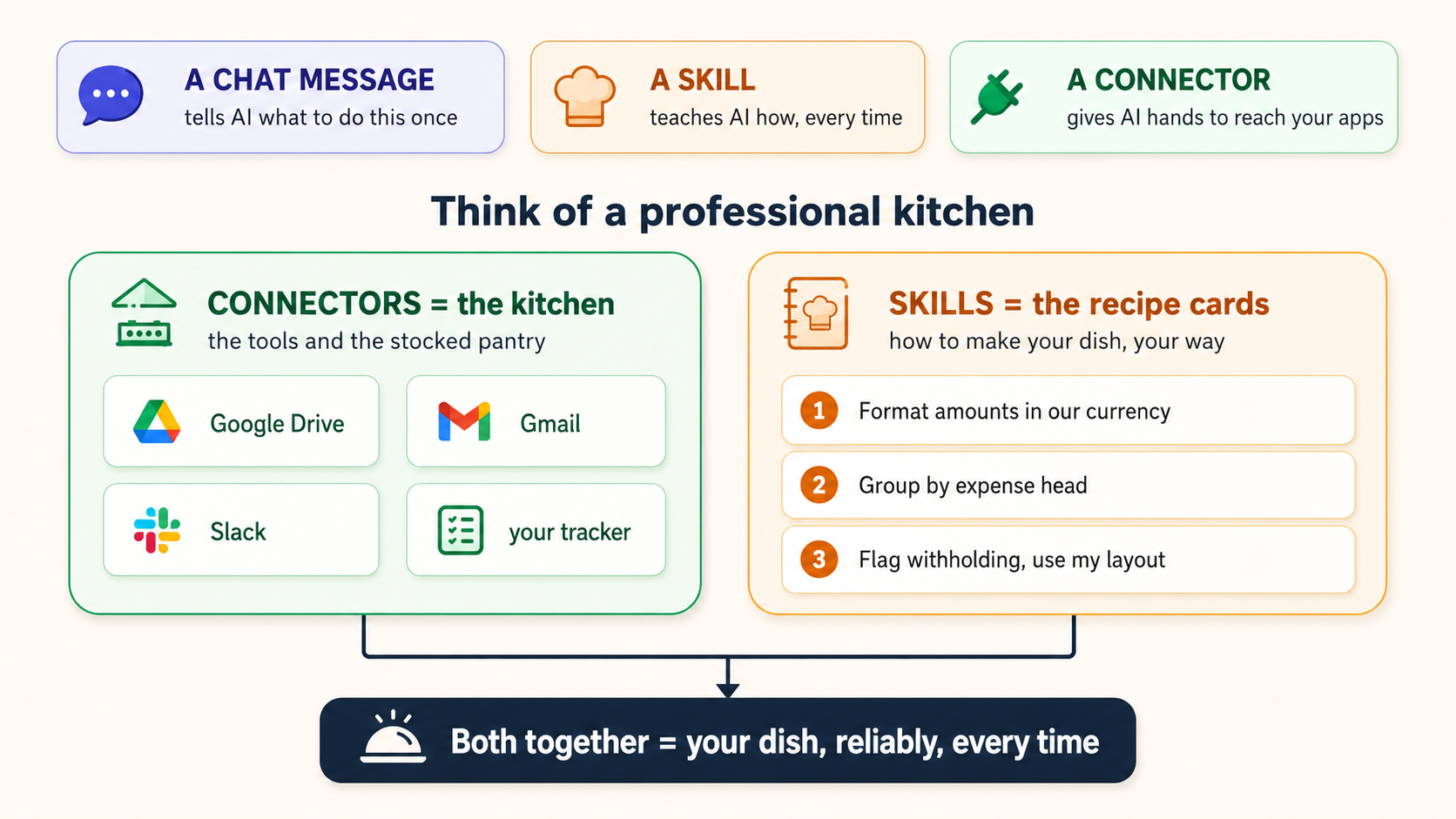
Give a cook a kitchen but no recipes, and every dish is improvised. Give them recipes but no kitchen, and they can read but not cook. Give them both, and they produce your dish reliably.
Part 1: The two upgrades
1. From chat box to operating layer
- An accountant opens a fresh chat every month to prepare a client summary. Every month they paste the same instructions. Format amounts in our reporting currency with thousands separators, group by expense head, flag anything above the tax-withholding threshold, follow this template. An expense head is a spending category, such as travel, rent, or salaries. The tax-withholding threshold is the amount above which tax must be held back from a payment and sent to the government. The AI does it well, then forgets it.
- A doctor dictates consultation notes and wants them in SOAP format every time, with allergies pulled to the top. SOAP is the standard four-part clinical note. It records what the patient says, what the doctor sees, the assessment, and the plan. They re-explain the format daily.
- A marketer wants every social caption in the brand voice. No exclamation marks, no "game-changer", always a question as the hook. They paste those rules into every chat.
- An engineer wants design review notes grouped by severity, with a fixed checklist on each finding. Same paste, every review.
All four have the same shape. A repeatable task, done your specific way, where only the input changes. A Skill is a saved set of instructions built for that shape. You write the "how" down once, and AI applies it whenever the task comes up.
Now a second kind of friction.
- The accountant's numbers live in an Excel file, and last quarter's figures are in an email.
- The doctor's patient history sits in a Google Drive folder.
- The marketer's content calendar is in a planning tool, and past posts are in a Drive folder.
- The engineer's open issues are in a tracker like Jira or Linear.
AI can reason well about all of this, but only if the information reaches it. Copy-pasting is the price of AI having no hands. A Connector is a safe link that lets AI reach one of your apps. With your permission, AI opens the app, takes what it needs, and writes results back when you allow it.
Put the two together and the chat box becomes a colleague who knows your standards and can reach your files. People call this shift the operating layer, which means AI that acts on your real work instead of a box you type into.
2. What a Skill actually is
A Skill is almost embarrassingly simple. It is a folder with a text file in it.
SKILL.md is the required text file, named exactly that way, capital letters and all. It holds a name, a short line about when to use the skill, and the instructions you want AI to follow. A name, one line, and a paragraph of plain-English instructions will work.
The folder can also hold example files, a template document, reference notes, or small programs. None of that is required. The accountant's first skill could be five sentences of formatting rules. Those optional programs are real code, but you never write a line of it. AI writes any code a skill needs, as Part 3 shows.
Anthropic describes skills as "folders of instructions, scripts, and resources that Claude loads dynamically to improve performance on specialized tasks." The word doing the work is "dynamically". AI does not hold every skill in view at all times. It keeps only the description, which is the short line that says what a skill is for, and opens the full instructions when your request matches. Progressive disclosure is the engineers' name for that habit. It is why you can install dozens of skills without slowing anything down.
3. What a Connector actually is
A Connector is how AI safely reaches your apps and data. Connect Claude to Google Drive and it can search your files. Connect it to Gmail and it can read your mail and draft replies. Connect it to Slack, Linear, Asana, or Notion and it can pull from those tools and act in them.
MCP is the open standard connectors run on, and the letters stand for Model Context Protocol. A connector is a small piece of software that a company, or an AI, built with code. You never build it or read it. You click Connect. That is the bargain this book calls code you never write. You do not need to understand MCP to use a connector, any more than you need to understand how email is delivered.
Three facts matter.
- AI inherits the permissions you already have. If your account cannot open a file, channel, or record, the connector cannot either. Connecting Google Drive does not hand AI your whole company's drive.
- You choose how much AI may do. Read-only means AI may look but not change, as in "search and summarize my email". Write access means AI may edit, create, send, or delete, as in "send this email". Start read-only. Grant write access only once you trust how the tool behaves.
- You turn connectors on per conversation. Connecting an app once makes it available. You still decide which connectors a chat may use, and you choose the scope, which means how much of the app AI may reach. One folder is a smaller scope than a whole drive, and smaller is safer.
A directory holds ready-made connectors for Google Drive, Gmail, Slack, Notion, Figma, Linear, Atlassian, and many more. You can also add a custom connector, which is one you set up yourself for any service that speaks MCP. An interactive connector draws a live panel inside the chat instead of returning only text.
4. Skills vs Connectors vs Projects vs Custom Instructions
Four features sound similar, and beginners mix them up. A Project is a workspace that holds files and instructions and loads them in every chat inside it. Custom instructions are preferences that apply to all of your chats.
| Feature | What it is | Best for | The one-line test |
|---|---|---|---|
| Skill | Reusable how-to instructions AI loads only when relevant | A repeatable task done your specific way: formatting, voice, checklists | "I keep re-explaining how to do this." |
| Connector | Safe access to an outside app or data source | Reading files, email, messages, and tickets, or acting in them | "I keep copy-pasting from another app." |
| Project | A workspace whose files and instructions load in every chat | A body of work with standing context: a client, a course, a book | "These same files and rules apply to everything here." |
| Custom instructions | Preferences applied to all your chats | Global style: "be concise", "use metric units" | "I want this to be true everywhere, always." |
Three lines people confuse:
- A Skill and a Project. A Project loads its context the moment you open a chat inside it, so it is always on. A Skill sleeps until a request matches it, then works anywhere. Standing knowledge belongs in a Project, and a procedure that runs on demand belongs in a Skill.
- A Skill and a Connector. A Connector is access, meaning what AI can reach. A Skill is expertise, meaning how AI should behave. They are partners, not alternatives, which is the point of section 8.
- A Skill and custom instructions. Custom instructions touch everything you do, and a Skill touches one kind of task. "Always reply in the language I write in" is a custom instruction. "When I ask for a board paper, use this eight-section structure" is a skill.
5. The question everyone asks: do I type a slash command, or does AI just know?
In Claude.ai, the web and mobile app and your main tool, skills start on their own. You describe your task in plain language. AI reads your request, checks it against the short description of every skill you have switched on, and loads the matching one. Fire is the word this page uses for that moment, and it means the skill activates without you naming it. Ask for "a PowerPoint about Q3 results" and the PowerPoint skill fires.
That is progressive disclosure at work. A sharp description is what makes the right skill fire at the right moment, and section 12 comes back to it.
Slash commands live in the more hands-on tools.
- In Cowork and the Microsoft 365 add-ins, which put Claude inside Excel, Word, PowerPoint, and Outlook, you can type
/to browse your skills and pick one. Plain words work too. - In Claude Code and OpenCode, the developer tools in Part 4, skills also load on their own, and you can call one deliberately.
A third option works everywhere, including Claude.ai. Name the skill in plain English. If automatic matching misses, write "use my brand-voice skill to draft this caption".
| You want to… | In Claude.ai (web/app) | In Cowork / Excel-Word-PPT add-ins | In Claude Code / OpenCode |
|---|---|---|---|
| Let AI decide | Describe the task. Automatic. | Describe the task. Automatic. | Describe the task. Automatic. |
| Force a specific skill | Name it: "use my X skill" | Type / and pick it, or name it | Name it, or call it directly |
| Browse what's available | Customize, then Skills | Type / in the sidebar | List your skills folder |
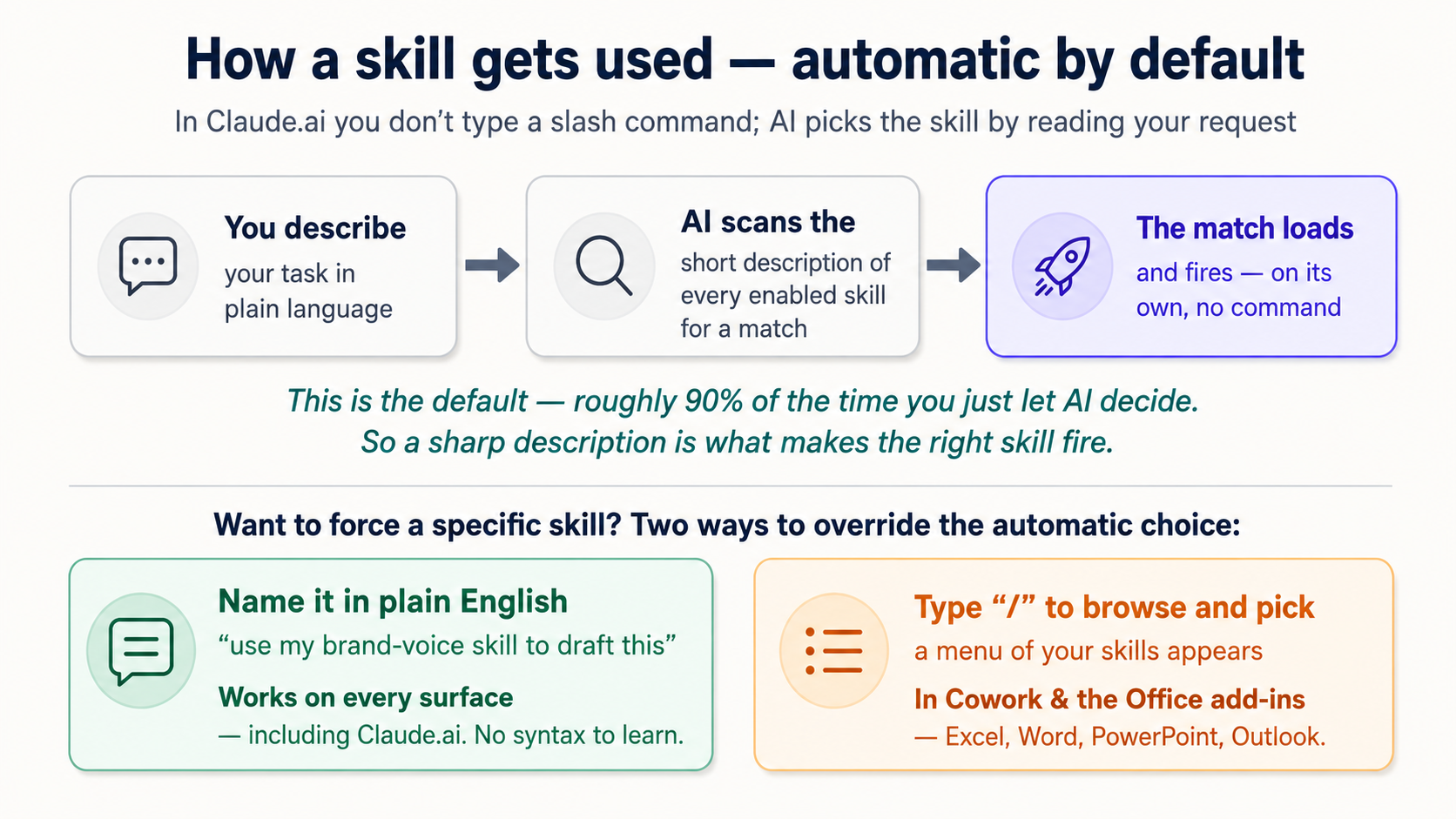
Connectors work the same way. Once an app is connected and enabled for the conversation, AI brings it in when your request calls for it. "Summarize the contract in my Drive" pulls from Drive with no clicking. You ask for the thing that needs it.
In Claude.ai, skills and connectors are automatic, and you will spend most of your time letting AI decide.
Part 2: Using what already exists (no building required)
Anthropic and its partners have already made skills and connectors you can switch on in two minutes.
6. The skills that come built in
Anthropic maintains a set of skills that produce finished files. They all depend on one switch, "Code execution and file creation", under Settings, then Capabilities:
- Word: formatted
.docxdocuments - PowerPoint: full slide decks from a description
- Excel: real spreadsheets with formulas, not a table pasted into chat
- PDF: creating and filling PDFs
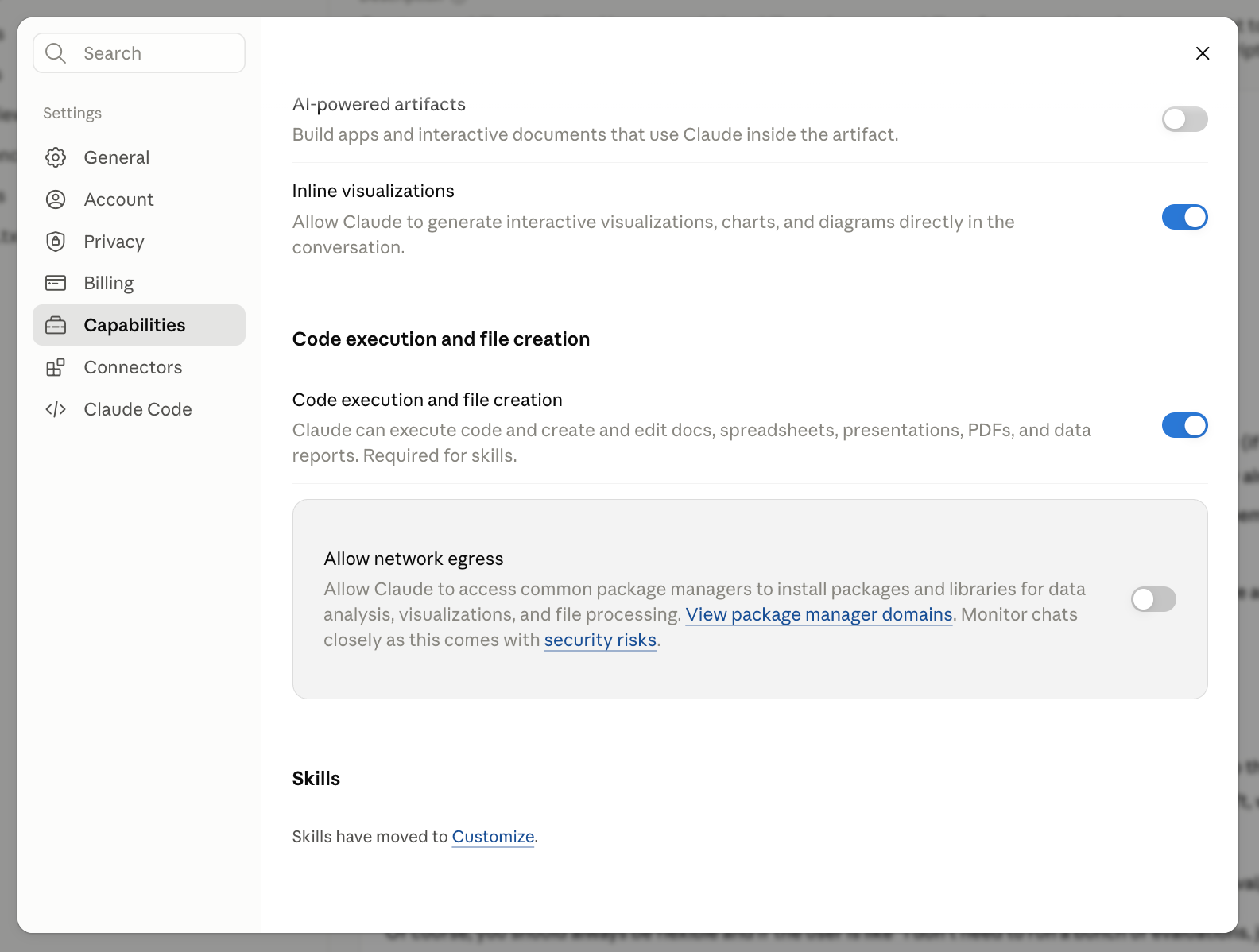
Settings, then Capabilities. This switch is the engine. Notice the label "Required for skills".
You just ask. Tell Claude "prepare a slide deck introducing agentfactory.panaversity.org to a general audience" and a finished deck comes back.
Open Customize, then Skills, in the left sidebar next to Connectors. On a fresh account you will find one skill there. skill-creator is an Anthropic skill whose job is to help you build skills of your own. That is correct, not a bug. The document skills are not missing. They live in the engine, not in this list.
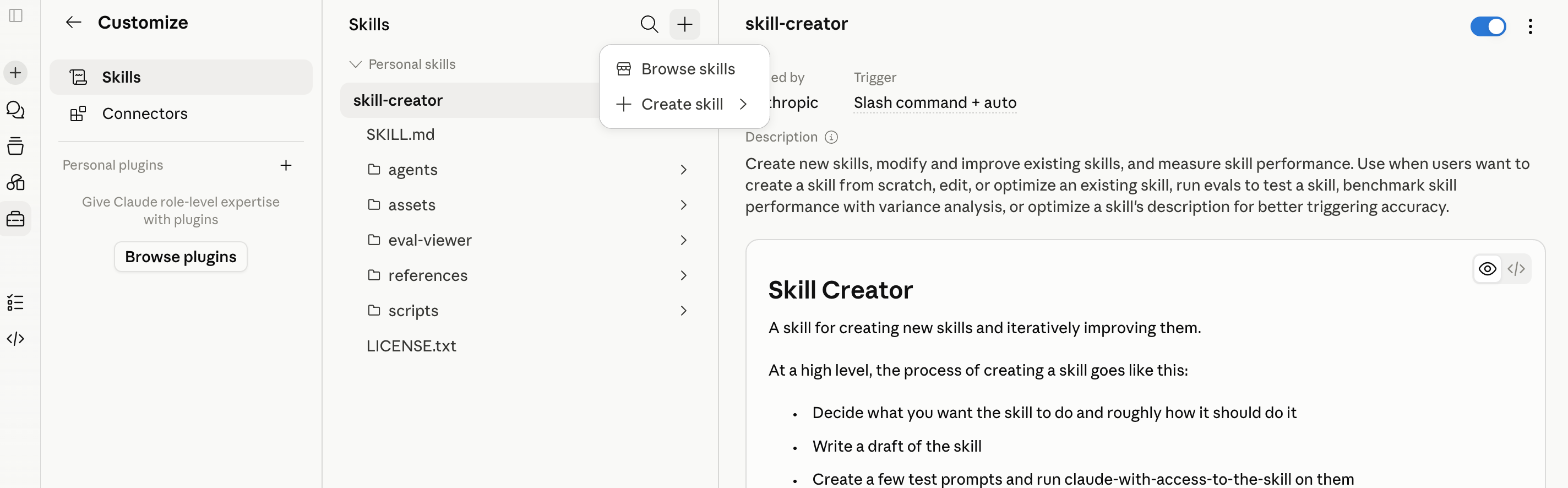
Customize, then Skills. The Word, PowerPoint, Excel, and PDF skills are deliberately not listed here.
Click that "+" and choose "Browse skills" to open the directory of skills you can install in one click, including partner skills from Notion, Figma, and Atlassian. Installed skills are view-only. To change one, download a copy, edit it, and upload it as your own.
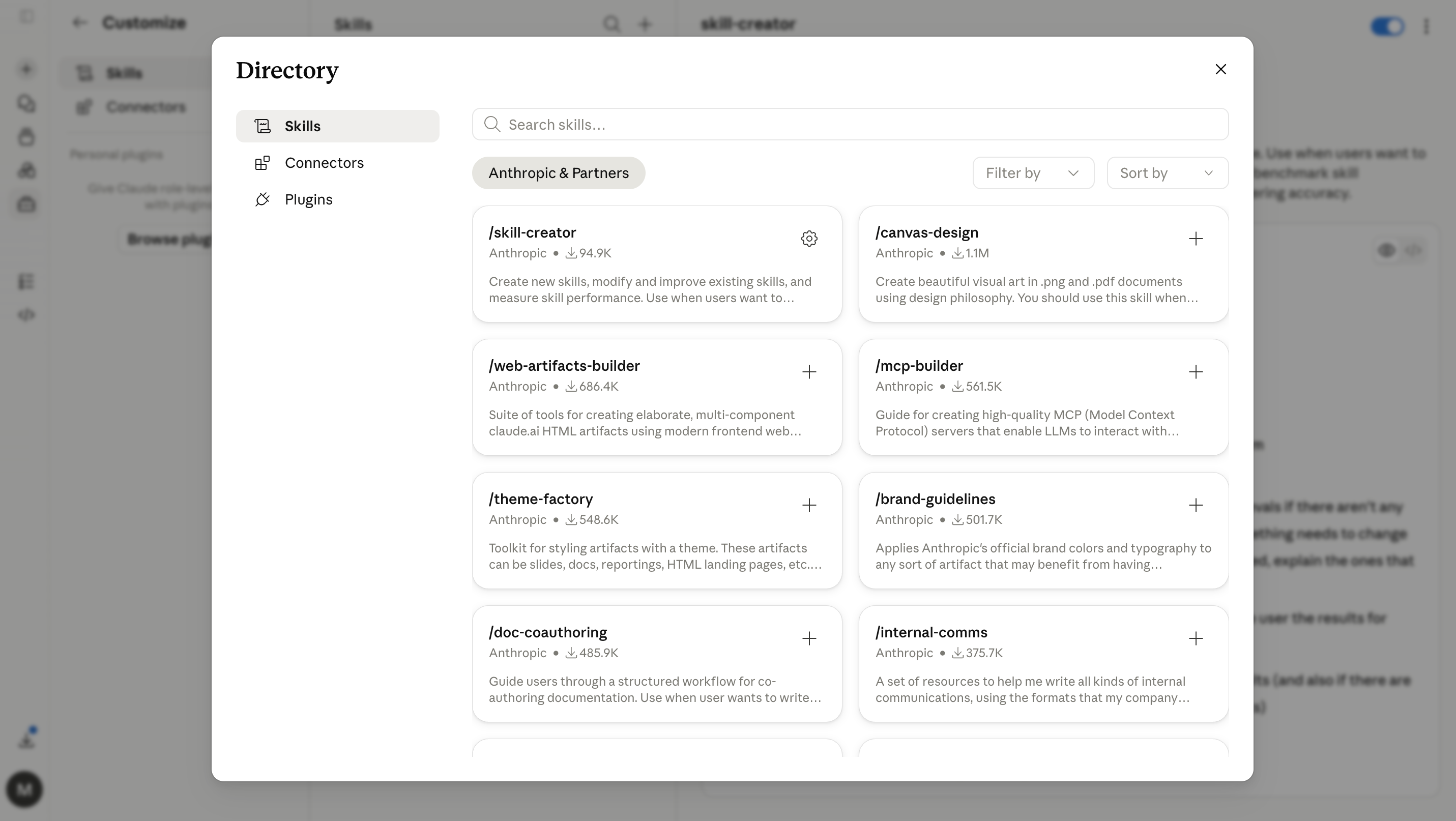
The directory behind "Browse skills". Whatever you add lands in your list.
A wider ecosystem exists too. Skills became an open standard in late 2025, so public marketplaces appeared quickly, and community sites now list tens of thousands of skills. That is a gift and a hazard. A free skill from a stranger is a text file you are about to let AI follow. The built-in skills and the official directory are the safe place to start.
7. Connecting your apps
Connecting an app takes about a minute. From a chat, click the "+" in the lower left, or type /, hover over Connectors, choose "Manage connectors", then click the "+" beside Connectors. You can also open Customize, then Connectors, from the left sidebar. Pick a service, click Connect, and sign in. It is the usual "allow this app to access your account" flow.
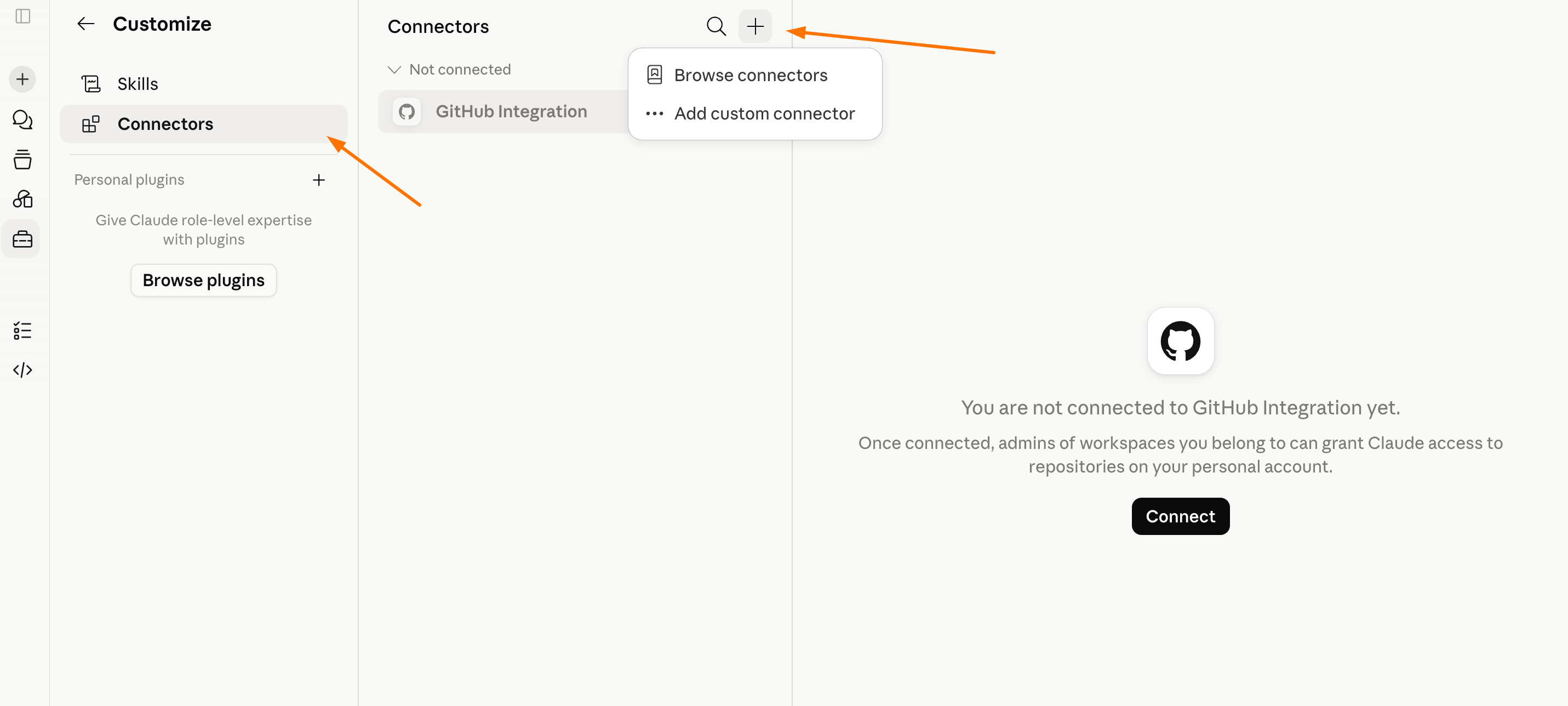
Customize, then Connectors. The "+" opens "Browse connectors" or "Add custom connector", which is for any app that speaks MCP.
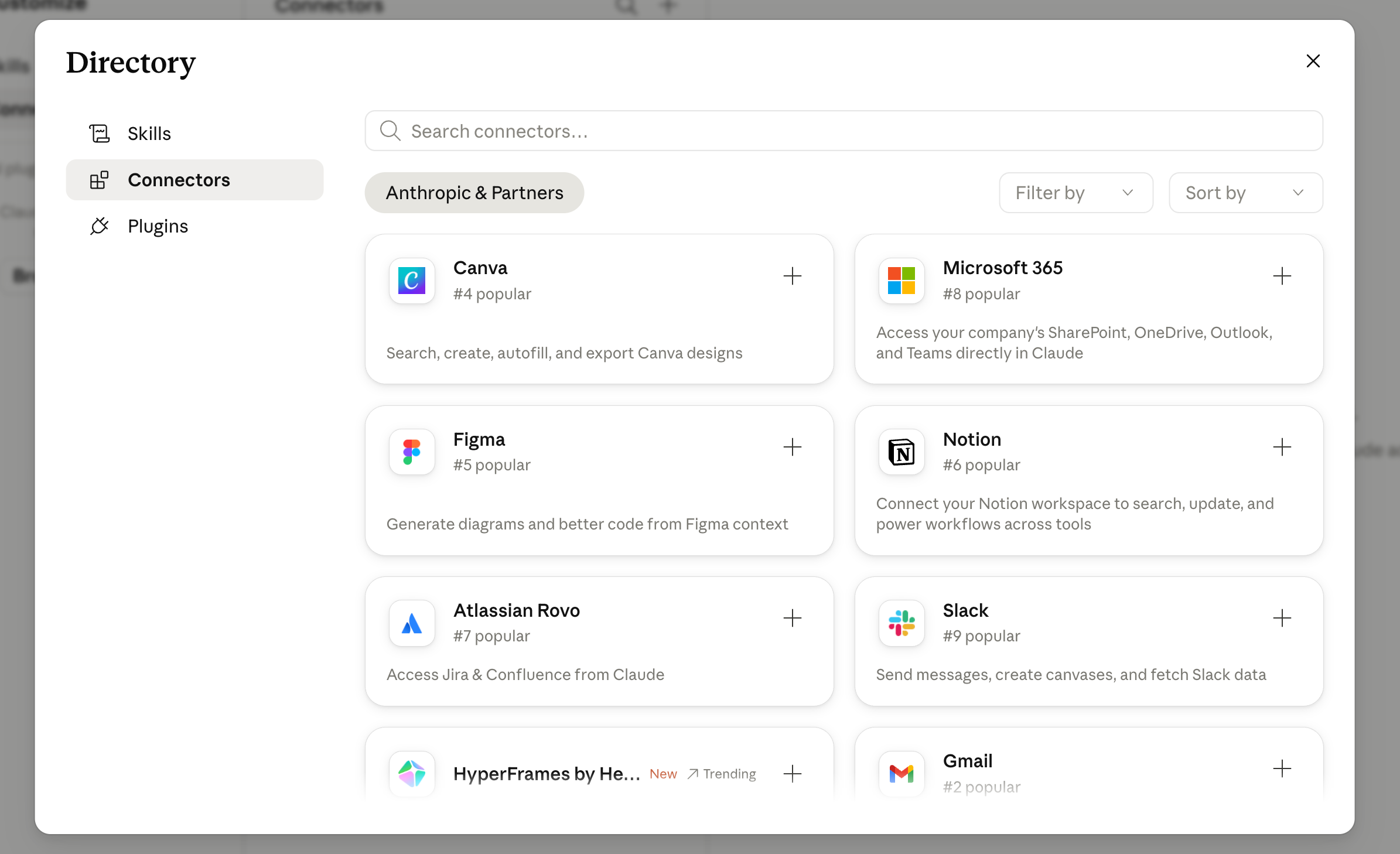
The ready-made Anthropic and partner connectors.
Four practical notes:
- After connecting, enable the connector for a conversation. Open the same "+" menu, then Connectors, and switch on the ones this chat should use.
- Free plans include one custom connector. The ready-made directory connectors are broadly available.
- Each connector brings a list of actions, and the settings call those actions tools. That is a different use of the word from the five products in this course. The Tool access setting is where you control when those actions load. With ten or more connectors switched on, choose load-on-demand, which loads an action only when a request needs it.
- Watch for the "Interactive" badge. Those connectors draw live interfaces inside the chat.
Here is a worked example for the doctor, on made-up data, so there is nothing real to mishandle. First, have Claude create the practice file: "Make a one-page Word doc of a fake patient intake form (call it DEMO-Okafor-2026-03, with three invented medications and one allergy) and save it to my Google Drive." Now read it back: "Find DEMO-Okafor-2026-03 in my Drive and summarize the medications into a SOAP-style note." Claude searches your Drive, pulls the file, and drafts the note. In one connector you just saw both directions.
Two honest notes. The Drive connector reads your documents but cannot edit them in place, so the "write" step means saving a new file. That needs "Code execution and file creation" switched on, plus Drive's write permission. And because you invented every detail, you ran the full loop without touching one real record. Keep that habit for regulated data, such as healthcare, legal, or student records. When the data is real, use only the accounts your organization has approved.
8. The real magic: Skills + Connectors together
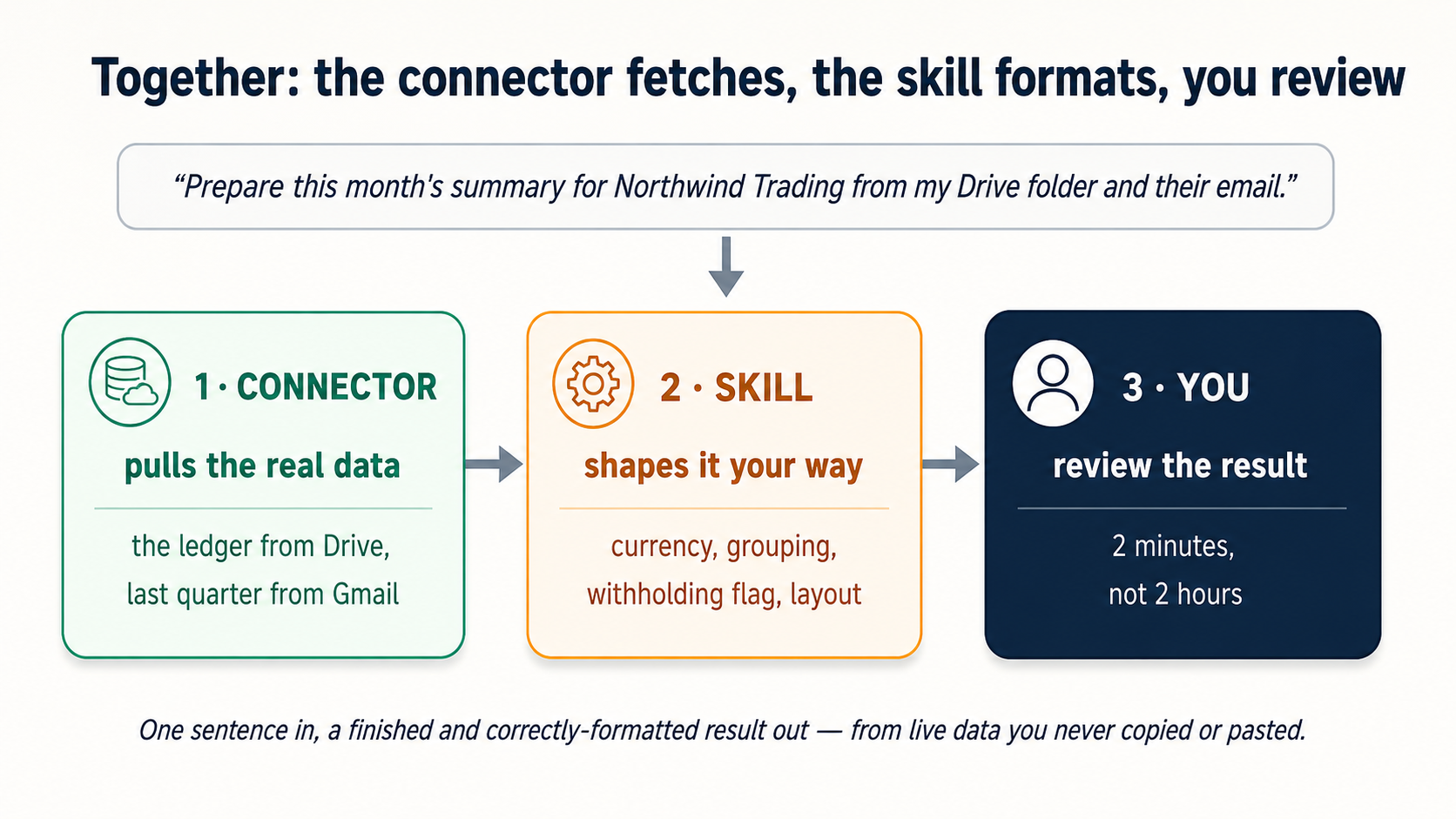
Each is useful alone. The Connector fetches the real data. The Skill shapes the output. Two worked examples.
The accountant's monthly close. With a "client-summary" skill built and Google Drive connected, the ritual collapses to two short messages. First, make a ledger:
Create a sample ledger spreadsheet for a made-up client called DEMO Trading:
a dozen March transactions across a few expense heads, two or three of them
deliberately above a typical withholding threshold. Save it to my Google
Drive as DEMO-ledger-March.
Then the monthly request is one sentence:
Prepare the March client summary for DEMO Trading from DEMO-ledger-March
in my Drive.
The Drive connector fetches the ledger. The skill formats every amount in the reporting currency, groups by expense head, flags payments above the tax-withholding threshold, and lays it out in the firm's four-section template. A two-hour ritual becomes a two-minute review.
The marketer's weekly content batch. A "brand-voice" skill holds the rules: no exclamation marks, question-hook openings, banned buzzwords, and the call-to-action format. A connector reaches the content calendar in Notion. The request is "Draft captions for this week's three scheduled posts in Notion, in our voice." The connector reads the calendar, the skill writes the captions on brand, and they edit instead of compose.
The same template fits the engineer, with a "design-review" skill and a Linear connector, reviewing open issues tagged arch and writing findings by severity. It fits the teacher too, with a "lesson-plan" skill and a Drive connector building next week's plan from the syllabus.
9. Which problems need a Skill, which need a Connector, which need both?
When a task feels repetitive, ask two questions. Do I keep re-explaining how to do it? That is a Skill. Do I keep fetching data from another app? That is a Connector. Both is a common answer, and it means both.
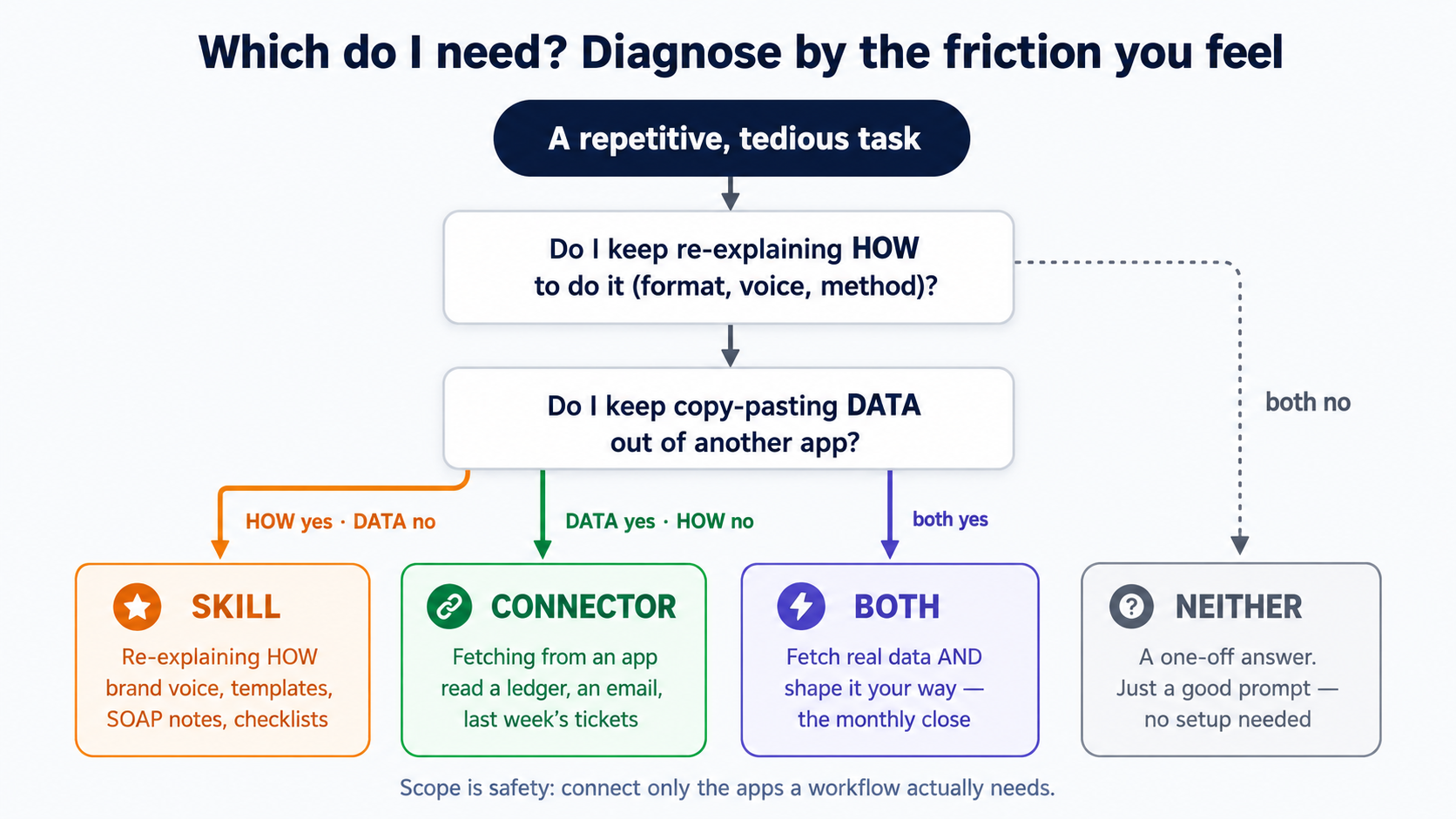
| The friction you feel | What it needs | Example |
|---|---|---|
| "I paste the same formatting, voice, or method rules every time." | Skill | Brand voice, report template, SOAP notes, review checklist |
| "The output should always look a certain way." | Skill | Board-paper structure, invoice layout |
| "I keep copying data out of Drive / Gmail / Slack / a tracker." | Connector | Pulling a ledger, an email thread, last week's tickets |
| "I want AI to do something in another app." | Connector (write access) | Create a Linear issue, draft an email reply, update a Notion page |
| "I fetch real data and it must come out my specific way." | Both | Monthly client close, weekly content batch, design review |
| "I just want a one-off answer right now." | Neither | A single question, a quick draft you will never repeat |
Two honest cautions. Not everything deserves a skill. A task you do once is just a good prompt, and a skill is worth making only when the task repeats. And a connector you do not need is a door left open. Connect the apps a workflow requires, not every app you own. Scope is safety.
Part 3: Building your own Skill (the AI builds it for you)
This part sounds like it needs programming and does not. You describe what you want in plain English, AI writes the SKILL.md, and then you test and fix it. The accountant's client-summary skill is the running example.
10. The fastest path: let AI write it
Anthropic provides a skill for making skills, called skill-creator. You simply ask:
Use the skill-creator skill to help me build a skill.

The skill prepares a monthly client financial summary for my
accounting firm. Whenever I ask for a "client summary"
or "monthly close," it should:
- Format all amounts in our reporting currency with thousands separators.
- Group line items by expense head.
- Flag any payment above the tax-withholding reporting threshold.
- Output using my standard four-section report layout
  (Overview, Income, Expenses by Head, Flags & Notes).

Ask me anything you need, then build it.
AI asks a few clarifying questions, such as the threshold figure and what the template looks like, then generates a complete, correctly formatted skill. That is the brainstorm-and-iterate loop from the prompting primer, pointed at a tool instead of a draft.
You described an outcome, and AI produced the file plus any code the skill needs, without you writing or reading a line of it. That is the move the previous Foundations crash course, Code You Never Write, turns into a discipline. You are the client, not the contractor. A good client does not lay bricks. They write a clear brief and check the result against things they can measure.
11. Anatomy of a SKILL.md
Every skill has the same structure. Here is a minimal version of the accountant skill.
---
name: client-monthly-summary
description: Prepares a monthly client financial summary for an
  accounting firm. Use when the user asks for a "client summary",
  "monthly close", or "month-end report". Formats amounts in the
  firm's reporting currency, groups by expense head, and flags
  tax-withholding items.
---

# Client Monthly Summary

## Settings (edit these to make it yours)

- Reporting currency: your currency (e.g., USD, EUR, NGN)
- Withholding threshold: the amount above which to flag a payment (e.g., 50,000)

## Instructions

When asked to prepare a client summary or monthly close:

1. Format every amount in the reporting currency above, with thousands
   separators (e.g., "1,250,000").
2. Group all line items by expense head. Sort heads by total,
   largest first.
3. Flag any single payment above the withholding threshold above
   with a "⚑ WITHHOLDING" note.
4. Produce the report in exactly four sections, in this order:
   Overview, Income, Expenses by Head, Flags & Notes.

## Example

User: "Prepare the March summary for DEMO Trading."
Result: A four-section report, currency-formatted, withholding lines flagged.
Two parts. The frontmatter is the block at the top, between two lines of three dashes.
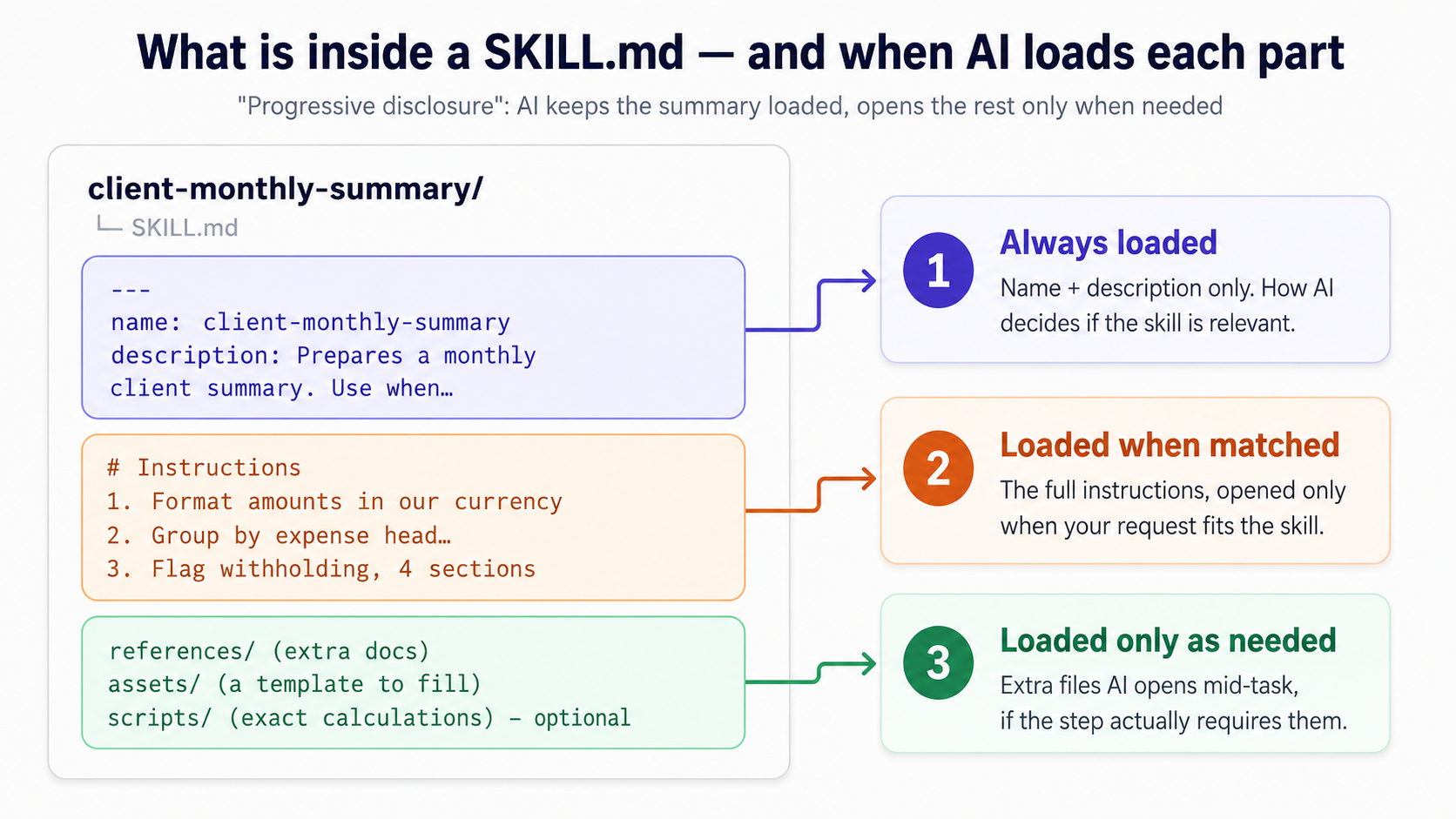
- The frontmatter holds the name and the description. It is the only part AI keeps loaded at all times, so it is how AI decides whether the skill is relevant. That is progressive disclosure, level one.
- Everything after it is the instructions, loaded only when the description matches your request. That is level two.
Complex skills can add three optional folders. A references/ folder holds detailed docs AI reads when needed, which is level three. An assets/ folder holds a template to fill in. A scripts/ folder holds programs for steps that must be exact. A few rules prevent common upload errors:
- The file must be named exactly
SKILL.md. - The folder name uses
kebab-case. Soclient-monthly-summary✅, notClient Monthly Summary❌ orclient_monthly_summary❌. - The name and the description must contain no XML-style tags, meaning anything inside angle brackets. Keep the description short and specific, inside the platform's length limit.
- Do not put "claude" or "anthropic" in a skill name. Those are reserved.
12. The description field is the whole game
The description decides whether your skill ever fires. AI does not read your instructions to judge relevance. A vague description means a skill that never starts, and a sharp one starts exactly when it should. The formula is what it does, when to use it, and the exact phrases you would say.
| Bad description | Why it fails | Better description |
|---|---|---|
| "Helps with reports." | Too vague. Fires for everything or nothing. | "Prepares a monthly client financial summary. Use when the user asks for a 'client summary', 'monthly close', or 'month-end report'." |
| "Handles patient documentation." | No trigger words a user would say. | "Converts consultation notes into SOAP-format clinical notes. Use when the user asks for a 'SOAP note', 'clinical note', or to 'write up' a consultation." |
| "Brand stuff for marketing." | No idea what or when. | "Writes social captions in our brand voice (no exclamation marks, question-hook openings). Use when drafting Instagram, LinkedIn, or X captions." |
One debugging trick, once a skill is installed. Ask AI, "When would you use my client-summary skill?" It says the description back in its own words. If that answer is narrower or wider than you meant, you have found what to fix.
A negative trigger is a line that says when not to use the skill, and it helps when a skill fires too eagerly. For example: "Do NOT use for one-off calculations or quick questions. Use only for full month-end reports."
13. Test, then iterate
A skill is never done on the first draft.
- Describe the skill in plain English. Let AI write the first version.
- Read the draft before you test it. Ask one question of every instruction line: would two colleagues who read it do the same thing? "Flag the big payments" fails. "Flag any single payment above the withholding threshold with a WITHHOLDING note" passes. A failing line shows no error message. The output just comes out different each run.
- Test what starts the skill. Try the phrases that should start it, such as "prepare the client summary". Confirm it loads. Then try unrelated requests and confirm it does not take over.
- Test the output it produces. Run the skill on a real or realistic input. Right currency? Grouped by head? Withholding flagged? All four sections?
- Test the awkward cases too. A client with no income that month. A payment exactly on the threshold. A messy ledger. Where it fails, use the timing list below.
- Bring failures back to skill-creator. Like this: "This skill double-counted reversed entries. Update it to net out reversals before grouping."
When a skill misbehaves, note when it went wrong before you change anything. This timing list points at the cause.
- Wrong from the first reply. The problem is in the file itself.
- It never starts. The description is too vague, or missing the words you use. Add them.
- It starts on the wrong things. The description is too broad. Narrow it, or add a negative trigger.
- It starts but the output is off. An instruction is loose. Write down the rule you assumed it knew.
- Right at first, worse as the chat grows. The chat got long and AI lost track. The skill is fine, so do not edit the file. Start a fresh chat and restate the task.
- The same mistake every run, even after you tightened the wording. The step is in the wrong place. An exact step, such as a sum or a threshold check, belongs in a small program, because code is exact and a sentence gets read differently each time. Ask skill-creator to move it. If it keeps guessing at data, that data should come through a connector.
- It used to work and now does not. The skill did not change, so something around it did. Your threshold, your template, a file the connector reads, or how your team now works. Read the skill again against how you work today. Nothing warns you when a skill goes out of date.
14. Saving and sharing your skill
Saving a finished skill takes one click. When skill-creator finishes, it shows your skill in a panel beside the chat with a "Save skill" button. Click it, and the skill drops into your personal skills, switched on and private to your account. No zip file, no upload.
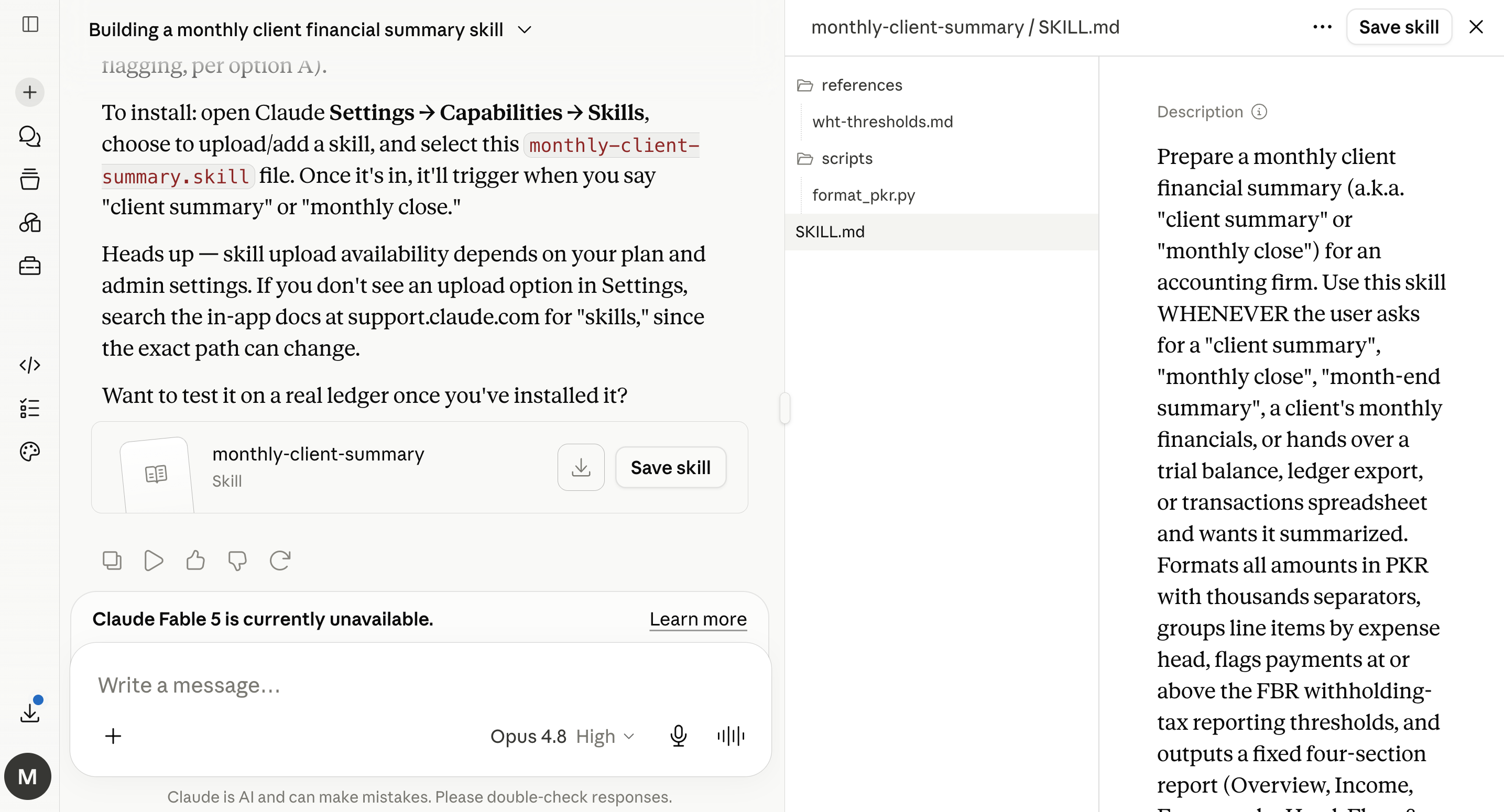
One click puts it in your list. Have a skill folder from elsewhere? Add it through Customize, Skills, "+", "Create skill", then upload it.
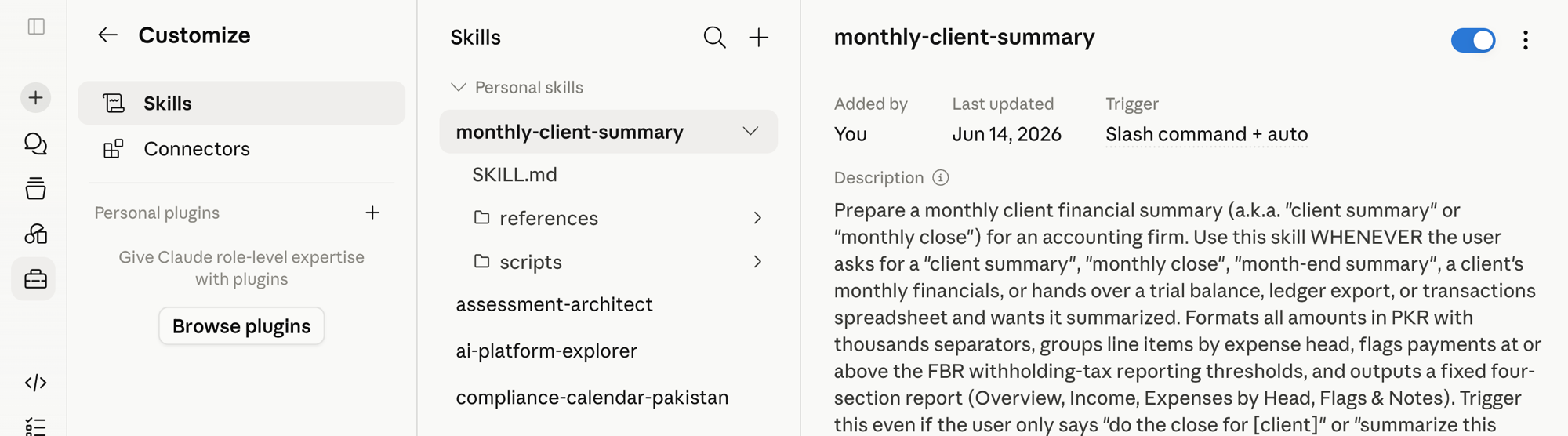
The list that held only skill-creator now holds your own skill, marked "Added by You", ready to fire when you say "client summary".
On Team or Enterprise plans you can share a skill with named colleagues, or publish it to your organization's directory. Shared skills are view-only and update themselves when you change the original, which standardizes how a whole firm produces its documents. Sharing is off by default, so an owner enables it first.
Part 4: The same skill, five places
A skill you write once is portable. In December 2025 Anthropic published the Agent Skills open standard at agentskills.io, which is the format that lets many tools read the same SKILL.md file. Within months, tools from other vendors agreed to read those files. Two of them are CLI tools, which means command-line tools you run by typing commands instead of clicking. They are OpenAI's Codex CLI and Google's Gemini CLI. The honest caveat is that a basic SKILL.md travels, while each product adds its own install path, its own way to call a skill, its own permissions, and extra features. The recipe you wrote hangs in many kitchens, even if each kitchen arranges its shelves differently.
The same month, the Linux Foundation formed the Agentic AI Foundation to give this kind of infrastructure neutral, cross-vendor governance. One of its founding projects is MCP, the standard your connectors run on. So the plumbing under both Skills and Connectors is steered in the open rather than by one company. That is why "portable" is a safe bet and not a vendor's promise.
| Where you work | Who it's for | Install a skill | Connect an app | Build your own |
|---|---|---|---|---|
| Claude.ai (web/mobile) | Everyone. Your main tool. | Click Install in the directory, or upload a zip | "+" → Connectors → pick → sign in | skill-creator writes it, then you click Save skill |
| Cowork / OpenWork (desktop) | Knowledge workers, non-coders | Same directory. Enabled skills appear on their own | Same flow, plus files already on your computer | Describe it. The agent can save it straight to a folder |
| Claude Code / OpenCode (terminal) | People who work with code | Drop the skill folder into the skills directory | Set up once in a config file, then ask in plain language | Ask the agent to "create a skill for…". It writes the files |
In each pair the first tool is commercial and the second is the open-source alternative. Both read the same SKILL.md.
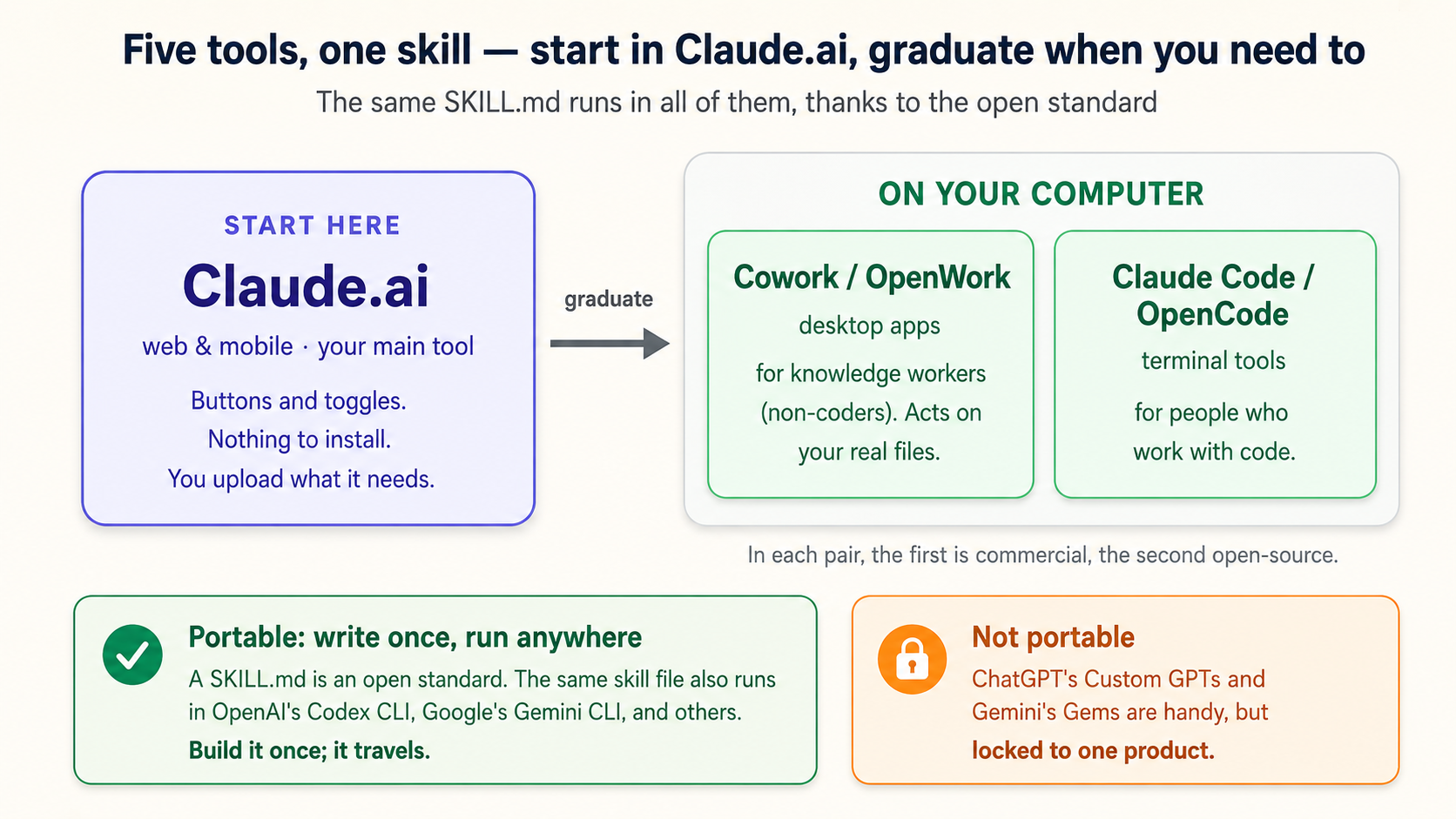
For non-programmers the honest guidance is to start and stay in Claude.ai.
What about ChatGPT and Gemini?
Two things are true at once, and the marketing blurs them.
On Skills, the picture really is cross-vendor. Because Agent Skills is an open standard, the command-line tools from OpenAI and Google, Codex CLI and Gemini CLI, read the same SKILL.md files. So do VS Code and Cursor. A skill is the one piece of this course that is not locked to Claude.
On "teach it once" inside the consumer chat apps, each vendor has its own version, and none of them travel.
- Custom GPTs are ChatGPT's saved assistants, each holding your instructions and optional knowledge files, distributed through the GPT Store. They live only inside ChatGPT.
- Gems are Gemini's saved assistants, holding instructions and knowledge files, and they live only inside Google's apps.
The difference that matters is portability. If you only ever use one tool, either is fine. If your strategy spans more than one model, which this book argues it should, Skills are the future-proof choice.
On Connectors, all three have an equivalent. ChatGPT connects through its connectors and apps, and Gemini uses its Workspace integration and extensions. The underlying MCP technology is increasingly shared. The principle is identical everywhere. You grant access, AI inherits your permissions, and you start read-only.
Learn it in Claude.ai. Teach-once, connect-your-apps, automatic firing, and scoped access transfer to every tool. Where a feature is Claude-specific, we have said so.
Part 5: Use this safely (the part most tutorials rush)
The same principle as What AI Actually Is. Nothing inside the model checks whether an action is safe or correct, so you are that check.
A skill is a set of instructions you are letting AI follow, and a connector is a door into your real data. Treat a skill from a stranger like a contract you are about to sign, and a connector like a key you are about to hand over.
The two real risks
-
Malicious skills are the first risk. A skill is a text file, and possibly some programs, so a bad actor can write one whose hidden instructions tell AI to leak data or contact a suspicious server. The two named dangers are prompt injection, which means hidden instructions that push AI into actions you did not intend, and data exfiltration, which means the skill sending your information out in secret. That is why "I downloaded a free skill from social media" is a sentence that should make you pause.
-
Over-broad connector access is the second. A connector can only reach what you can reach, but if you grant write access carelessly, AI can change things on your behalf. The risk is usually not dramatic. It is a wrong edit, a record in the wrong place, or a deleted file with no easy undo.
Access is only half of a connector's reach. The other half is the list of actions it was built to perform, and that half is not yours to set. Section 7's Drive connector can save a new file into your Drive and still cannot edit an existing document in place. So before you build a weekly habit on a connector, ask it in plain language: "What can you actually do in my Drive through this connector, and what can't you do?" Then shape the work around the answer. A limit like that is not a bug and not a permissions problem. It is the shape of the tool.
The safe-use checklist
- Install skills from trusted sources. The built-in Anthropic skills and the official directory are the safe default. A zip file from a forum is not.
- Read a skill before enabling it. Open the
SKILL.mdand any bundled files, or ask AI: "Read this skill and tell me exactly what it instructs you to do. Flag anything that contacts external servers, handles credentials, or could leak my data." Pay attention to programs and to any instruction that reaches the internet. - Start a new connector read-only. Grant "search and summarize" before "send" or "delete". Move up to write access only after you have watched the tool behave well.
- Scope to the smallest folder or app the task needs. Do not grant whole-drive access for a one-folder job.
- Scope is a connector idea, not a Skill idea. A connector has scopes you grant and can narrow. A Skill has no such dial. It runs with whatever access its chat already has, so its reach is everything that chat can reach, not only what its task needs. That is why reading a skill first is the control for Skills, and starting read-only is the control for connectors. Governance, Risk & Responsible Use works through the difference.
- Check recovery before you allow edits. Confirm how a connector handles version history and undo before you let AI edit, move, or delete files. Some write actions skip the recovery path you expect, so keep backups of anything you cannot afford to lose.
- On a team, route shared skills through your organization's directory, where an owner has reviewed them, not by passing zip files around.
None of this should scare you off. The built-in tools are safe and the everyday workflow is low-risk. The point is that as you move from "use what comes built in" to "install community skills and grant write access", your caution should rise to match.
Recap
- A chat tells AI what to do once. A Skill teaches it how, every time. A Connector gives it hands to reach your apps. Connectors are the kitchen, Skills are the recipe cards.
- A Skill is a folder with a
SKILL.mdtext file. A name, a description, and plain-English instructions. - A Connector is safe, scoped access to an app such as Drive, Gmail, or Slack, running on the MCP standard. AI inherits your permissions.
- In Claude.ai, skills fire on their own when your prompt matches their description. Slash commands and naming the skill are overrides, so the description is the most important thing you write.
- Diagnose by the friction you feel. Re-explaining how points to a Skill, copy-pasting from an app points to a Connector, and both points to both.
- You build skills by describing them to AI, and skill-creator does the writing. Then you test what starts it, test the output, and fix.
- A skill written once runs across many tools thanks to the Agent Skills open standard, unlike ChatGPT's GPTs or Gemini's Gems. Learn it in Claude.ai. The concepts carry to Claude Code, OpenCode, Cowork, and OpenWork.
- Care rises as capability rises. Read skills before enabling, install from trusted sources, start connectors read-only, and keep connector scope tight. Skills have no scope dial, so there the question is what the chat can reach.
AI stops being a box you type into and becomes a layer that knows your standards and reaches your tools. Skills and Connectors are how you make that shift this week.
Try this now
Open Claude.ai, where the free tier is enough, and run these in order. Budget about thirty minutes.
1. Start a built-in skill. Confirm file creation is on under Settings, then Capabilities. Then:
Turn this into a one-slide PowerPoint with a title and three
bullet points: [paste any three facts about your work].
You did not name a skill. Watch it fire on its own.
2. Connect one app, read-only. Connect Drive or Gmail, enable it for the chat, then:
Find [a specific document] in my Drive and give me a three-sentence
summary plus the three numbers that matter most.
Notice that you never downloaded or pasted anything.
3. Build your first skill, by talking. Pick the most repetitive "I keep re-explaining how" task in your week. Then:
Use the skill-creator skill to help me build a skill for [your task].
Here's exactly how I want it done every time: [list your rules,
your format, your must-dos and must-nots]. Ask me anything you
need, then build it.
4. Pressure-test the skill's description. After it is built and installed:
When would you use the skill we just made? And when would you
NOT use it?
If the answer is too wide or too narrow, tell it the fix and have it update the description.
5. Audit a skill for safety. Take any skill you did not write and:
Read this skill and tell me, in plain language, exactly what it
instructs you to do. Flag anything that contacts an external
server, handles credentials, or could send my data anywhere.
6. Diagnose three of your own tasks. Write down three recurring annoyances from your work. For each, is the friction re-explaining how, which is a Skill, fetching from an app, which is a Connector, or both? You now have your first three projects.
🚀 Projects
These projects chain the chapter into something you keep: a private skill, meaning a SKILL.md plus the workflow around it.
One filter decides whether a task is worth a skill. The market-of-one test is this: a skill earns its place when it captures your specific repeated way, the thing no app does for you. Nobody sells an app that writes your class notes in your format. A task an app already does for everybody is just a good prompt.
Do Project 1 this week, on a task you repeat. Each one fits a free account.
Project 130-45 minBuild your first real skillTurn your most re-explained task into a skill that just knows your way.
The build loop from Part 3 is three messages. Paste this one, word for word:
Use the skill-creator skill to build me a weekly study-notes skill.
Whenever I ask for "study notes" or "weekly notes", take my raw class
notes and format them as a heading per topic, a short bold key-terms
list, and exactly three review questions at the end. Ask me anything
you need, then build it.
skill-creator asks a couple of questions, writes the SKILL.md, and test-runs it. Click Save skill and it lands in your skills list. (To make it about YOUR task, keep the same shape and swap in the thing you keep re-typing.)
Next, check the description, the part that decides whether it fires. Paste:
When would you use the weekly-study-notes skill, and when would you NOT use it?
If the answer is too wide or too narrow, tell it the fix. Then prove it works. In a brand-new chat, without naming the skill, paste a week of notes after this line:
Make study notes from this:
It reaches for your skill on its own and hands back your exact format.
Done when: the skill fires on its own from a natural request, produces your format without reminders, and does not hijack an unrelated request.
Project 220-30 minConnect one app, read-only, and use itGet a real answer straight from your own data, with zero copy-paste.
Connect one app you use. Drive or Gmail is easiest. Keep it read-only. Then ask a real question that needs something inside it. For Drive:
Find my most recent document in my Drive, pull the three facts or
numbers that matter most, and give me a one-line summary of what it is.
Or for Gmail:
Summarize my most recent email thread, and list anything it is waiting
on me to do.
AI answers with nothing uploaded. Then say out loud what access you granted, and decide whether this task will ever need write access.
Done when: you have pulled real data through a connector, and you can say in one sentence what it can and cannot do with your account.
Project 345-60 minWire a skill and a connector togetherThe monthly-close / weekly-batch machine, running on your own data.
Combine Projects 1 and 2. With the study-notes skill saved and Drive connected, the weekly ritual is one sentence:
Find this week's class notes in my Drive and make study notes from them.
The connector reads the file, the skill formats it, you review. The accountant's version has the same shape:
Prepare this month's summary for DEMO Trading; the ledger is the file
called DEMO-ledger-March in my Drive.
Check one slice of the result by hand before you trust the whole thing.
Done when: one plain-English sentence produces a finished, correctly formatted result from live data you never copied.
Project 430 minMake it portable, or hand it offCapstone: prove the asset outlives the chat AND the tool.
Take Project 1's skill and do one of two things.
Hand it off. Share it with a colleague, or publish it to your organization's directory on a Team or Enterprise plan. Have them run it cold, with no explanation from you.
Or travel it. Open Cowork or Claude Code, load the same SKILL.md, and run it there. Paste a week of notes after this line:
Use this skill to make study notes from:
That is the open standard in action. The recipe you wrote in one kitchen, cooking in another.
Done when: someone who was not in the original conversation, or a second tool, produces a correct result from your skill.
Project 515-20 minAudit a skill before you trust itInstall one skill from a stranger, then prove to yourself it's safe before you let it run.
A skill from the internet is a contract you should read before you sign. Install one you did not write, from the official directory. Before you rely on it, make AI read it back to you:
Read the skill I just installed and tell me, in plain language, exactly
what it instructs you to do. Then flag anything in it that contacts an
external server, handles passwords or credentials, or could send my data
somewhere I didn't intend. If it's clean, say so plainly.
AI opens the skill, explains what it does, and gives a straight verdict. Clean, or "here is the line that reaches the internet." Most of the time it comes back clean, and that is the point. You spent twenty seconds and now you know.
Done when: you can say in one sentence what a skill you did not write does, and whether it reaches anything outside your account.
Every stall lands in one of these. None requires understanding why it broke. Describing the problem to AI is itself the fix.
- The skill never fires, or fires on the wrong things. Both are description problems, and section 13's timing list has the fixes. Ask AI, 'When would you use my [name] skill, and when would you not?' Then tighten the description by adding the phrases you say, or a "Do NOT use for..." line.
- The connector "can't find" a file. Usually permissions or scope. Confirm the connector is enabled for this chat, and that your own account can open the file.
- AI answered from a glance instead of using the connected data. Name it: 'Use my [app] connector to fetch the actual file before answering, and tell me which file you used.'
- You are nervous about write access or sensitive data. Stay read-only and strip what is not needed. Grant write access only to a tool that has behaved well.
- The chat has grown long and confused. Start a fresh one and restate the task in two lines. A tangled chat is cheaper to abandon than to rescue.
Where to next
- How to Think in the AI Era is your next Foundations course. It trains the discipline underneath everything here, which is asking the right questions in the first place.
- Code You Never Write is the previous course, worth a second look now. Skills can contain code, and connectors are code.
- AI Prompting in 2026 holds the prompting fundamentals that give every skill you build good inputs.
Once you are comfortable teaching AI a task and connecting it to your tools, you are ready for agents that do this work on their own.
Flashcards Study Aid
Test Your Understanding
Each one rewards knowing what to do, not reciting a definition. Answer from the reasoning, not from the longest option.